
Change the deadline of the activity
Important: before continuing, make sure you know the settings for Conditional Triggers and Stage Transition Triggers.
In the Triggers and actions block, click the icon and a floating window will be displayed:
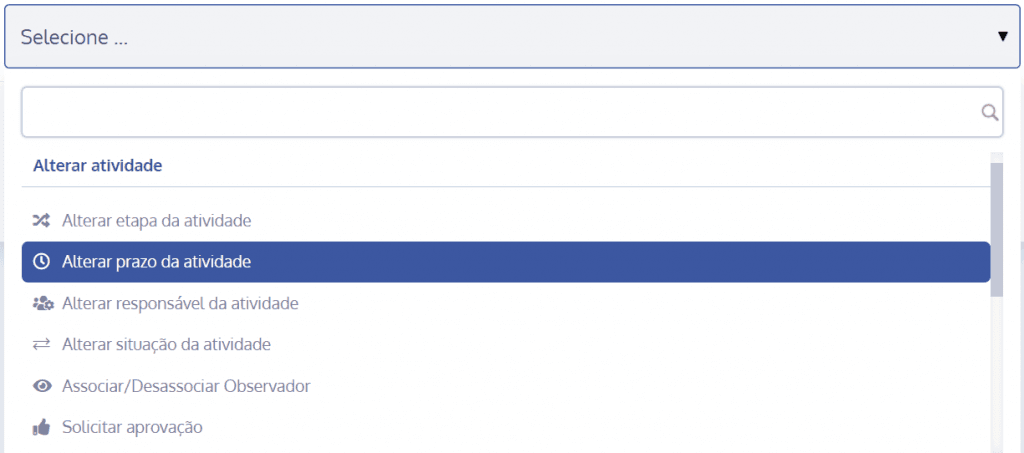
Click Select and choose the action type Change activity due date
A new section will open below
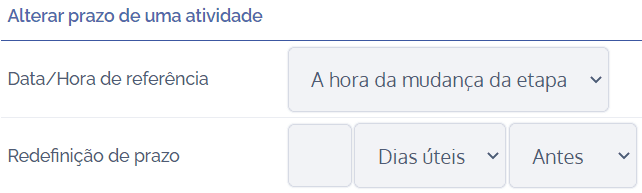
In the Reference Date/Time field, we have two options:
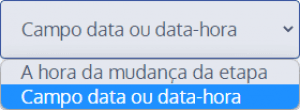
Stage change time: you can use the activity stage change time as a reference
Date or date-time field: you can use the Date field or the Date-Time field as a reference.
In the Deadline reset field, it is possible to reset the activity due date. To do this, you can choose whether the deadline will be reset in: Minutes before/after; Hours before/after; Days before/after; Business days before/after.
After configuring, click the Save button to save the settings. The action will be executed according to the logic of the configured trigger type. In this example, we use the conditional trigger type. As shown in the Events column, if the Simple alternative (dynamic field) is equal to Alternative A, the action is executed.
To see whether the trigger was fired, go to the Change logs card in the activity details.