
Filling out system fields
The fixed activity fields are the structural information of an activity, such as title, assignee, deadline, stage, status, among others. They are called fixed because they are part of the standard structure of an activity. Currently, the platform provides 15 fixed activity fields.
Not all fixed fields are used at the same time in every activity. They are configured according to the needs of each business process. Therefore, the system allows you to hide or display fixed fields according to the activity type. In other words, some fields may be hidden in certain activity types.
The required status of fixed fields may also change according to the activity type. When an activity has required fields, they will be marked with an asterisk (*).
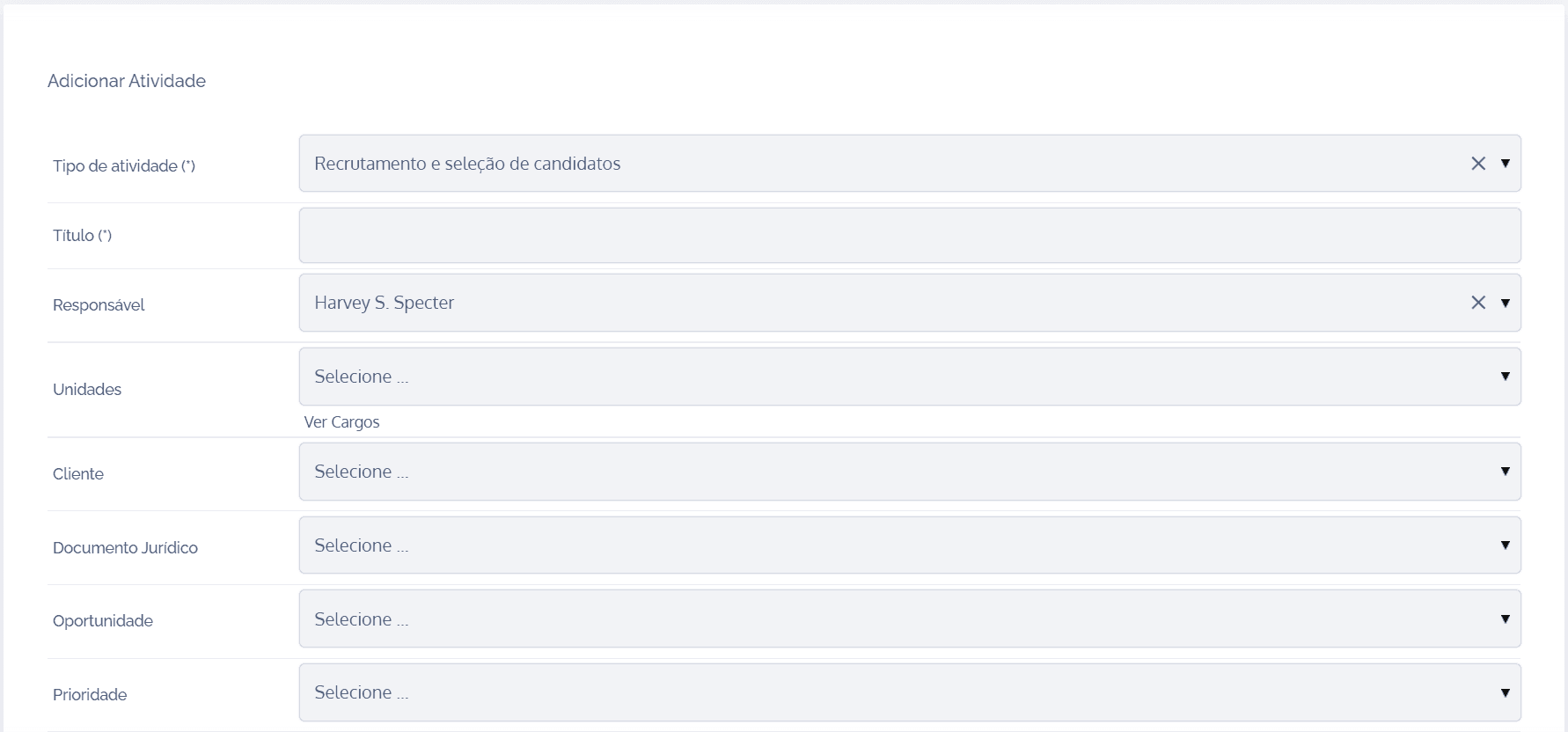
The following content presents all fixed activity fields and shows how each one should be filled out:
Activity Type
The activity type is the most important piece of information in the activity. It must be filled in from a list of pre-defined activity types, which represent the different business processes configured on the platform. When changing the activity type, the entire activity form is rebuilt on the screen, bringing the structure of fields, stages, rules, and conditions specific to that activity type. It is the first field to be filled in, and after the activity is created, it can no longer be changed.

Stage (not displayed in the creation form)
The stage is a fixed field that, by default, does not appear in the activity creation form. When the activity is created, it is automatically assigned an initial stage, which indicates at what point in the operational flow the activity is. The stage can be changed later, according to the user's permission rules for that activity.

Status (not displayed in the creation form)
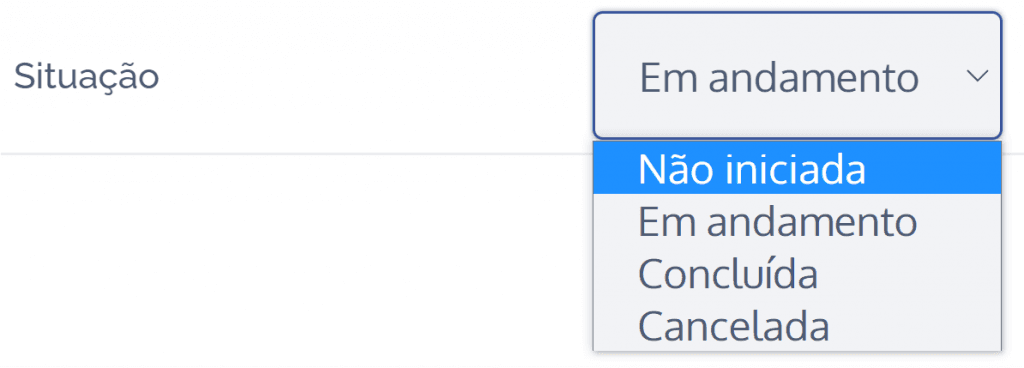
The status is another important fixed field that does not appear in the activity creation form. By default, every activity is created with the status Not started. The status can later be changed to In progress, Completed, or Canceled.
Title/Subject
The title/subject field should be filled in with a brief description to distinguish it from others of the same type. For example, for activities of the type “Reimbursement Request”, a specific activity can be created with the title “Fuel Reimbursement”, which describes what will be carried out in that particular activity.

Assignee
In the assignee field, select the user to whom the activity will be assigned.

Unit/Contract
If the unit/contract field is enabled, you can link the activity to a specific unit by selecting it in the selection box. (Learn more about this concept in the Units/Contracts module in the Help Center).

Person/Client
Likewise, if the person field is enabled, you can link the activity to a specific person. (The person may be a legal entity or an individual and may refer to clients, suppliers, employees, among others. Learn more about this concept in the People module in the Help Center).

Legal Document
You can also link the activity to a legal document. (This concept is also detailed in the Legal module in the Help Center).

Priority
Use the priority field to define the activity's order of importance. By default, the platform allows priority to be set as high, medium, or low.

Event
In the event field, it is possible to link the activity to an event schedule, with a start and end date and time. Events on the platform may be integrated with Google or Microsoft calendars. (Learn more about this feature in the Activity events topic in the Help Center).

Deadline
In the deadline field, a due date for the activity's execution must be provided.

Start/End Planning
In the start and end planning fields, it is possible to specify an execution period. This information is used only when a unit is linked to the activity and when the Annual Unit Planning feature is used.

Description
The description field is a text space where details about the activity execution can be provided.

Notes
Likewise, the notes field can be used for additional information and guidance.

In the next topic, the dynamic activity fields will be presented.