
History with active contingency total
The history report with totals (active contingency) is a feature that allows you to view the evolution of request values across different audit cutoff dates. The report presents the historical values in a consolidated way, considering requests classified as active contingency.
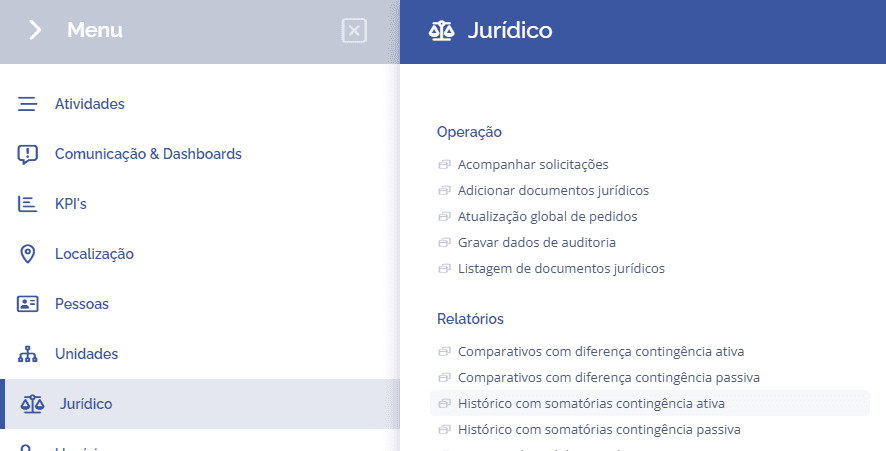
To access the history with totals (active contingency), open the main menu, select the module Legal, Reports, and click the option History with totals active contingency.
Next, the block (Report: History with totals active contingency) will be displayed:
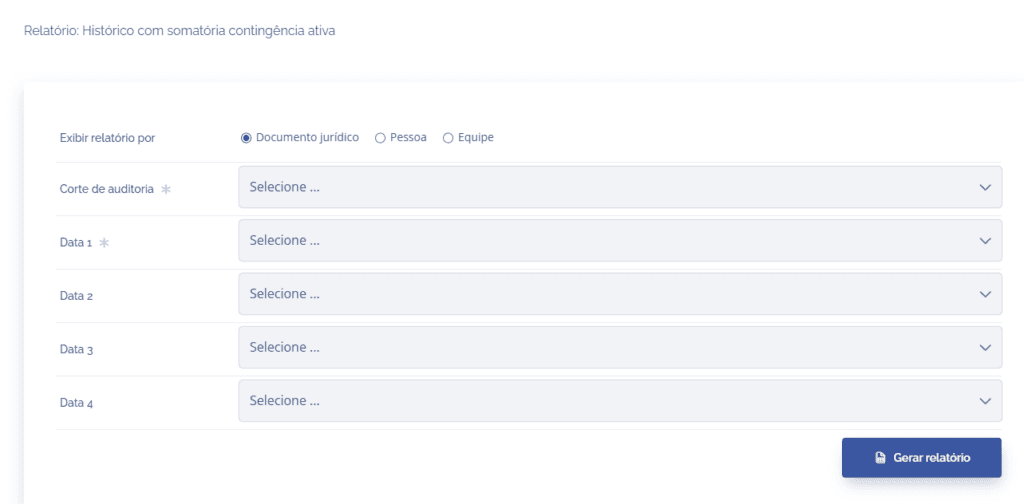
To generate the report, select an audit cutoff and enter up to four dates (current date or date + recording description) for comparison. The view can be organized by Legal Document, Person, or Team, allowing different forms of analysis. For each selected date, values are displayed segmented by probability (likely, possible, and remote) and by classification (operational and financial).
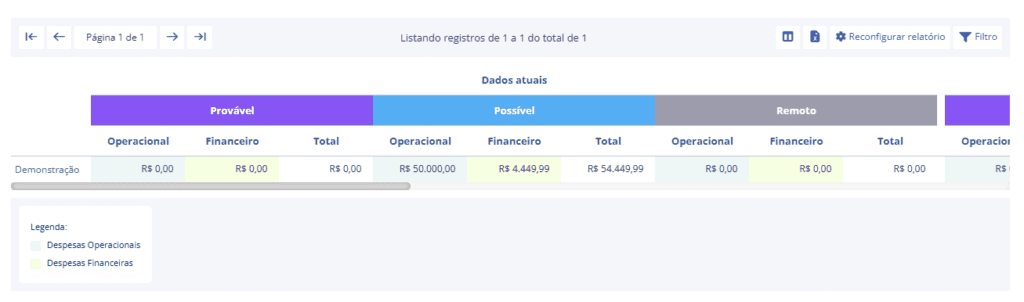
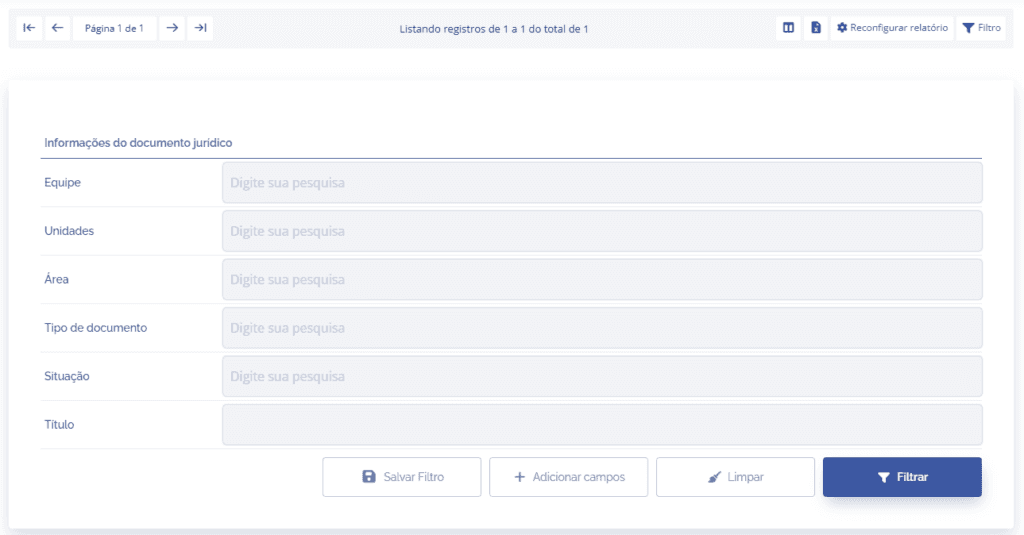
If you need to analyze specific data, the listing allows you to search the data by clicking the Filter button. You can filter by Team, Units, Area, Document Type, Status, and Title, and you can also add other fields to the filter if necessary by clicking the Add fields button.
If you need to perform a new search, click the Reconfigure Report button to access the home page.

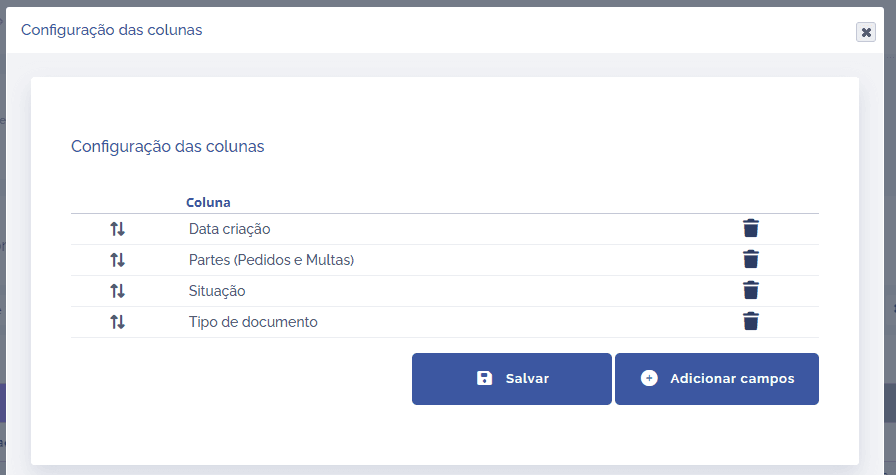
Next to the filter button, if you want to customize the display of the listing columns, the system allows you to add, remove, or change the order and display of the columns by clicking the table icon shown below.

Clicking the table icon will display a floating window, allowing you to reorder columns, remove or add fields to be displayed in the listing.
In addition, it is possible to export the values/columns to an Excel (.xlsx) file by clicking the Excel document icon.

Clicking the Excel document icon will display a confirmation window with a link to view the request.

By accessing the link in the floating window, the system will redirect you to the page of Exported Reports in Excel, where you can view the request and download it after processing is complete.
