
Set up access profile
After creating an access profile, the user will be directed to the Access profile details screen, which can also be accessed through the View details button in Access profiles.
The details of an access profile contain the following blocks:
Access profile details
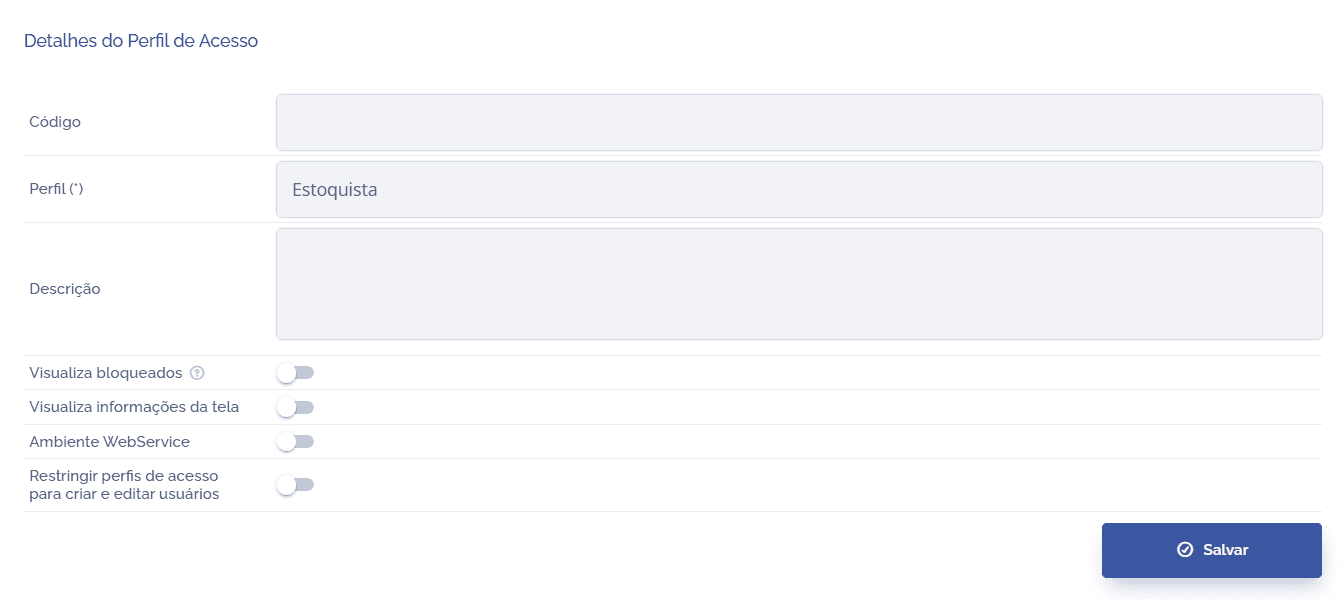
The title given to the access profile can be redefined
System login times
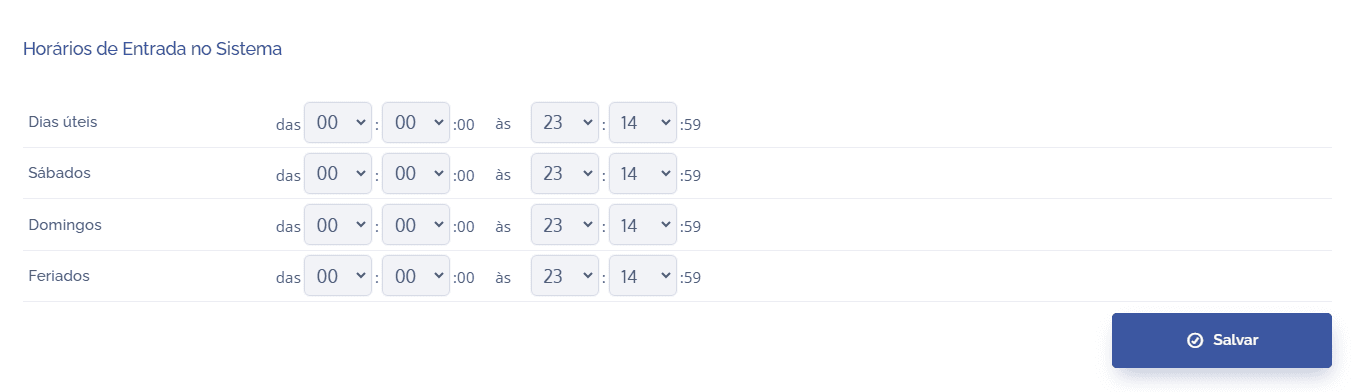
The time the profile will be allowed to access the system can be defined
Change permissions



You can define which permissions the profile will have access to in the API, Mobile, and Web environments.
Important: before proceeding, make sure you understand the concepts covered in Permission and view control in this module.
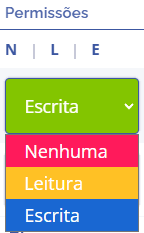
Permission
Control of the permissions the user will have within the system (None, Read, or Write)
In the Permission column, three options are presented: N = None, R = Read, and W = Write
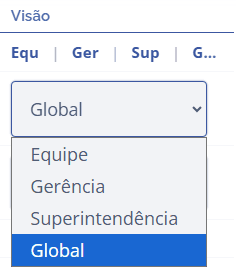
View
Control of the view the user will have within the system in a hierarchical structure (Team, Management, Superintendency, and Global):
In the View column, four options are presented: Tea = Team, Man = Management, Sup = Superintendency, and Glo = Global.
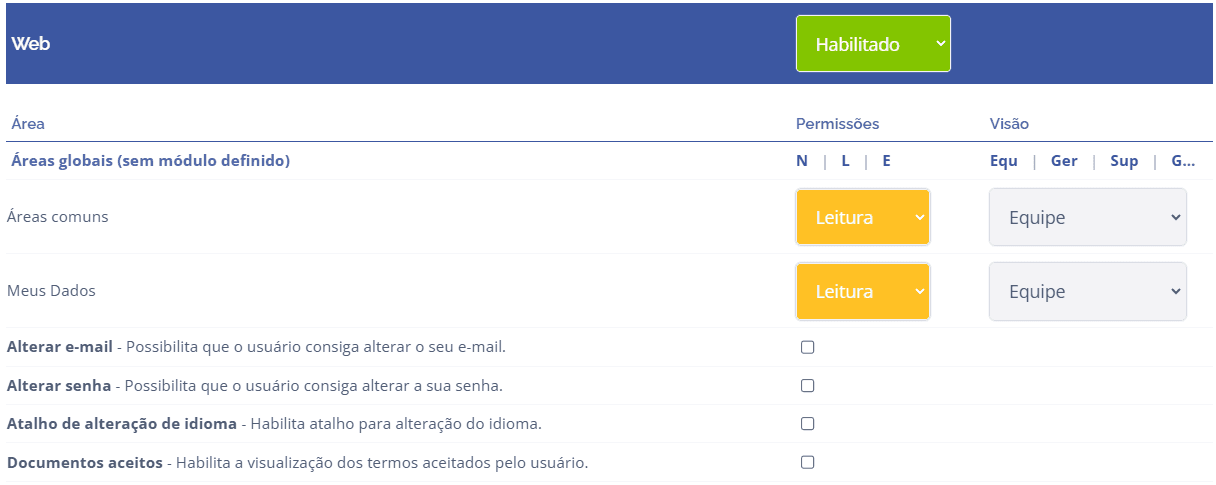
When enabling a system module, by default it is configured with None permission and Team view. According to the operations that a given profile will perform, it is advisable to adjust them. In the example, the access profile “Stock Clerks” will be configured as follows:
After selecting the environment interface to be configured: Web System, select the Global Areas module (no module defined); this will list the components and actions of this module:
After configuring the access profile, click the Save button at the bottom of the screen.