
Conditional statements by alternative
When adding the conditional by alternative feature, it will be displayed in the activity type edit form, with the proper rules and actions configured.
Important: before proceeding, make sure you are familiar with the Custom field association settings.
In the Associate field block, click the add conditional icon:

A new block will be displayed:
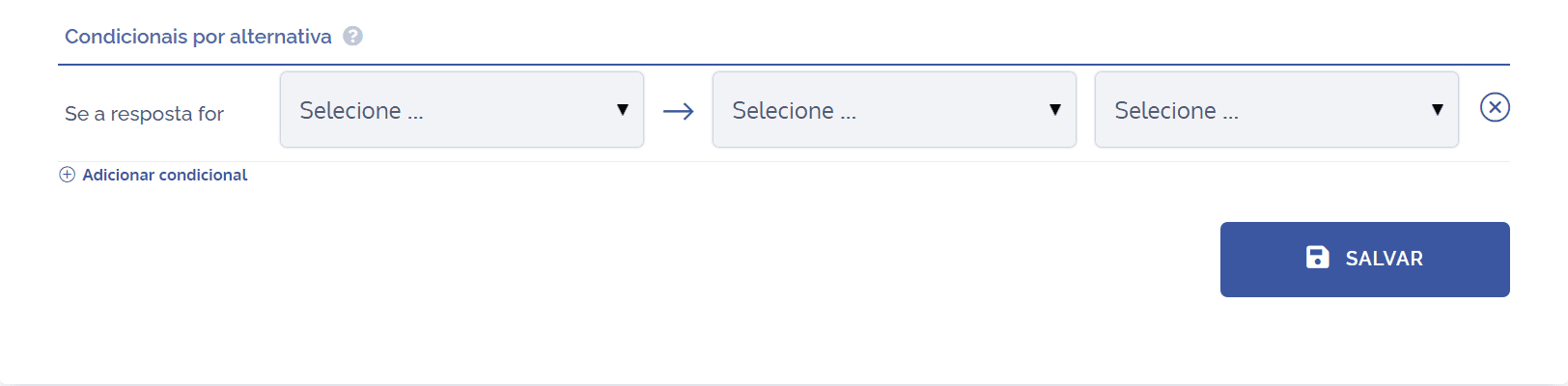
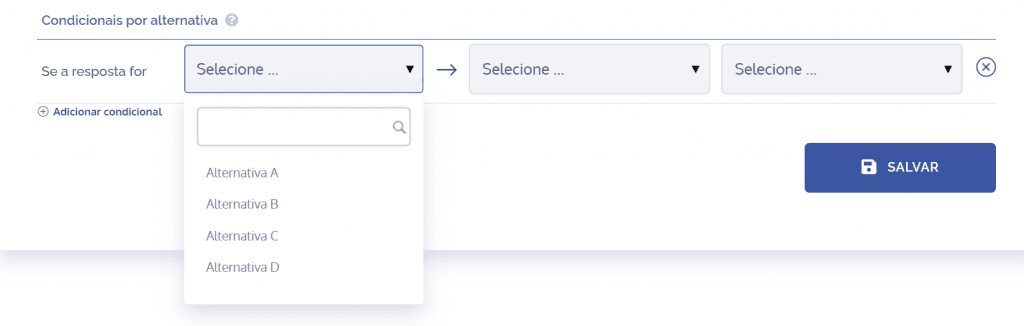
In the if the answer is field, depending on what is registered in the dynamic field, select the desired option:
Next, there are two actions (Show field or Hide field); select the desired option:
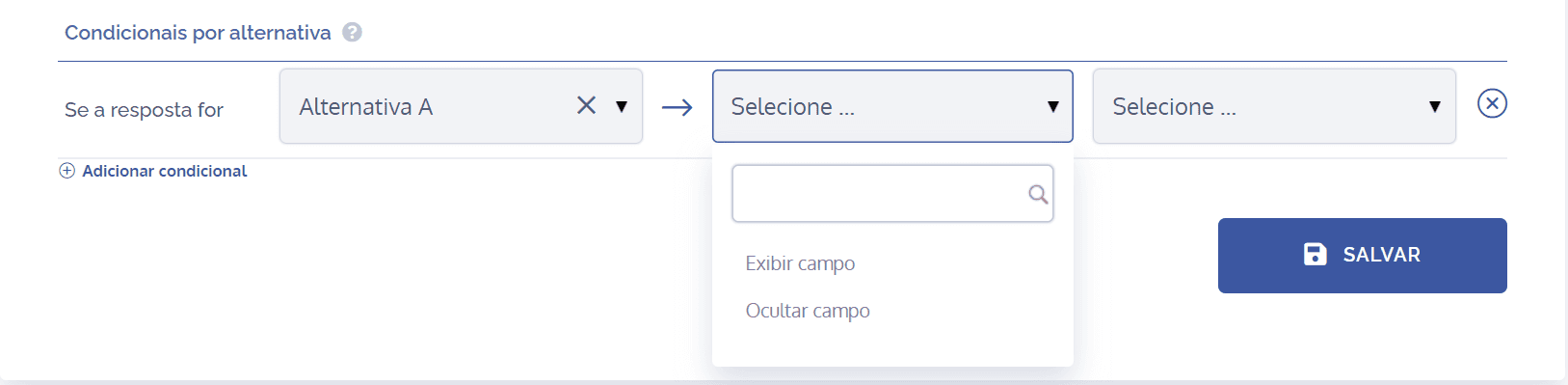
Show field: When choosing this option, the selected field will be displayed in an activity form, allowing it to be edited.
Hide field: When choosing this option, the selected field will be hidden in an activity form.
Finally, you must define to which dynamic field the action of showing or hiding it will be applied, taking into account the applied response.
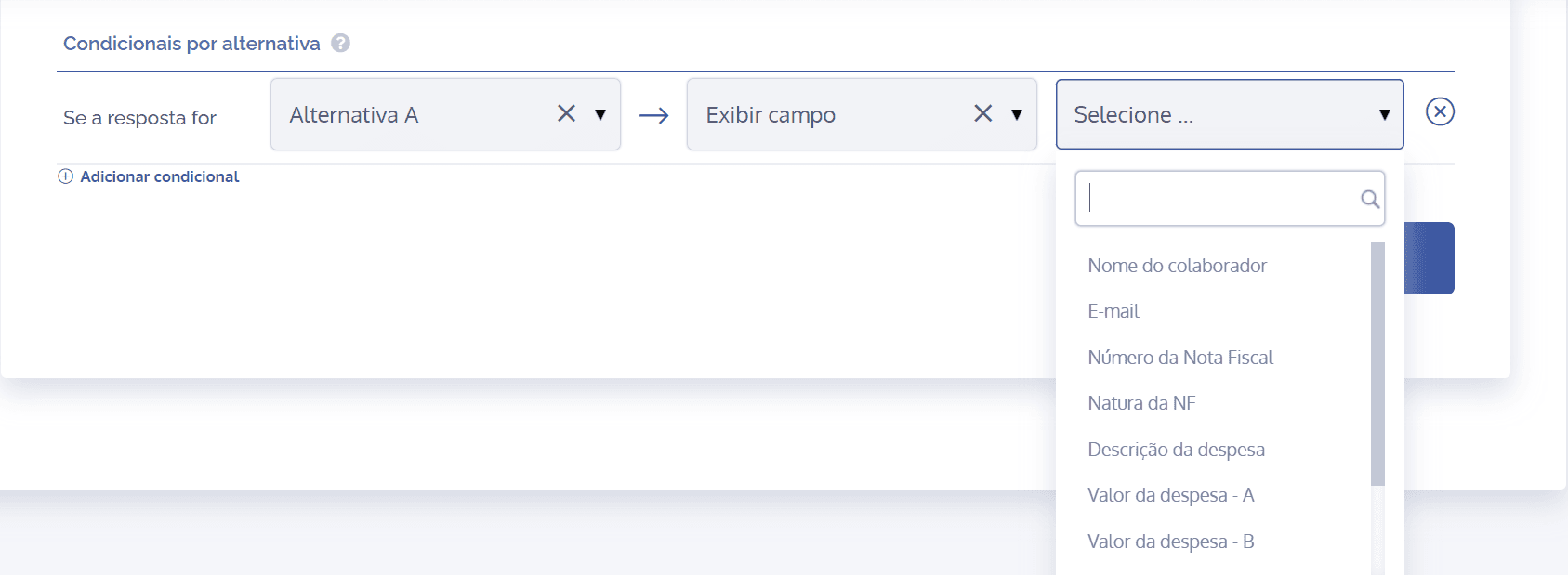
After configuring the conditional by alternative, click the Save button.
Creation form
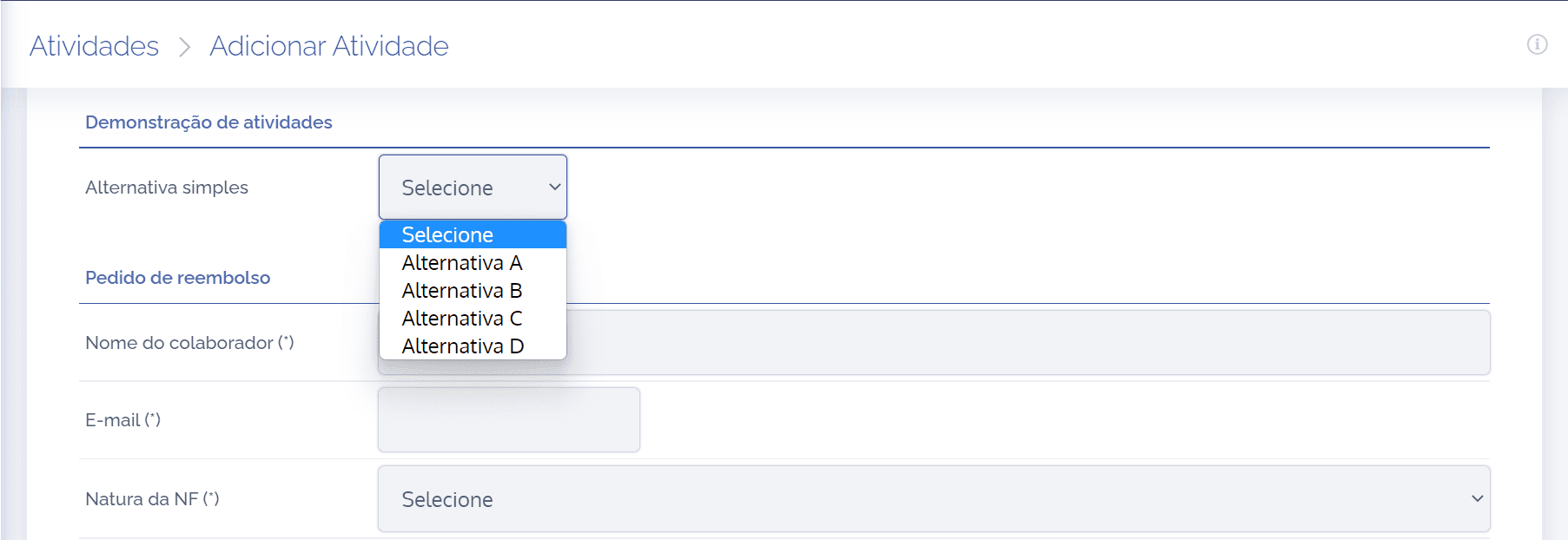
The conditional by alternative was applied to the dynamic field Simple alternative, with the condition to display the dynamic field Invoice number if the answer is Alternative A.
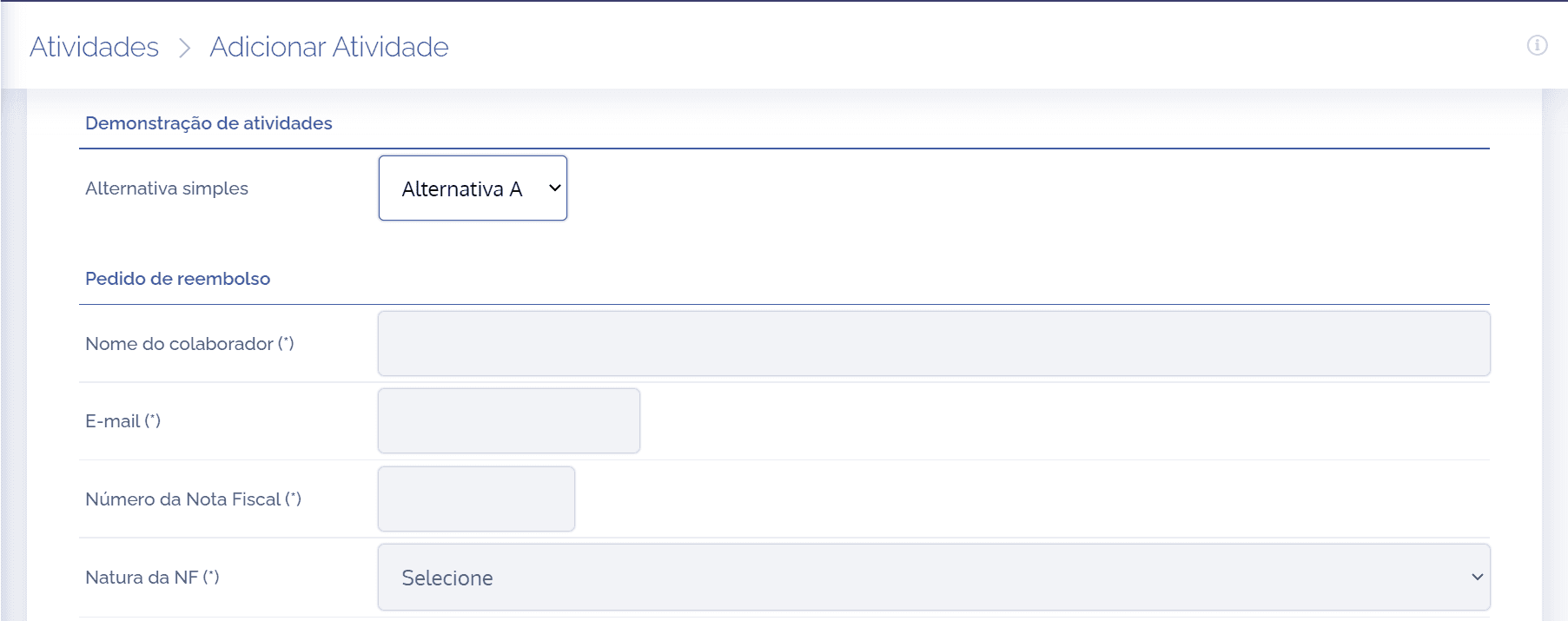
In the Simple alternative field, when selecting the Alternative A option, the dynamic field Invoice number is displayed, since this rule was applied.