
Conditionals by step
When adding the step conditionals functionality, they will be displayed in the activity type edit form, with the appropriate rules and actions configured.
Important: before proceeding, make sure you are familiar with the Custom field association settings.
In the Associate field block, click the add conditional icon:

A new block will be displayed:

In the at step field, select the desired step:
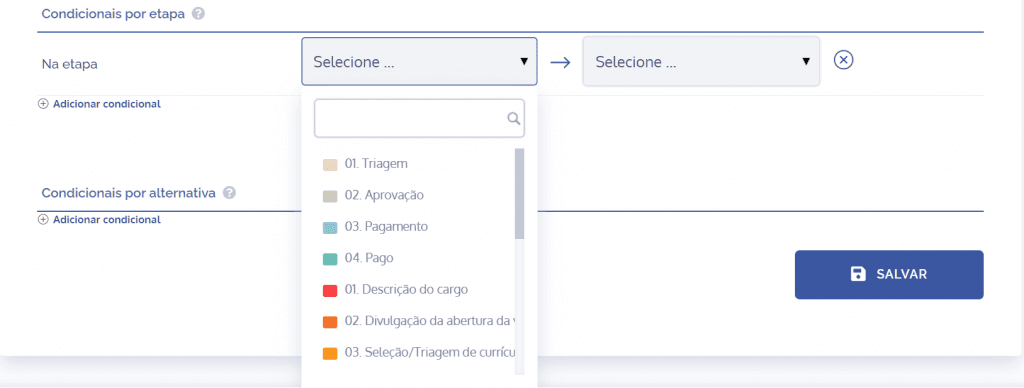
Next, there are three options (Show field, Hide field, and Read-only); select the desired action:
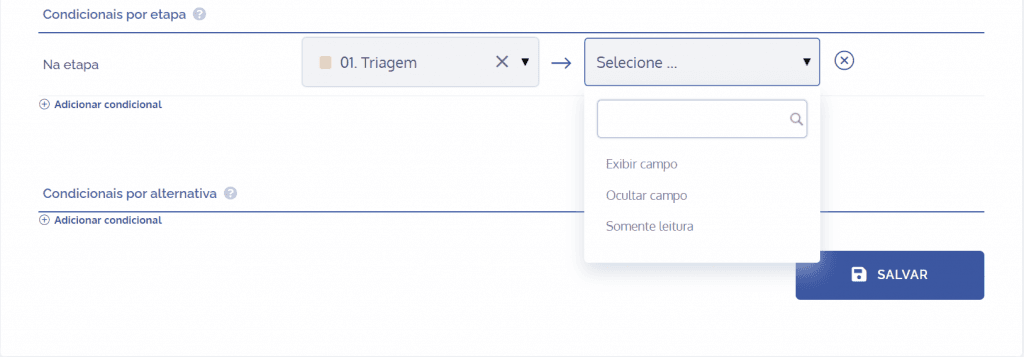
Show field: When choosing this option, the selected field will be displayed in an activity edit form, allowing it to be changed.
Hide field: When choosing this option, the selected field will be hidden in an activity edit form.
Read-only: When choosing this option, the selected field will be displayed in an activity edit form, but changes will not be allowed.
The step conditional only affects the field behavior in its respective step; in the others it remains unchanged, unless conditionals are created for each step. For example, if there is a conditional in step 01 and its action is to hide the dynamic field, it will be hidden only in that step; in the others it remains unchanged.
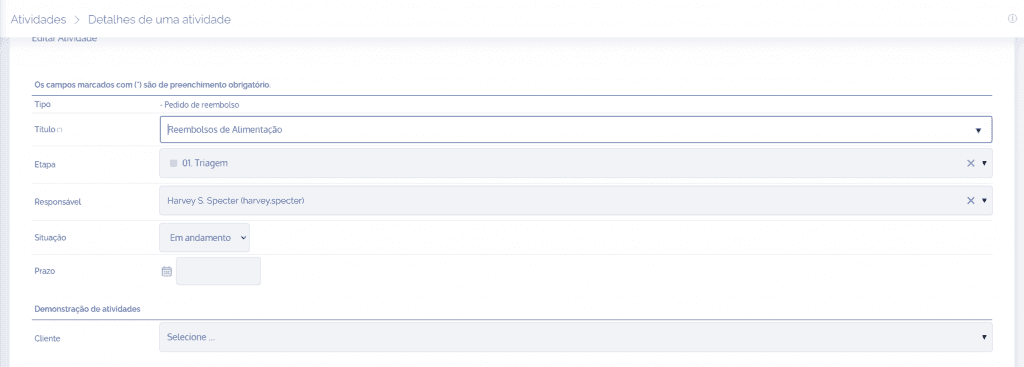
In the step in question, the multiple-choice dynamic field was hidden, so it does not appear.
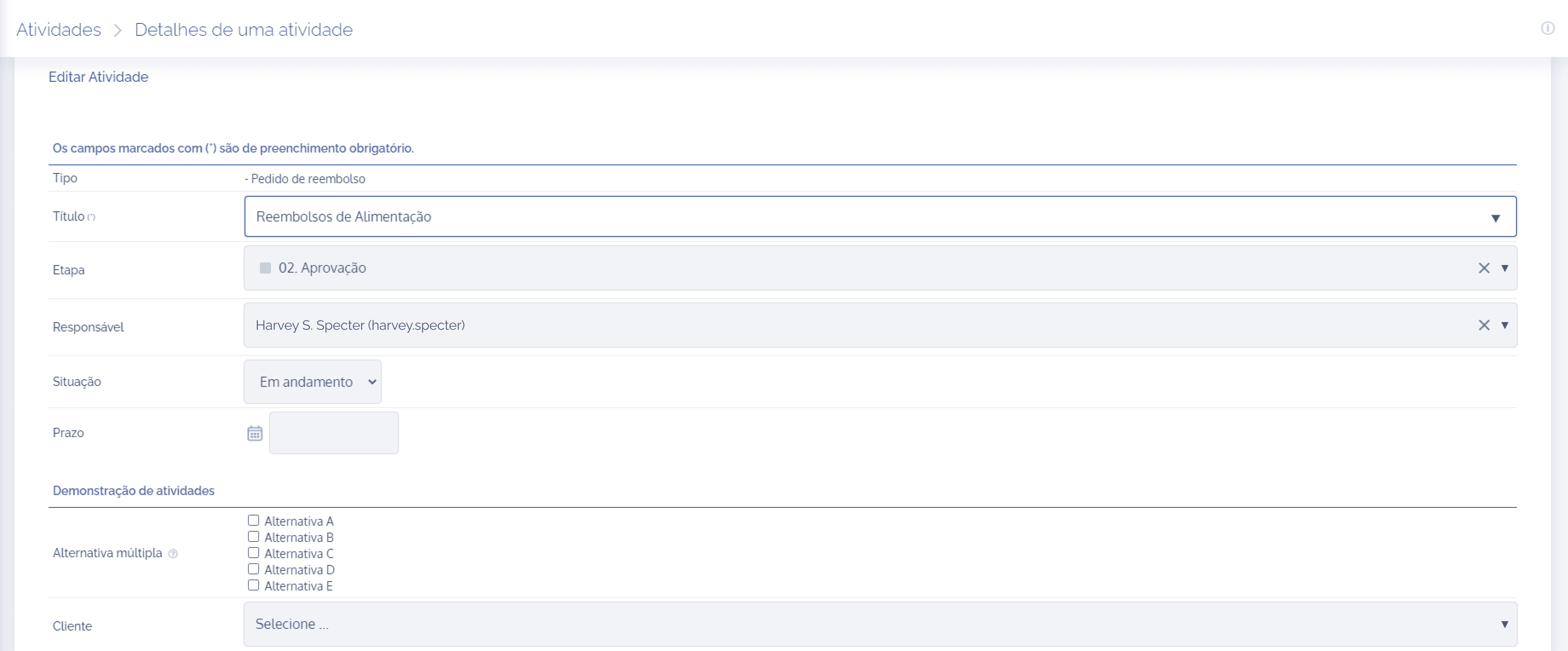
When the step is changed, the multiple-choice dynamic field is displayed, since this conditional was not applied.
After configuring the step conditional, click the Save button.