Association of custom fields
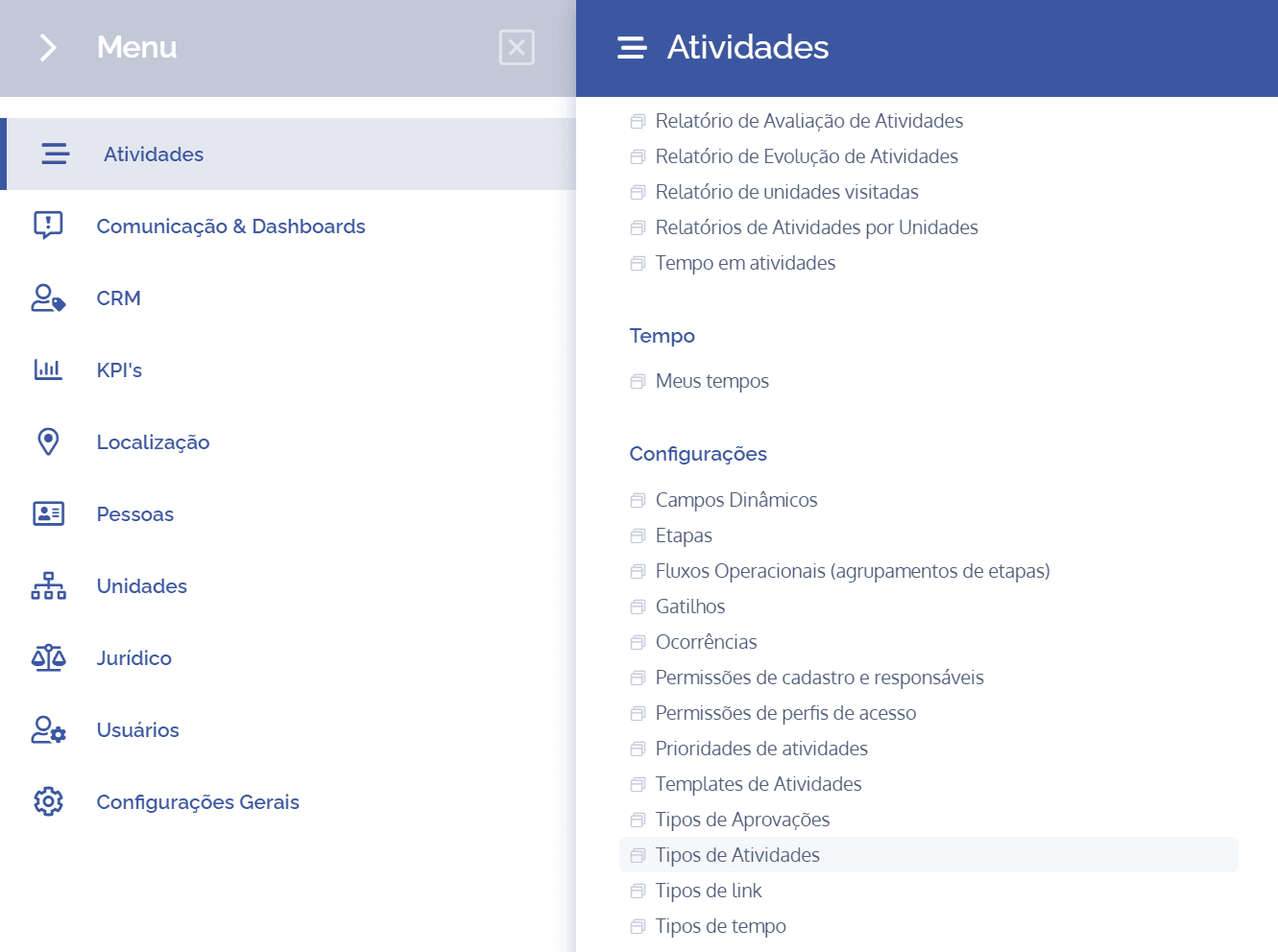
To add dynamic field associations in an activity type, open the main menu, select the Activities module, Settings, and click the Activity types option.
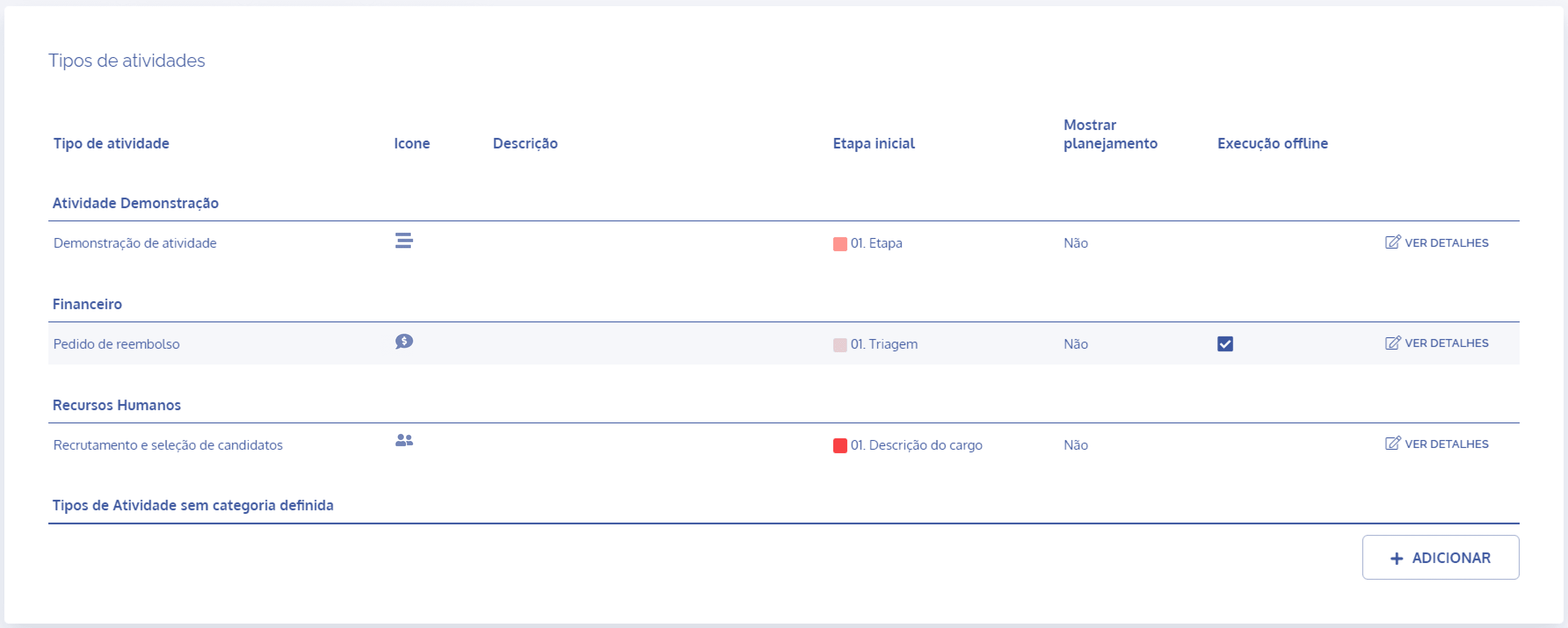
In the Activity types block, click the View details button to display the details of the desired activity:
Next, click the Dynamic field association card

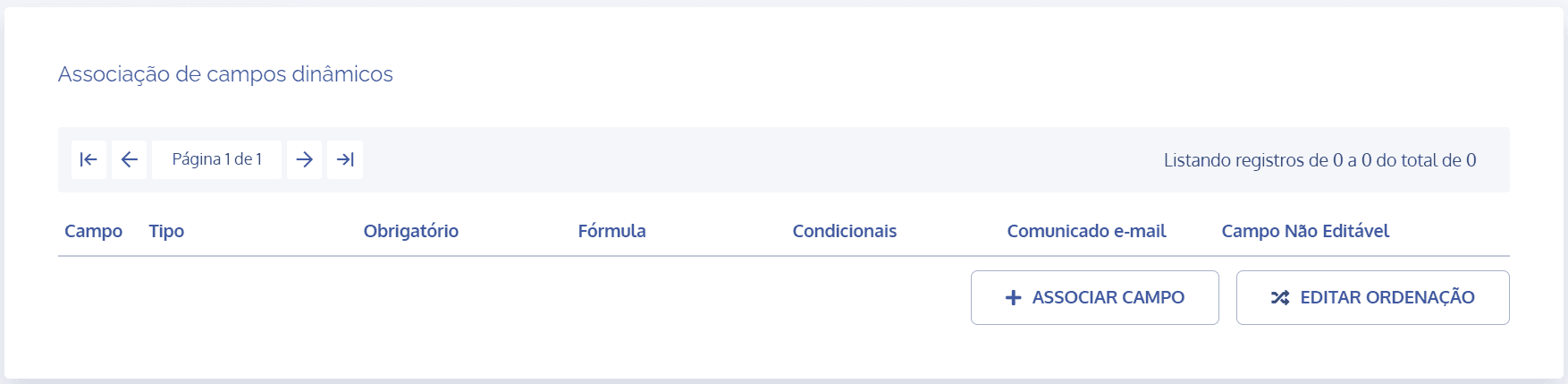
In the Dynamic field association block, click the Associate field button:
A new block will be displayed to select the dynamic field and configure it:
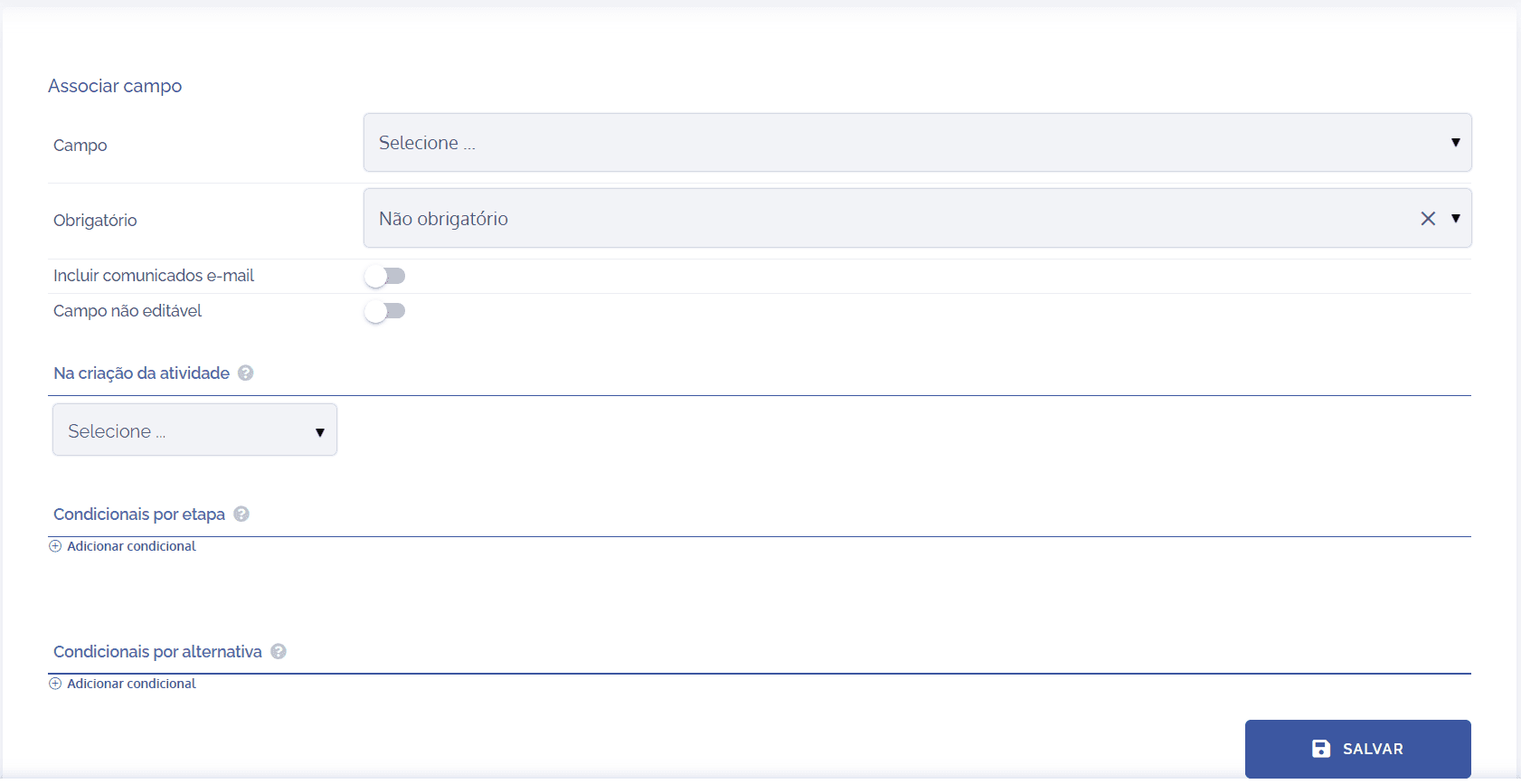
Dynamic field
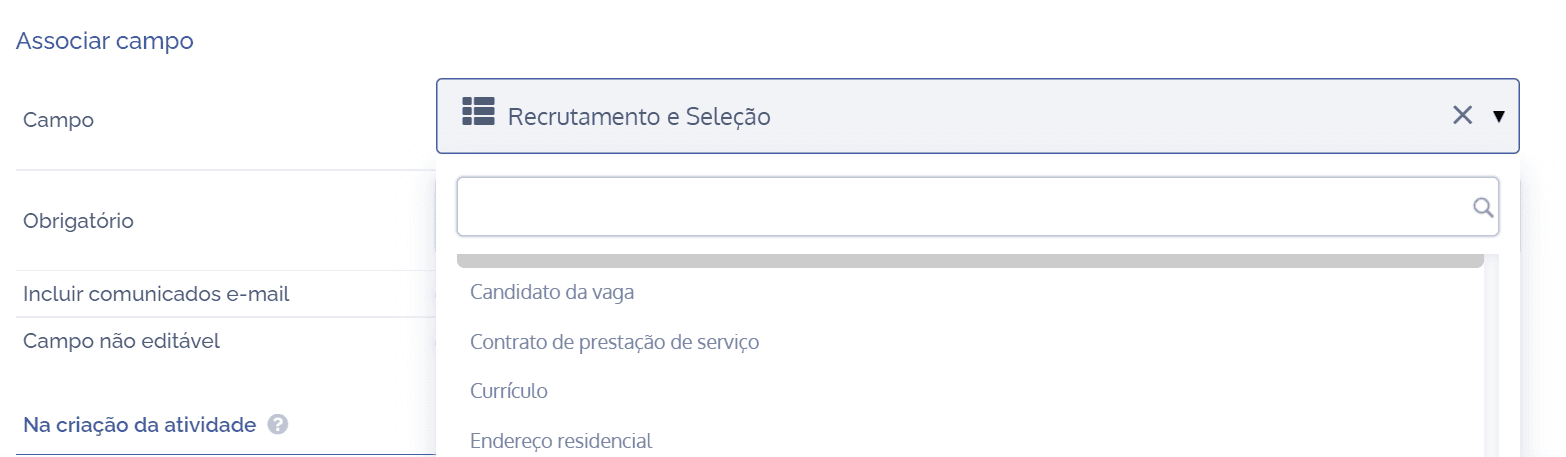
When selecting Field, the dynamic fields linked to a specific category will be displayed, as long as they are registered.
Required field
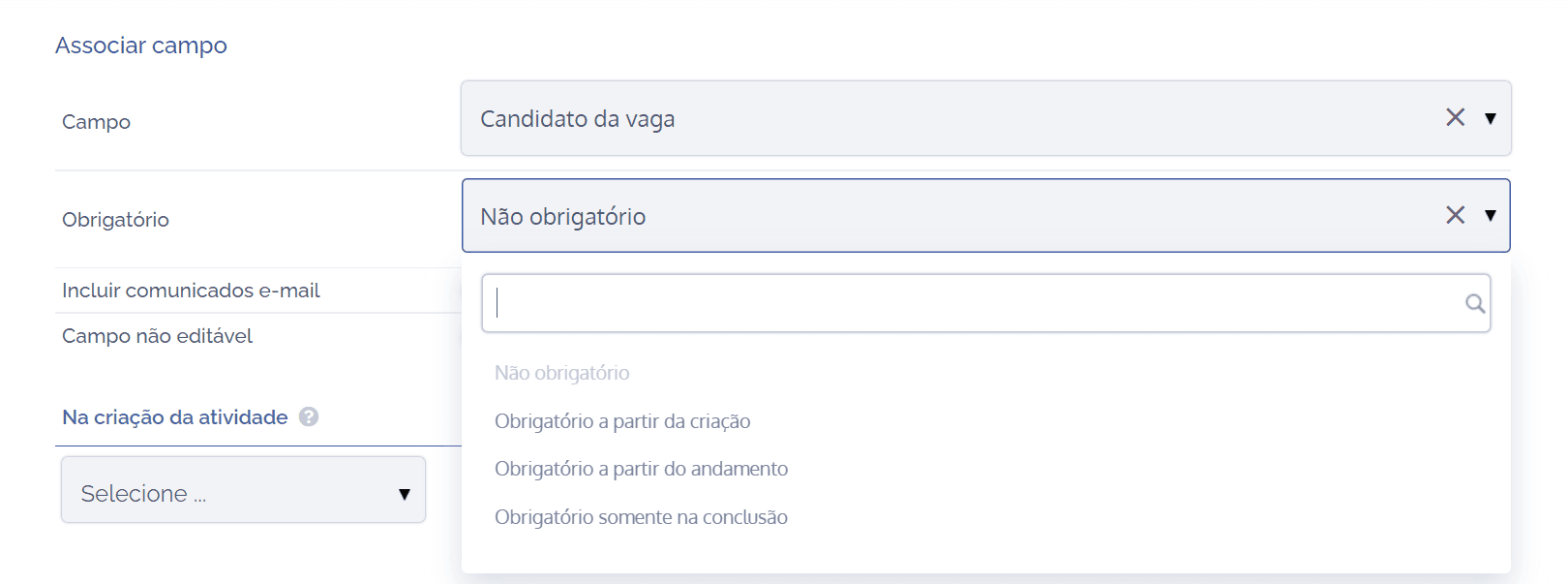
After selecting a field, it is possible to assign four required statuses:
Not required: When choosing this option, filling in the selected field will not be mandatory for items in this activity type.
Required from creation: When choosing this option, filling in the selected field will be mandatory from the creation of the activity for items in this activity type.
Required from progress: When choosing this option, filling in the selected field will be mandatory from the progress stage of the activity for items in this activity type.
Required only on completion: When choosing this option, filling in the selected field will be mandatory only when completing the activity for items in this activity type.
Activity creation field
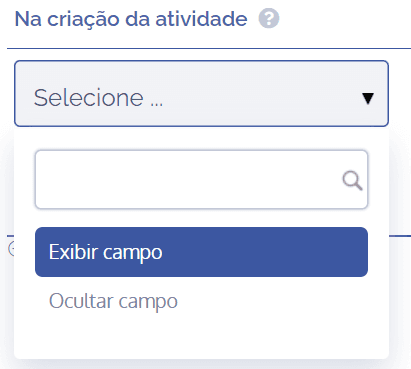
In the activity creation field, two options are presented:
Show field: When choosing this option, the selected field will be shown in the activity creation form.
Hide field: When choosing this option, the selected field will be hidden in the activity creation form.
After configuring the field association, click Save.
Edit ordering
When clicking the Edit ordering button, a floating screen will be displayed to reorder field priority:
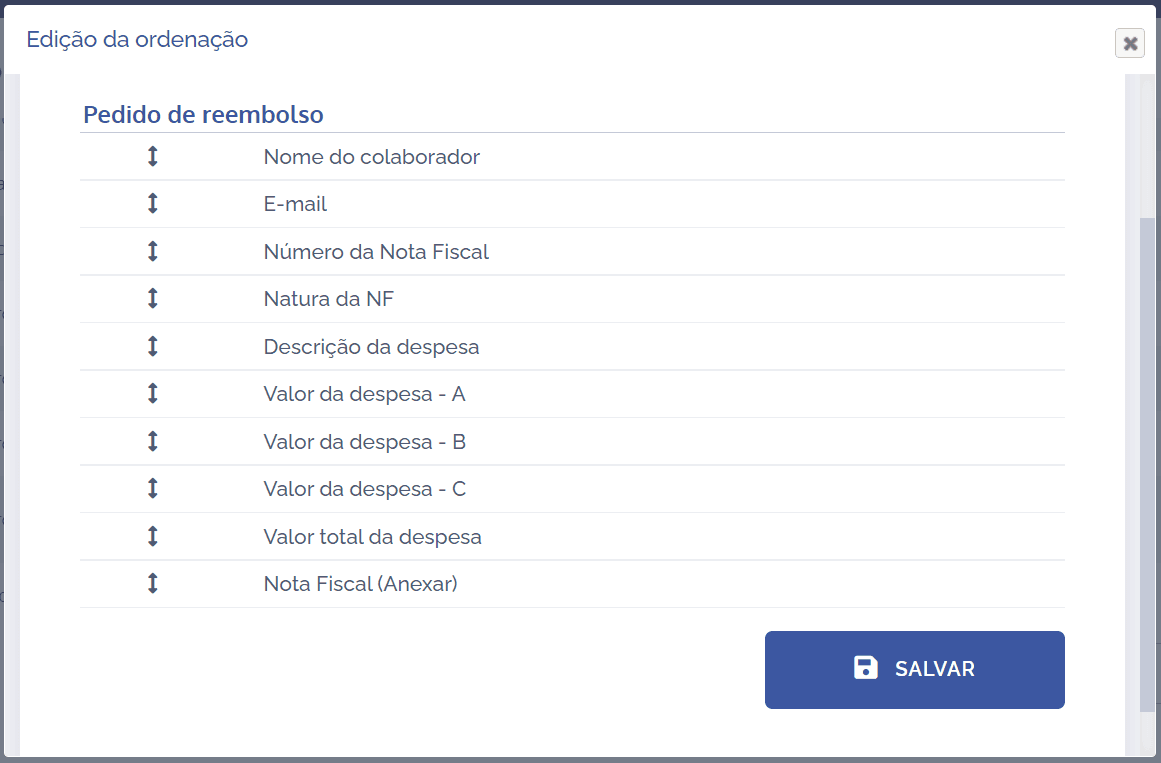
To change the field order, select the desired field by dragging it up or down and dropping it in the desired position; after reordering, click Save.
Edit field
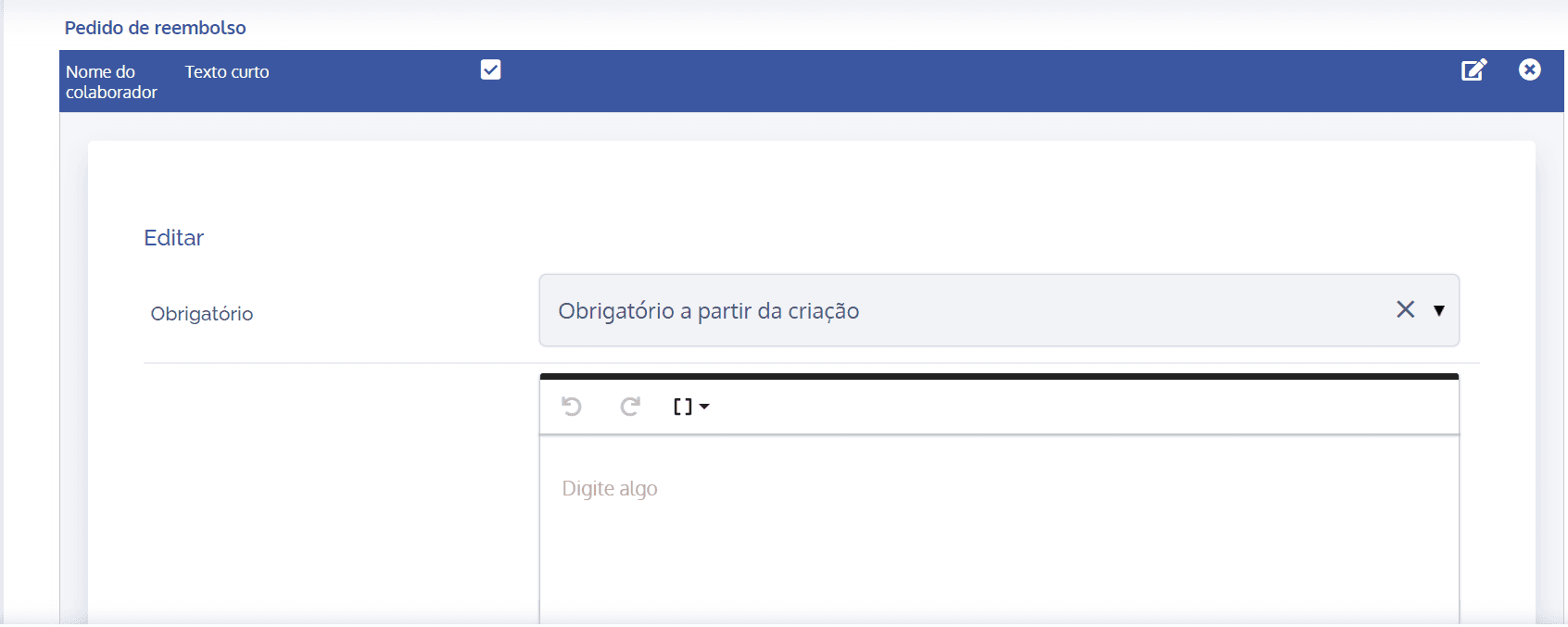
When clicking the edit icon, a block will be displayed to edit the field in question:
Remove field
When clicking the remove icon, a confirmation box for removing the field will be displayed: