
Add a progress
Important: before proceeding, make sure you know the settings for Conditional triggers and Stage transition triggers.
In the Triggers and actions block, click the icon and a floating window will be displayed:
Click Select and choose the action type Add a progression:
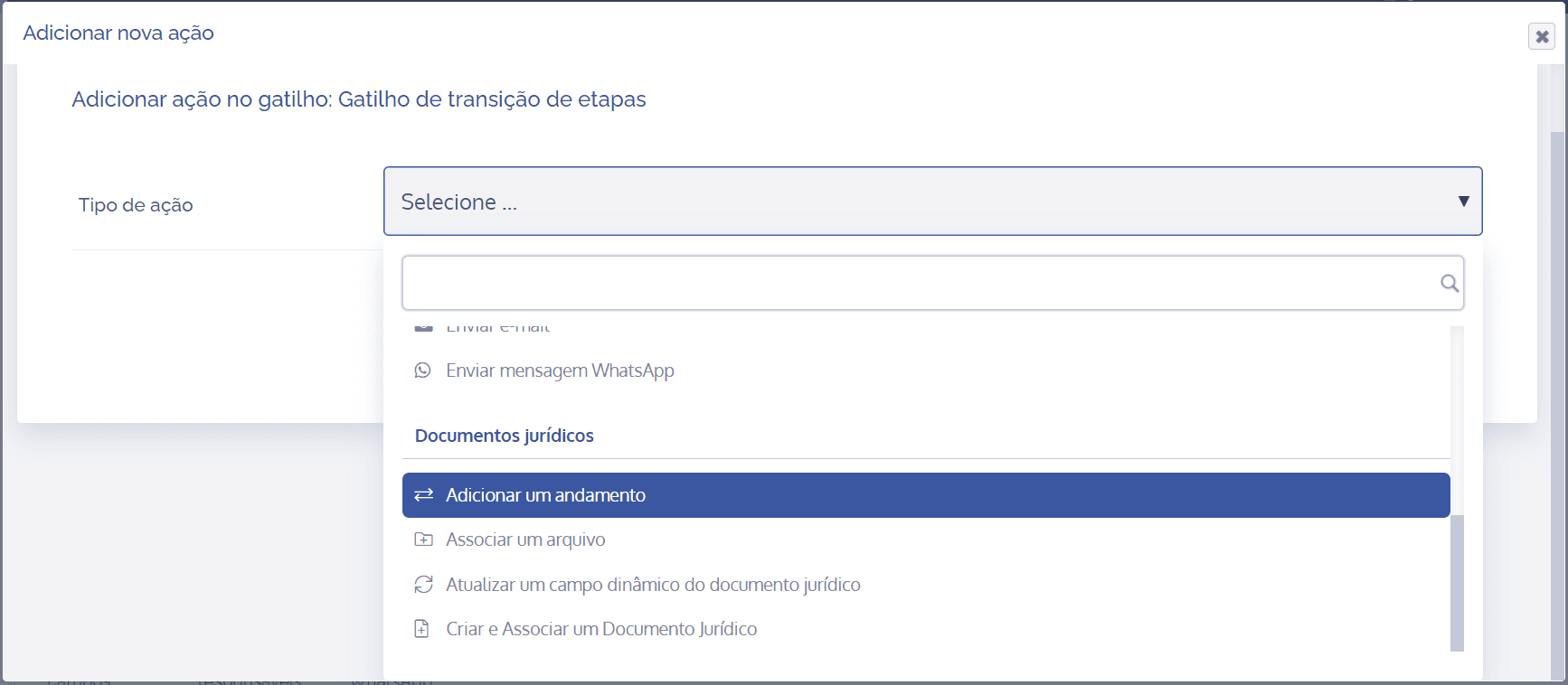
A new section will open below
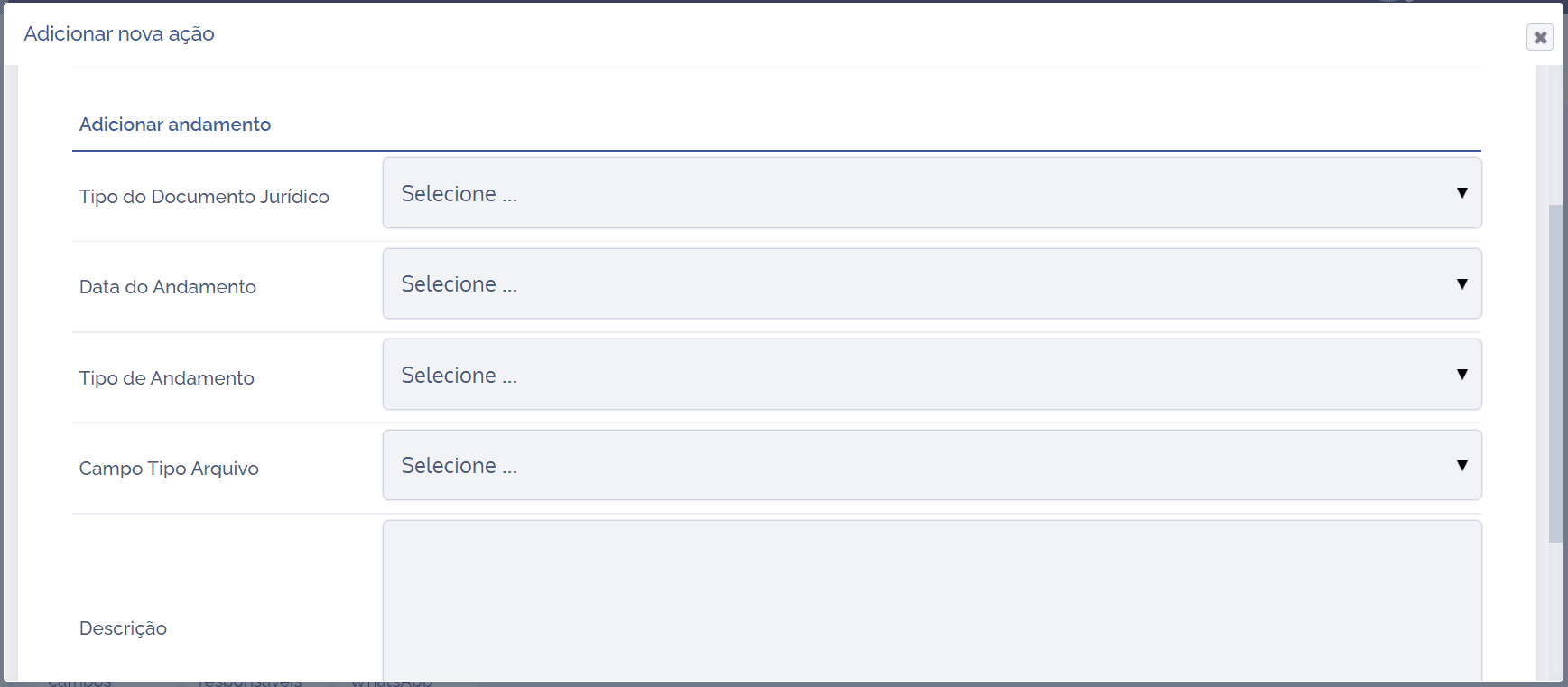
Important: before proceeding, it is important to create an approval type and configure the approval type.
Add progression
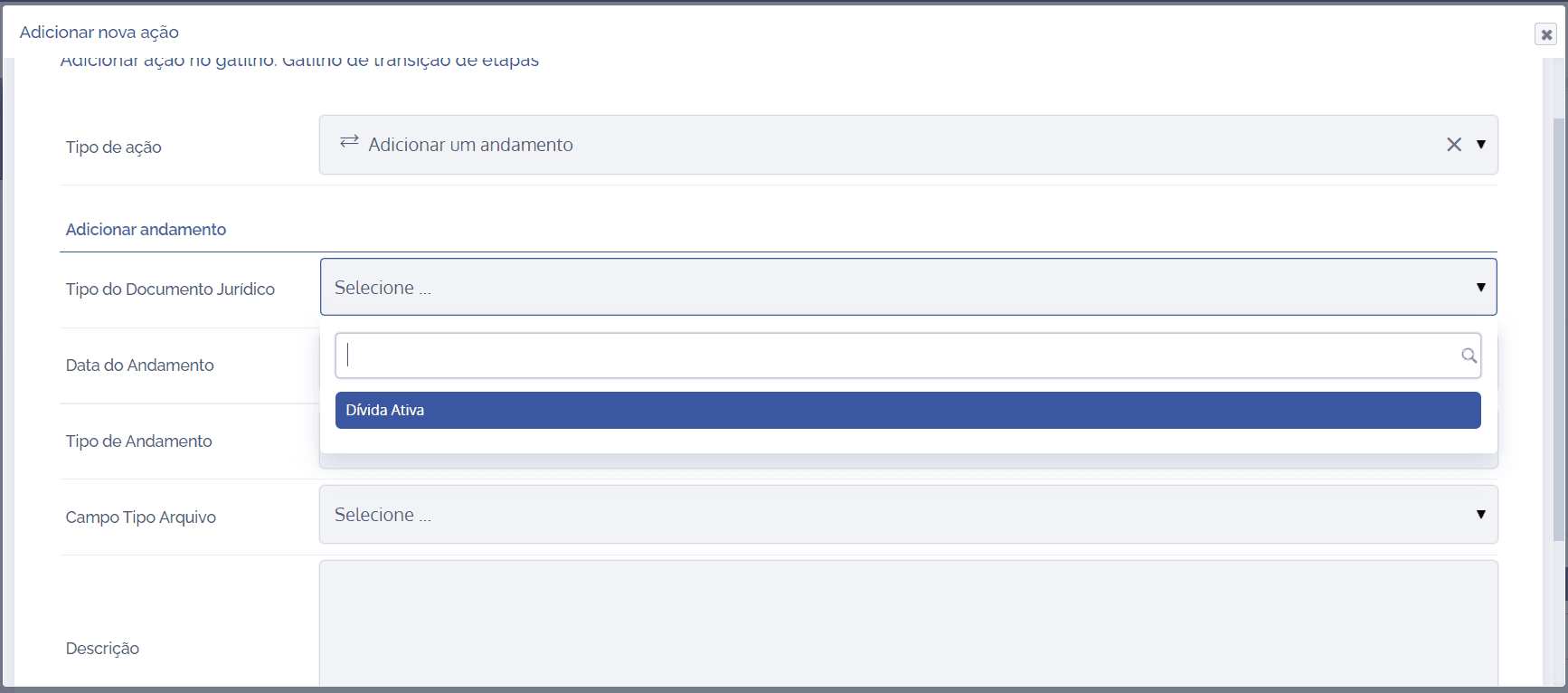
In the Legal document type field, the created and configured legal document types are listed, from which a type will be selected:
In the Progress date field, a date will be selected, with the following options:
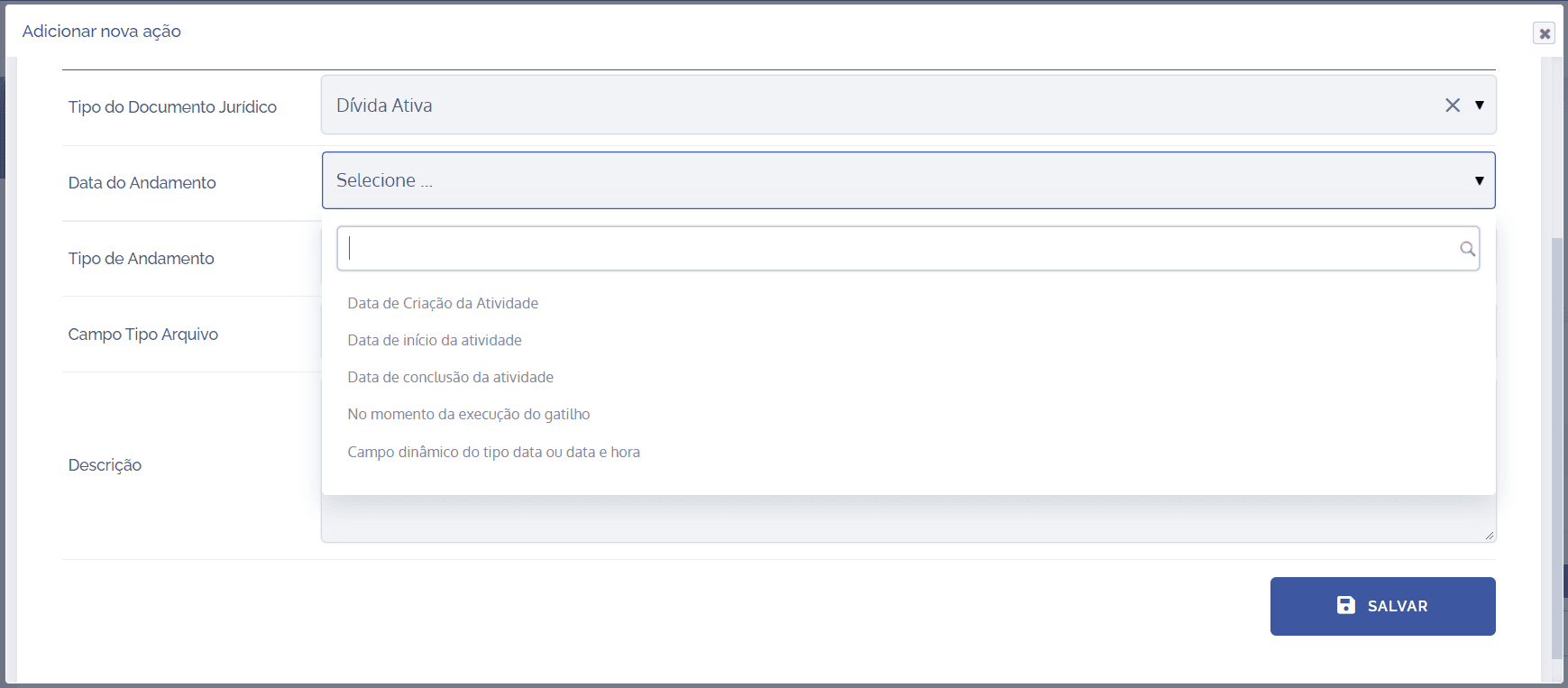
Activity creation date: When this option is selected, the progress date will be linked to the activity creation.
Activity start date: When this option is selected, the progress date will be linked to the start of the activity.
Activity completion date: When this option is selected, the progress date will be linked to the completion of the activity.
At the moment the trigger is executed: When this option is selected, the progress date will be linked to the moment the trigger is executed.
Dynamic field of date or date and time type: When this option is selected, the progress date will be linked to the date or date and time type of an activity.
In the Progress Type field, a case progress item will be selected from a created and configured list, from which a specific type will be selected:
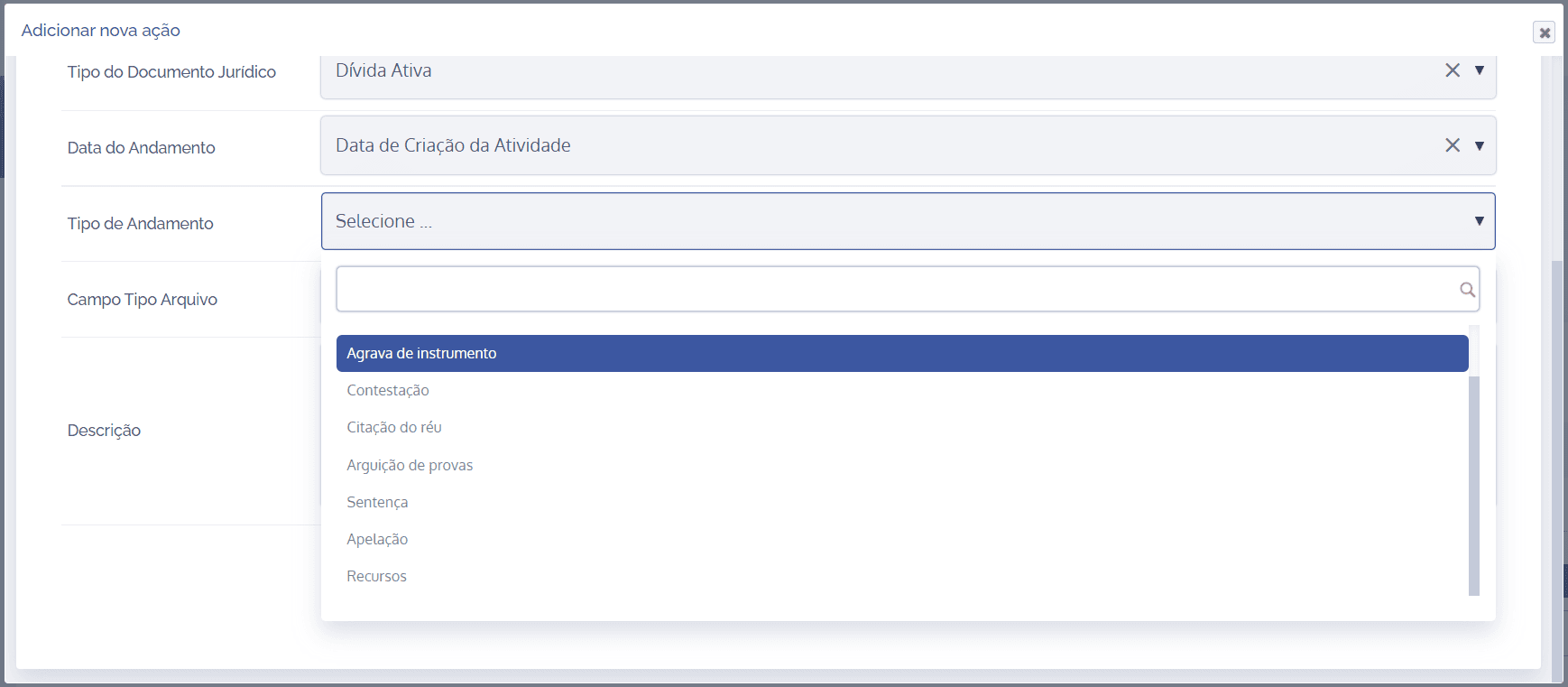
In the File Type field, a dynamic field created and configured for a specific type of activity, which contains the file type, will be selected in order to attach it:
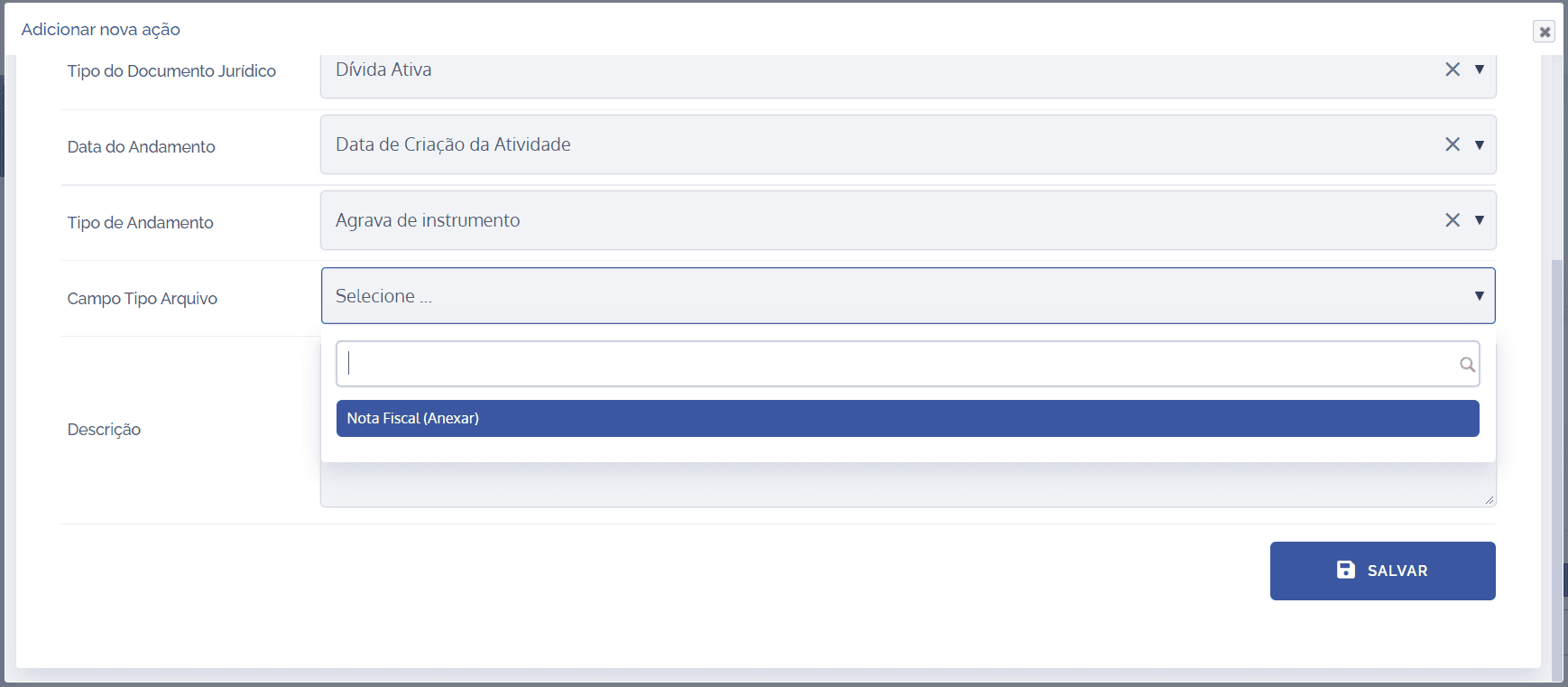
In the Description field, it will be possible to enter a brief description of the purpose of the trigger in question, so click the field and fill it in:

After configuring it, click the Save button to save the settings. The action will be executed according to the logic of the configured trigger type. In this example, we used the conditional trigger type. As shown in the Events column, if Simple alternative (dynamic field) is equal to Alternative A, the action is executed.
To see whether the trigger was fired, access the Change logs card in the activity details.