Global file upload
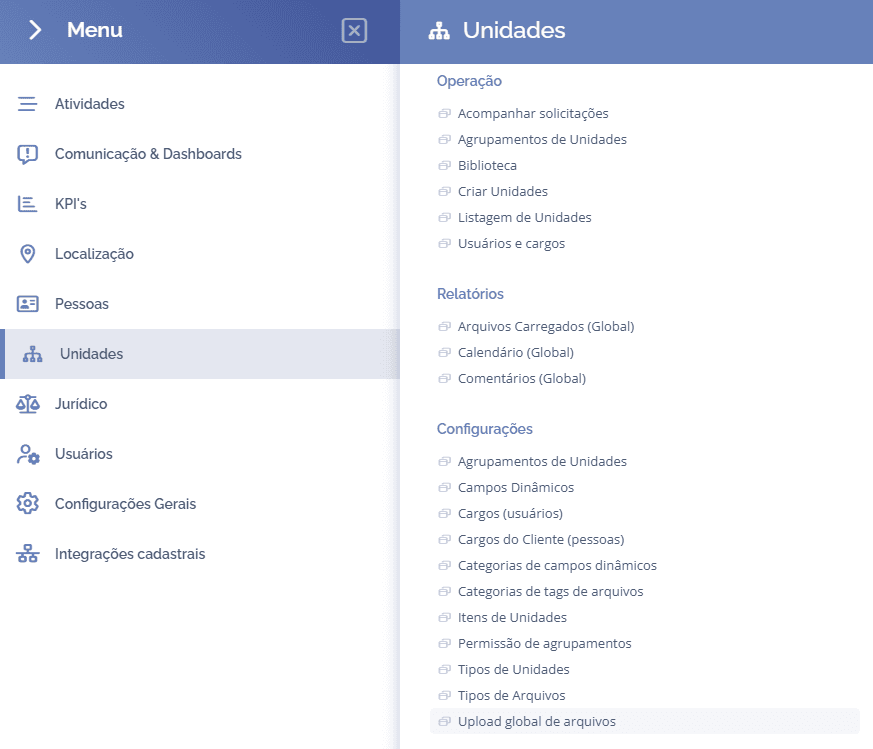
To perform a global file upload, open the main menu, select the Units module, Settings, and click the Global file upload option.
Next, the (Global file upload) block will be displayed:
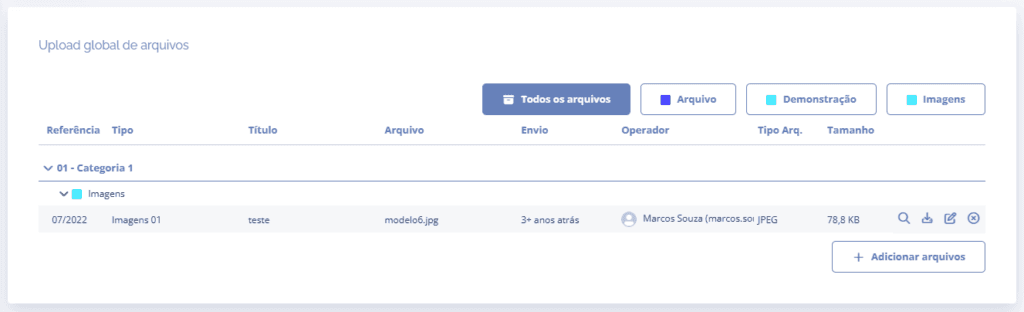
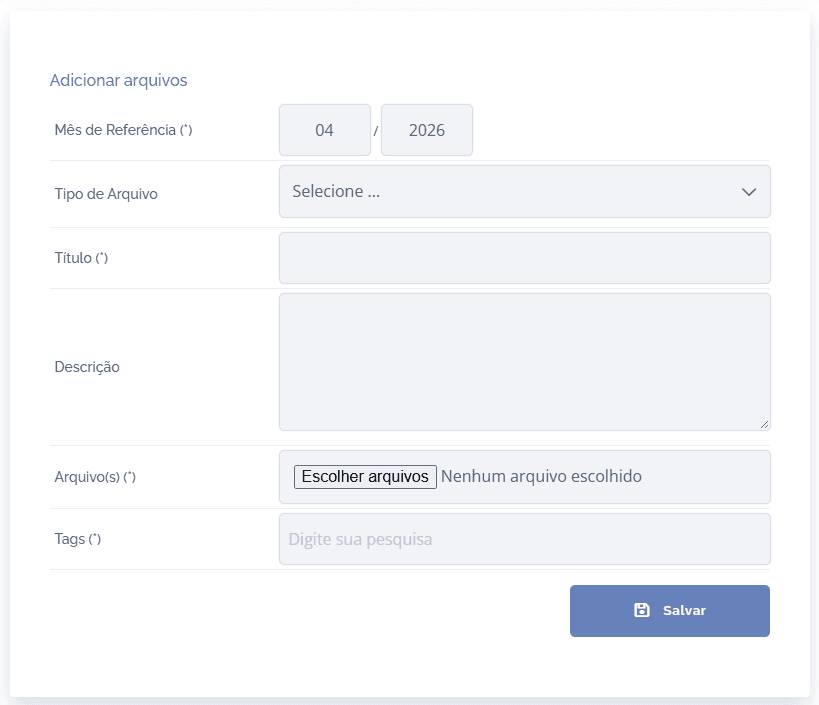
When you click the Add file button, the (File upload) block will be displayed:
Filling in the fields
Reference month: when clicking this field, set the month/year to be linked.
File type: when clicking this field, you must define the file type to be linked.
Title: when clicking this field, you must define the title (name) of the file to be registered.
Description: when clicking this field, describe the purpose of the file to be attached.
File: when clicking this field, choose the file that will be submitted (attached).
Tags: Choose from the selection box the tags you want to link to the file.
After filling in the fields, click the Save button.
View file
When clicking the View (Magnifying glass) icon, the file will be displayed in a new tab.

Download file
When clicking the Download icon, the file will be downloaded.
Edit file
When clicking the Edit icon, the (Edit file) block will be displayed:
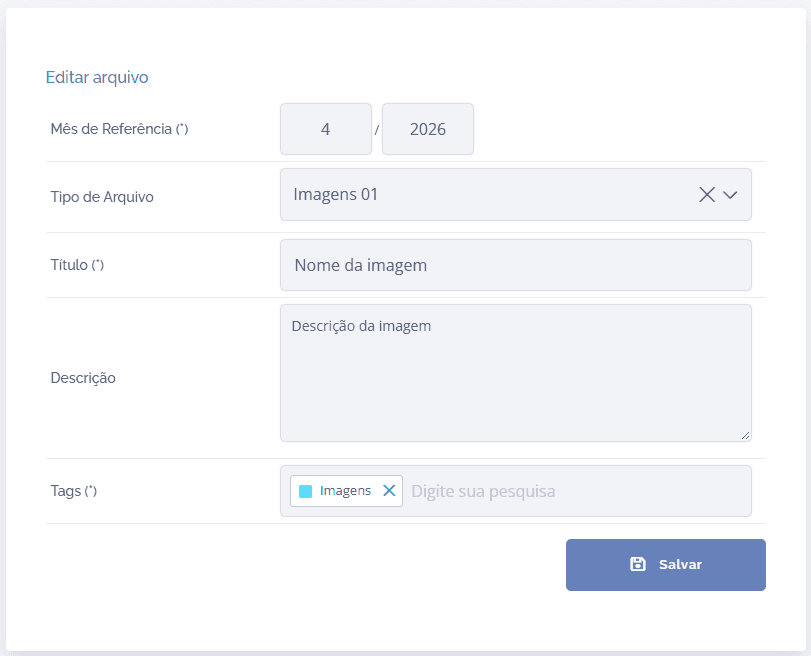
After editing the fields, click the Save button.
Delete file
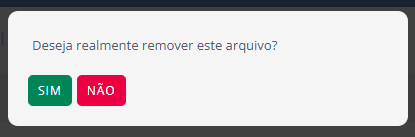
When clicking the Delete icon, a confirmation window for file removal will be displayed: