
Access profile permissions
To enable permissions for registering activities and defining responsible users, open the main menu, select the Activities module, Settings and click the Access profile permissions option.
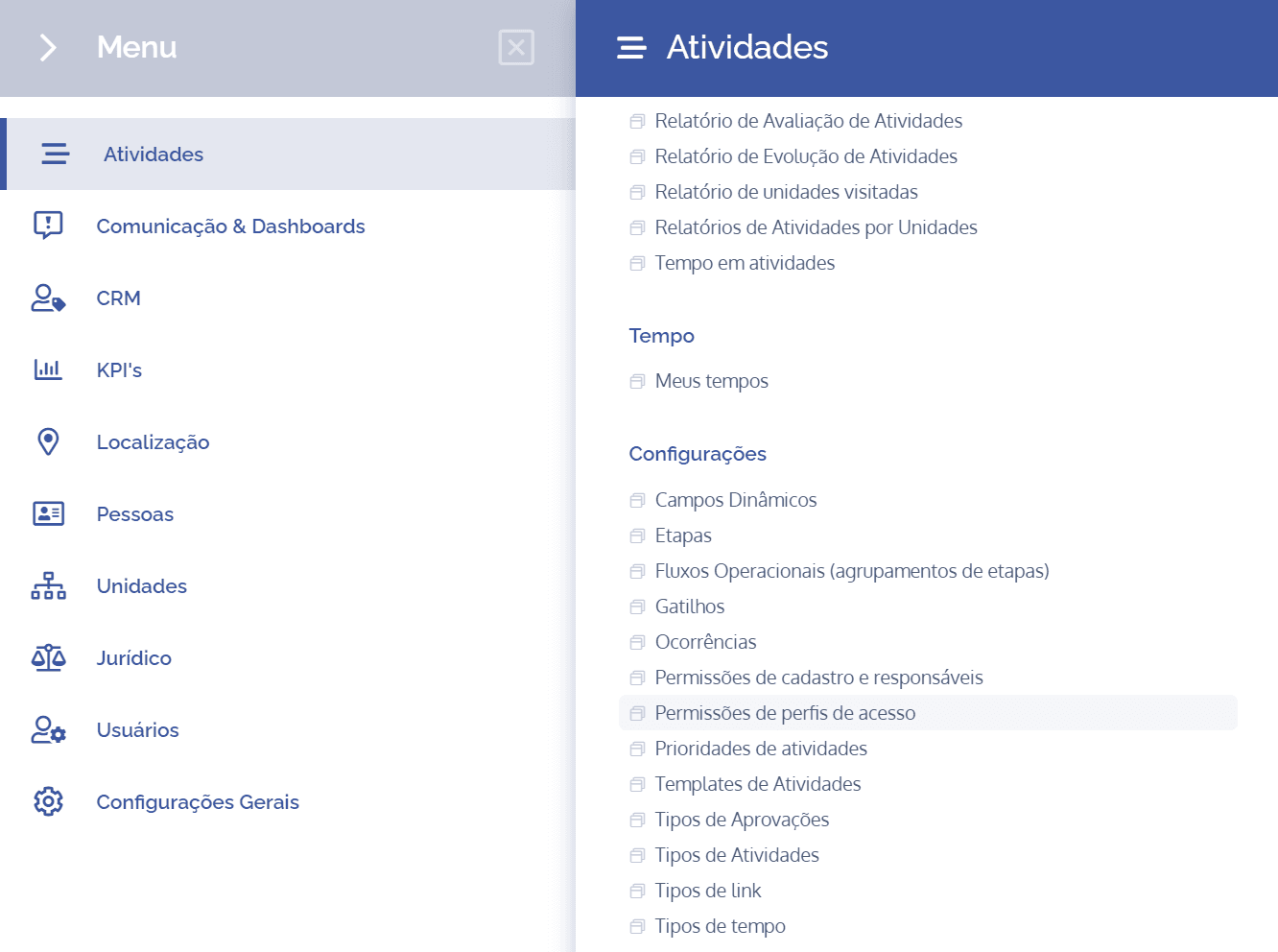
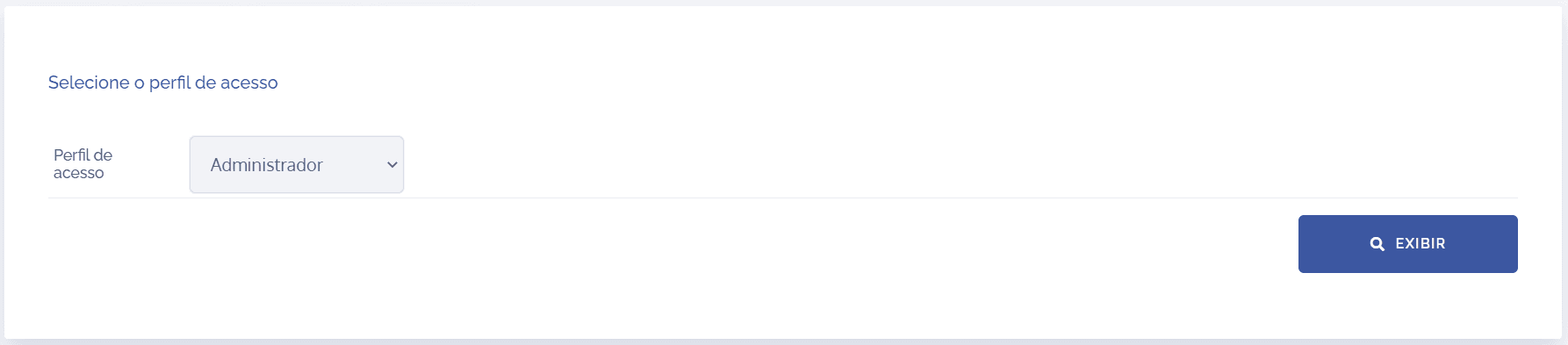
Select the desired access profile and click the View. button.
Next, the Access profile powers settings in activities block will be displayed:
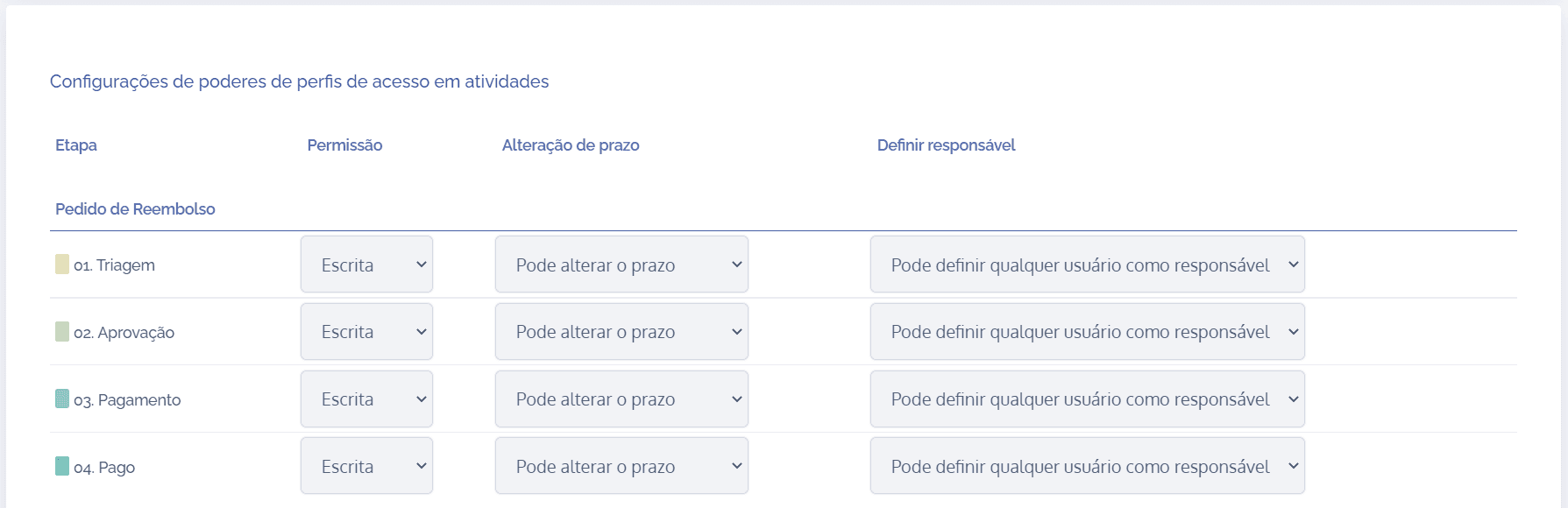
Note that there are four columns to be configured for each stage:
Stage
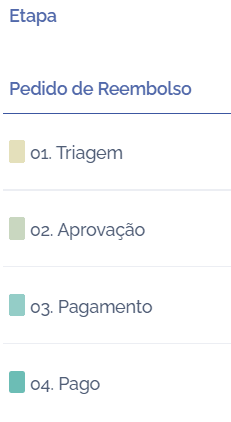
All stages registered on the platform are listed.
Permission
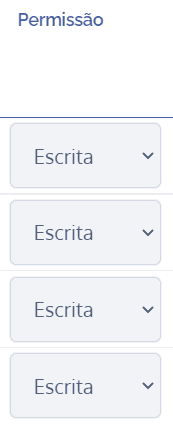
In the permission column, three options are presented:
None: When choosing this option, users in the selected profile will not see activities that are in this stage.
Read: When choosing this option, users in the selected profile will be able to view activities that are in this stage, but they will not be able to edit them.
Write: When choosing this option, users in the selected profile will be able to view and edit activities that are in this stage.
Deadline change
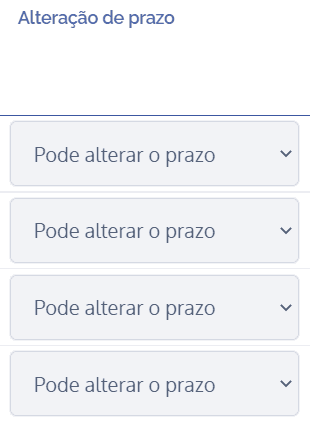
In the deadline change column, two options are presented:
Can change deadline: When choosing this option, users in the selected profile will be able to change the deadline that is in this stage.
Cannot change deadline: When choosing this option, users in the selected profile will not be able to change the deadline that is in this stage.
Define responsible user
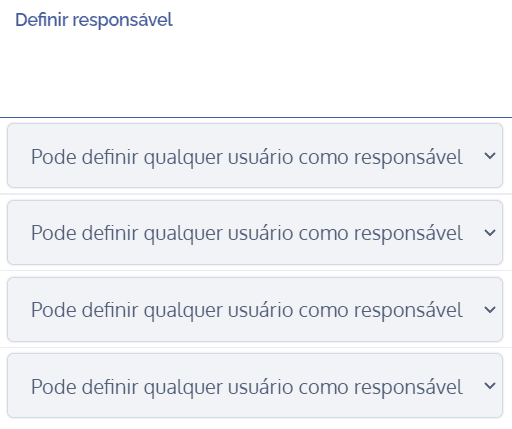
In the define responsible user column, two options are presented:
Can only define themselves as responsible: When choosing this option, users in the selected profile will only be able to define themselves as responsible for items that are in this stage.
Can define any user as responsible: When choosing this option, users in the selected profile will be able to define any responsible users for items that are in this stage.
After making the settings, click the Save button.