
Application access permissions
All system areas and actions in the Mobile App module category must strictly follow
the permission and visibility rules configured from the web platform, on the
access profiles screen.
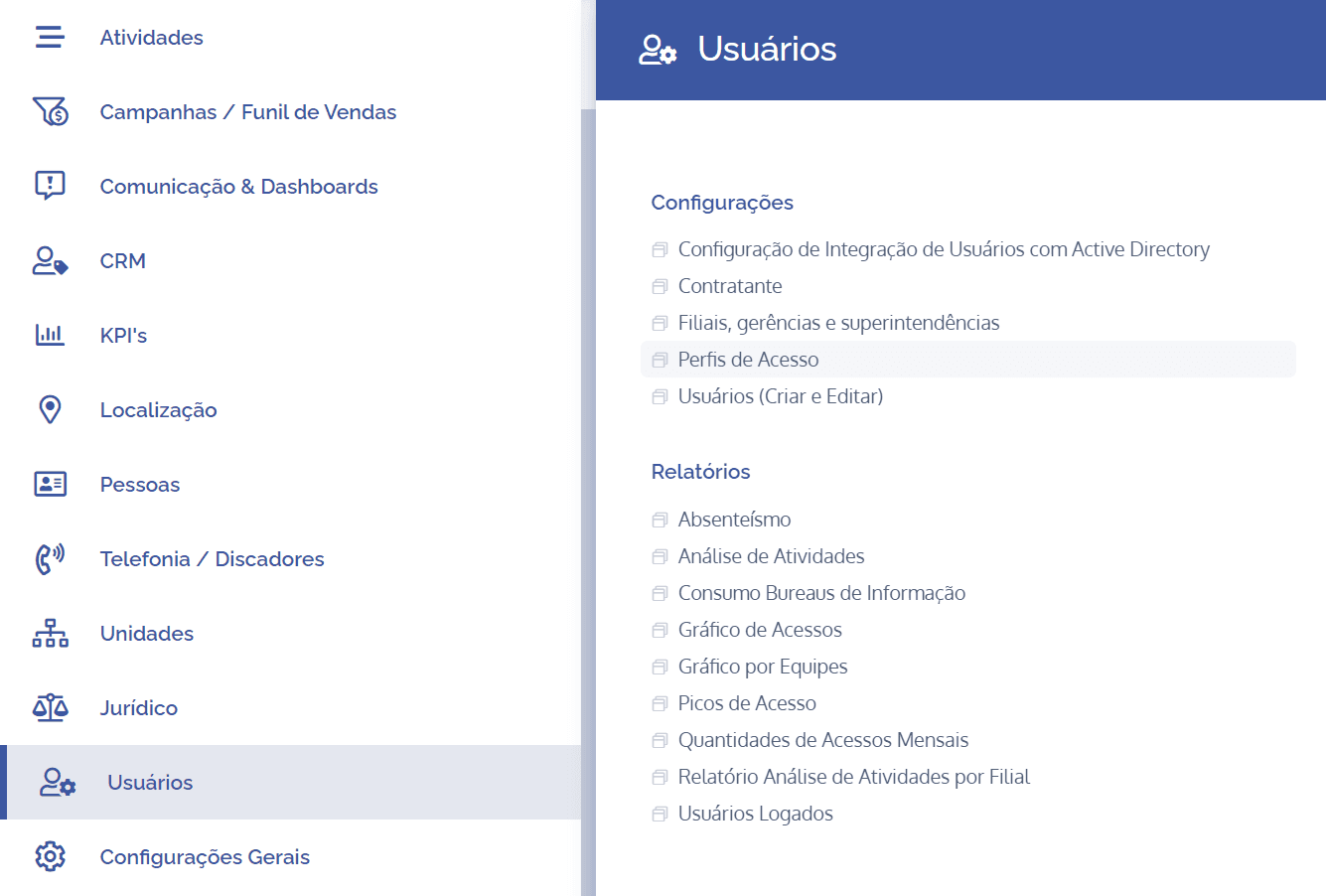
To define access permissions for the Mobile platform, open the main menu, select the Users module, Settings and click the Access profiles option.
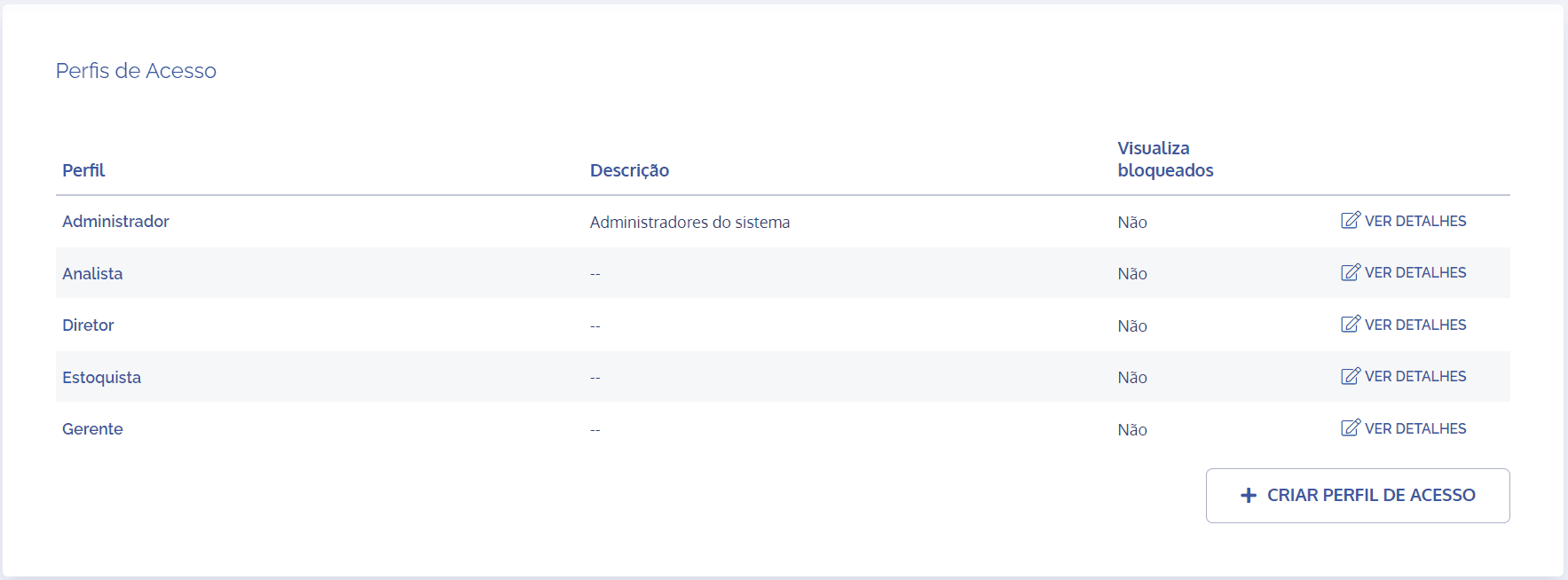
Next, the registered access profiles will be displayed; select the desired profile and click View details:
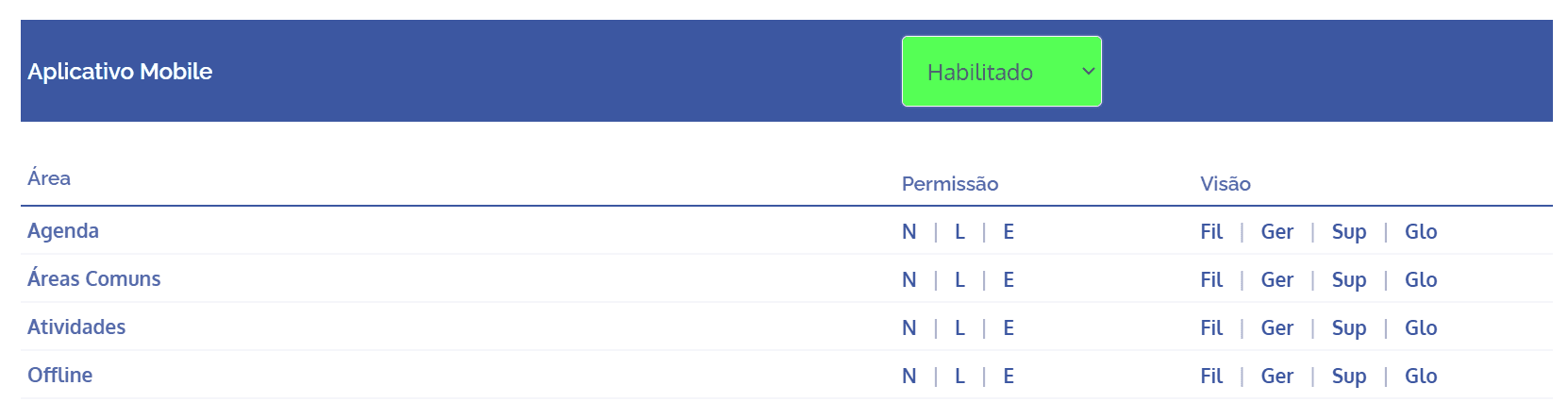
In the details of an access profile, in the Change permissions block, in the Mobile app environment, you can define the access permissions for the selected profile through the system areas, with their actions:
Important: For a better understanding of permission and visibility settings, see the content Configure access profile in the User module, under the Access profiles topics.
Schedule

Schedule: When selecting this area, the user can set the access rules among write, read, and none permissions:
Write – The user will have full access to the menu, perform filters, and edit event data.
Read – The user can access the menu and view events, but cannot edit events.
None – In this scenario, the user will not have visibility of the Schedule menu.
Visibility permissions (branch, management, superintendency, and global) will not have effect in this module.
Common areas

Device information capture: When selecting this area, the user can set the access rules among write, read, and none permissions:
Write – The user generates logs while navigating the app.
Read – The user generates logs while navigating the app.
None – User navigation logs are not generated.
Dashboards: When selecting this area, the user can set the access rules among write, read, and none permissions:
Write – The user will have full access to registered dashboards, allowing their visualization and access.
Read – The user will have full access to registered dashboards, allowing their visualization and access.
None – The user will not be able to view or access dashboards; that is, registered cards will not be displayed (inactive)
Users: When selecting this area, the user can set the access rules among write, read, and none permissions:
Write – Allows adding a user photo.
Read – The user cannot add photos.
None – The user cannot add photos.
Visibility permissions (branch, management, superintendency, and global) will not have effect in this module.
Activities
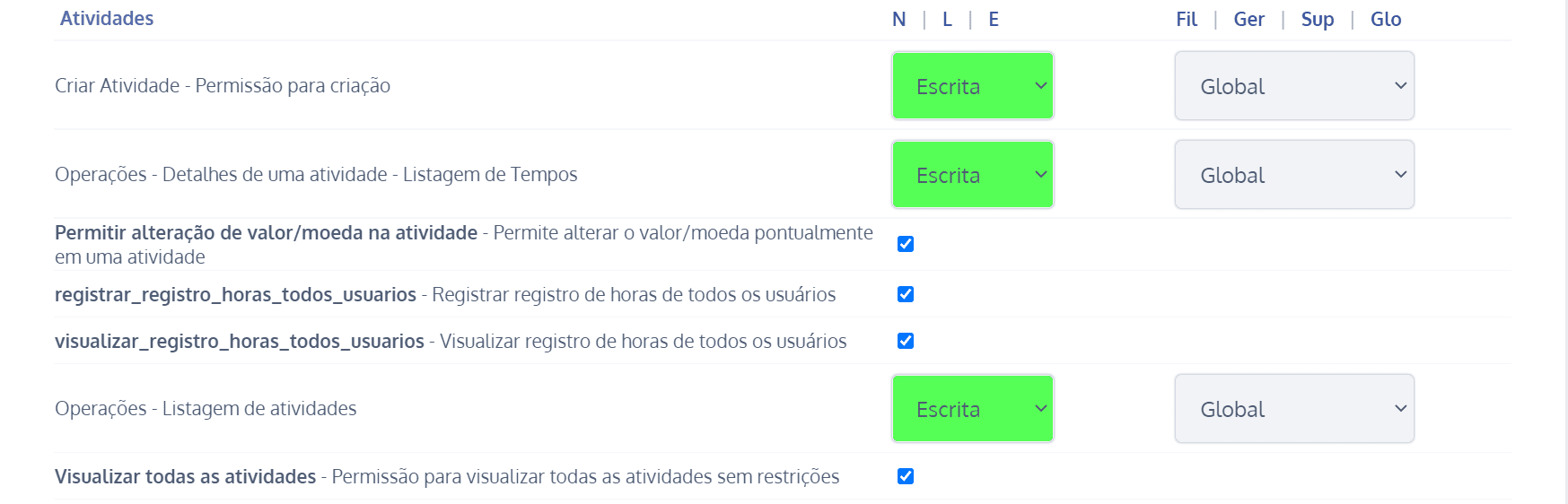
Create Activity – Creation permission: When selecting this area, the user can set the access rules among write, read, and none permissions:
Write – The user has access to the activity creation button (active action).
Read – The activity creation button is not shown to the user (disabled action).
None – The activity creation button is not shown to the user (disabled action).
Operations – Activity details – Time listing: When selecting this area, the user can set the access rules among write, read, and none permissions:
Write – The user has access to activity details regarding logged times according to the permissions configured in the Activities module of the Web System module category and can edit the activities they have access to.
Read – The user has access to activity details regarding logged times according to the permissions configured in the Activities module of the Web System module category, but cannot edit the activities they have access to.
None – The user does not have access to activity details regarding logged times.
Allow value/currency change in activity: by selecting the checkbox, it will be possible to change the value/currency in a specific activity.
registrar_registro_horas_todos_usuarios: by selecting the checkbox, it will be possible to log hours for all users.
visualizar_registro_horas_todos_usuarios: by selecting the checkbox, it will be possible to view hour logs for all users.
Operations – Activity listing: When selecting this area, the user can set the access rules among write, read, and none permissions:
Write – The user can view the listing according to the permissions configured in the Activities module of the Web System module category and can edit the activities they have access to.
Read – The user can view the listing according to the permissions configured in the Activities module of the Web System module category, but cannot edit the activities they have access to.
None – The user does not have access to the activity listing.
In this scenario, when accessing the Activities menu, the activity listing will show the message: “username, you do not have permission to access this screen. Contact the system administrator and request access”.
View all activities: by selecting the checkbox, it will be possible to view all activities without restrictions.
Visibility permissions (branch, management, superintendency, and global) will not have effect in this module; visibility rules will follow the settings configured in the Activities module of the Web System module category.
Offline

Offline Login: When selecting this area, the user can set the access rules among write, read, and none permissions:
Write – the user can view and edit offline activities.
Read – the user can view, but cannot edit offline activities.
None – the user has no visibility of offline activities.
Visibility permissions (branch, management, superintendency, and global) will not have effect in this module.