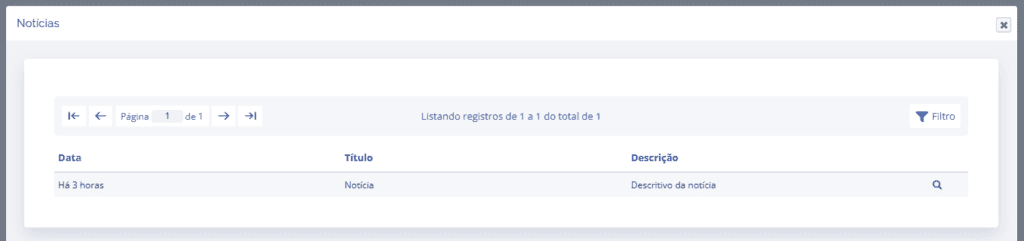
News
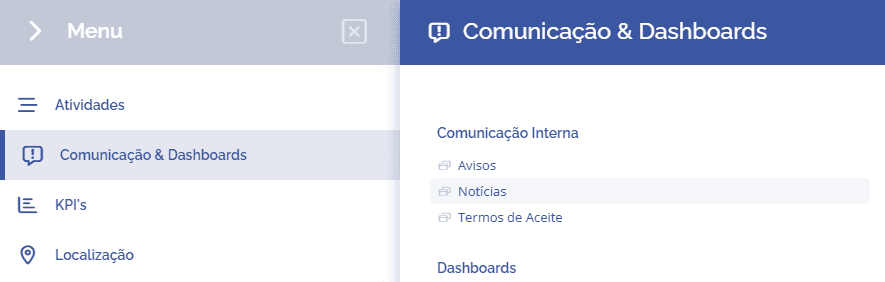
To configure the news block for use in dashboards, you need to access Communication & Dashboards > Internal Communication > News:
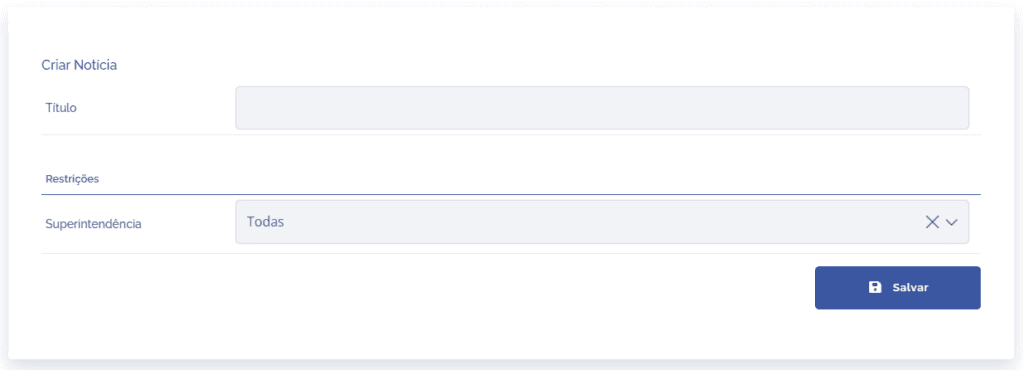
Next, you will be redirected to the news block, where you can add news by clicking the Create News button:

When you click Create News, a new block will be displayed, allowing you to enter a title for the news and define which superintendencies will receive the news (when defining a specific superintendency, it is possible to define the management and branch).
After saving the configuration of the new news item, it will be added to the list with the status Not Published.

By clicking the edit icon, new fields will be displayed:
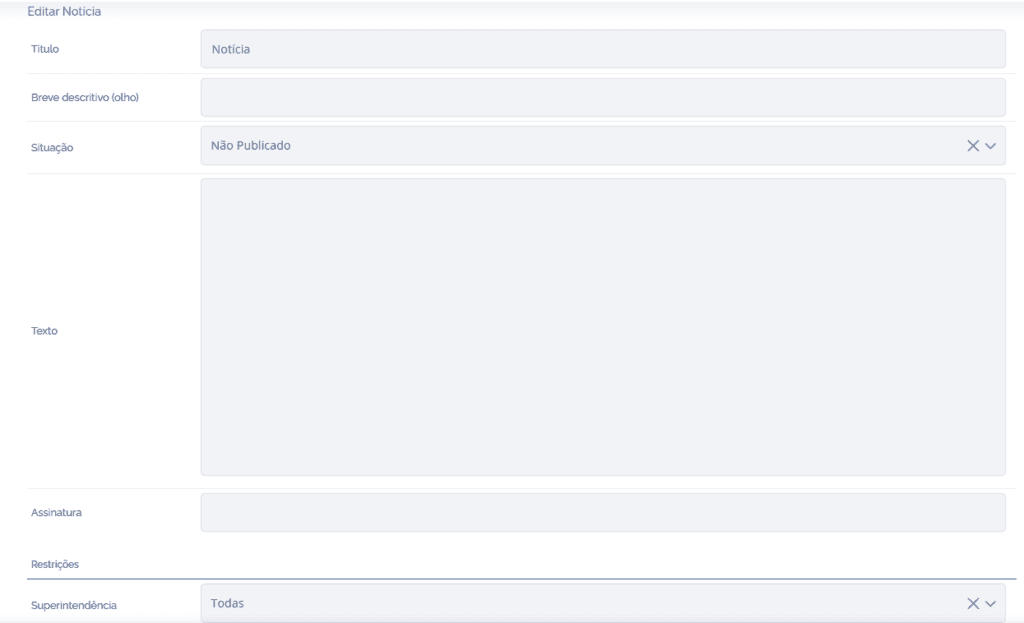
Title: News title.
Short description: Brief description of the news.
Status: Not published / Published.
Text: Text that will be displayed in the news item.
Signature: News signature.
Superintendency: Defines who will receive the news. When defining a specific superintendency, it will be possible to define management and branch.
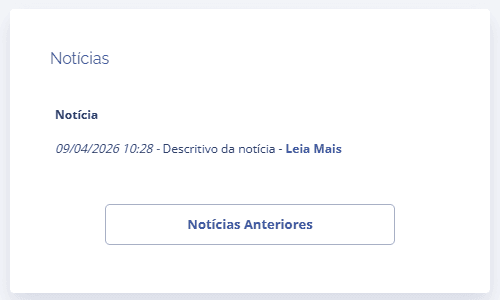
When changing the status to Published, if the user is included in the news restriction AND views the dashboard that has the news block, it will be possible to see the configured news items.
Note: To configure a dashboard block, read the article Create/Add blocks.
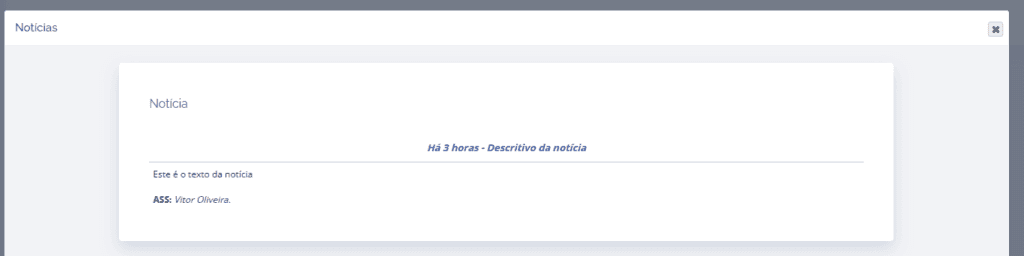
When clicking Read More, a floating window will be displayed with the news settings.
When clicking the Previous News button, a floating window is displayed where you can view other news items, if configured and the user has access.