
External form
The external form is used for those who are not system users; access is through a URL (link).
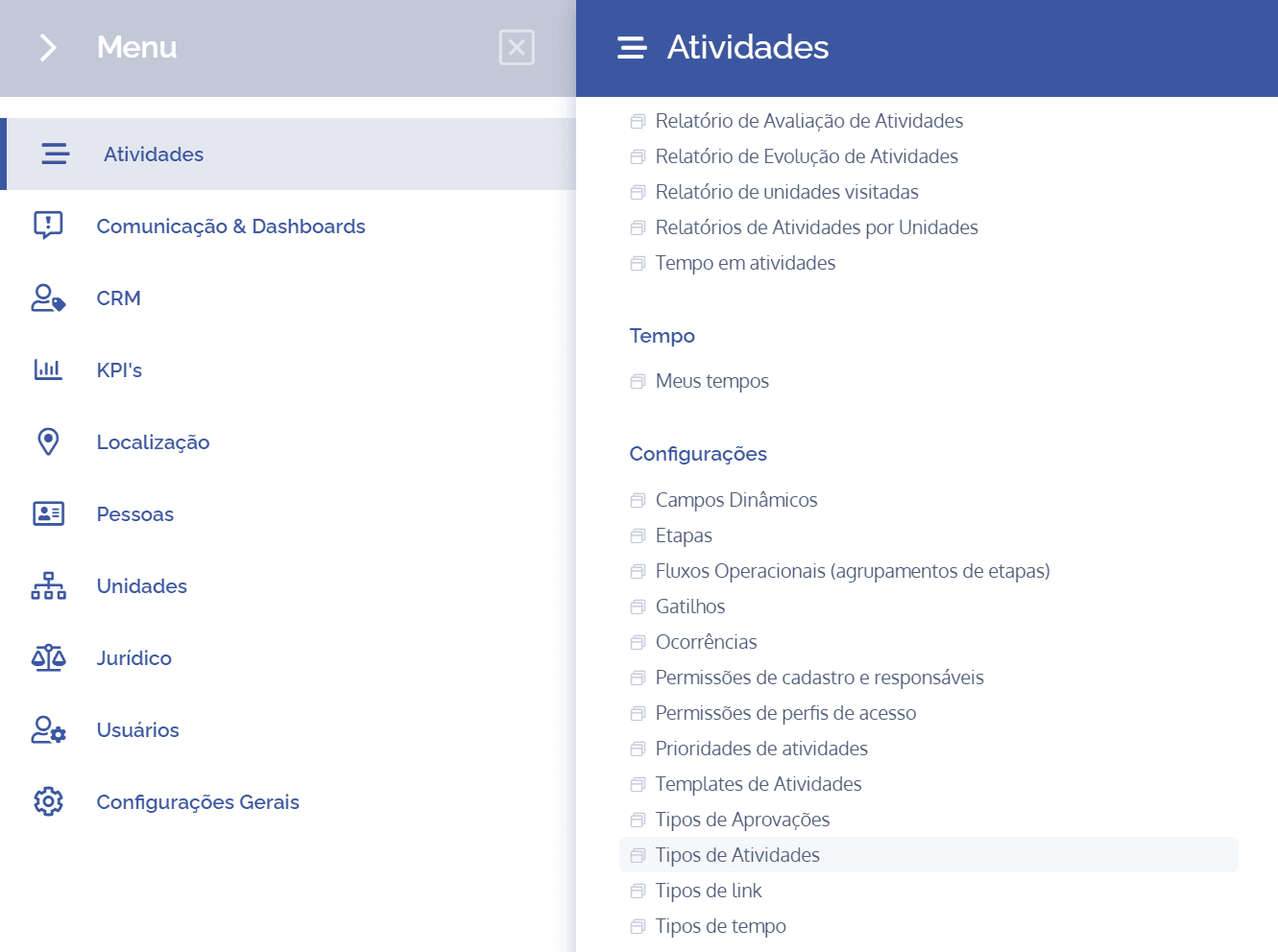
To add an external form to an activity type, open the main menu, select the Activities module, Settings, and click the External form option.
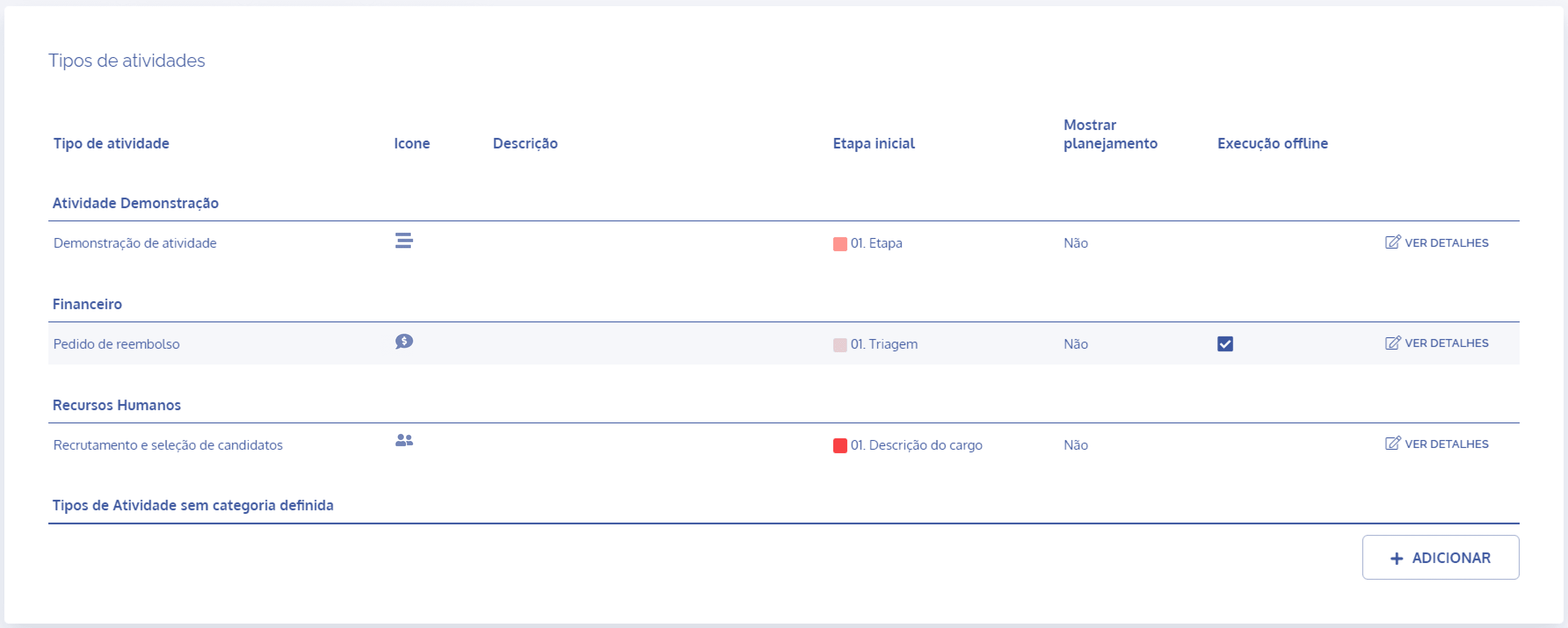
In the Activity types block, click the View details button to display the details of the desired activity:
Then, click the External form card

In the External form block, some fields to be filled in will be displayed:
Active

By clicking the toggle icon, it will be possible to activate or deactivate the form link.
URL

By clicking the URL link, it will be possible to access the external form, as well as share it.
Responsible user

By clicking the User responsible for creating the activity field, a search field will be displayed to find the user responsible for the activity. As soon as the form is filled out, the registered user will be notified.
Logo

By clicking the Logo field in Choose file, it will be possible to add a file, regardless of format, for upload (data upload).
Customize background color
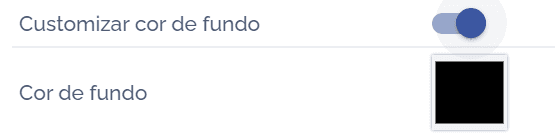
By clicking the toggle icon, it will be possible to activate it, customizing the form background color.
Title

By clicking the Title field, it will be possible to enter (fill in) a title that corresponds to the form to be displayed in the external link.
Description
By clicking the Description field, it will be possible to enter information that describes the activity in question, that is, information relevant to a better understanding of the purpose of the proposed request.
Success message
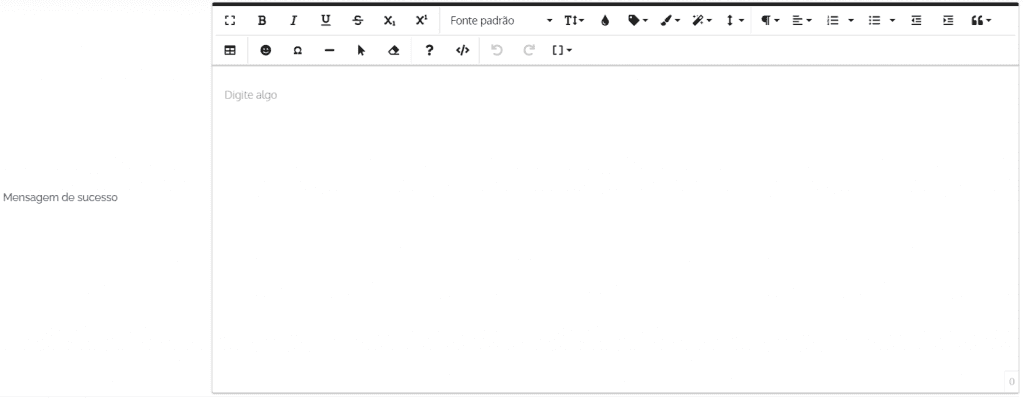
By clicking the Success message field, it will be possible to enter a brief success message. After the external user fills out the form and submits the request, the message entered in this field will be displayed.
External form
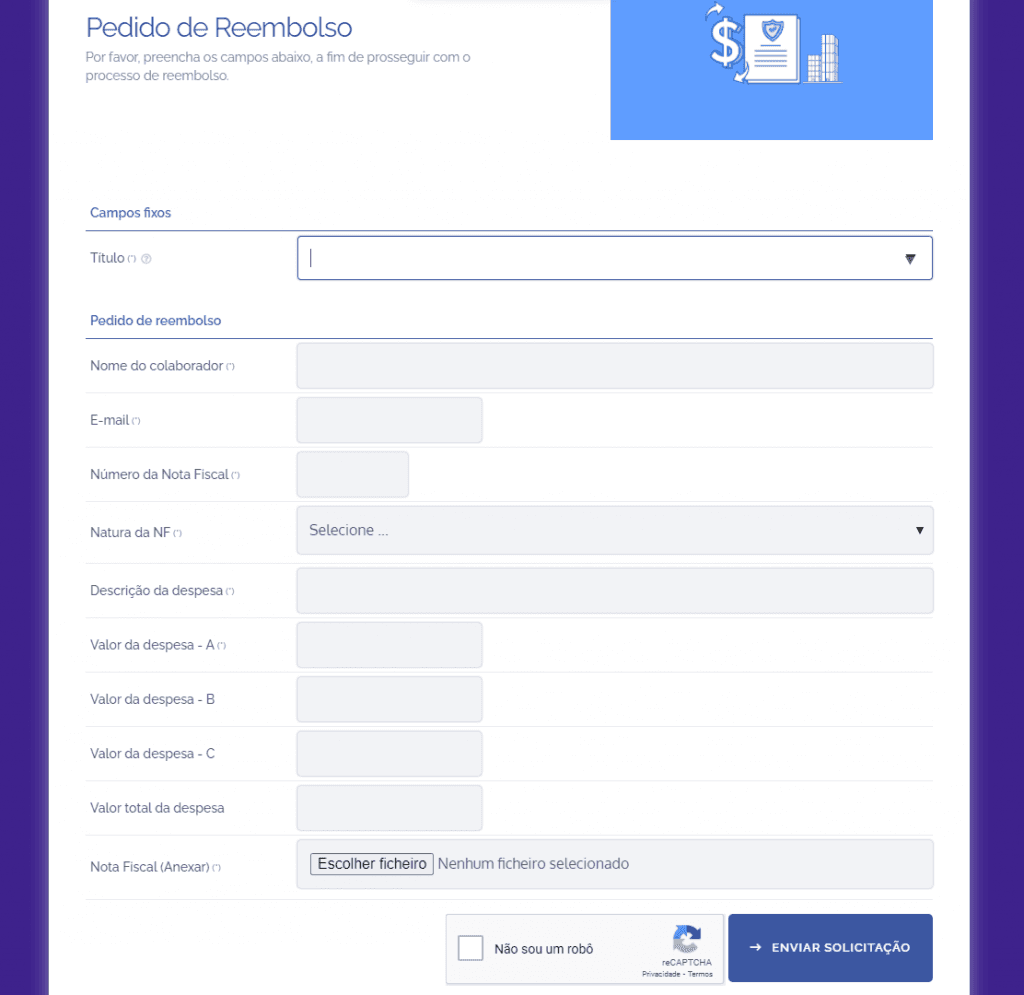
At the top of the external form are the inserted title, the brief description of the activity functionality, the inserted logo, and the customized background color. In addition to presenting fixed and dynamic fields for external users to fill in. Remember that these fields are linked to an activity type in the system; after being filled in and clicking the submit request button, it will enter the activity listing, going through the entire process.
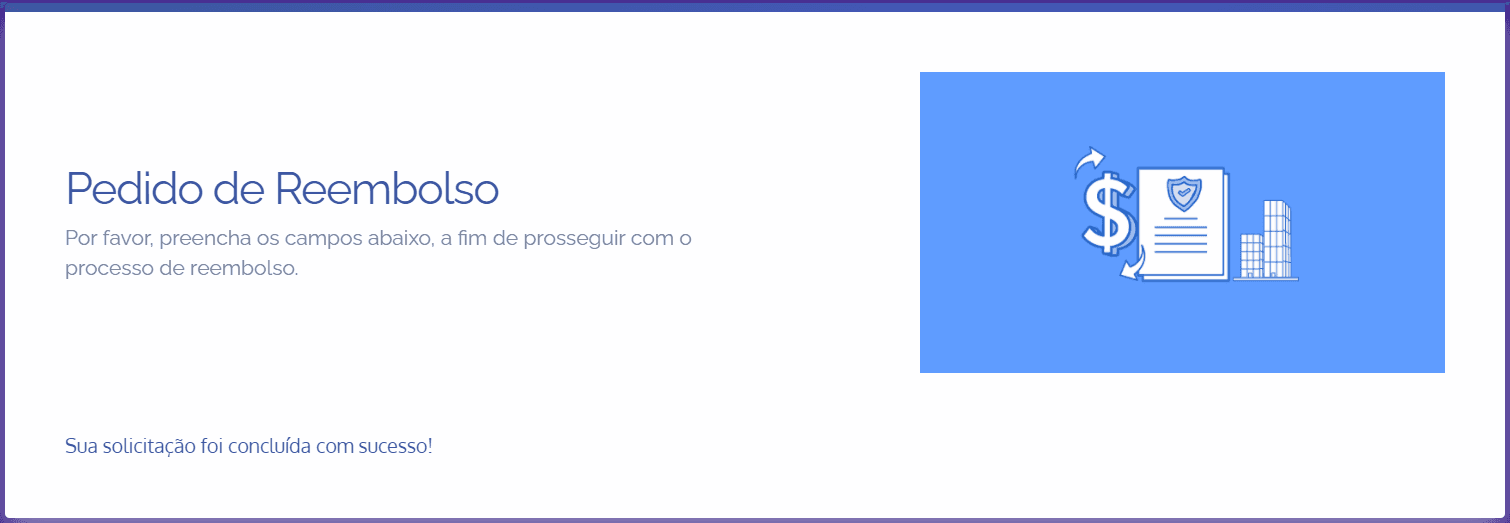
Upon finishing the request, the success message is displayed, as configured.
Activity listing
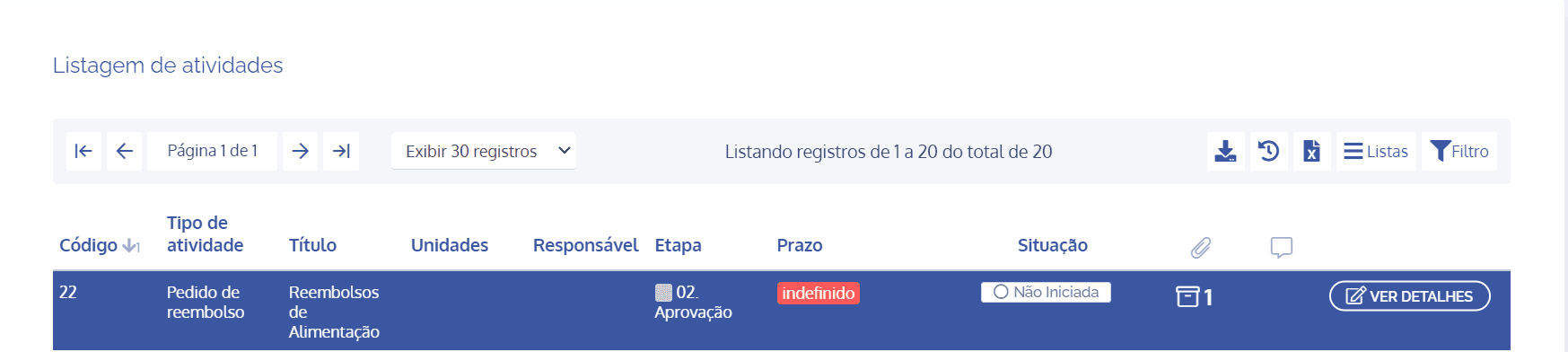
When the request is submitted through the form, a new activity is created in the system with the information filled in by the external user, and it will be possible to track it.