Association of dynamic fields of occurrences
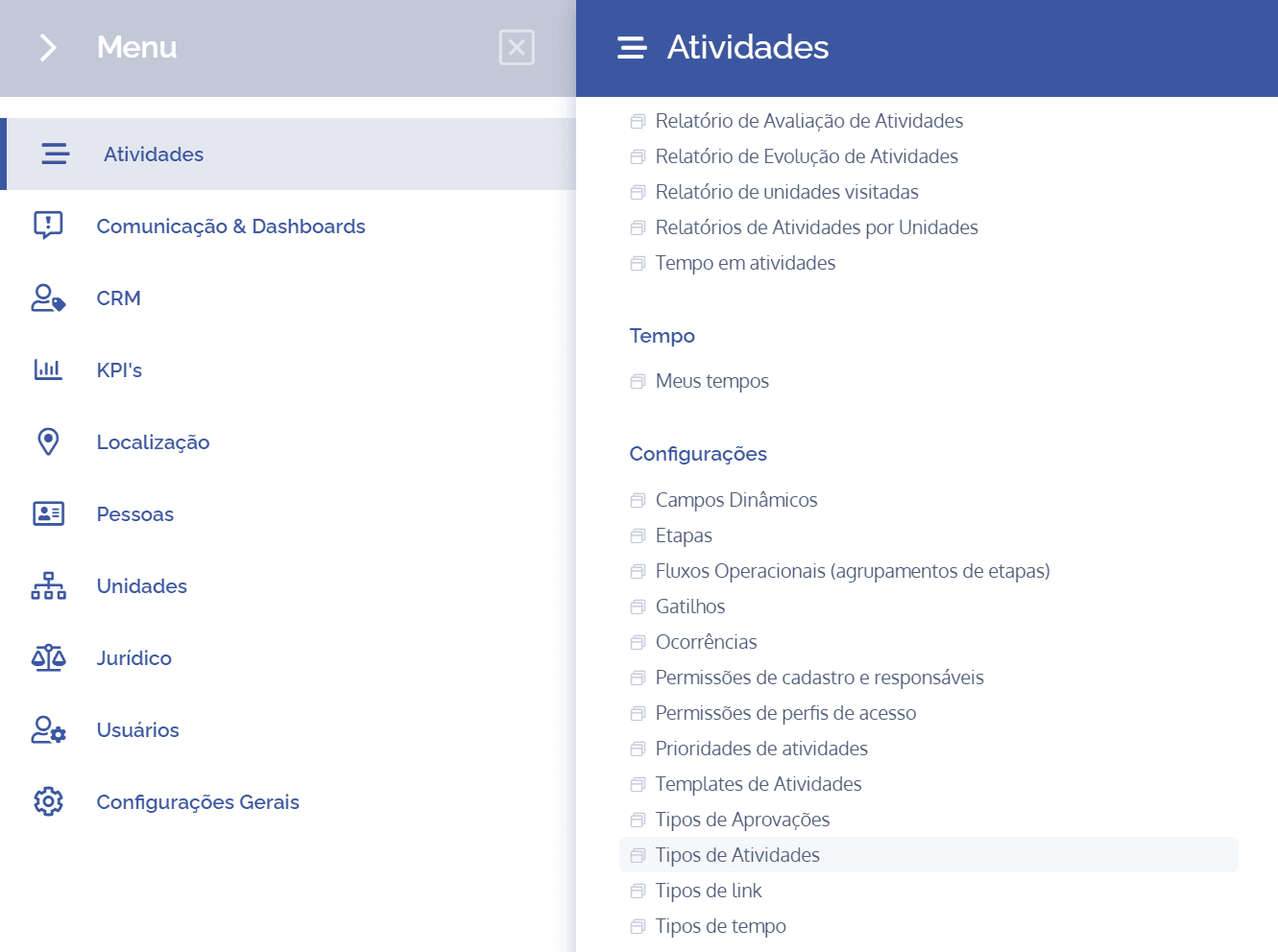
To associate dynamic incident fields in an activity type, open the main menu, select the Activities module, Settings and click the Incident dynamic field association option.
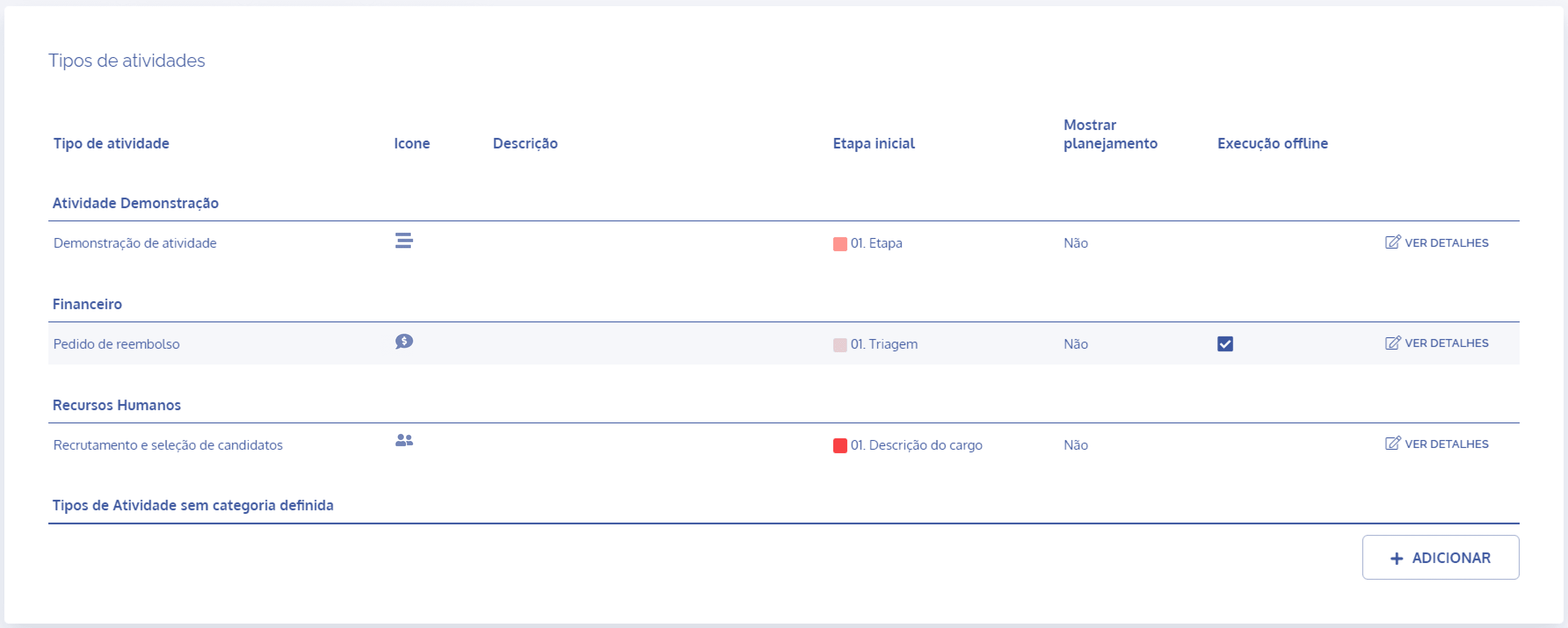
In the Activity types block, click the View details button to display the details of the desired activity:
Then, click the Incident dynamic field association card

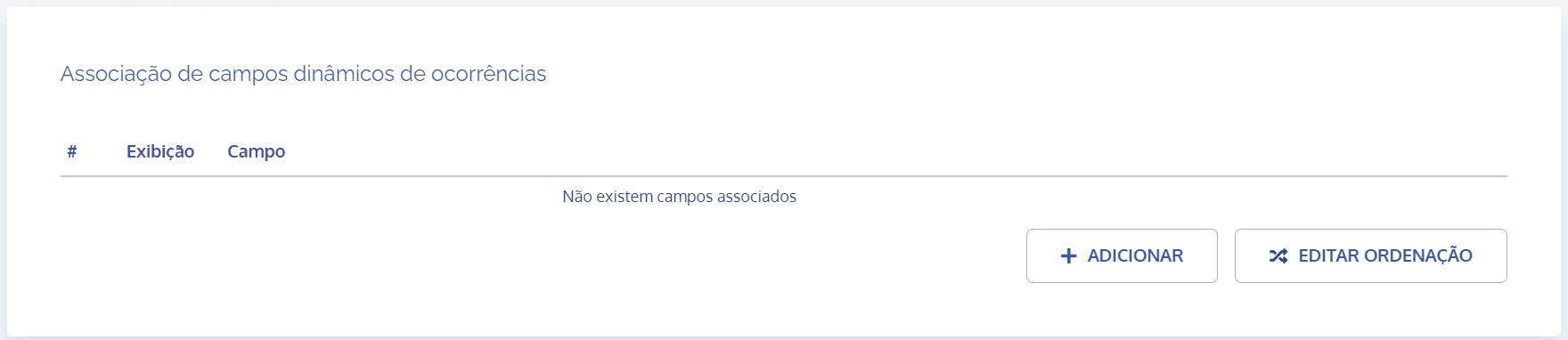
In the Incident dynamic field association block, click the Add button:
A new block will be displayed to select incident fields:
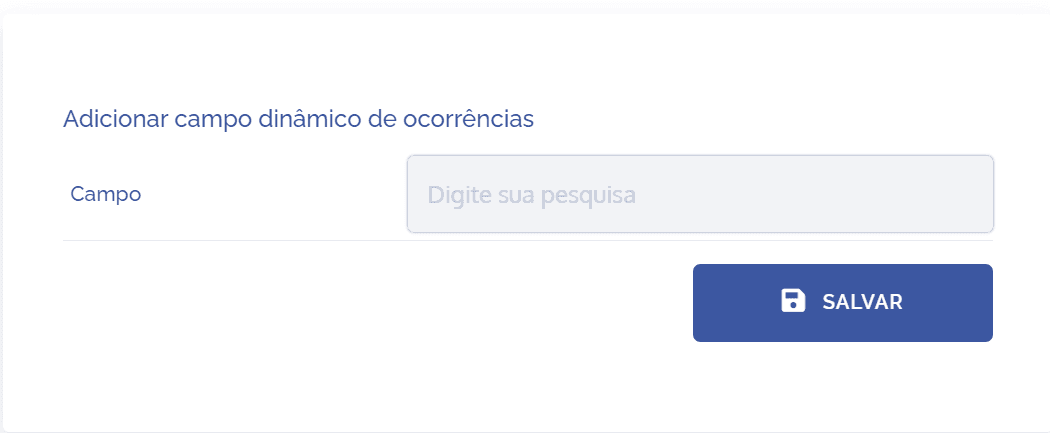
When selecting Field, dynamic incident fields linked to a category will be displayed, provided they are registered.
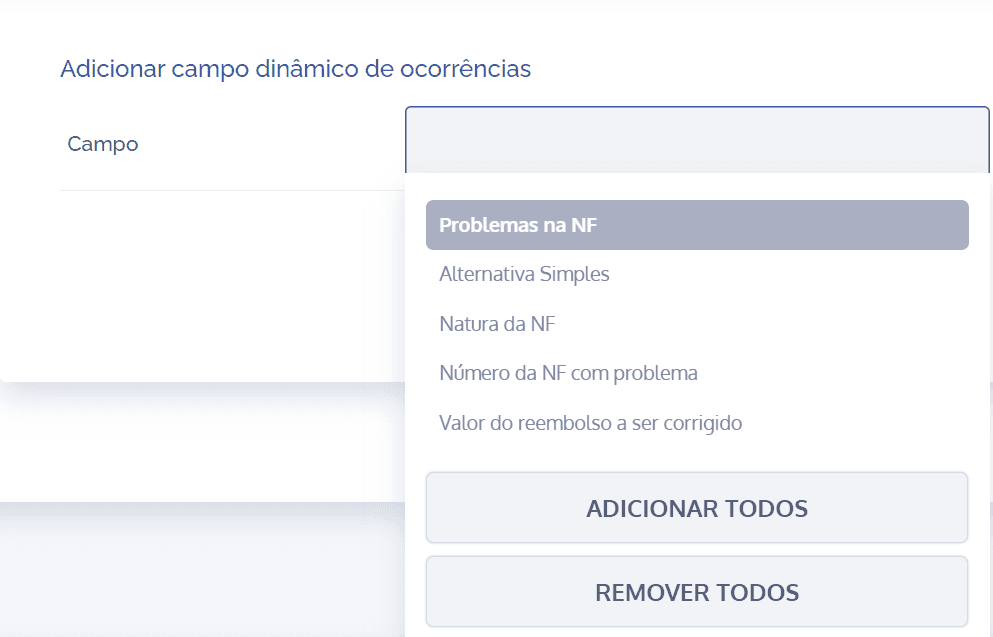
You can select all or choose one or more fields to be linked. After adding, click Save.
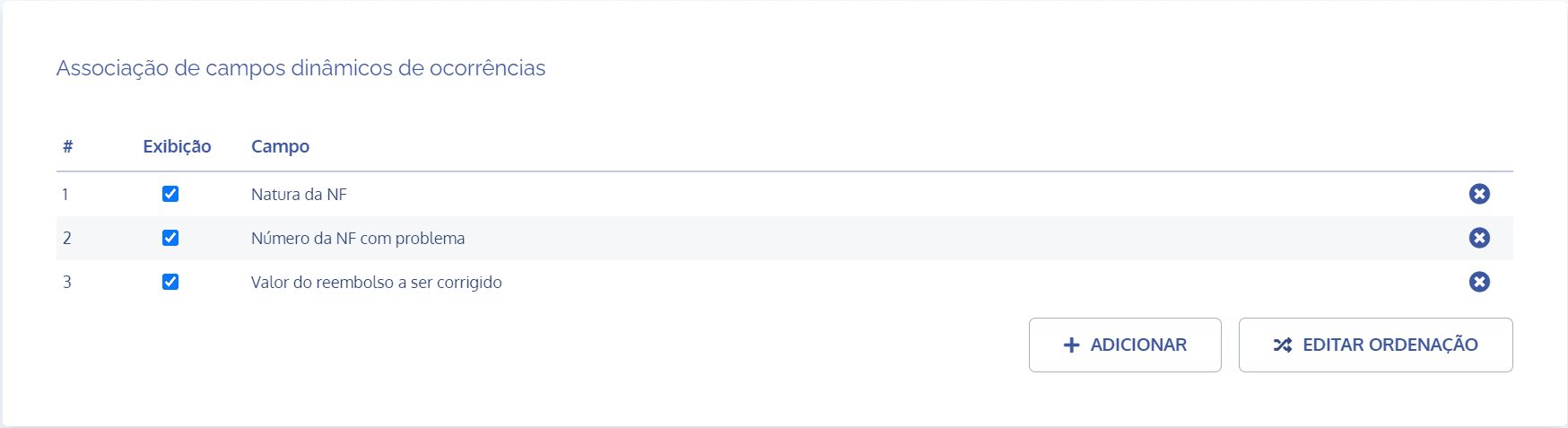
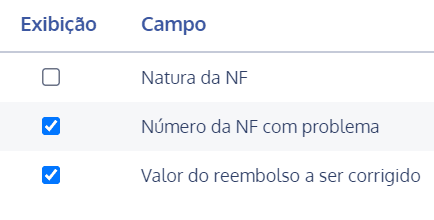
With the fields added, there are two display options: Active or Inactive (hidden). To hide a field, click the checkbox in the Display column:
Edit ordering
When clicking the Edit ordering button, a floating screen will be displayed to reorder the priority of the fields:
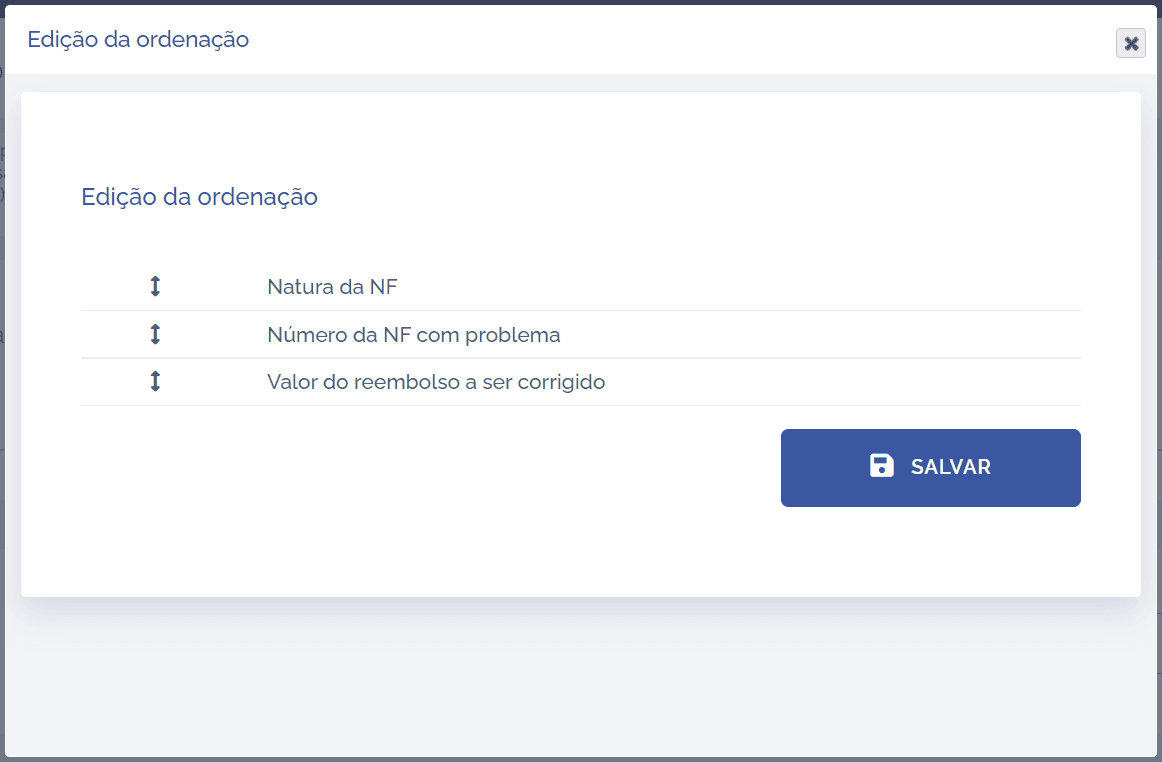
To change the order of the fields, select the desired field by dragging it up or down and dropping it in the desired position; after reordering, click Save.
Delete association
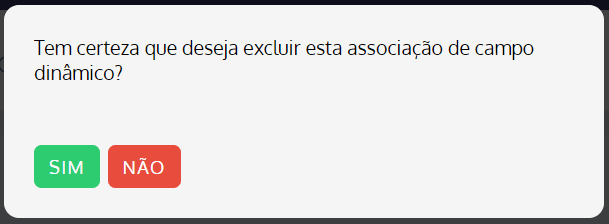
When clicking the remove icon, a confirmation box for deleting the dynamic field association will be displayed: