Step diagram
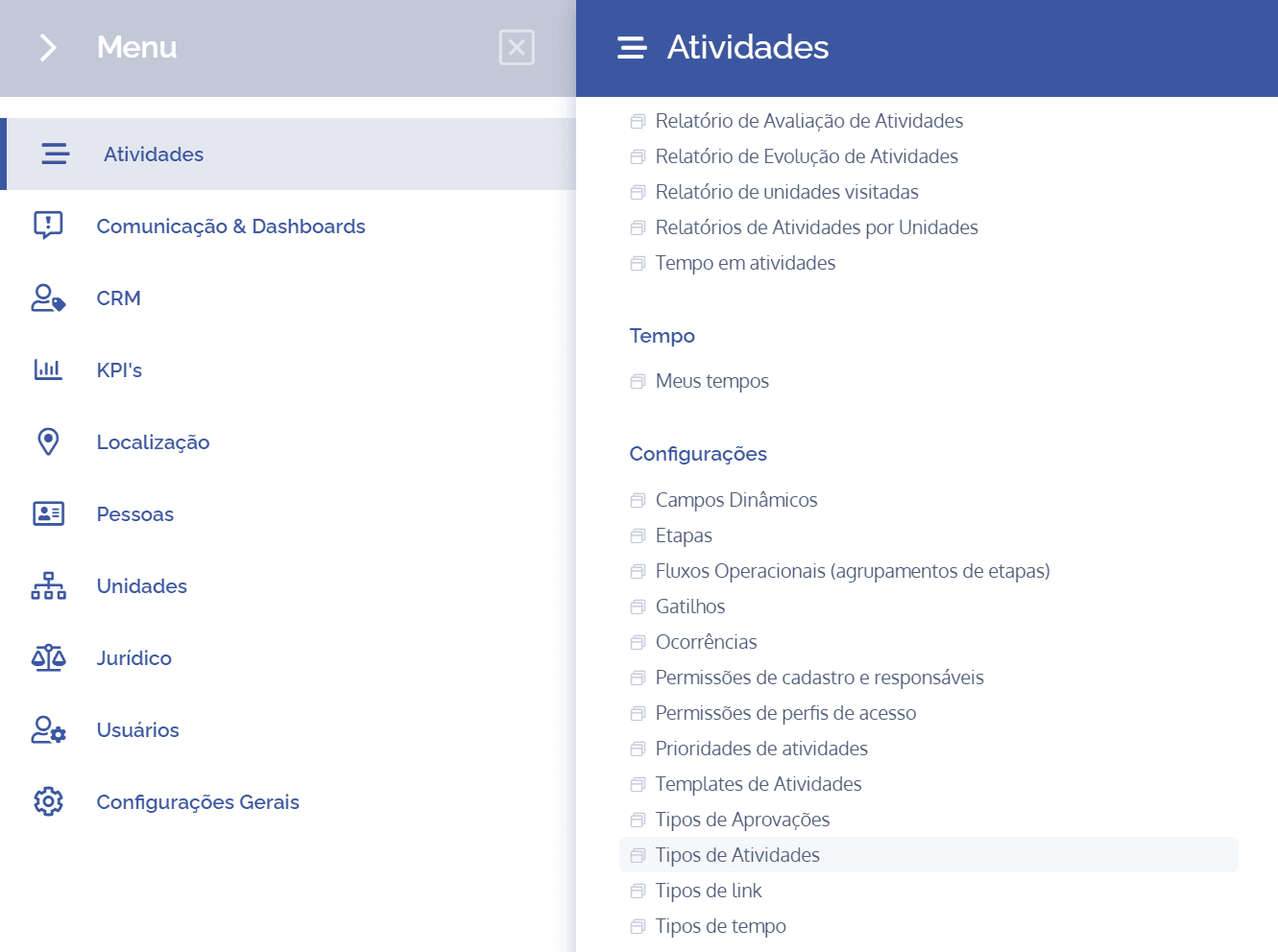
To add steps in an activity type, open the main menu, select the Activities module, Settings, and click the Activity types option.
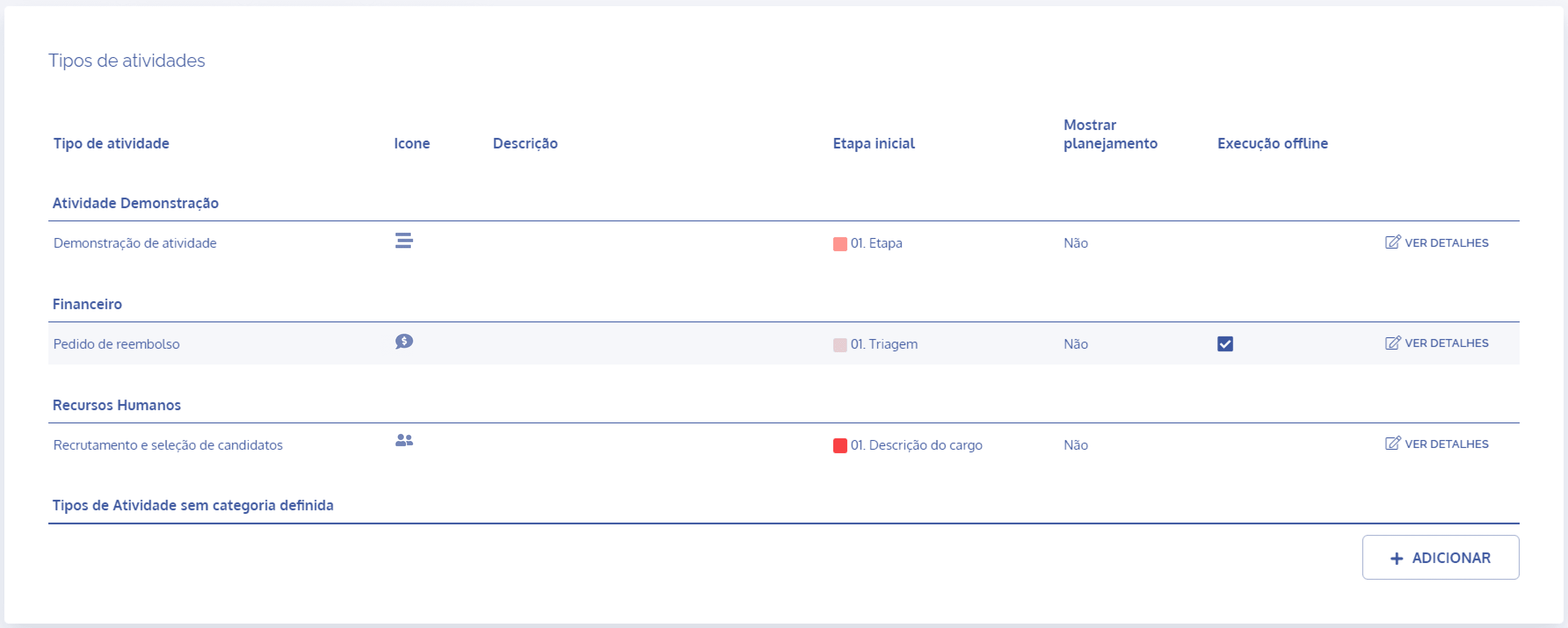
In the Activity types block, click the View details button to display the details of the desired activity:
Then, click the Step diagram card

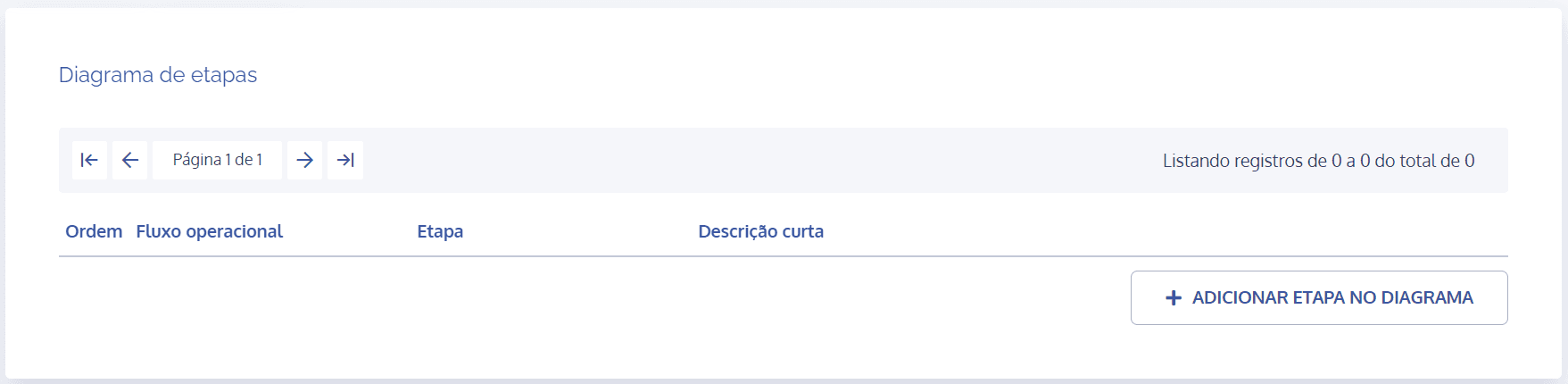
In the Step diagram block, click the Add step to diagram button:
A new block will be displayed to select the steps:
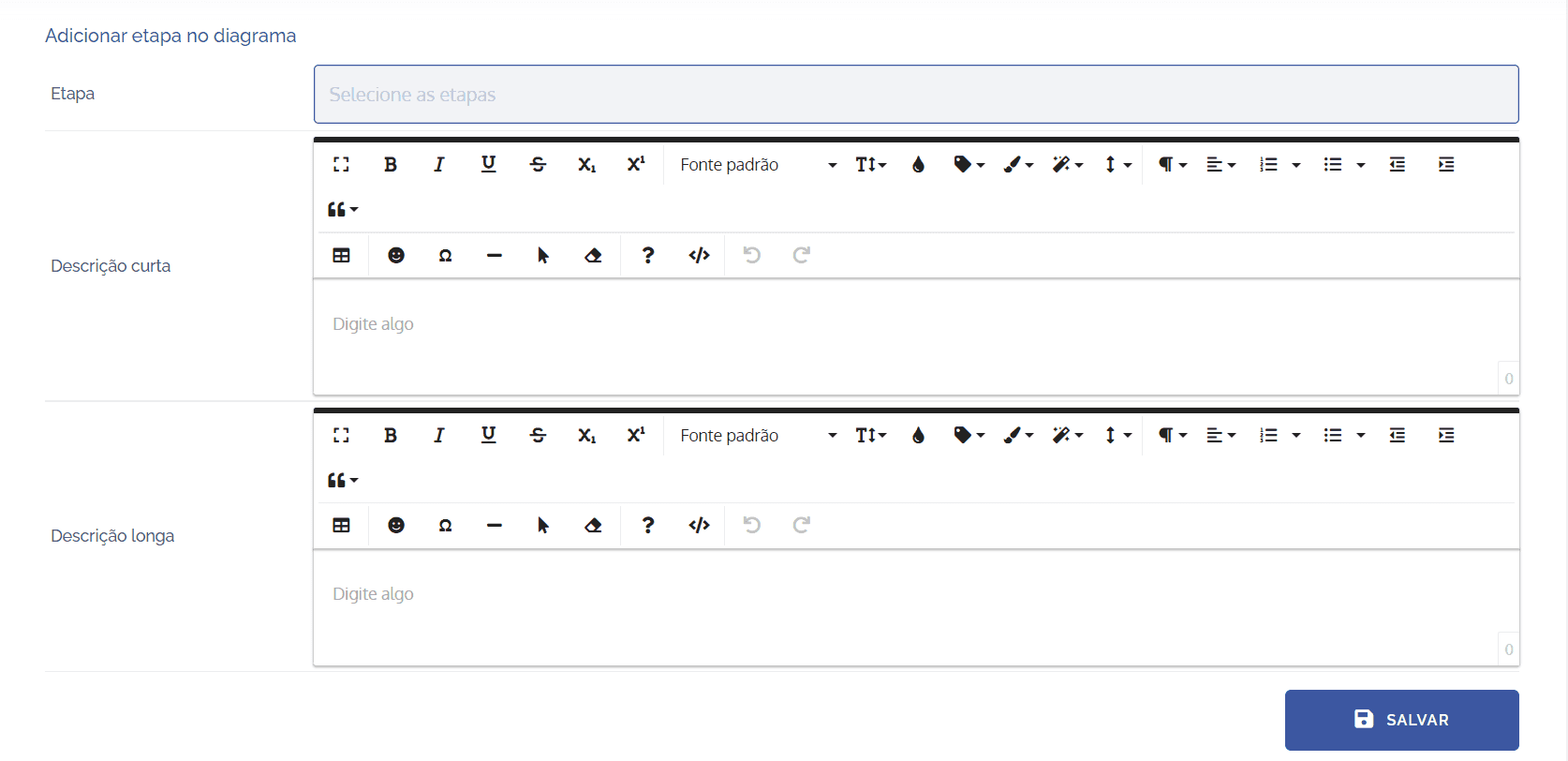
When selecting the Step field, the steps linked to a specific operational flow will be displayed, as long as they are registered.
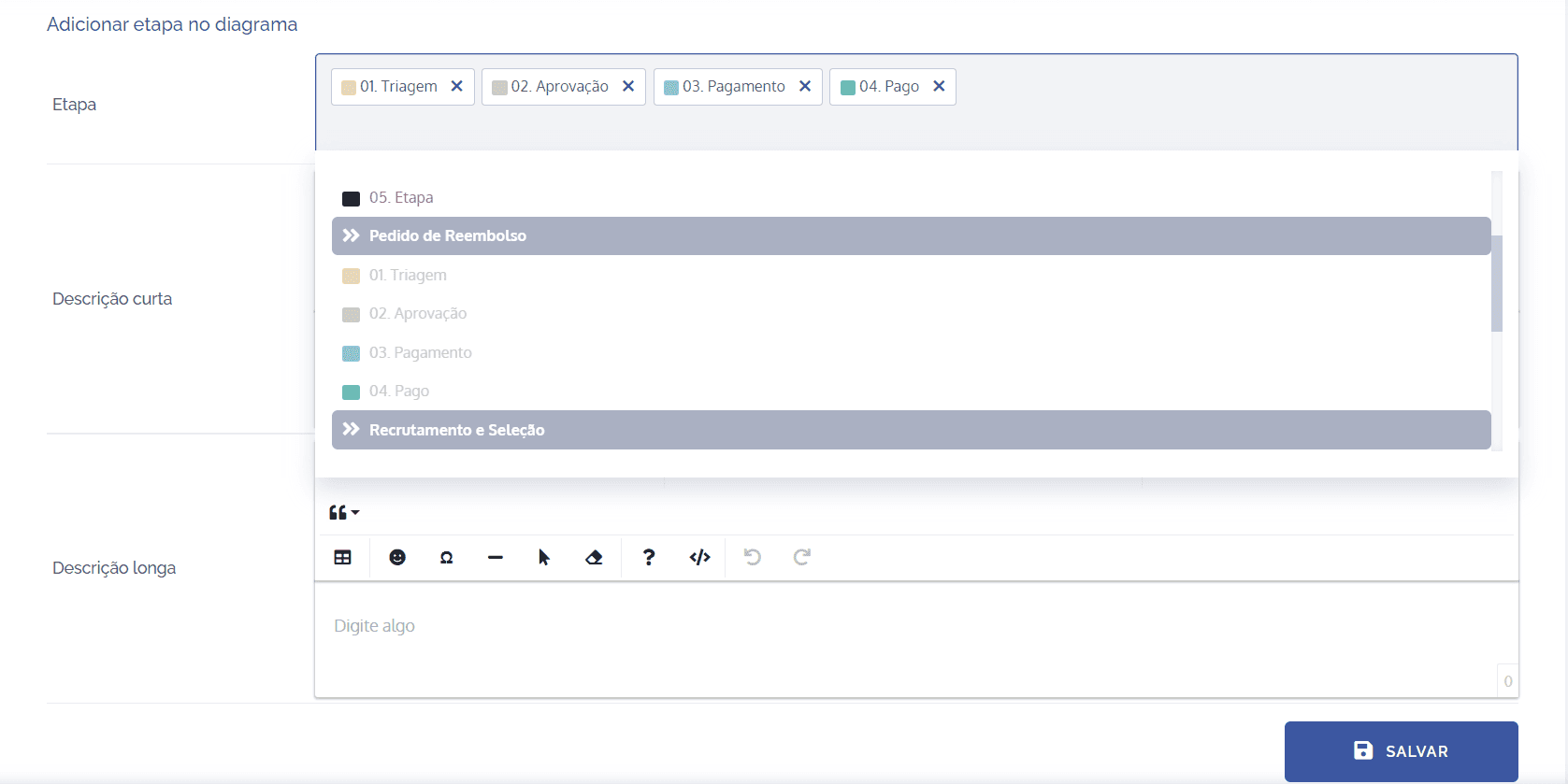
It is possible to add more than one step in the same operation. After linking the steps, click Save.
Edit ordering
When clicking the Edit ordering button, a floating screen will be displayed to reorder the priority of the steps:
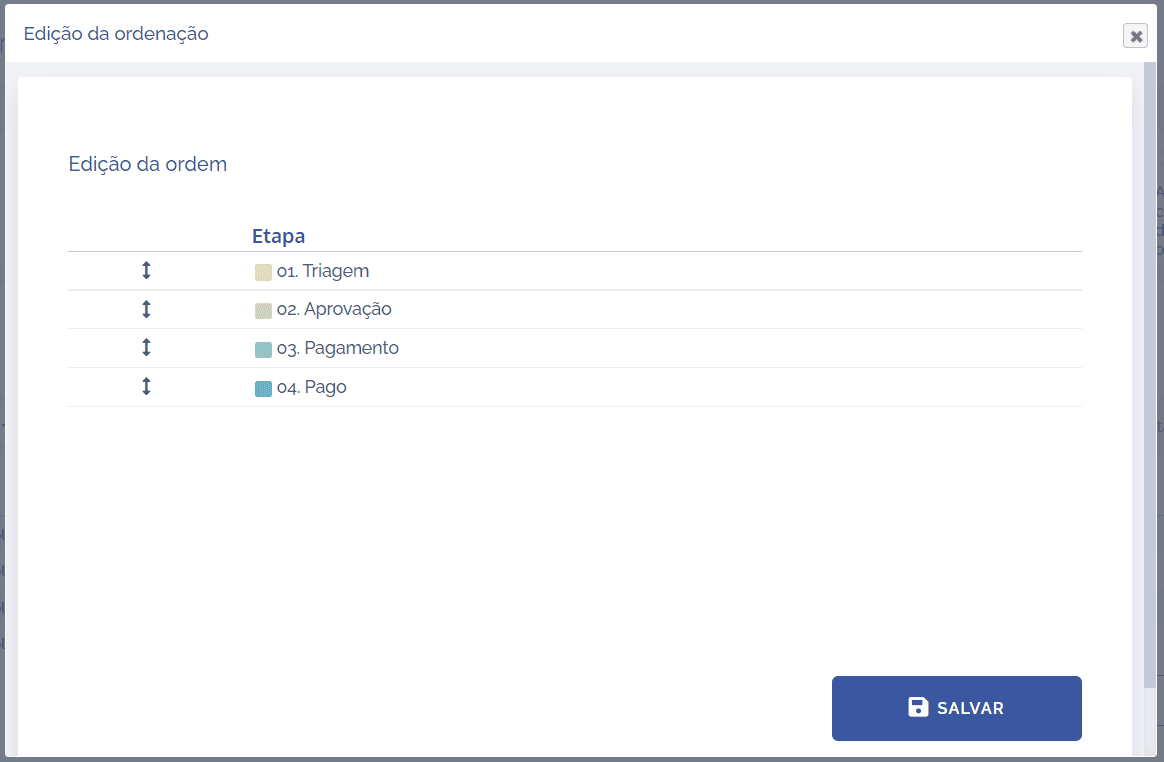
To change the order of the steps, select the desired step by dragging it up or down and dropping it in the desired position; after reordering, click Save.
Edit step
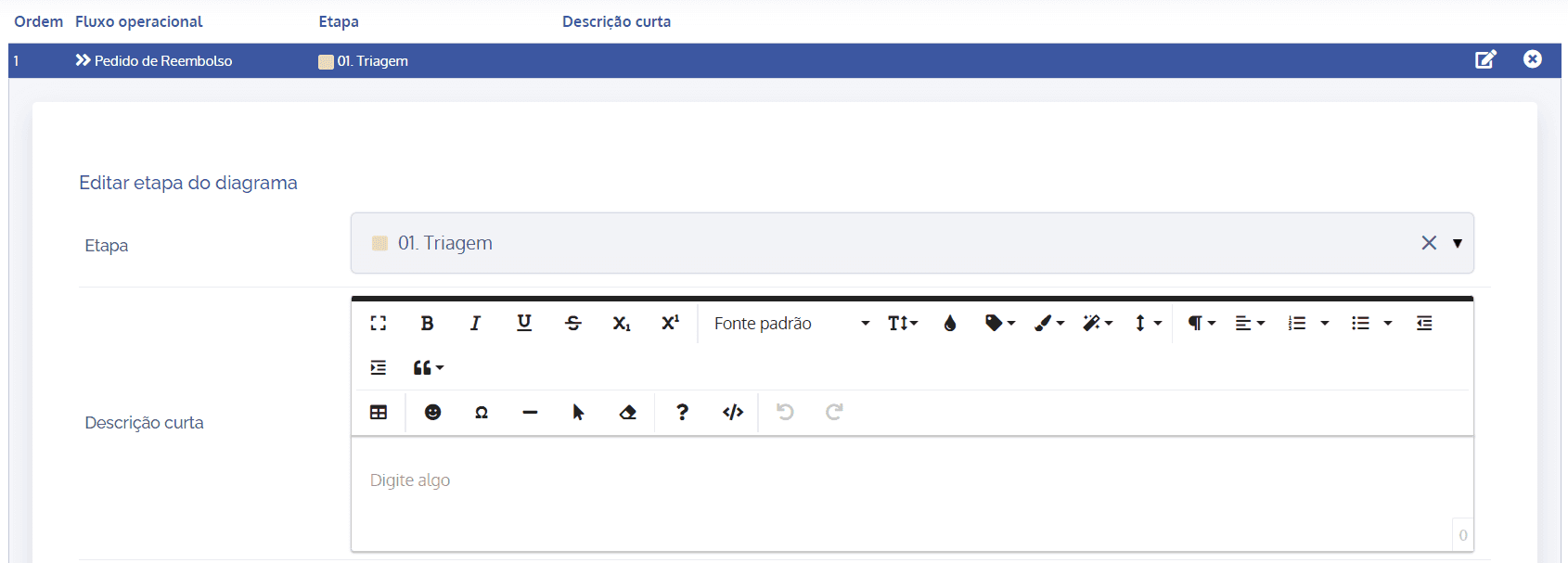
When clicking the edit icon, a block will be displayed to edit the step in question:
Remove step
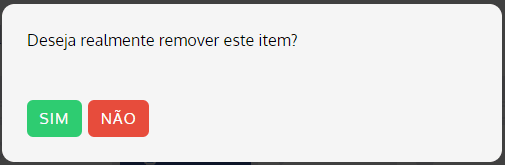
When clicking the remove icon, a confirmation box for removing the step will be displayed: