
Setting up automations
Automations are rules configured within an activity type that trigger actions automatically when certain conditions are met. They are available under the Automations tab, within the activity type settings.
Accessing Automations
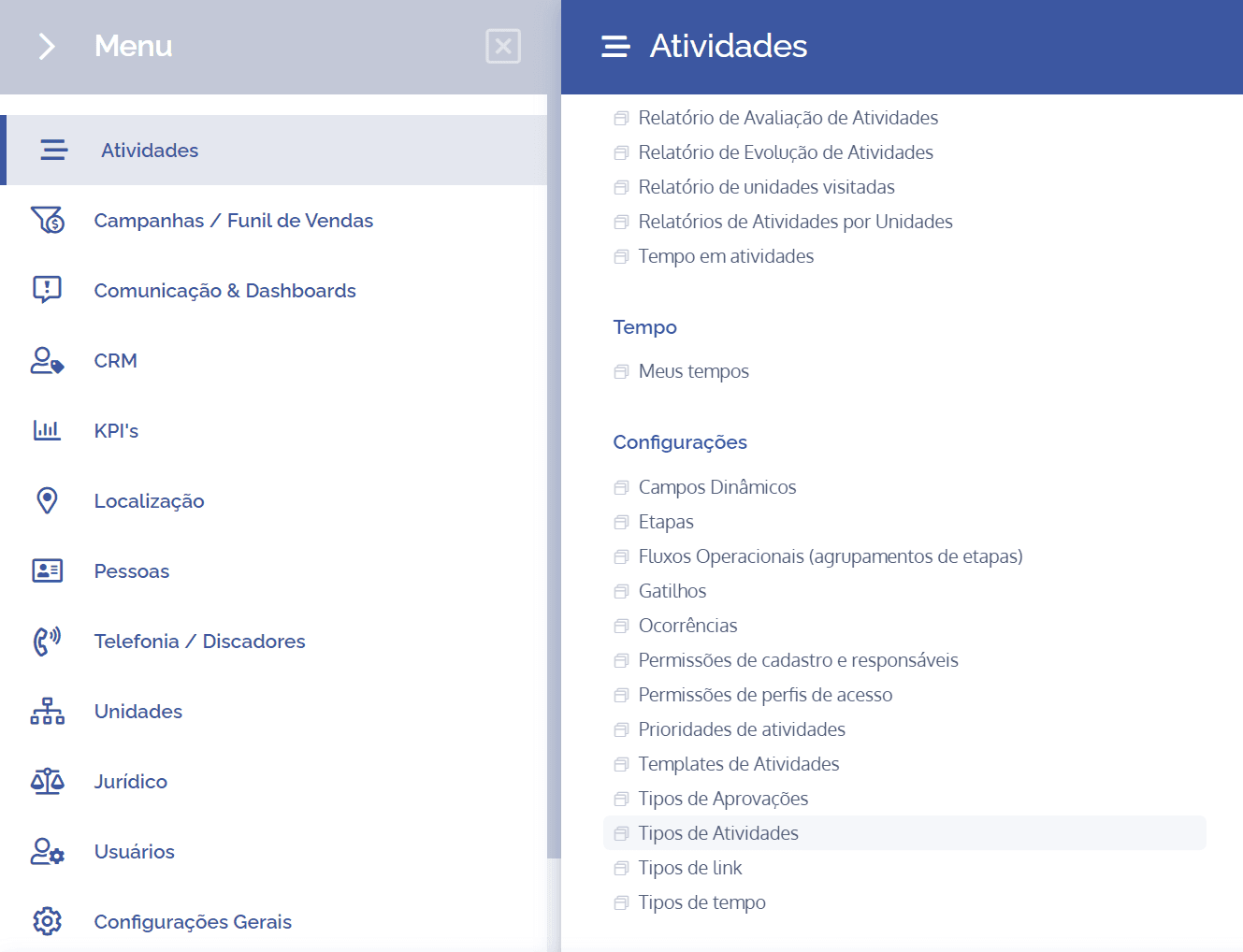
Open the main menu, select the Activities module, click on Settings, and then on Activity types.
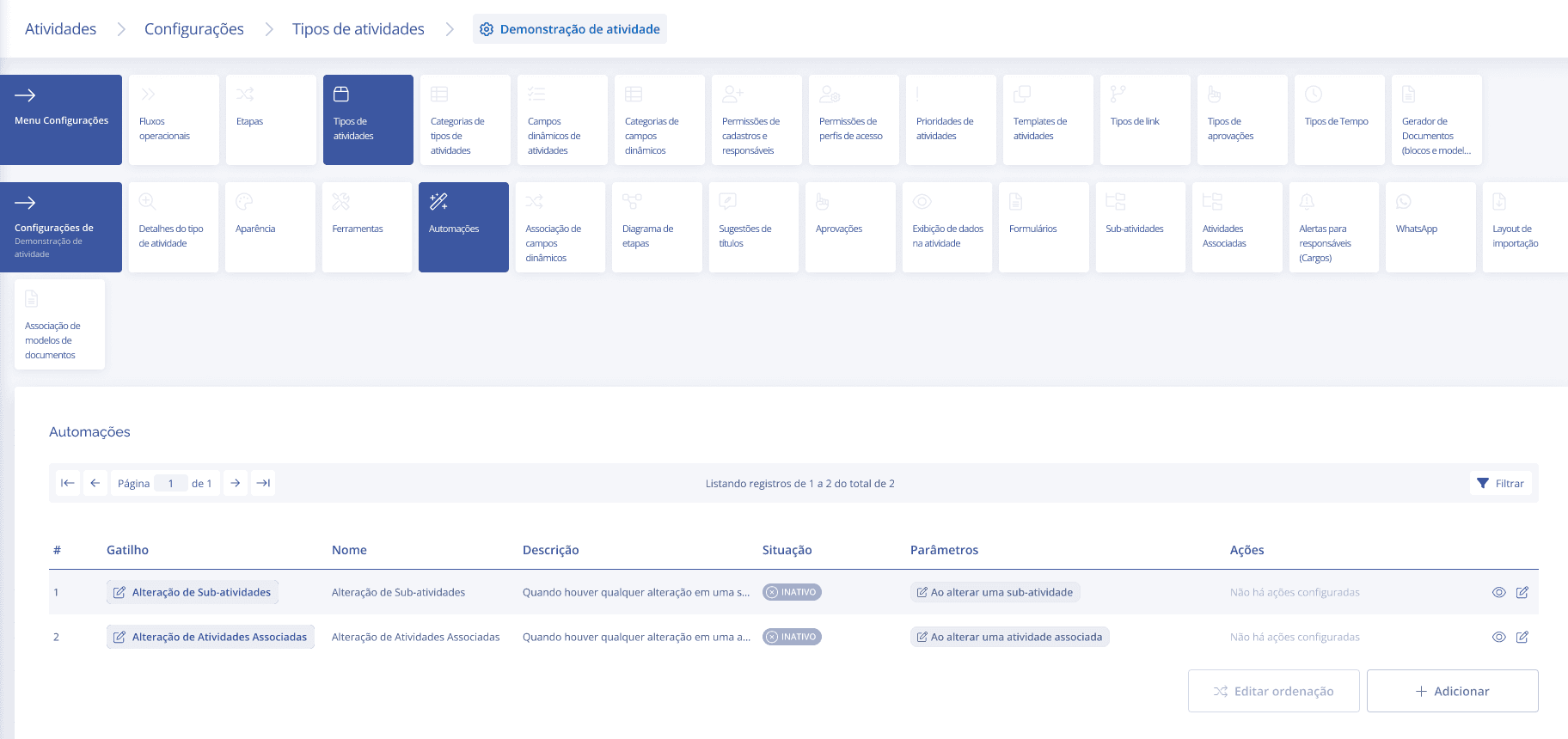
On the screen of the desired activity type, click on the Automations card:
The Automations list
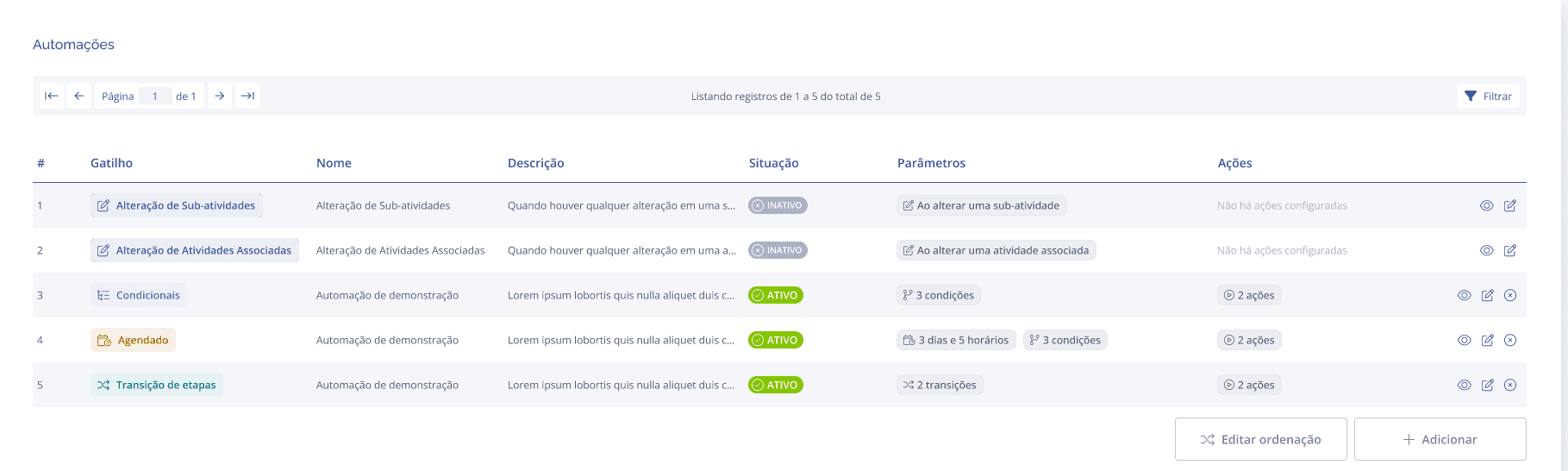
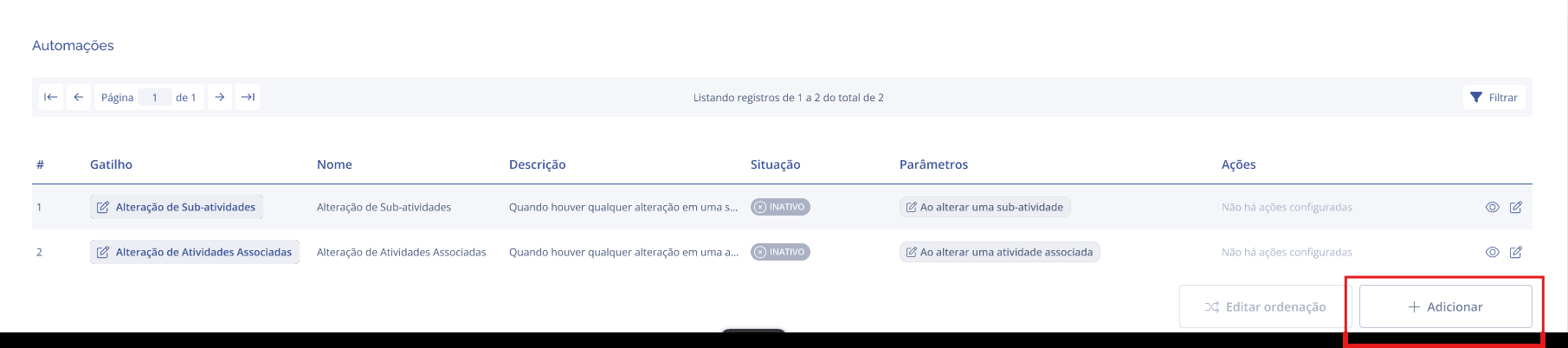
When accessing the Automations tab, you will see the list of all automations configured for that activity type. Each row represents an automation.
Filtering the list
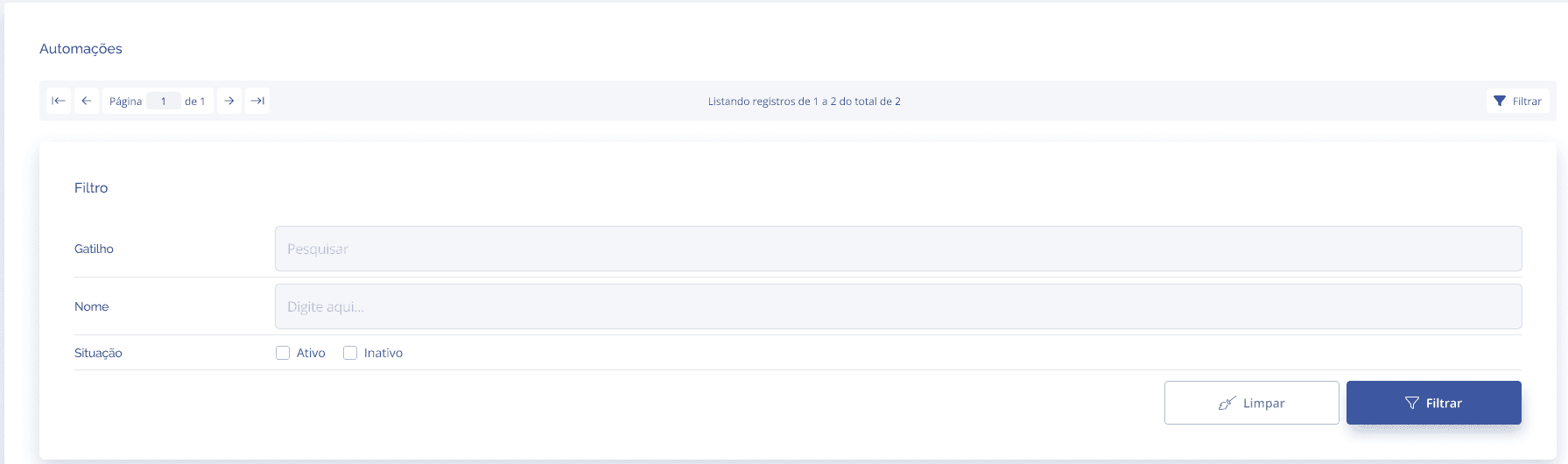
Click the Filter button (top right corner) to search for specific automations. You can filter by Trigger, Name, and Status (Active / Inactive).
Creating a new automation
In the Automations list, click the + Add button in the bottom right corner:
A modal will be displayed for you to choose the type (trigger) of the new automation:

There are three types available:
Scheduled: triggers on specific days and times.
Conditional: triggers when one or more conditions are met.
Stage transition: triggers when transitioning between specific stages.
After selecting the type, fill in the Name* (required) and, if desired, the Description. Click on Save:
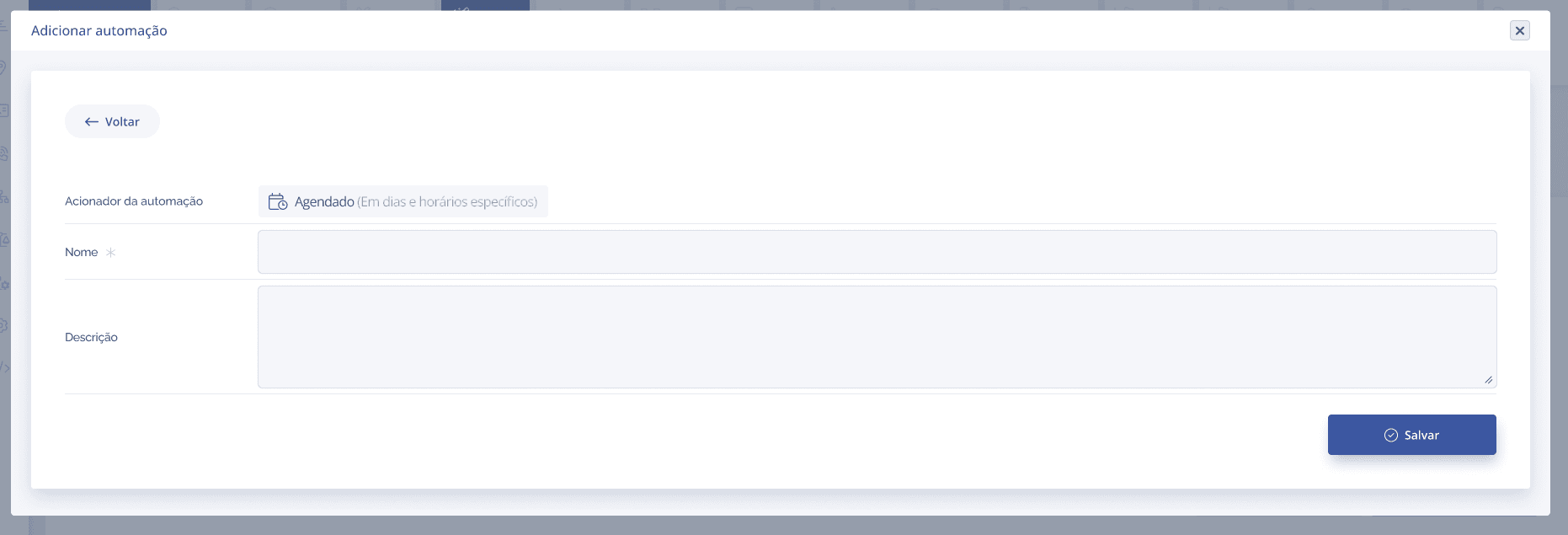
The automation will be created and will appear in the list. Use the Edit button to configure the trigger details and actions.
Viewing a default automation
In the list, click on the view (👁) icon next to the desired automation. A panel will open with the trigger, name, description, and the Conditions and Actions tabs.
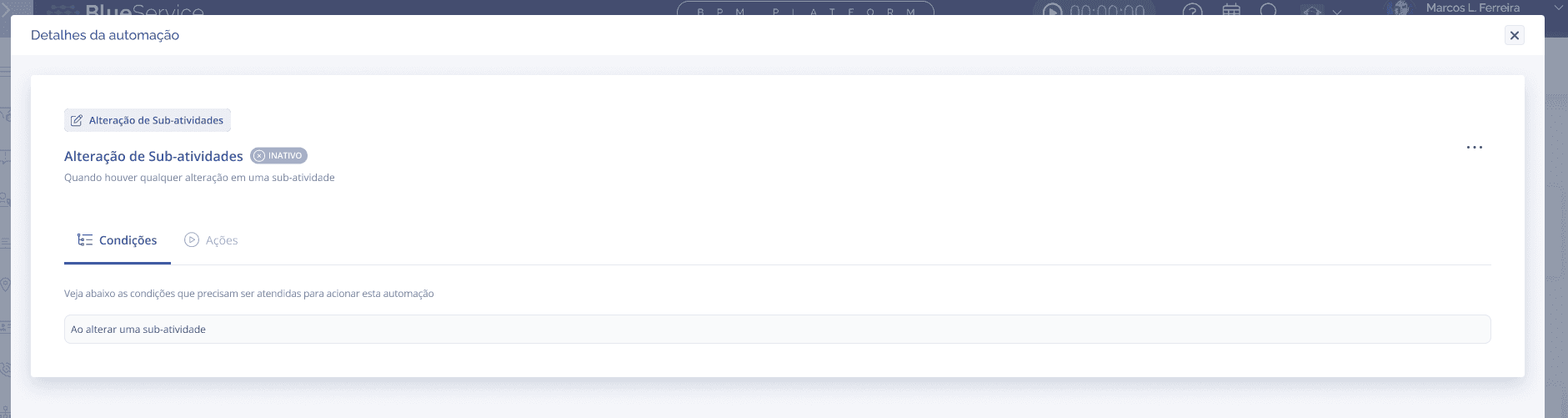
In the top right corner of the panel, click the (...) button to access the edit or delete option.
Editing a default automation
Click on the edit icon (pencil) in the list, or access editing via the ... button inside the view. The edit form will open:
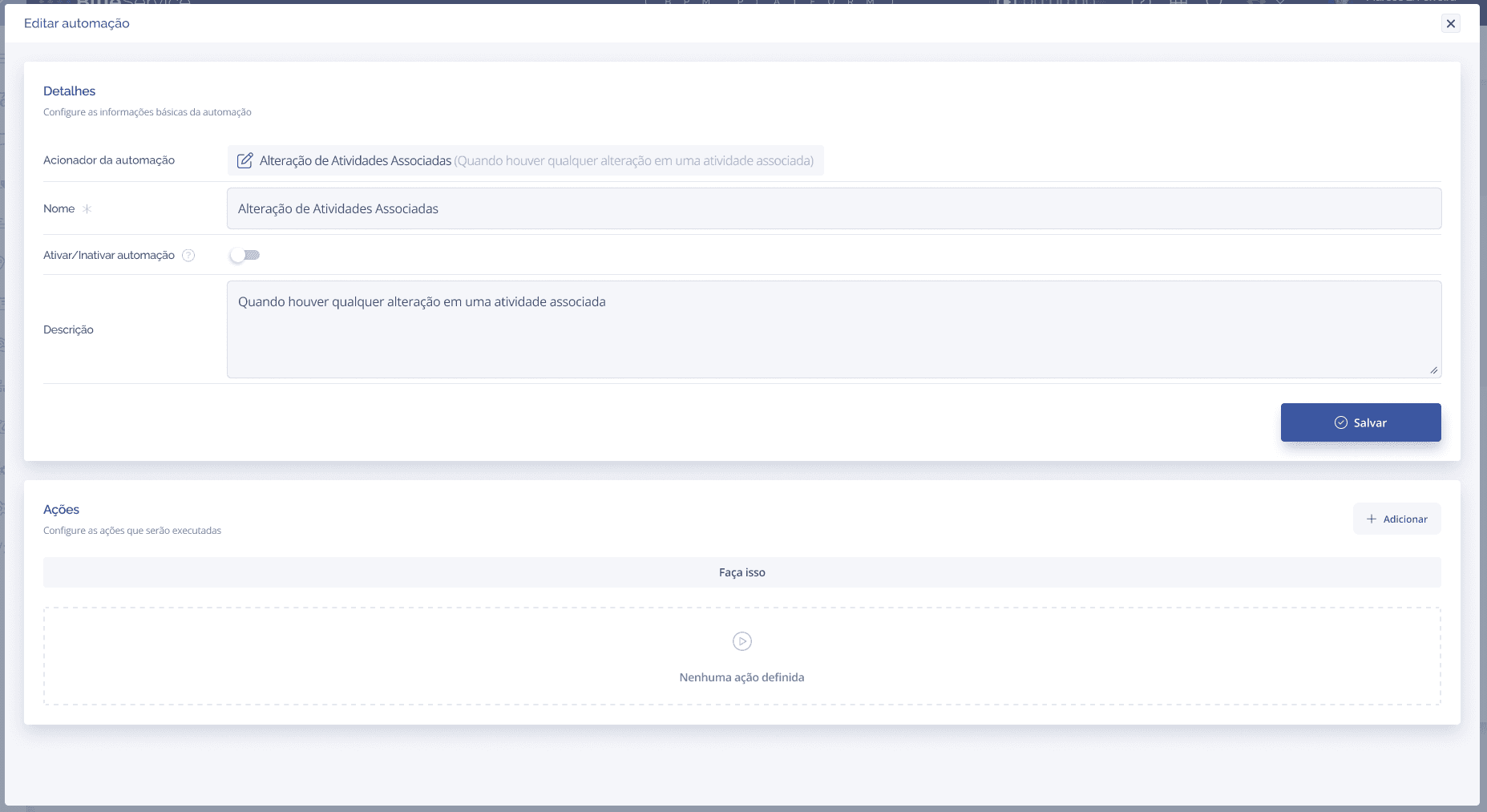
The form contains:
Automation trigger: displays the type — for information only, cannot be changed.
Name*: required. Already filled with the default name, but can be changed.
Activate/Deactivate automation: switch to activate or deactivate. Inactive by default.
Description: free text explaining the purpose of the automation.
Actions Block: where you configure what will be executed when the automation triggers.
Important: default automations cannot be deleted. They can be viewed and edited, but not removed.
Activating and Deactivating automations
Every automation is created inactive by default. For it to start working, you need to activate it.
When saving an automation that has at least the minimum requirements configured, the system will automatically display:
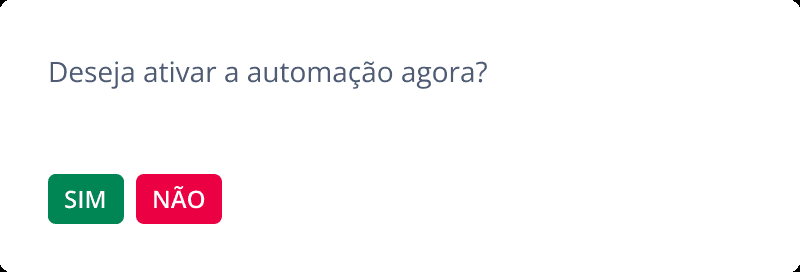
You can also activate or deactivate at any time using the Activate/Deactivate automation switch inside the edit form.
Minimum requirements to activate each type:
Sub-activities / Associated Activities Change: at least 1 action.
Conditional: at least 1 condition and 1 action.
Scheduled: at least 1 day/time and 1 action.
Stage transition: at least 1 transition (source/destination) and 1 action.
If all actions of an active automation are removed, it will be automatically deactivated by the system.
Editing the order of automations
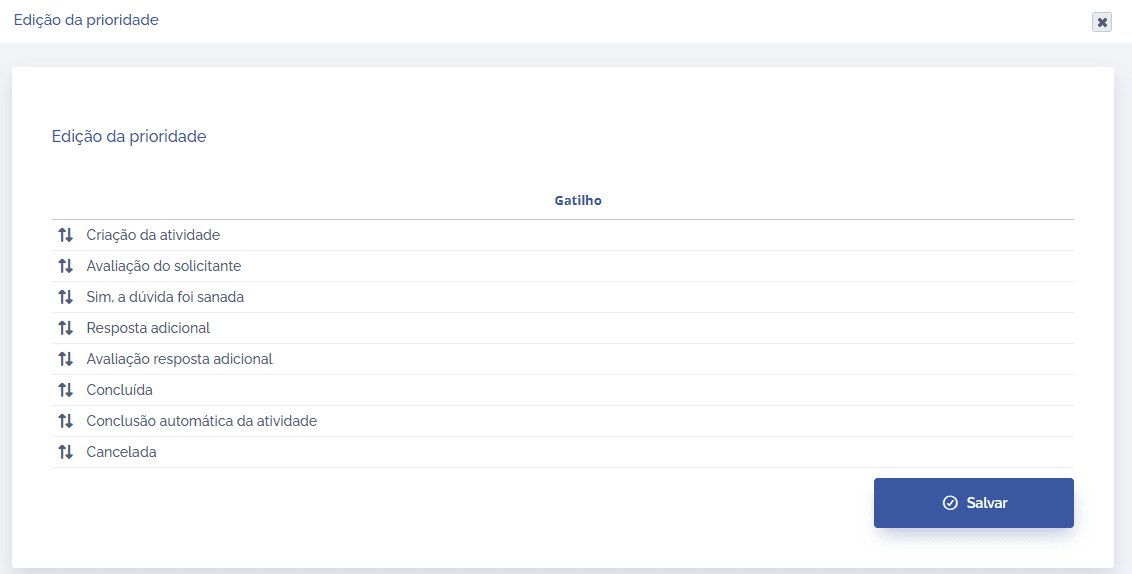
With more than one automation configured, the Edit order button becomes available in the list. Click it to reorder the execution priority of the automations.
Drag the desired automation up or down and release it in the desired position. Click Save when finished.
Deleting an automation
Automations of the Conditional, Scheduled, and Stage transition types can be deleted. The default automations Sub-activities Change and Associated Activities Change cannot be deleted.
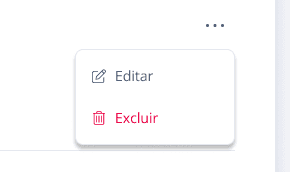
In the list, click the ... (more options) icon next to the automation or access it via the view screen. Select Delete:
A confirmation message will be displayed:
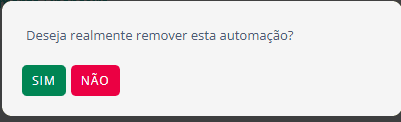
YES: the automation will be permanently removed.
NO: the action is canceled and the automation is kept.
System default automations
Activity types that have sub-activities and/or associated activities come with automations created automatically by the system, both inactive by default:
Sub-activities Change: triggered when there is any change in a sub-activity.
Associated Activities Change: triggered when there is any change in an associated activity.