
Setting actions
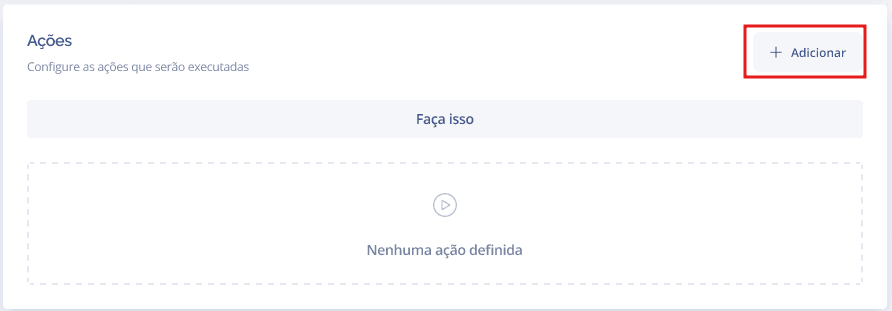
In the Actions block, click + Add to include a new action:
A modal will be displayed for you to select the desired action type. After saving, the configured actions will appear listed in the block:
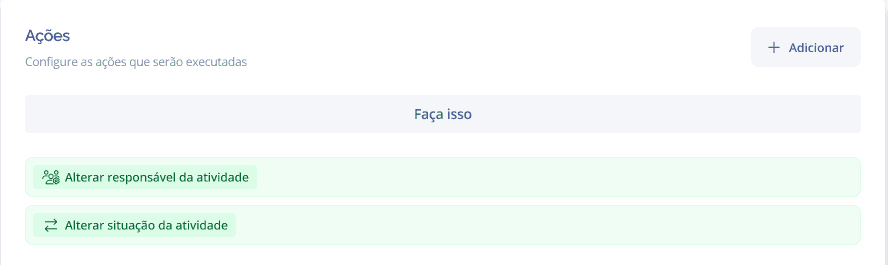
To edit an existing action, click on its name in the block's list.
Saving and activating
After configuring the actions, click Save. If at least one action is configured, the system will automatically display the question:

YES: the automation will be activated immediately.
NO: the automation is saved, but remains inactive.
Tip: remember to activate the automation. While inactive, it will not be triggered even if the conditions are met.
Attention: it is not possible to activate an automation without at least one action configured. The system will display the alert: "Configure at least one action for the automation".