English

Comments on in-app activities

Search for content...

Comments on in-app activities

The comments panel aims to add comments and accept or reject approvals.


Important note!
* To perform an approval on the mobile platform, your request must be made through the web platform.


Adding a comment
Full
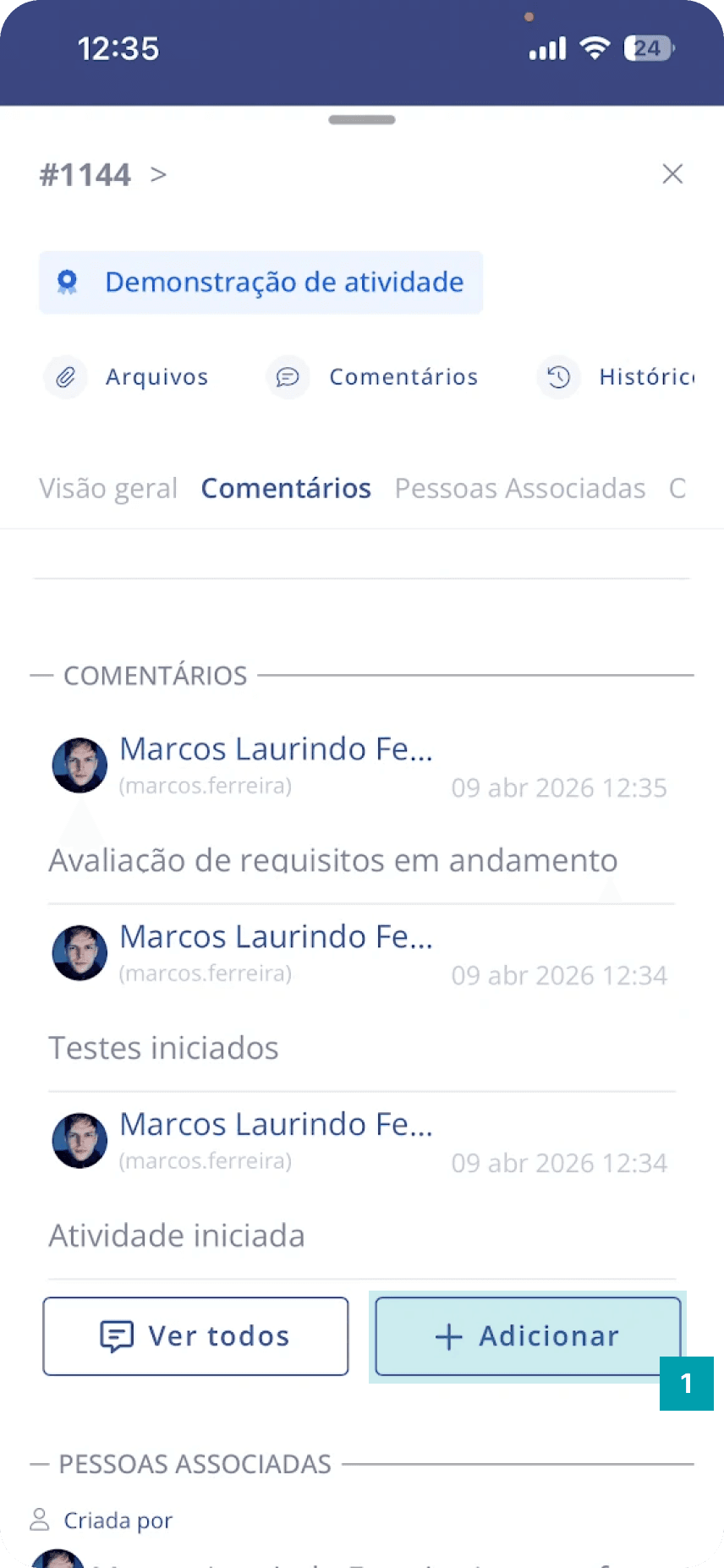
  1. Click the Add button to open the add comment modal.

Full
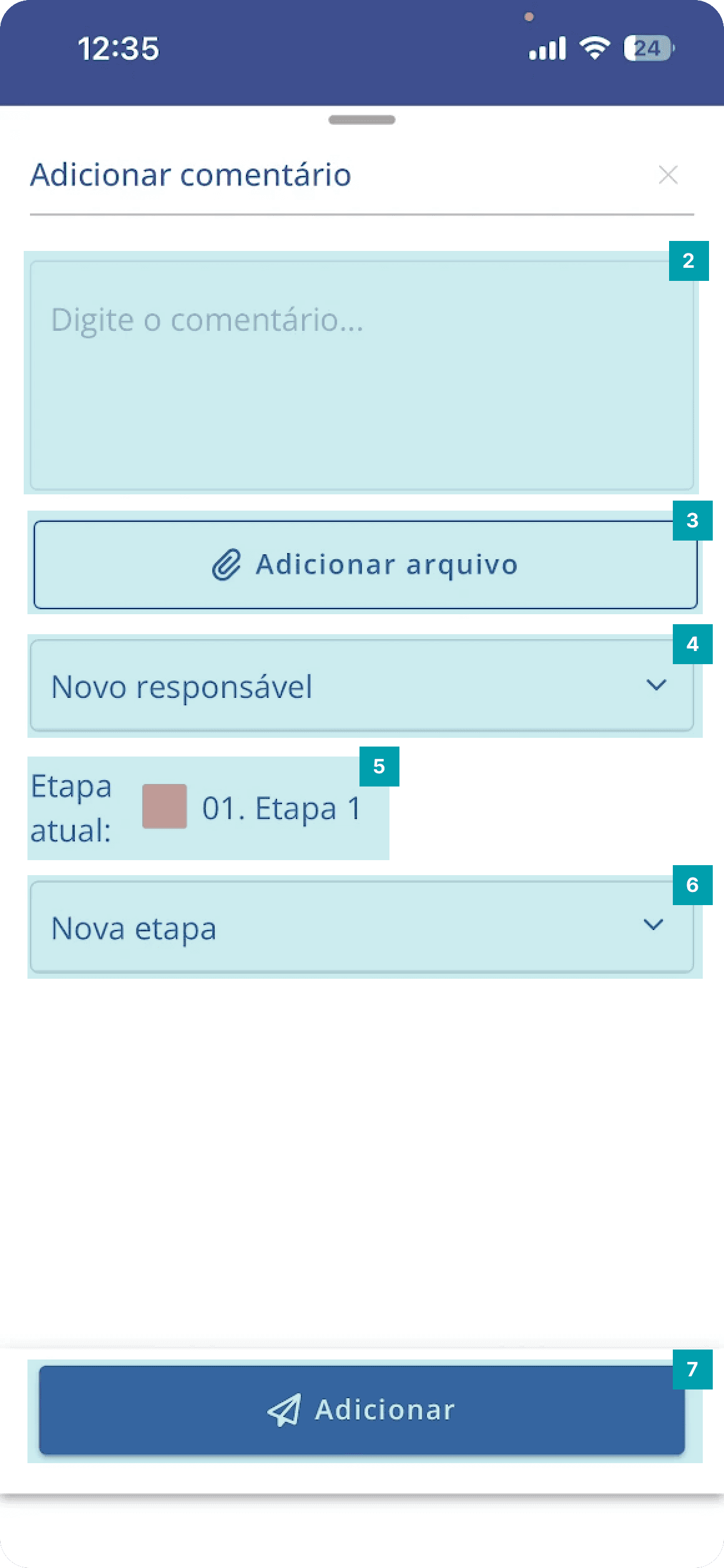
  1. Long text – field to type free text

  2. Add file – when clicked, it is possible to link a file to the comment

  3. New assignee – allows you to define a new assignee for the activity.

  4. Current stage – shows the current stage the activity is in.

  5. New stage – allows you to define a new stage for the activity.

  6. Add – when clicked, the comment will be added to the activity.


Making an approval

FullFull
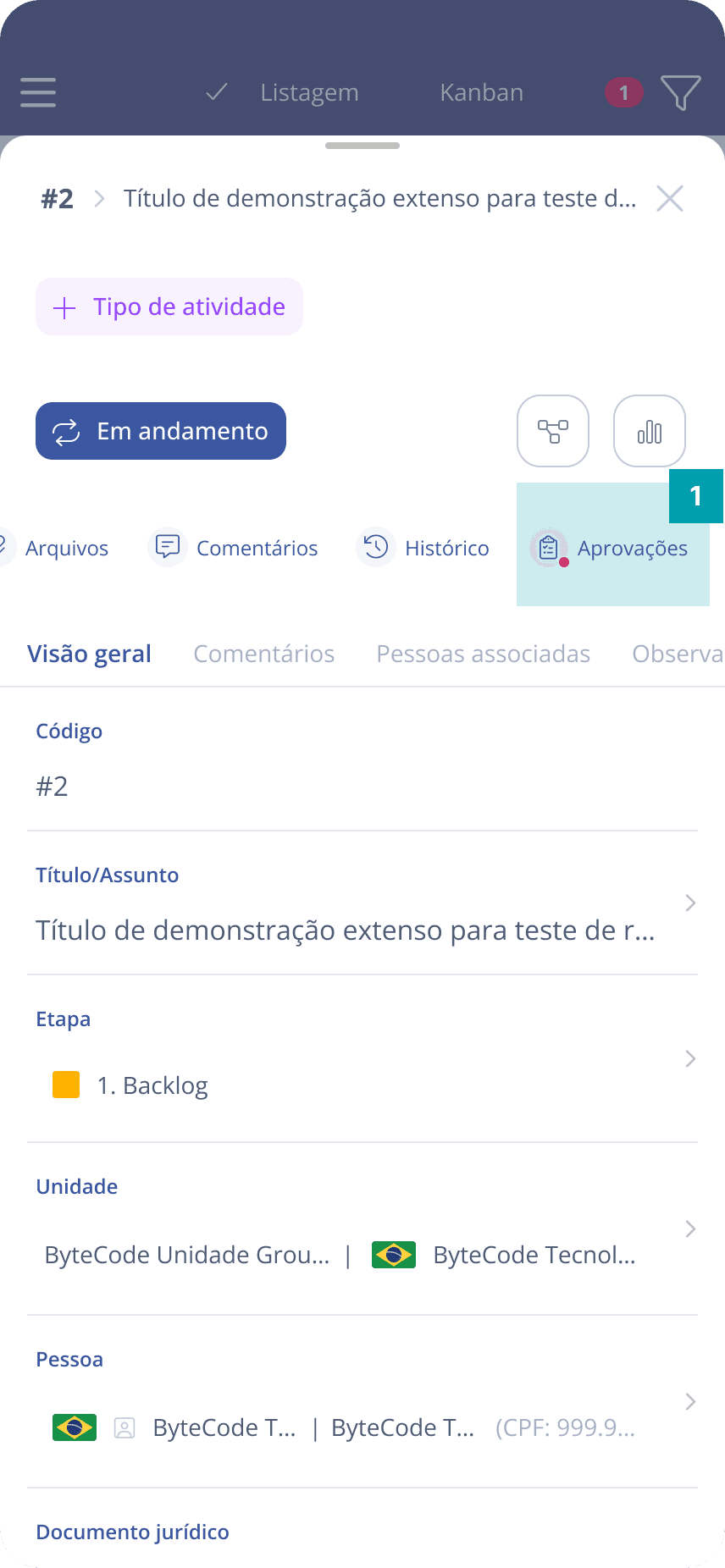
  1. Click the Approvals area to open the approvals modal.

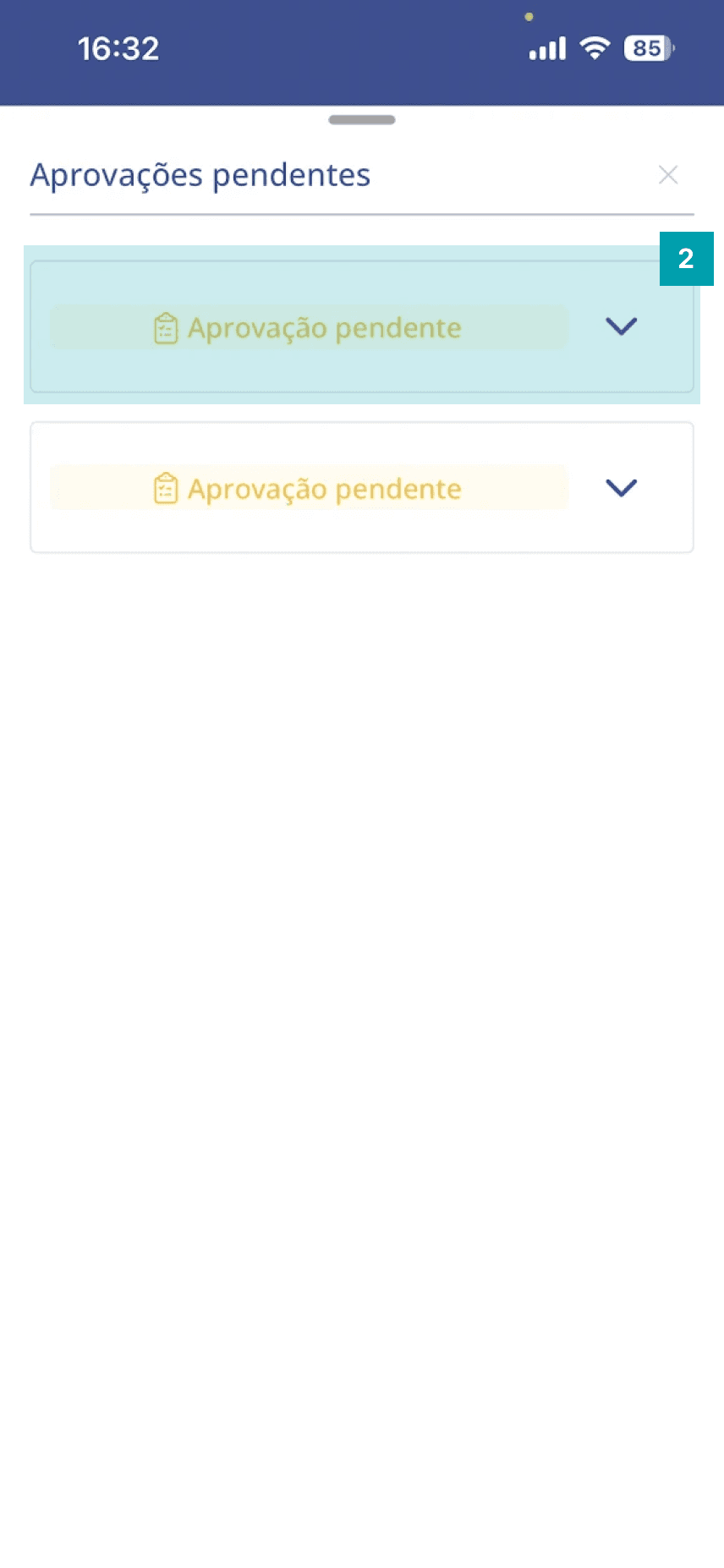
  1. Click the desired approval to expand and view the information.

FullFull
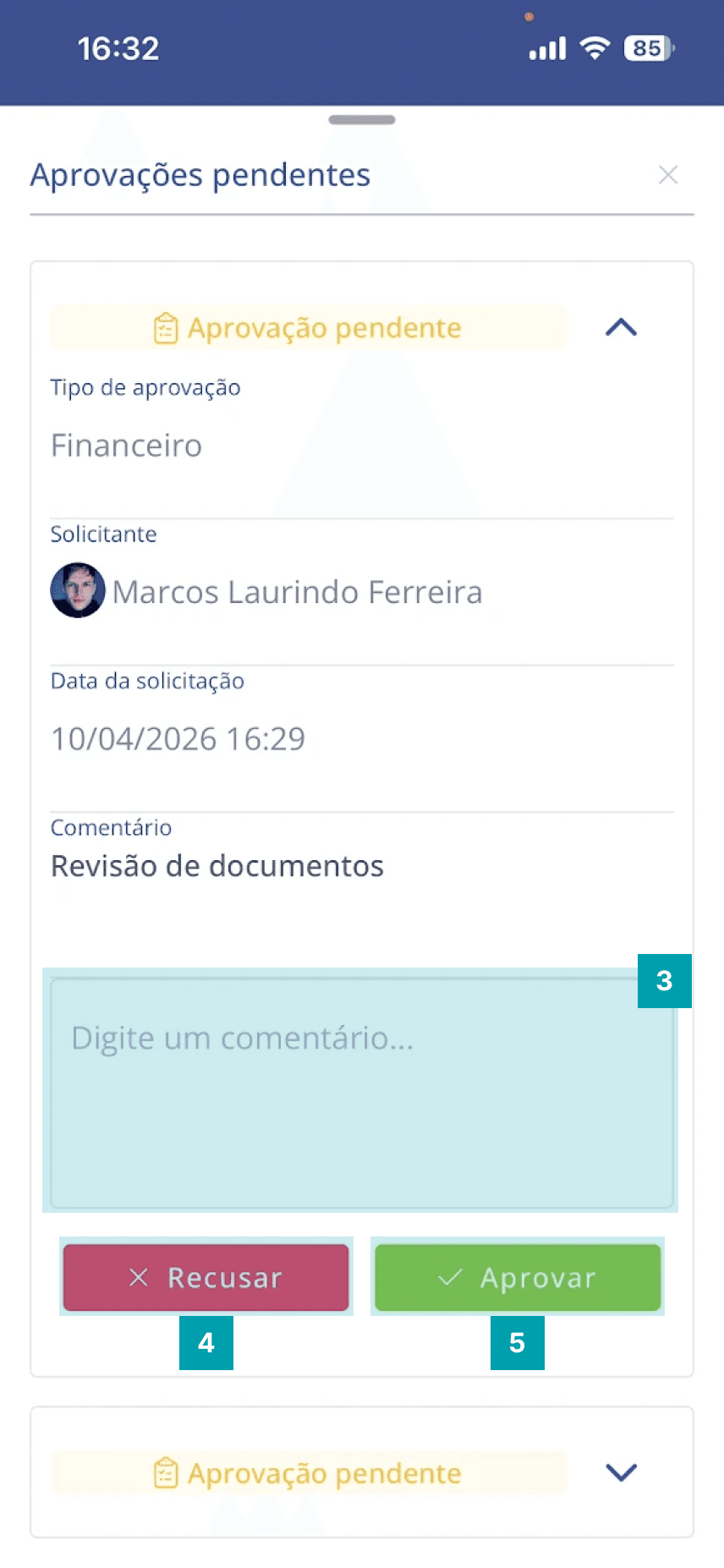
  1. Enter a comment to link the approval or rejection of the request

  2. Reject – Click the Reject button to reject and finish the request approval.

  3. Approve – Click the Approve button to finish the request approval.

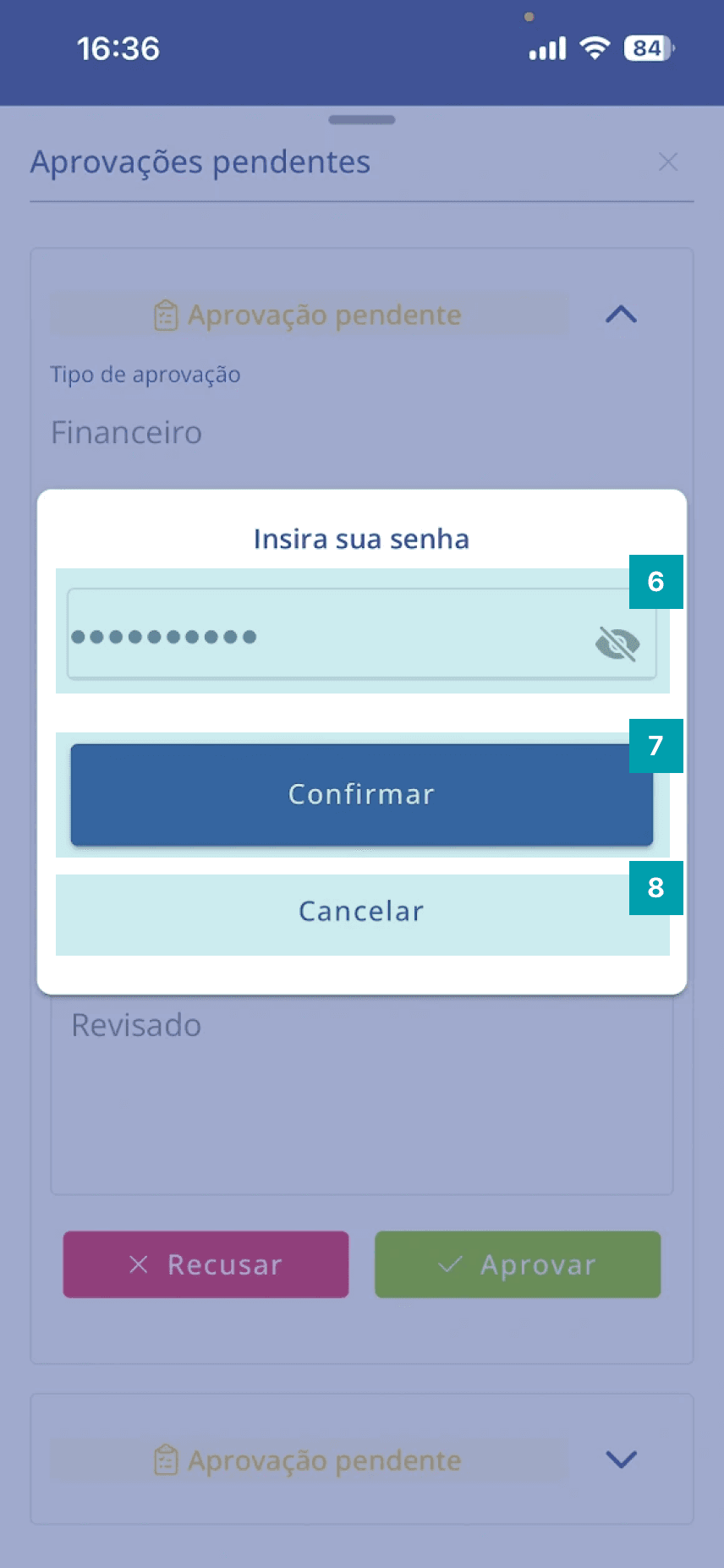
  4. Password – enter your password to complete the approve or reject action

  5. Confirm – Click after entering your password to confirm the approve or reject action

  6. Cancel – Click to cancel password entry and return to the approval request view