
Steps, permissions, and transitions
Before creating the stages, it is necessary to define them:
Activity Stages are automated processes that help the business area gain more agility and control in day-to-day processes, without depending on spreadsheets, emails, papers, and other tools. Their purpose is to manage and process a given activity in the format of operational flows.
Configure stages
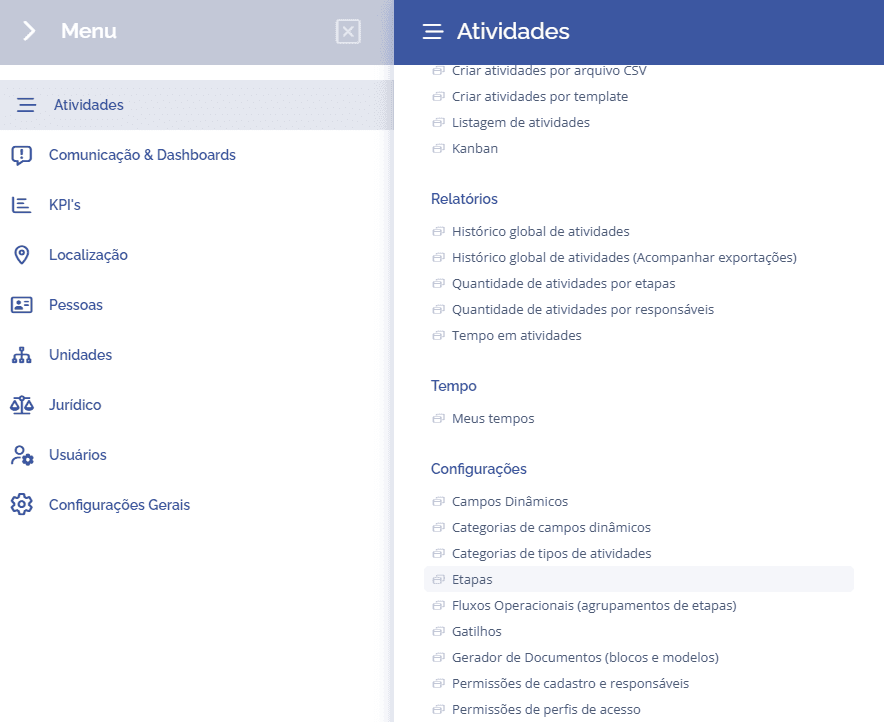
To create a stage, open the main menu, select the Activities module, Settings, and click the Stages option.
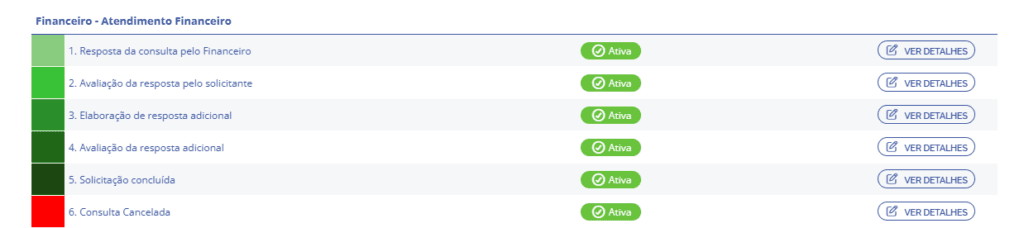
The stages will be displayed in this block:

When clicking the Add button, the Add stage block will open:
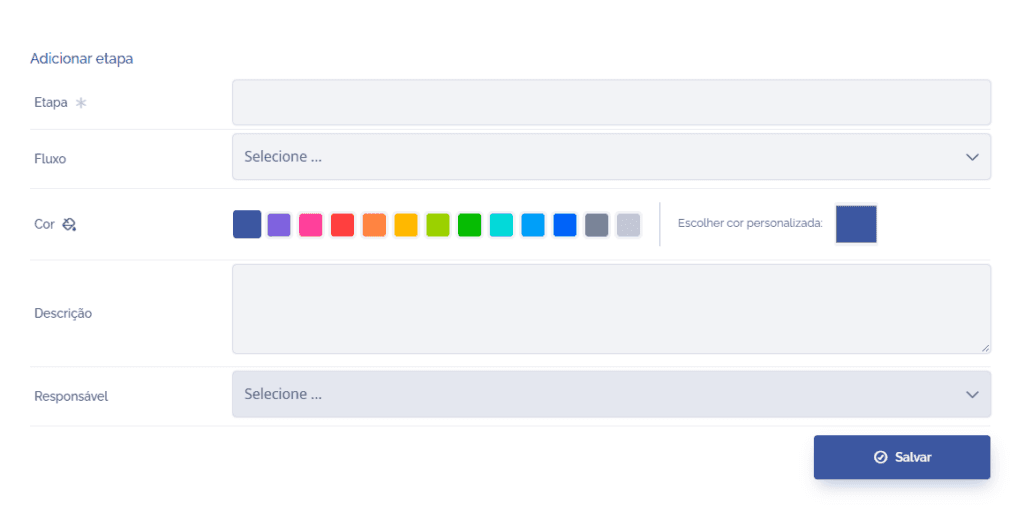
Fields to be filled in
To proceed with creating the stage, the following fields need to be filled in:
Stage
Name of the stage that defines each part of the process in question;

Flow
Select a flow to which the stage will belong;

Color
Define any color you want for the stage in question;

Description
Brief description of the stage;

Responsible
User responsible for the current stage.

After filling in the fields and clicking the Save button, the stage will be created and linked to an operational flow, if selected.

After creating the desired stages, it will be necessary to configure them. To do this, click on the name of each desired stage or click the “VIEW DETAILS” button:
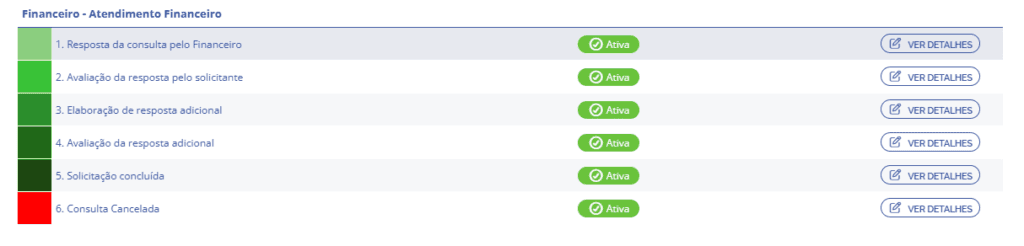
Next, the details of the selected stage will be displayed:
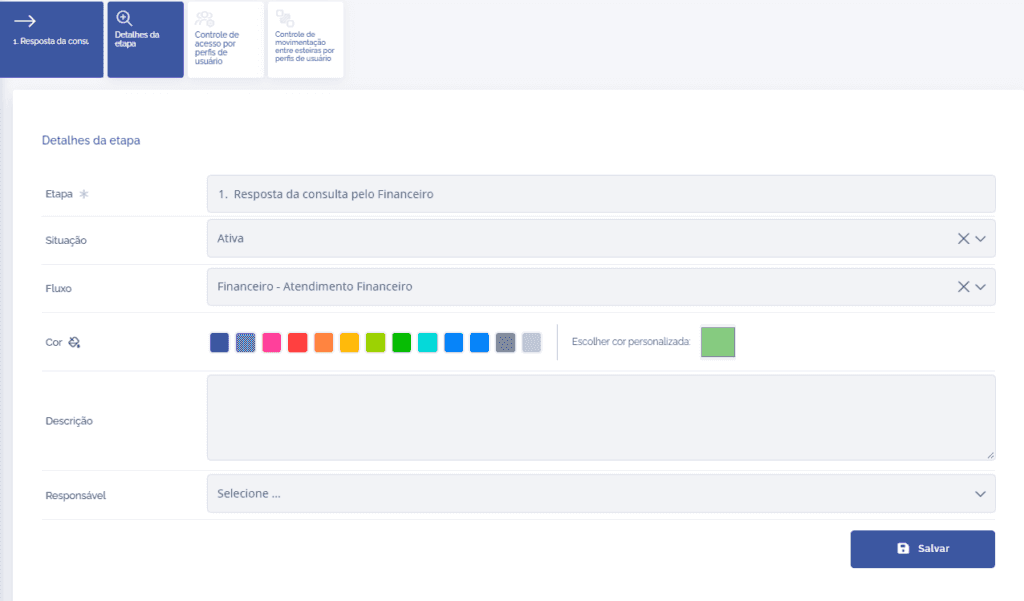
In the Stage details block, there is information corresponding to the stage details that can be changed.
Access control by user profiles (permissions)
To configure which user profiles will have access to the selected stage, click the Access control by user profiles card:
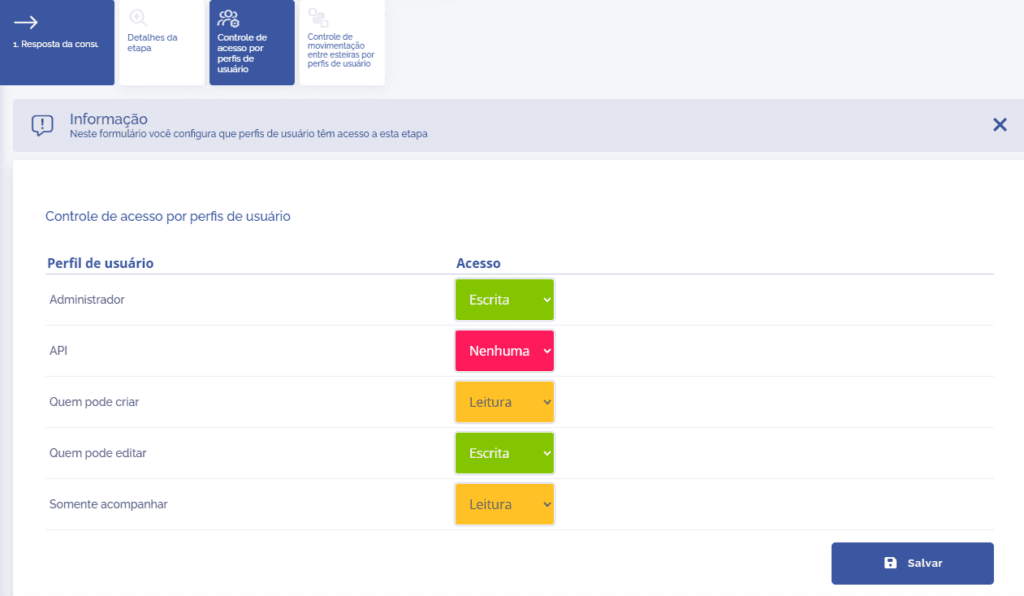
Depending on the registered access profile, it is possible to define Write, Read, and None access.
After configuring the desired profiles, click the Save button.
Movement control between lanes by user profiles (transitions)
To configure which user profiles can move activities from one stage to other stages, click the Access control by user profiles card:
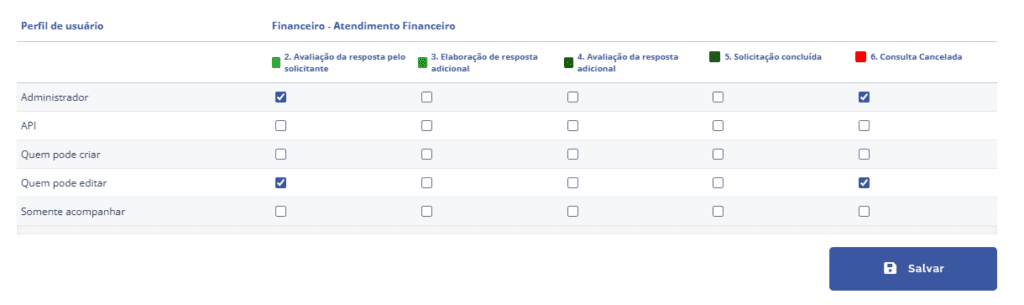
With the user profile filtered, all existing stages in the operational flow will be presented. Then, select the following and/or previous stage(s) that are part of the process. To do this, click the checkbox for each desired stage, then click Save.