Edit unit
In a unit's details, click the Edit unit card:

Next, the Edit units block will be displayed:
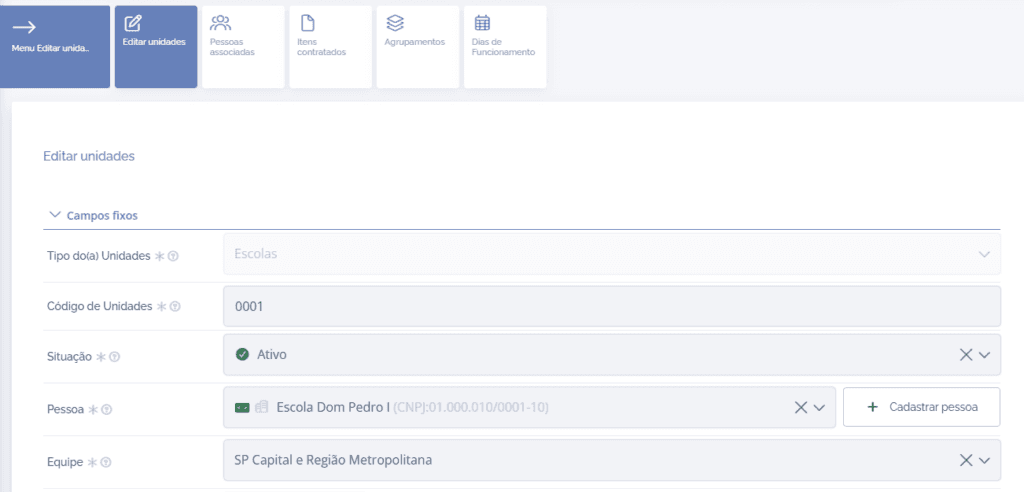
After editing the desired fields, click the Save button at the end of the block.
Associated People
To access associated people, click the Associated people card.
In the Associated people block, to add people to existing roles, click the add role to person button:

Next, a new block will be displayed to add a role to the person, and after filling it out, click save:
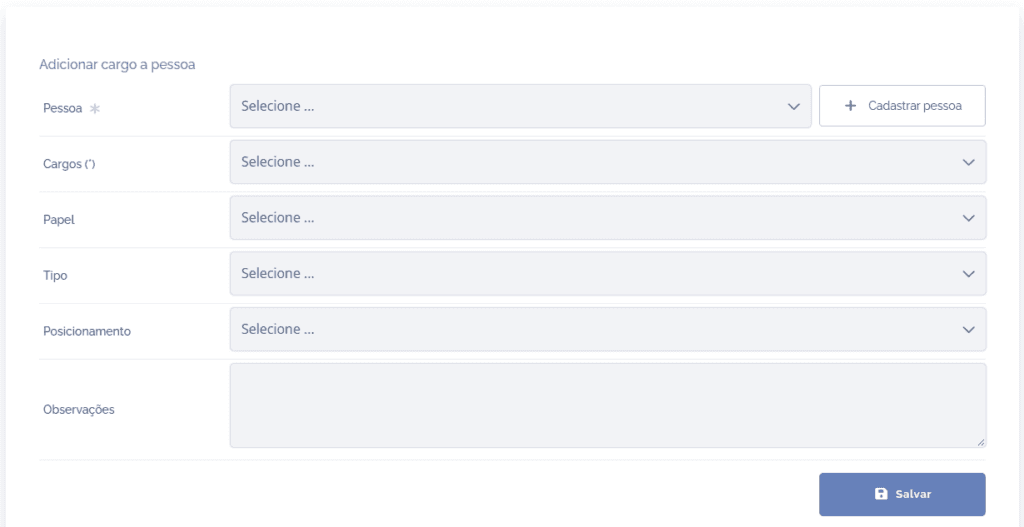
If necessary, you can edit an associated person by clicking the Edit icon:
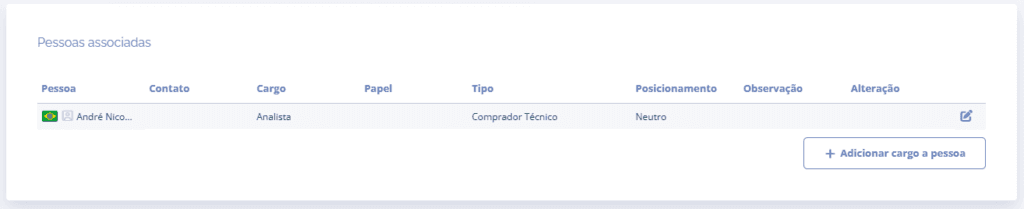
Next, a new block will be displayed (Edit person role):
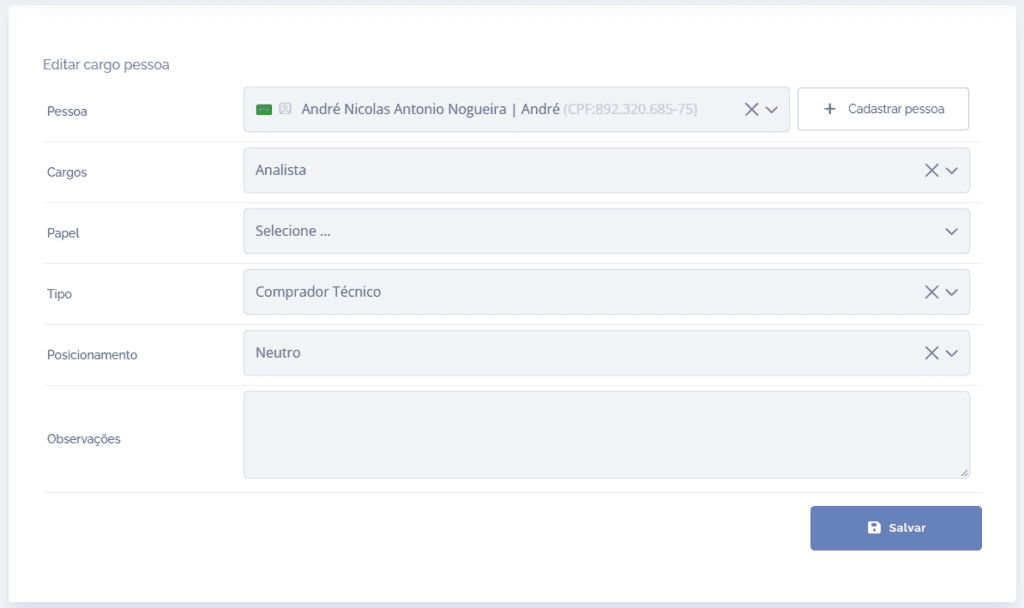
After editing the desired fields, click the Save button at the end of the block.
Contracted items
To access contracted items, click the Contracted items card.
In the Contracted items block, to add items to units, click the add item to units button:

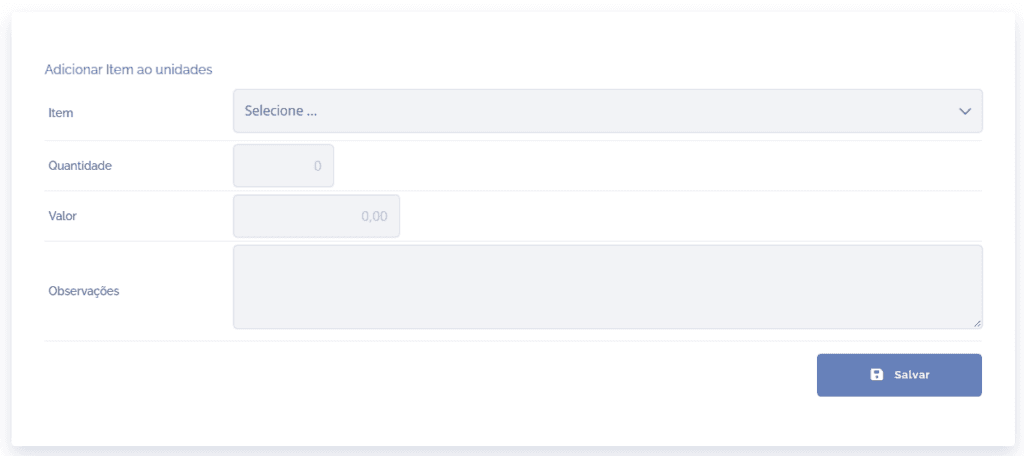
Next, a new block will be displayed to add items to the unit, and after filling it out, click save:
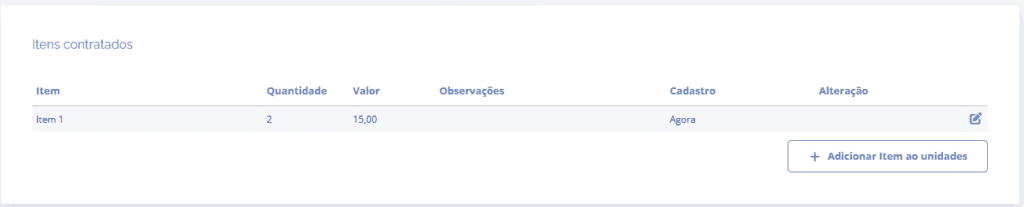
In the Contracted items block, to edit existing items, click the Edit unit item icon:
Next, a new block will be displayed (Edit contracted item):
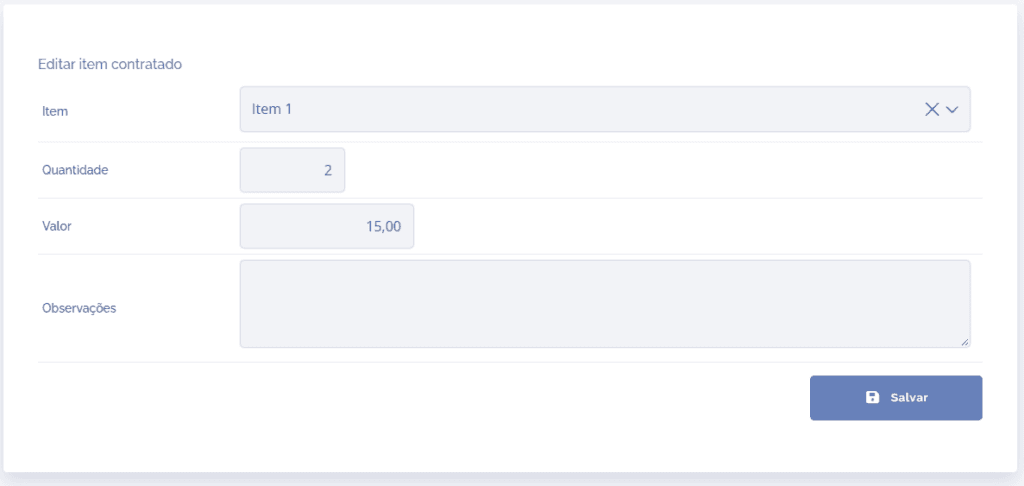
After editing the desired fields, click the Save button at the end of the block.
Groupings
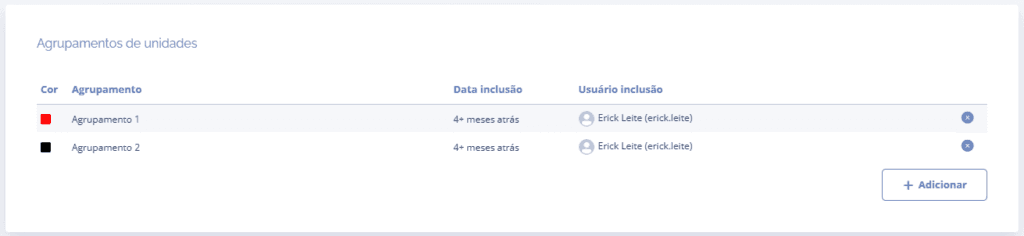
In the Unit groupings block, to add groupings to units, click the add button:
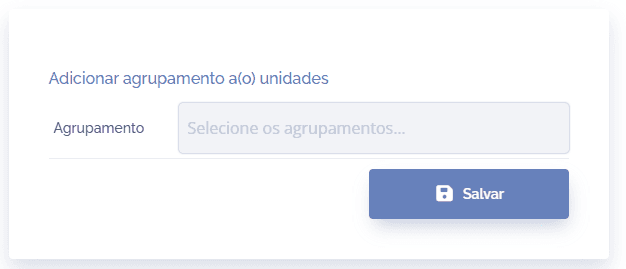
Next, a new block will be displayed to add groupings to the unit, and after filling it out, click save:
Operating days
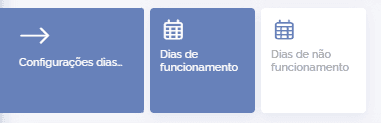
To configure the unit's operating days, click the Operating days card.
You can configure operating days during the week and specific days when it will not operate.
In the Operating days block, to edit the days of the week, click the toggles to enable/disable.

After editing the desired days, click the Save button.
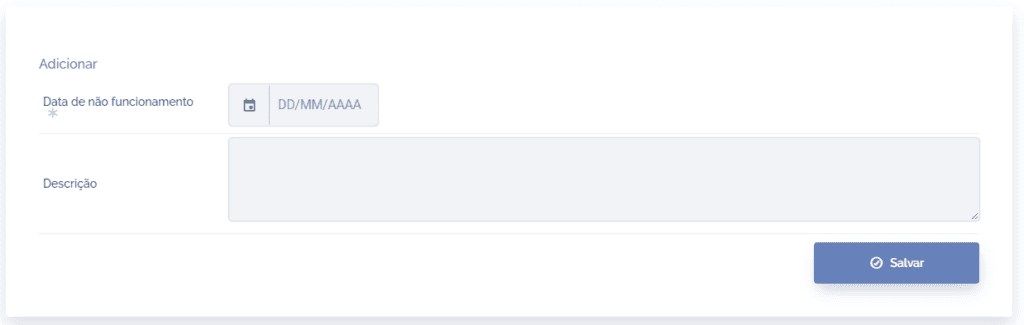
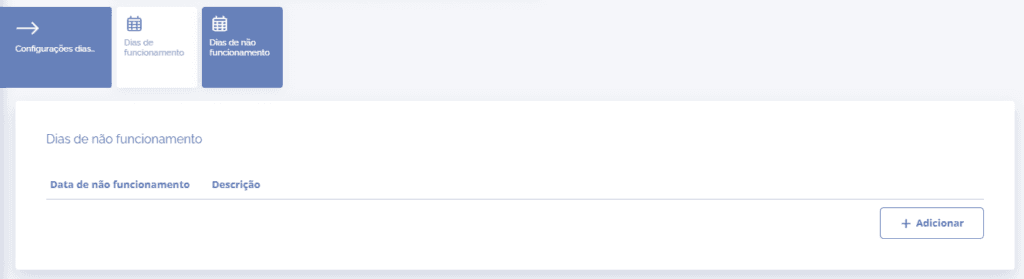
By clicking the Non-operating days card, you can add a specific day when the unit will not operate by clicking the Add button:
After setting the specific date, click the Save button.