Edit model
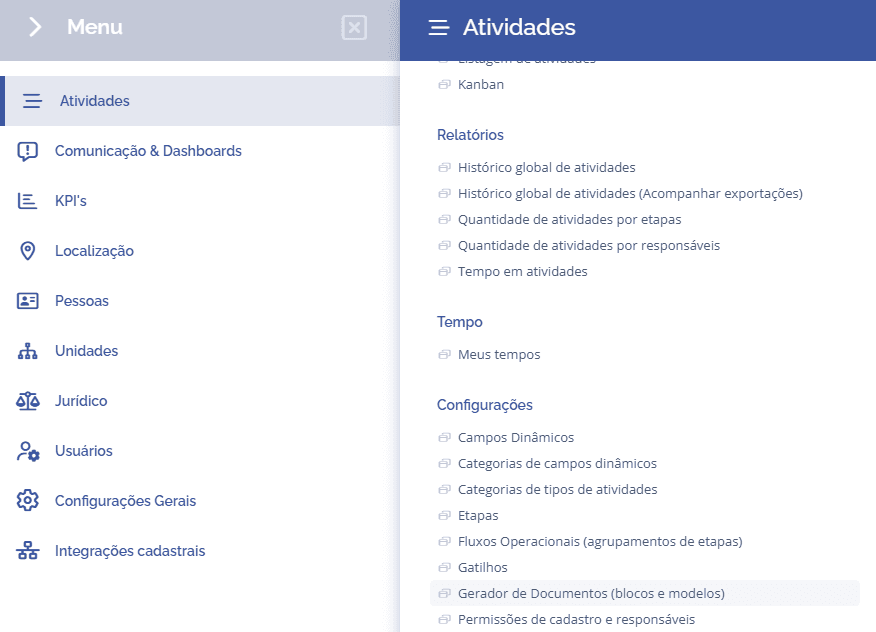
To edit a template, you need to access the left menu and select the option Document Generator
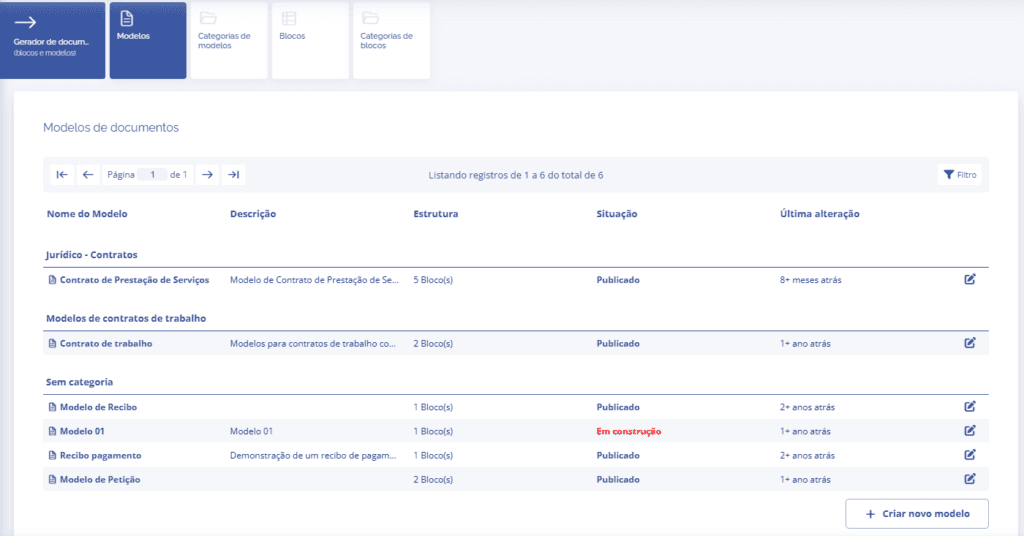
Within the Templates card, click the pencil icon to edit.
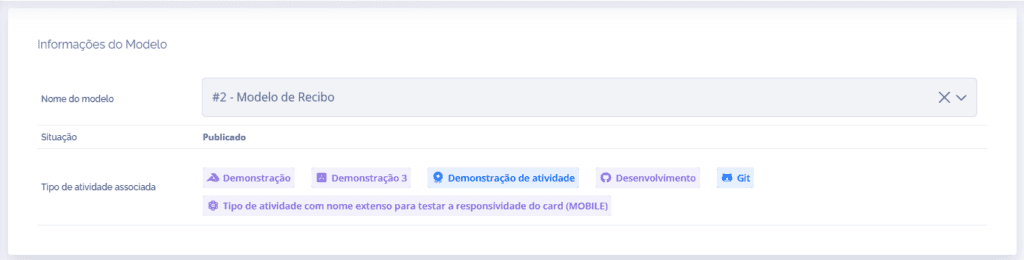
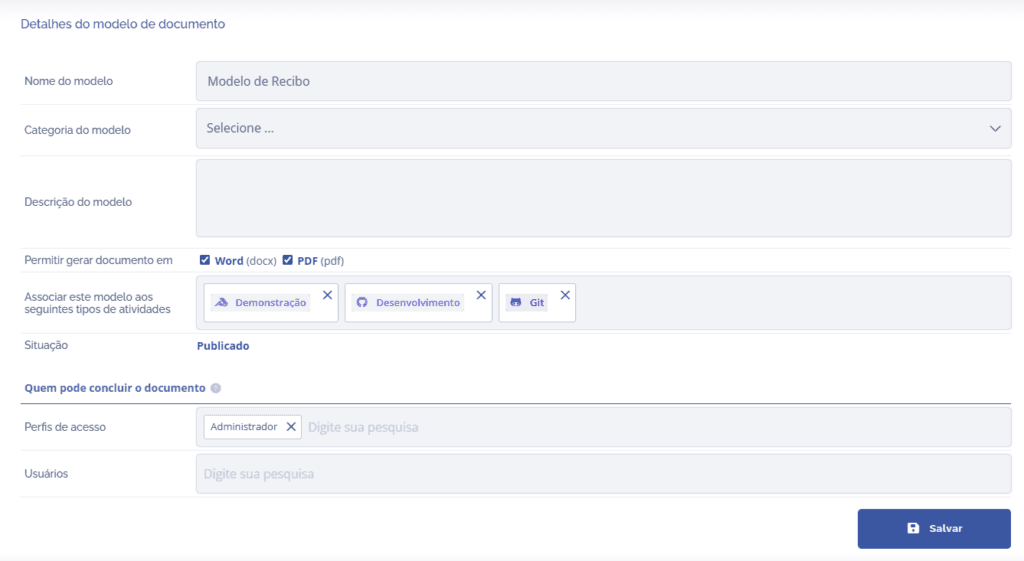
In the template details, the template information will be displayed in the main block.
Below the template information, the following edit cards will be displayed:

Note: If the template is in the Published status, it will not be possible to change the Template Structure and Header / Footer cards until the template is deactivated.
Template Details
In the template details, you can change the fields that were created along with the template and check its status.
Template Structure
In the template structure, you can add the blocks registered in the system and order them.
Note: To register the blocks, read the article Blocks.
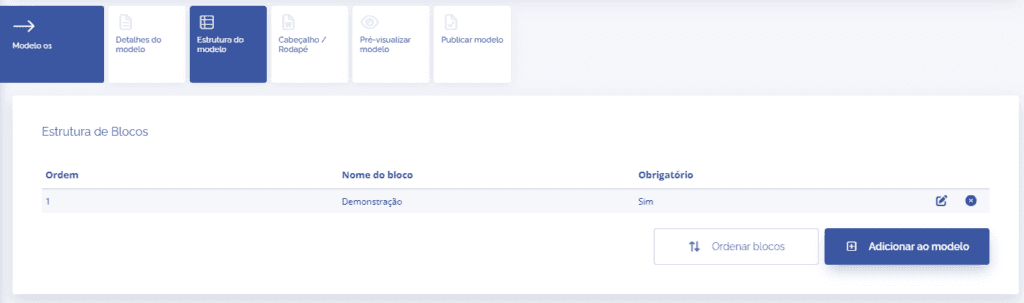
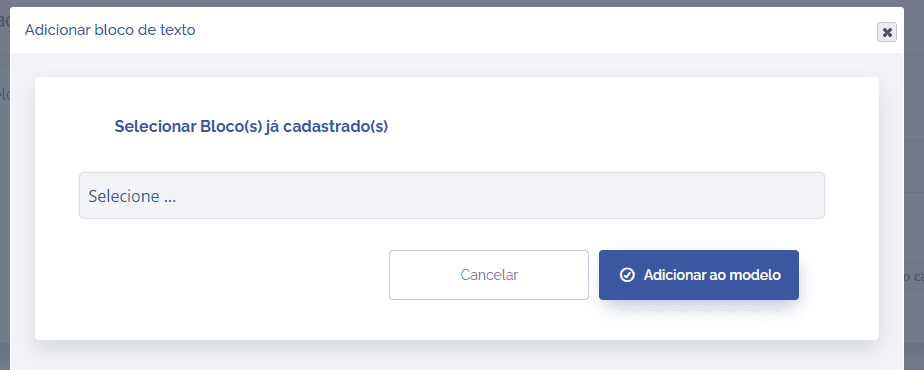
When clicking Add to template, a floating window will be displayed, allowing you to select the block that will be added to the template.
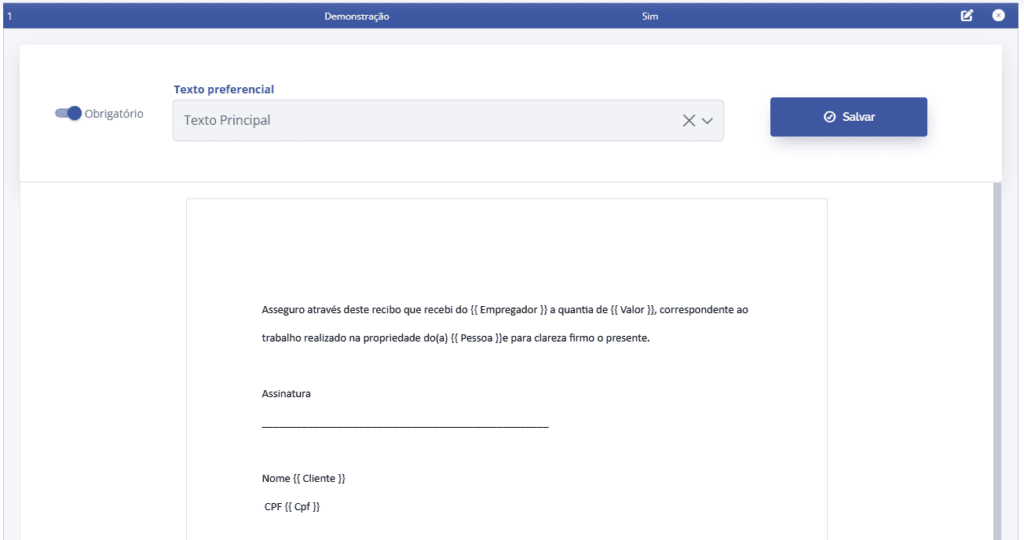
When clicking edit on the added block, you can select the block variation, make it required, and preview it.
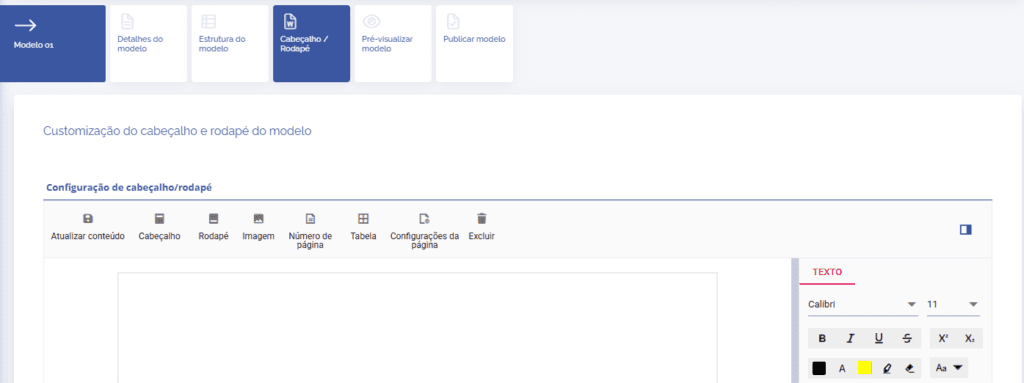
Header / Footer
In the Header/Footer, you configure the document header and footer, and can insert tables, images, etc.
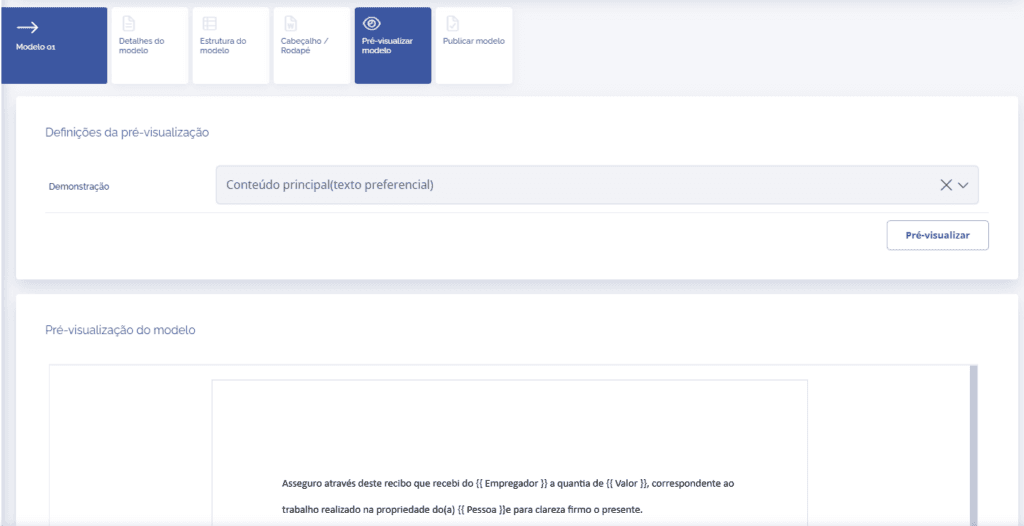
Preview Template
In the Preview Template card, you can view the settings made in the template.
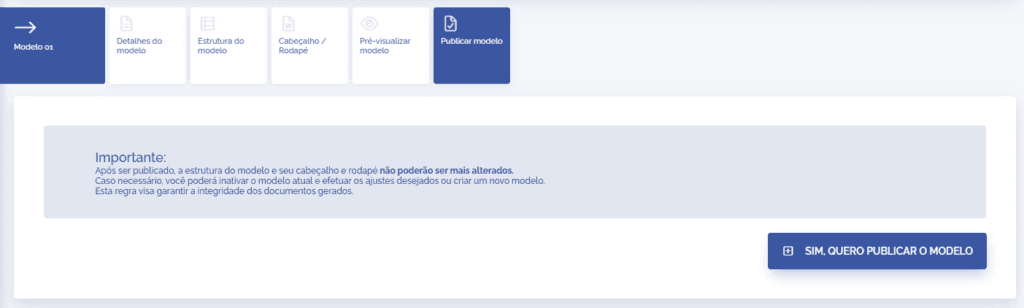
Publish Template
When publishing the template, the Deactivate Template card will take its place, and the Template Structure and Header / Footer cards will remain deactivated until the template is deactivated.