
Create user
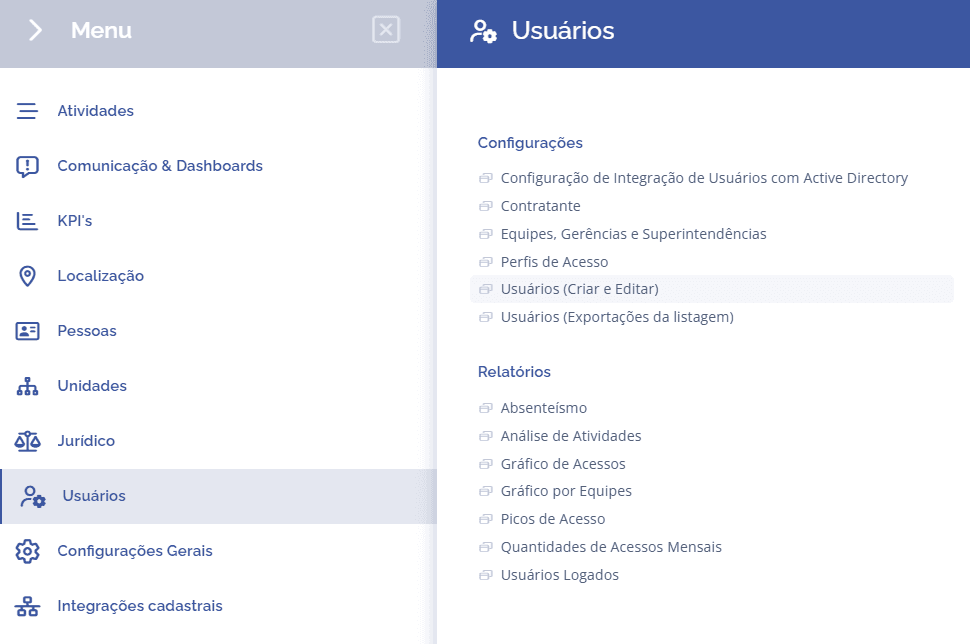
To create a user, open the main menu, select the module Users, Settings and click the option Users (create and edit)
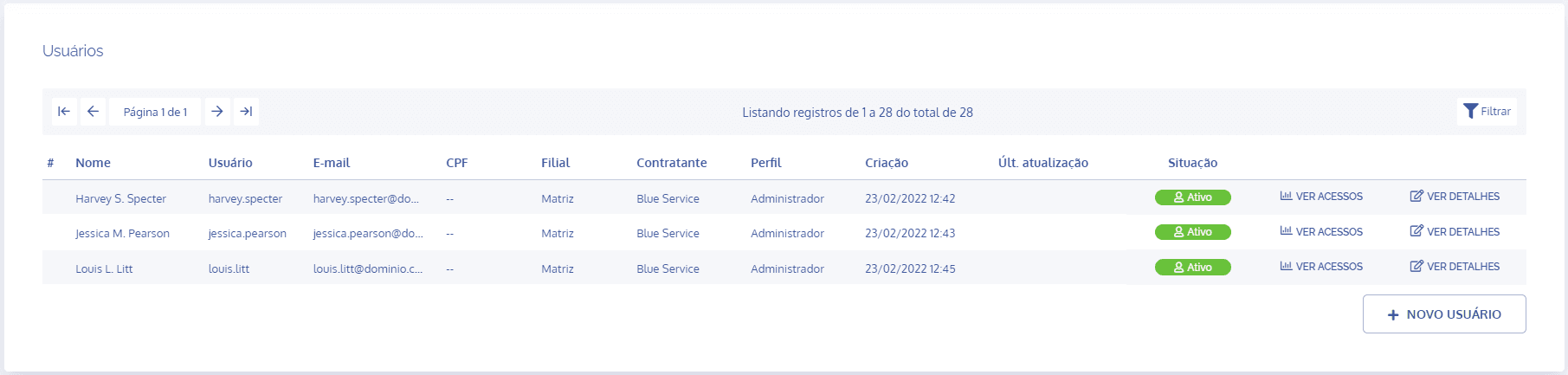
In the Users block, click the New user button
The Add new user block will open below:
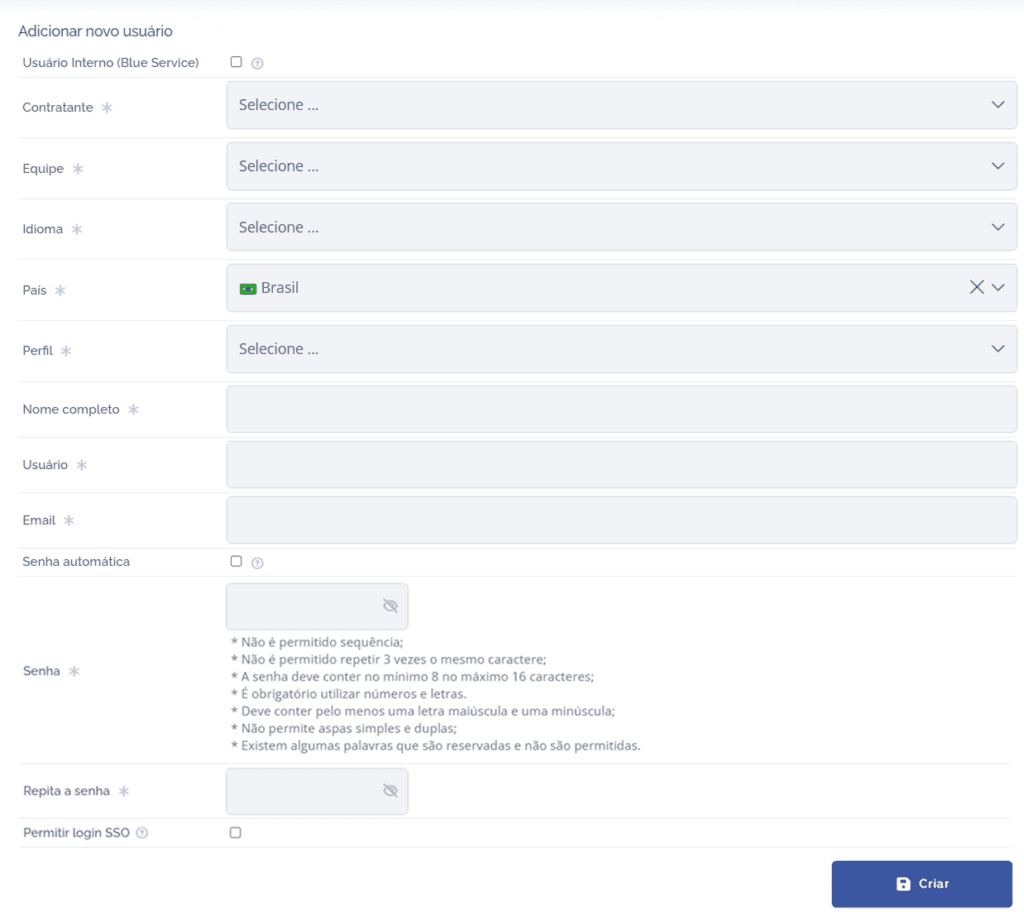
Some fields need to be filled in:
Contracting Party
Link the user's contracting party;

Team
Link a branch to the user, based on existing branches;

Language
Link a language to the user, based on existing languages;

Country
Link a country to the user;

Profile
Link an access profile to the user, based on existing profiles;

Full Name
Employee's name;

User
Define the username;

Employee's email;

Automatic password
The system generates a password for the user;

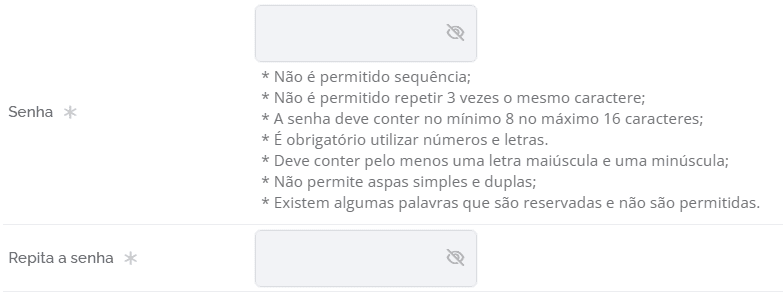
Password and Repeat password
Set a password for the user.
SSO Login
Allows the user to log in with Google.

After filling in the fields, click the Create button to finish creating the user.
The created user will be listed in the Users list and can now log in and start using the system.