
Setting up DocuSign integration
To create a developer account, go to the Docusign Developers website, click the Developer Account button, and select the Create account option:
To configure the Docusign integration within the Blue Service platform, access your developer account on the Docusign Developers website and click the My Apps & Keys option:
On the Docusign eSignature screen, click the add app and integration key button. A popup will open to enter the application name:
In the Blue Service system, open the main menu, select the General settings module, Settings and click the Integrators option:
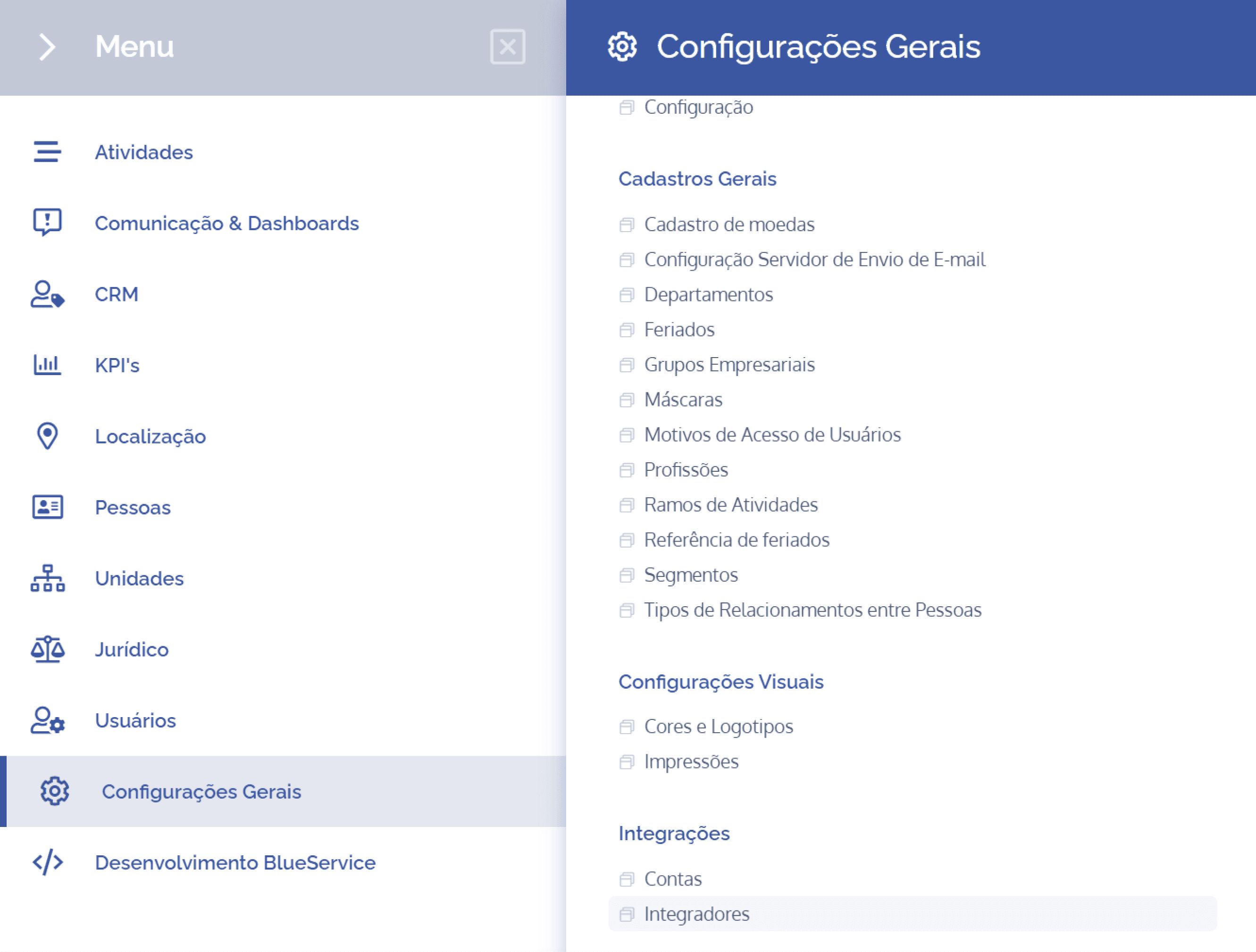
In the Integrators block, click the View details button for the Docusign integrator:
On this screen, copy the application name to enter it in the popup opened in Docusign eSignature. After entering it, click the Create app button:
After creating the app, the system will direct the user to the key creation screen. Let's start creating and entering the keys in the Blue Service system.
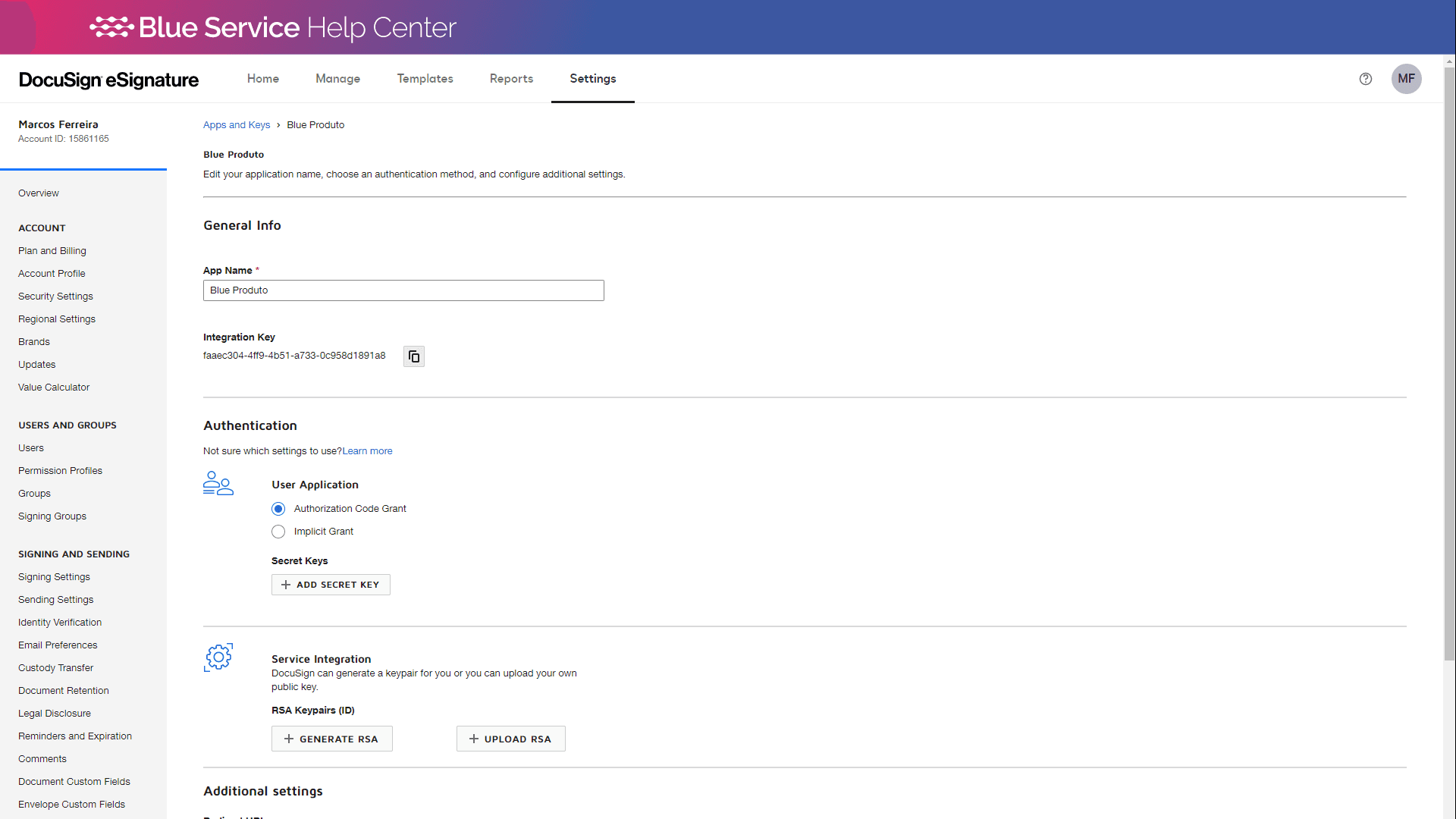
General Info
In the General Info section, copy the Integration Key and enter it in the Client key/Integration Key field on the Blue Service platform:
Authentication
In the Authentication section, click the Add secret key button to create a secret key. The field with the created key will open above. Copy the key and paste it into the Secret key/Secret Key field on the Blue Service platform:
Service Integration
To generate the RSA keys, click the Generate RSA button. After that, a floating window will open with the two generated keys. Copy the Public Key and paste it into the Public key/Public Key field. Right after that, copy the Private Key and paste it into the Private key/Private Key field on the Blue Service platform:
Important: before closing the window with the RSA keys, make sure you have copied both keys.
Additional Settings
In this section, we will add the redirect URL. To do this, click the Add url button. A box will open above to enter the URL. Go to the Blue Service platform and copy the redirect URL. Then, in Docusign eSignature, paste the copied redirect URL into the open box. Once this is done, click the Save button to save and register the information.
Once this is done, the application and key creation are complete.
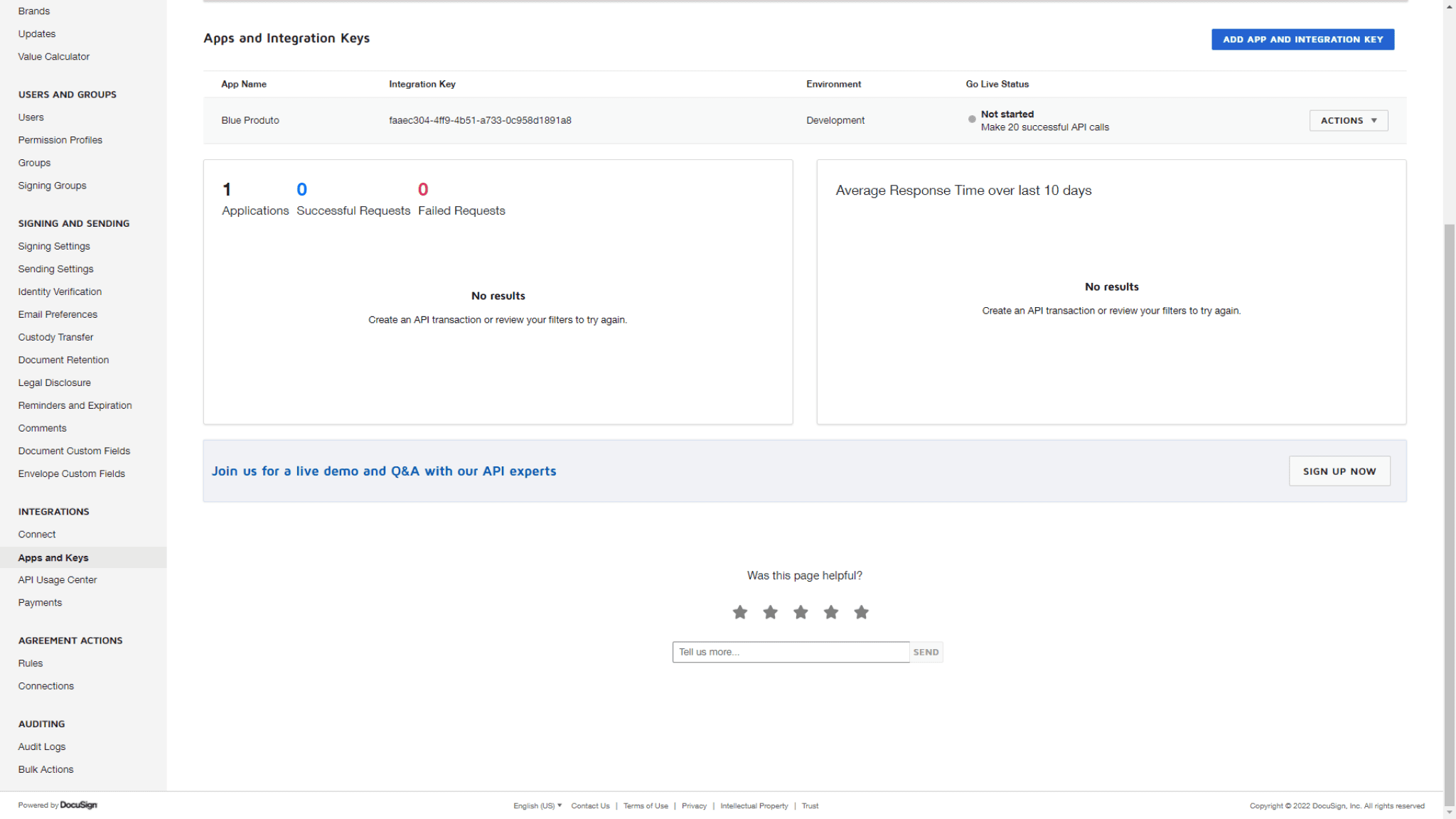
Connect Keys
Protect your custom Connect settings with enhanced security by enabling Connect keys. Connection keys can ensure that a push notification was sent by DocuSign and was not tampered with by any other party.
To do this, in the left-side menu under Integrations, click the Connect option:
Next, on the Connect screen, click Connect Keys:
On the Connect Keys screen, click the Add secret key button to generate a secret key. A field with the generated key will open above. Copy and paste it into the Secret key/Secret Key field on the Blue Service platform:
Check that the Homologation Mode and API Configuration switches are enabled and then click the Save button:
Once this is done, you will be redirected to the Docusign website to allow integration with the Blue Service platform. Click the Allow access button to confirm permission:
After allowing the integration, the Docusign integrator will be active on the Blue Service platform: