To edit a unit is very simple, in this module we will learn the behavior of all fixed and dynamic field types that can make up a unit.
Important rules!
If the field you want to change is configured in the web platform as: “not editable”, it will not be possible to edit it on the mobile platform.
A user's permission level determines whether you can or cannot change fields within a unit.
A user's permission level determines whether you can change any unit.
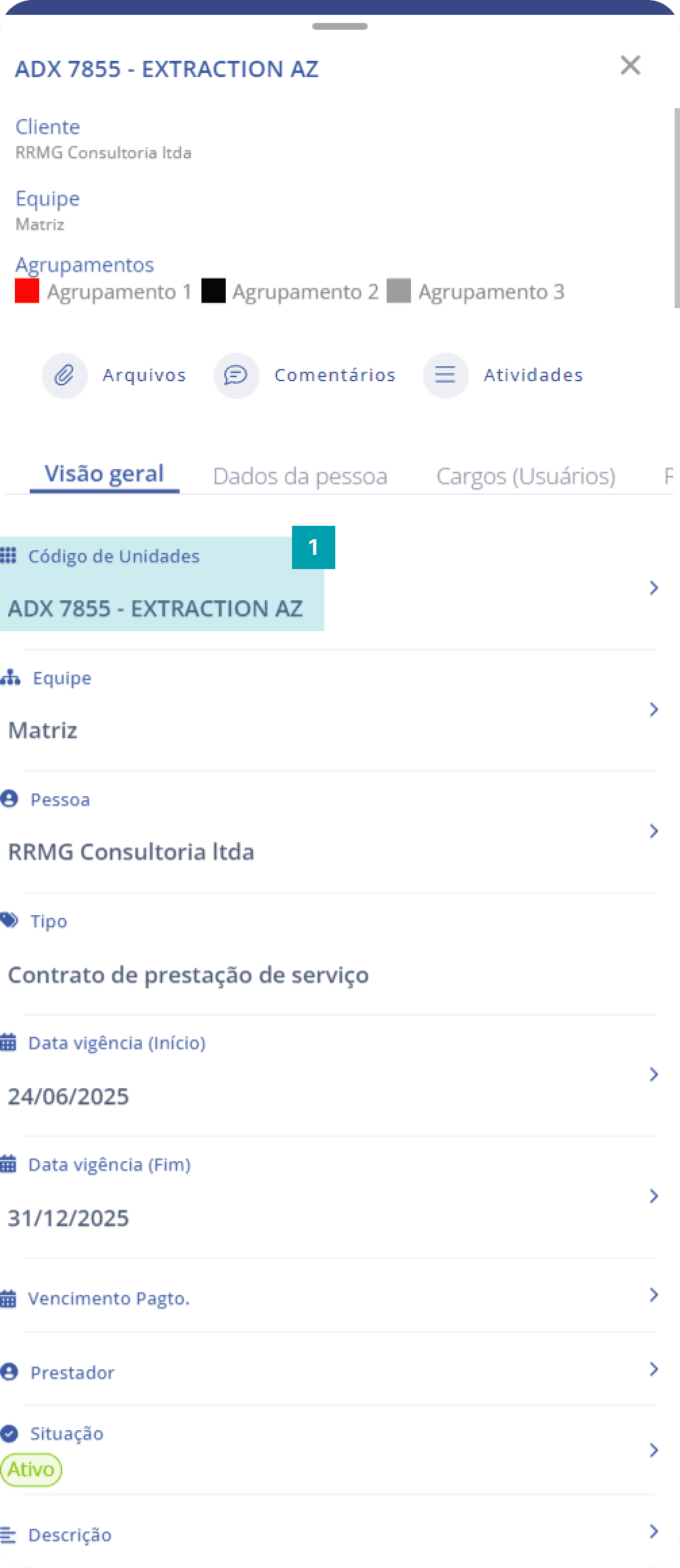
Fixed field: Unit Code
This field provides your unit identification code.
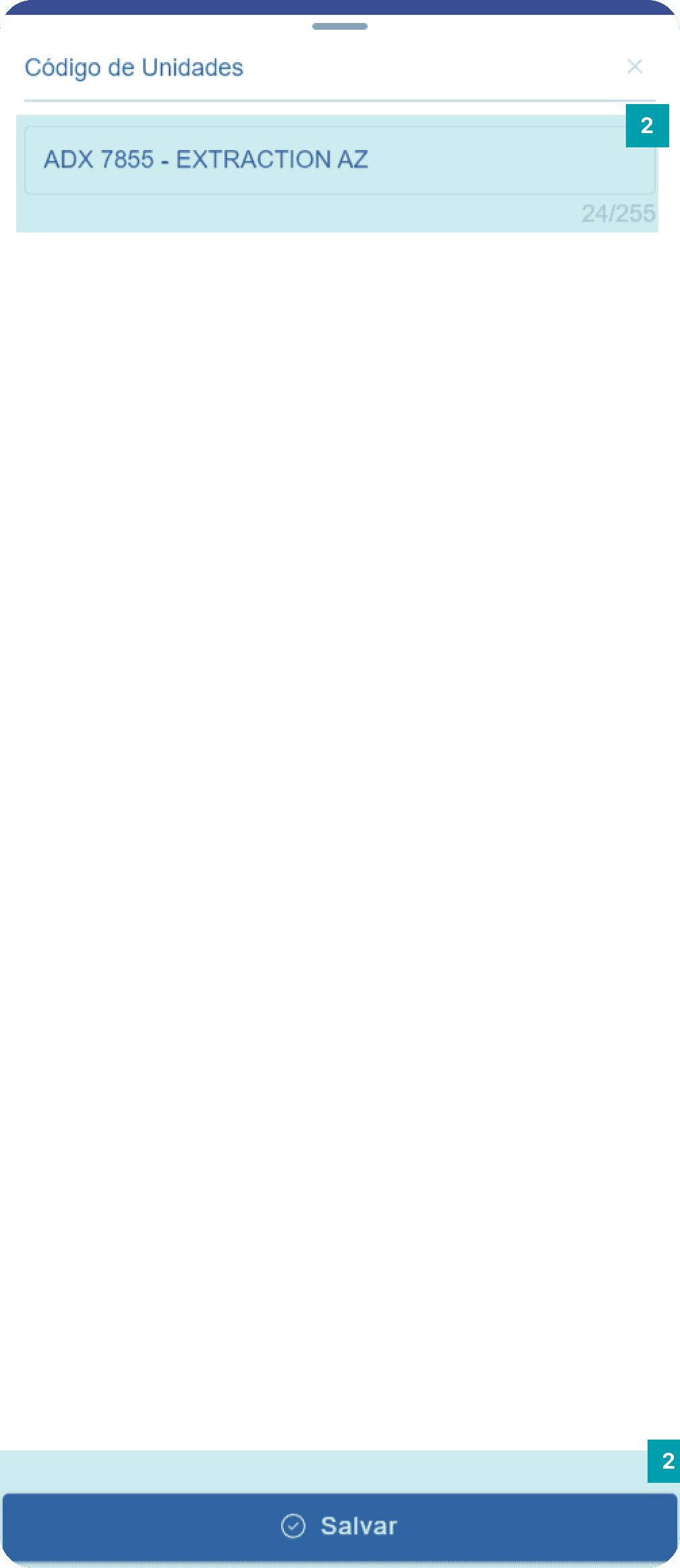
Click the area of the Title/Subject field to open its edit screen.
Type the desired title in the text field.
Save – Click the Save button to finish editing.
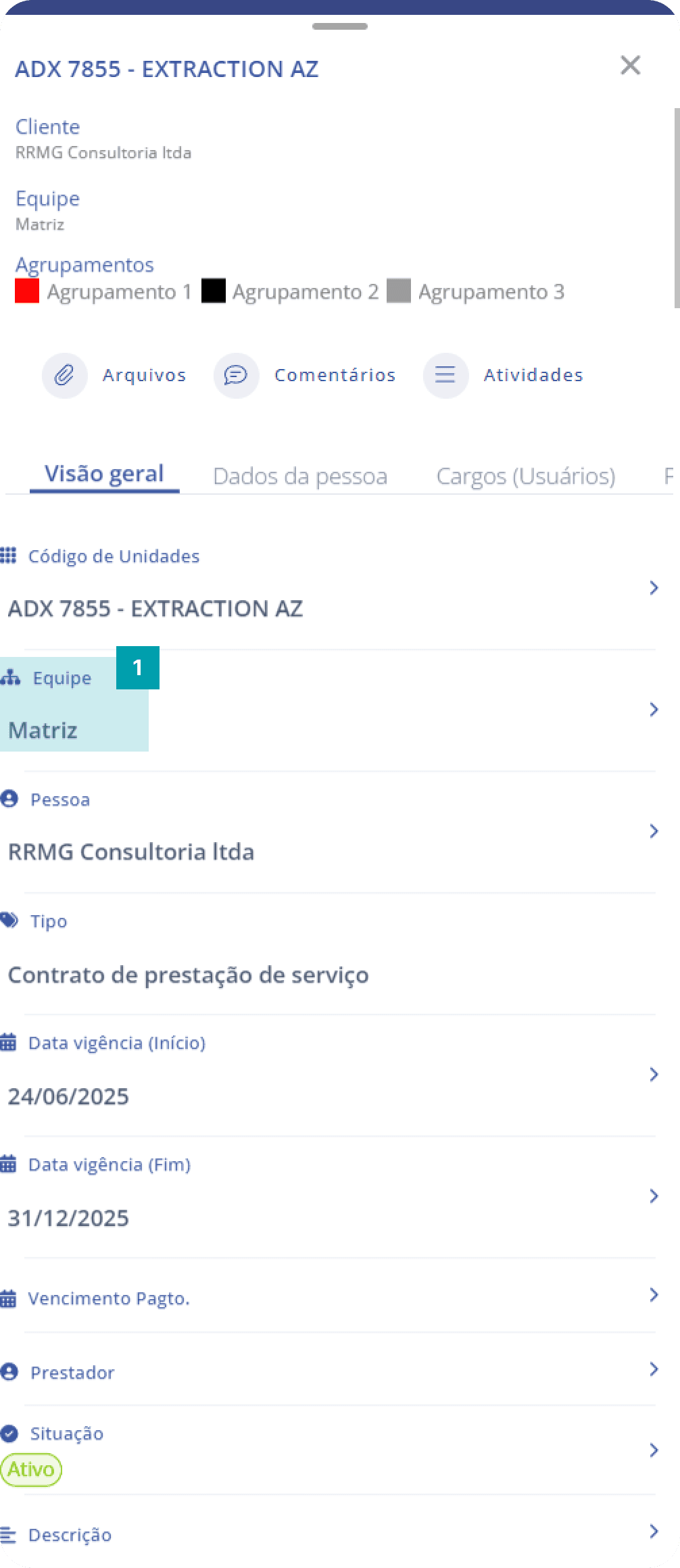
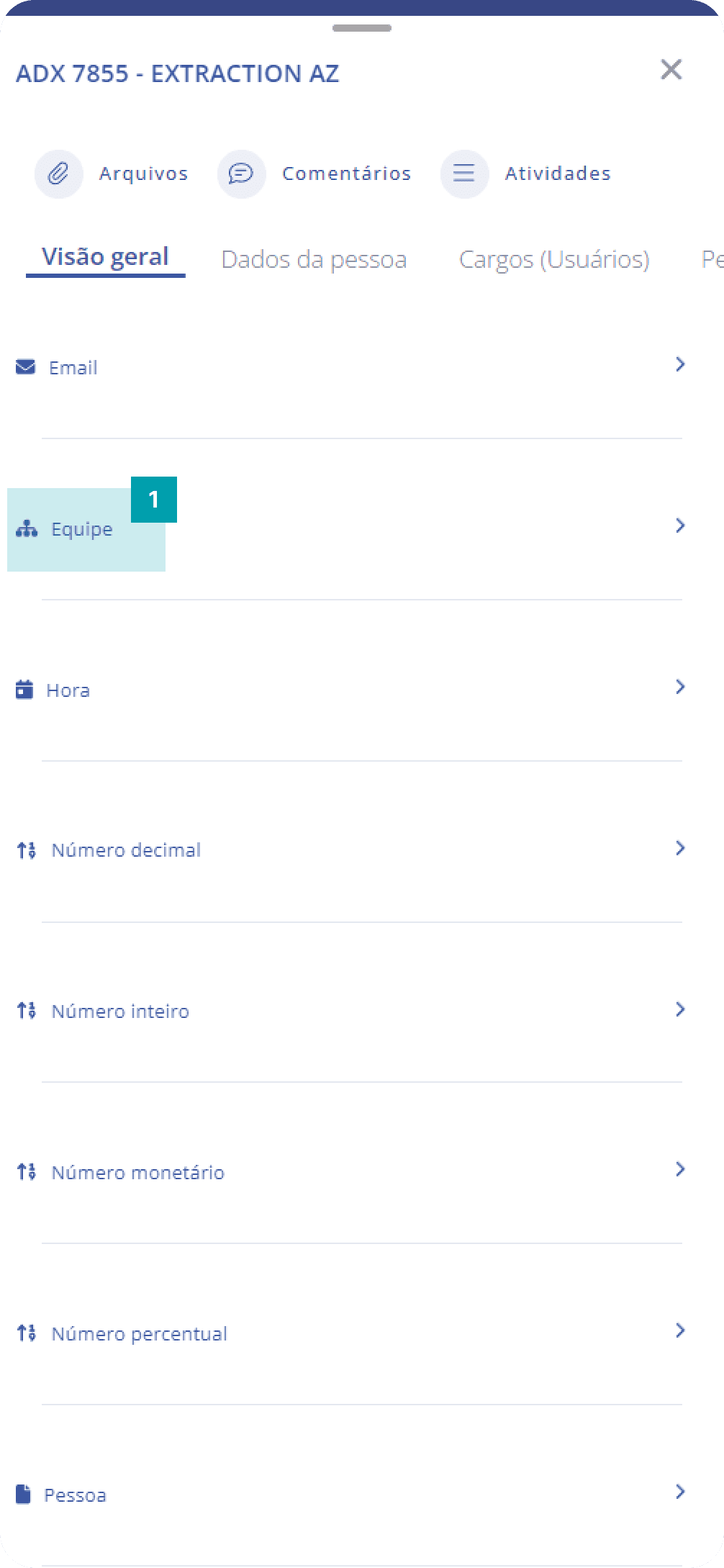
Fixed field: Team
This field determines the team your unit belongs to.
Click the area of the Team field to open its edit screen.
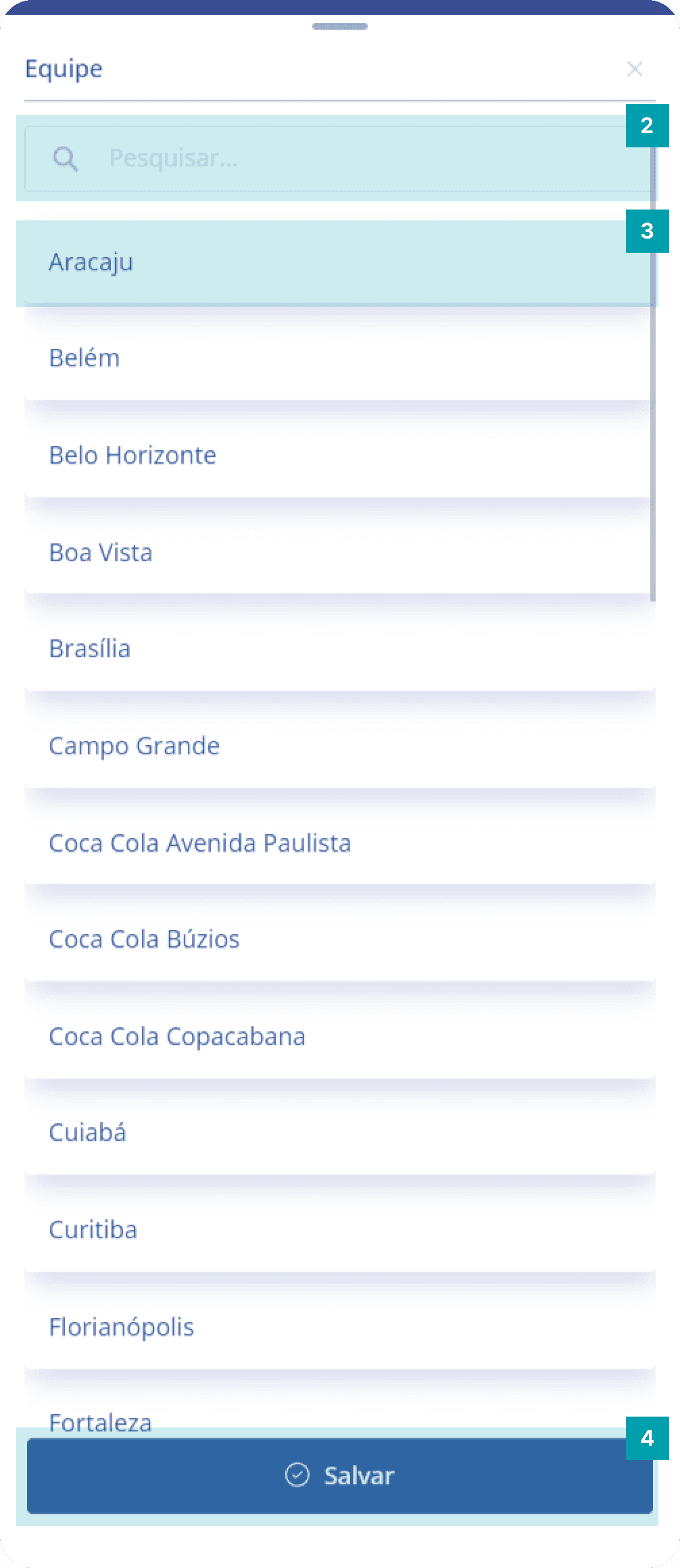
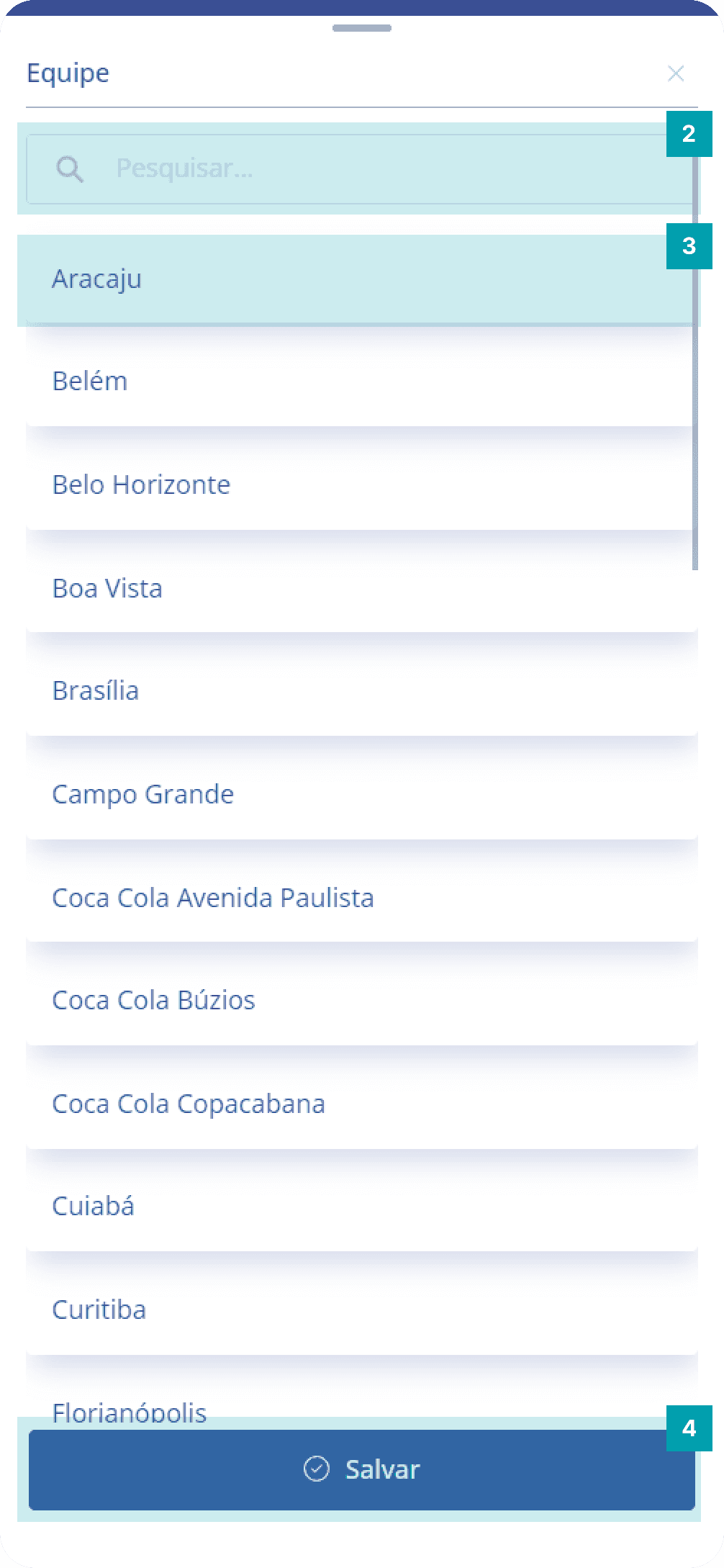
Search – Click the search field and type the name of the team or branch you want.
Selection – Select the desired team by clicking its area.
Save – Click the Save button to finish editing.
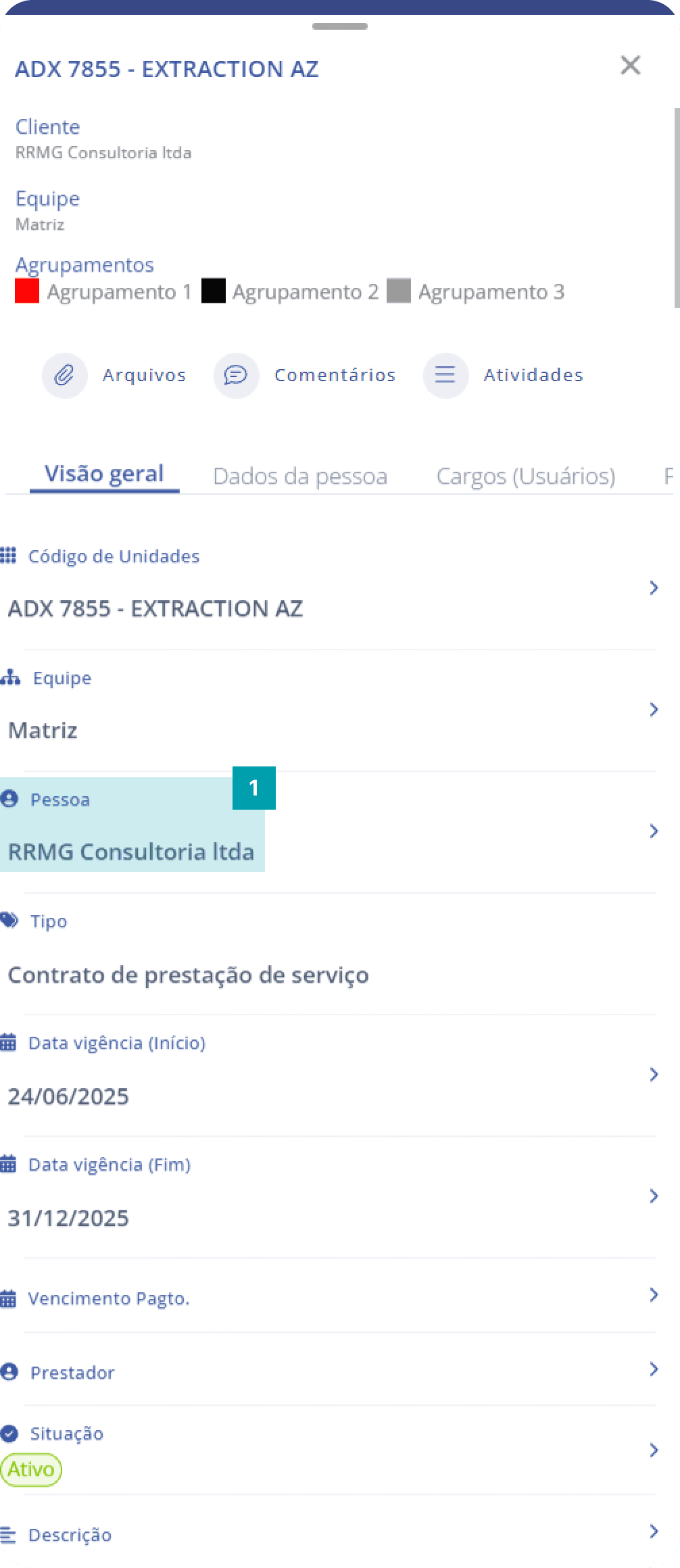
Fixed field: Person
This field associates a company person with your unit.
Click the area of the Person field to open its edit screen.
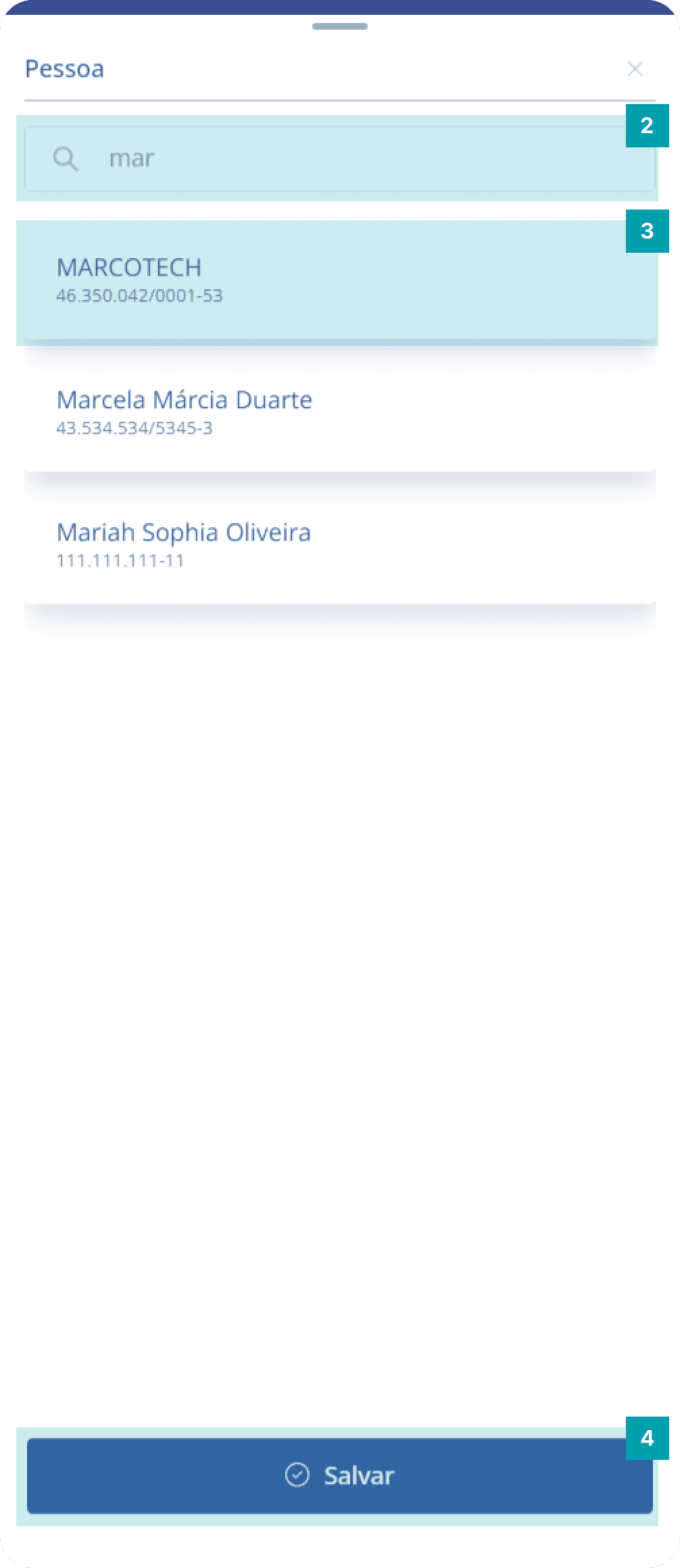
Search – Click the search field and type the name of the person you want.
Selection – Click the area of the desired person to select them.
Save – Click the Save button to finish editing.
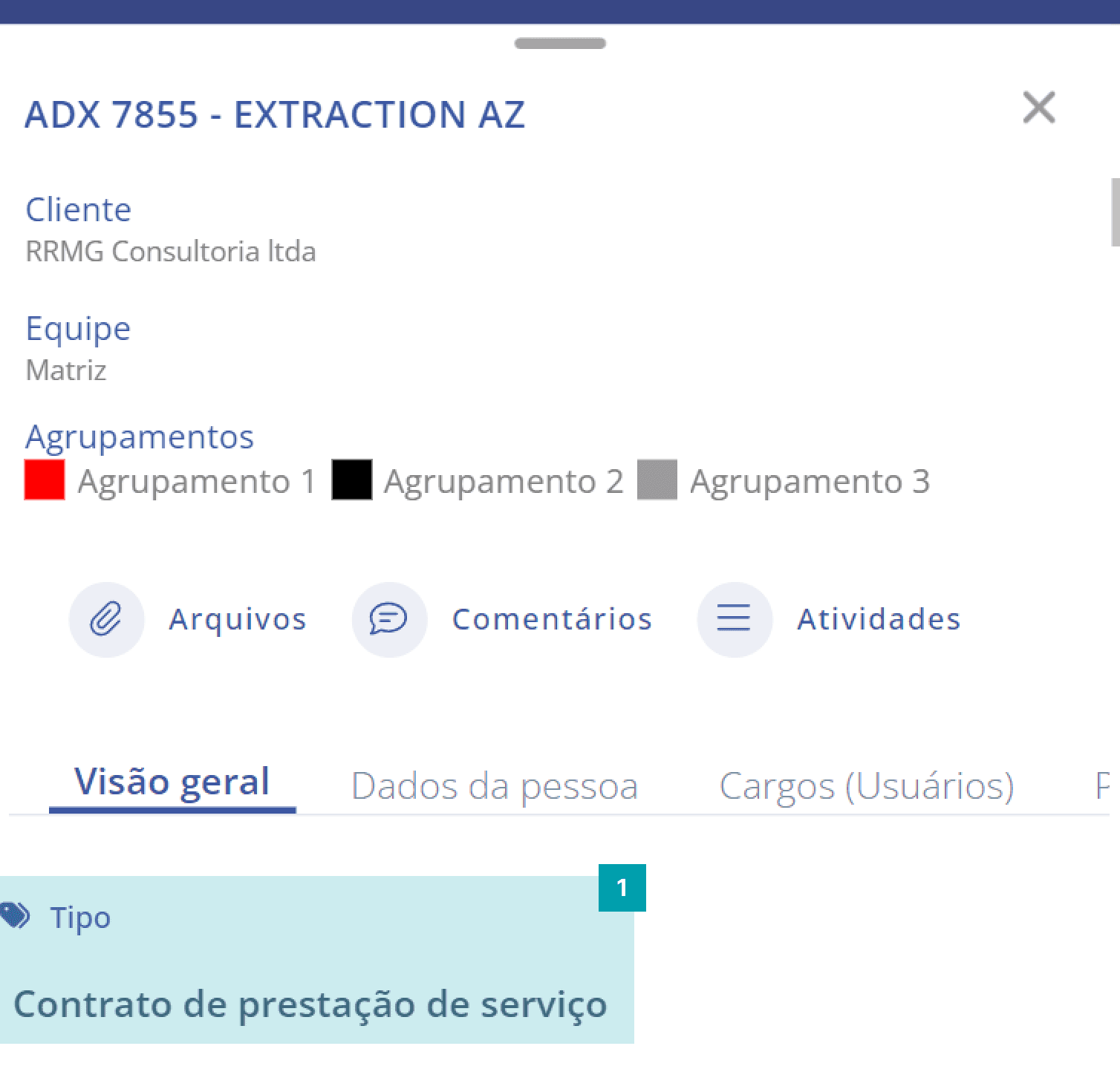
Fixed field: Type
This field only displays the unit type that the unit belongs to; it is not an editable field.
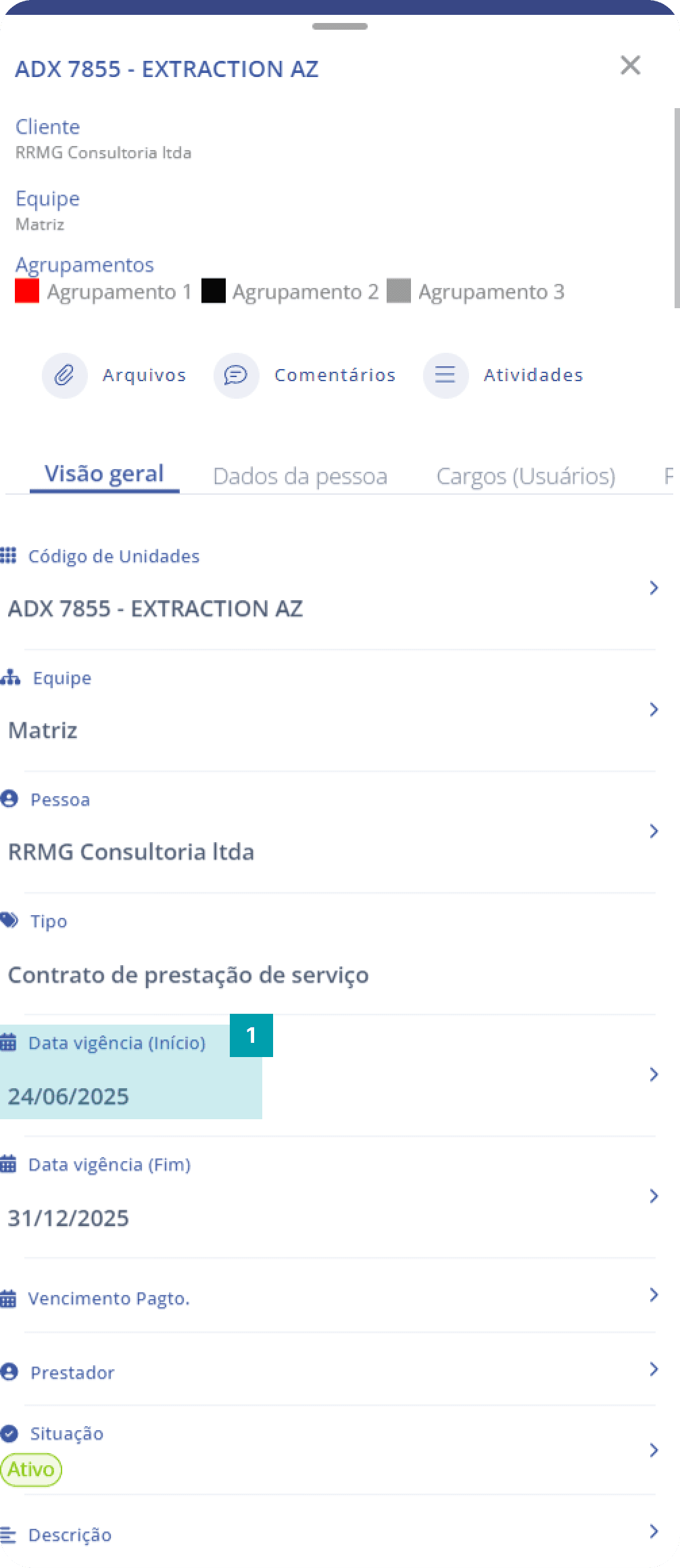
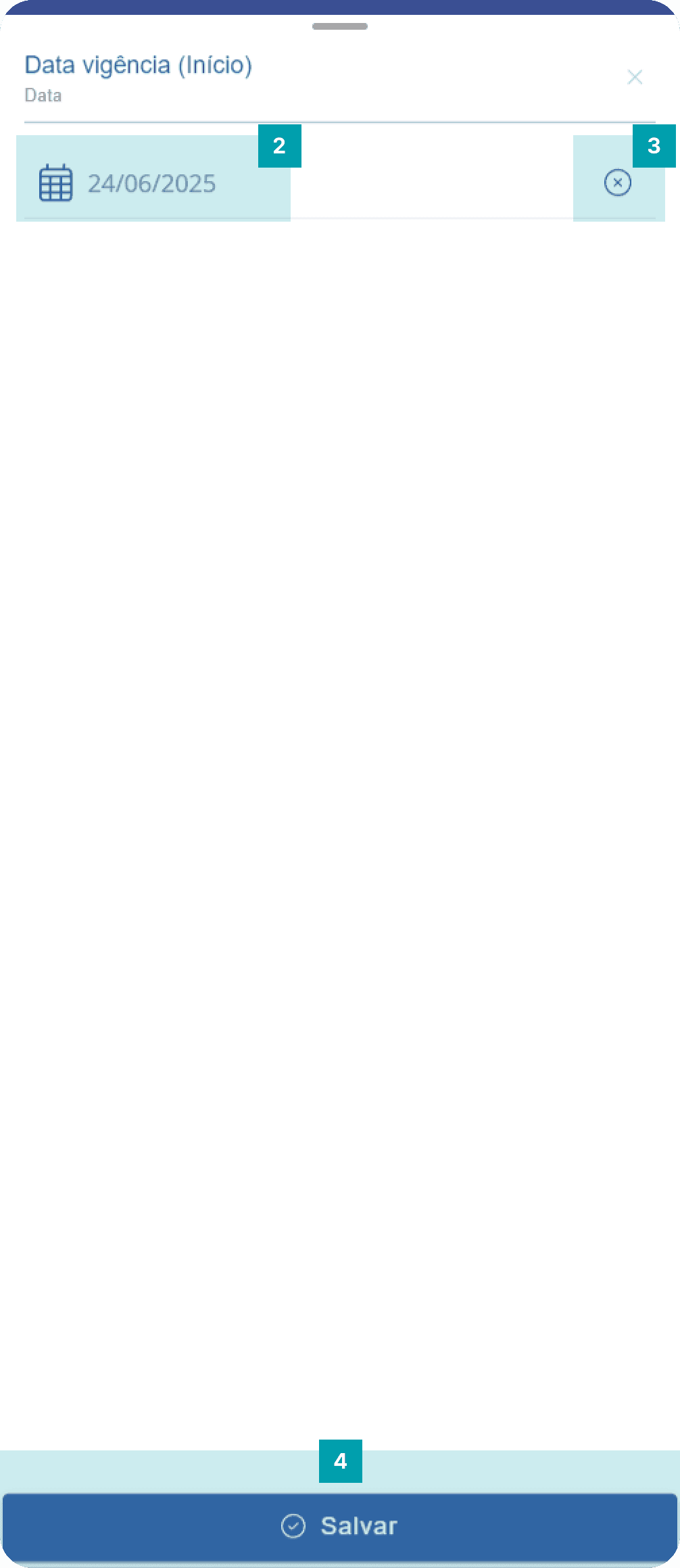
Fixed fields: Effective date (start)
This field determines the unit's effective start date.
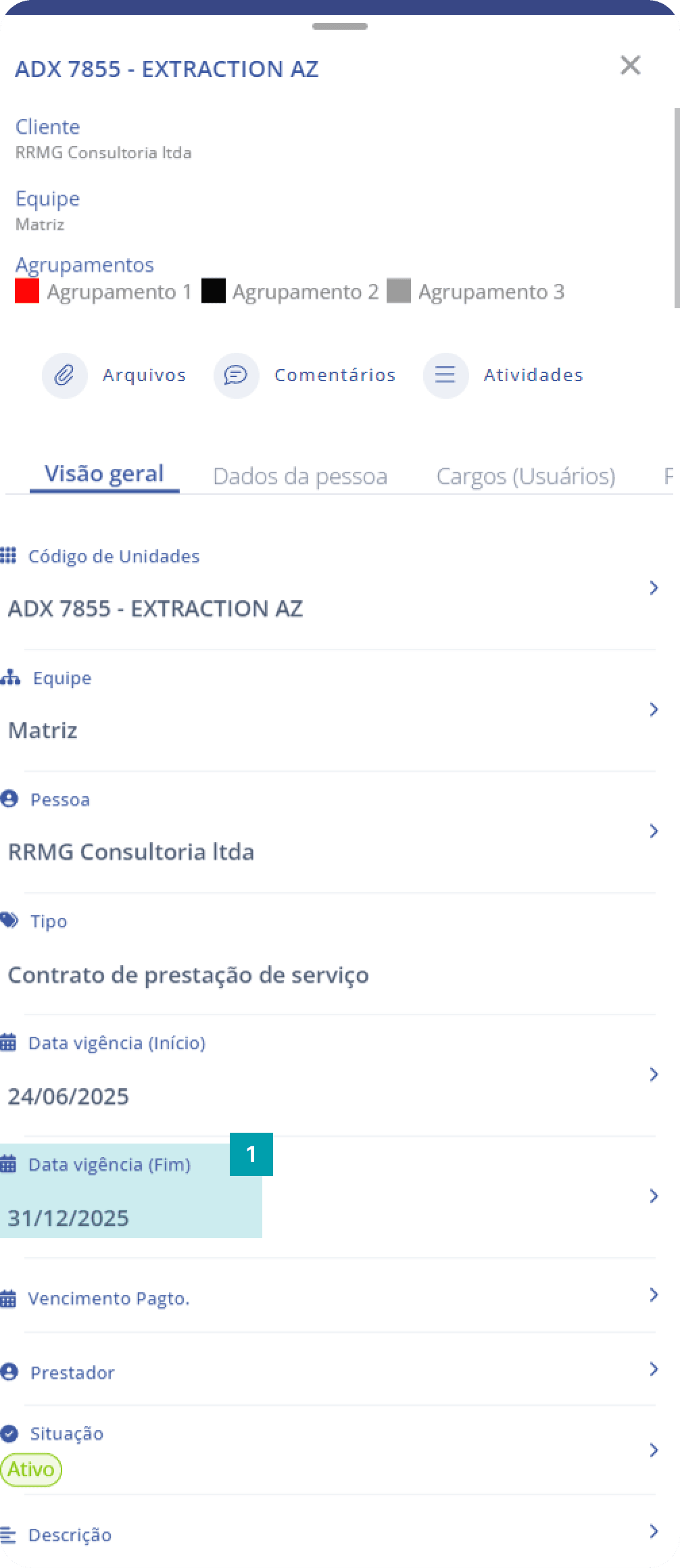
Click the area of the Effective date (start) field to open its edit screen.
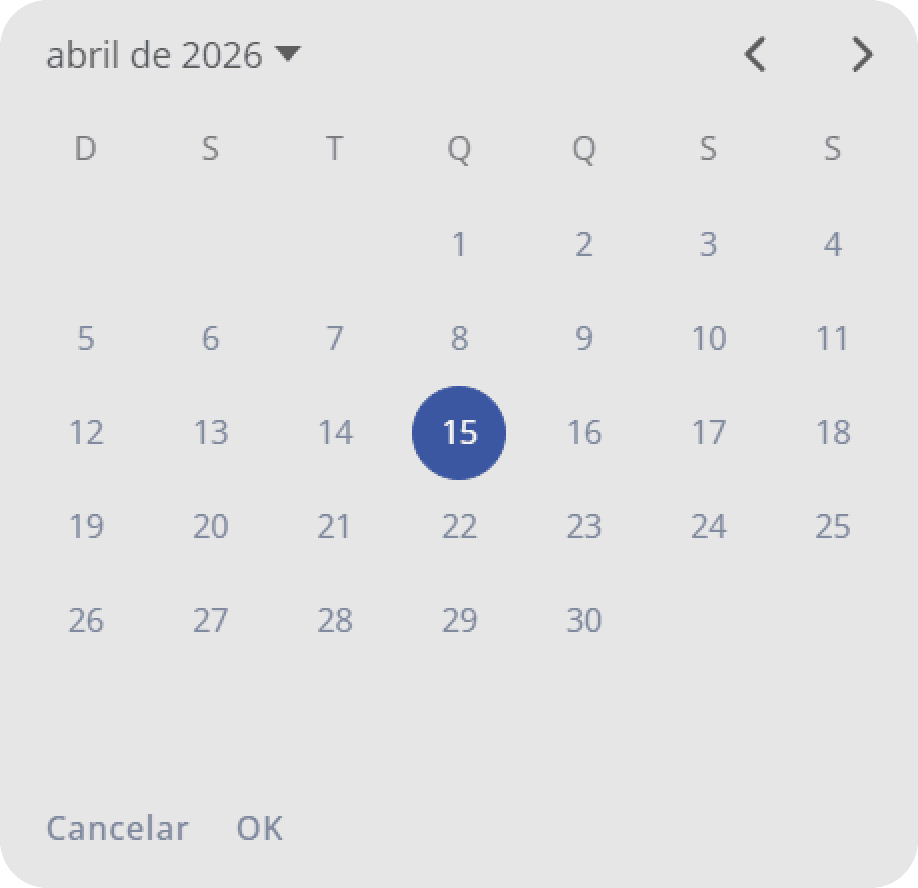
Date – By clicking, a floating modal opens so you can choose the desired day.
Clear – By clicking the X icon, the selected date will be cleared.
Save – Click the Save button to finish editing.
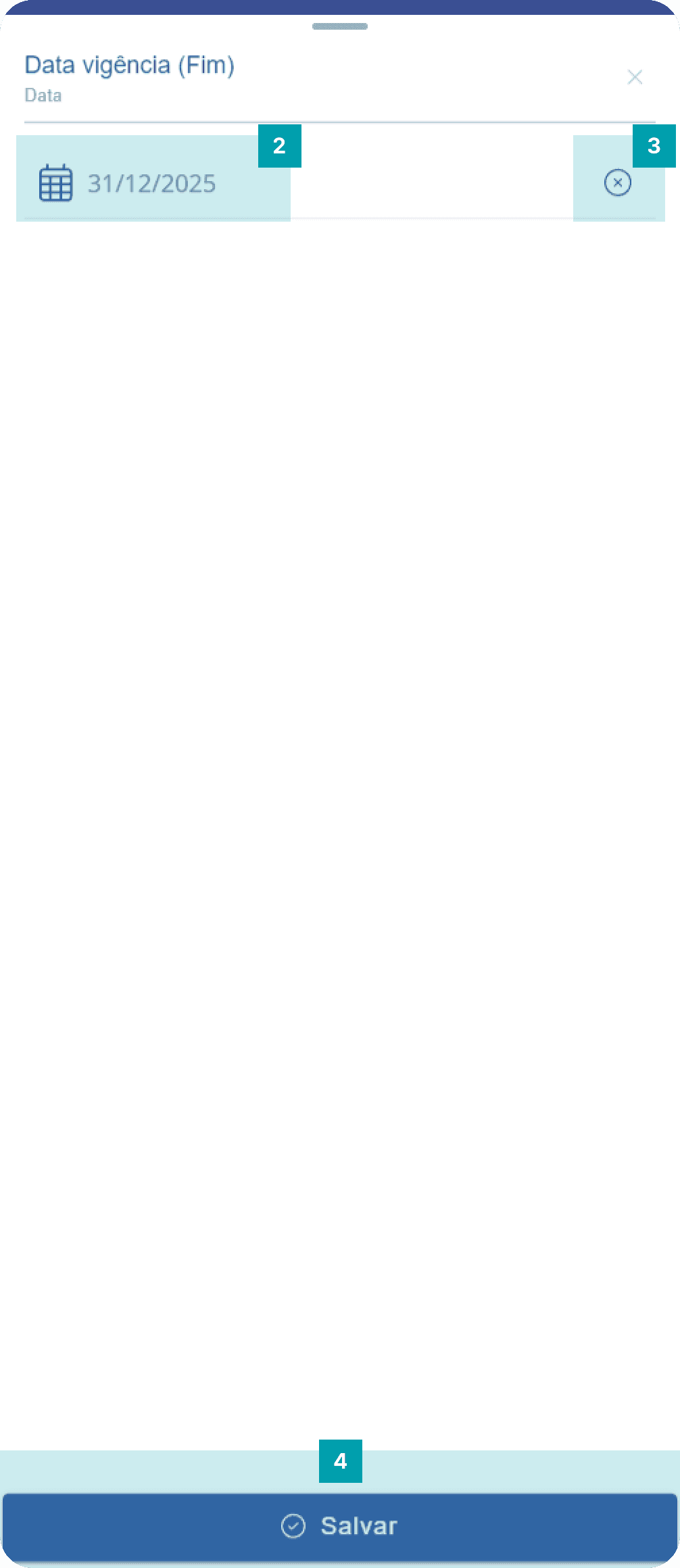
Fixed fields: Effective date (end)
This field determines the unit's final effective date.
Click the area of the Effective date (end) field to open its edit screen.
Date – By clicking, a floating modal opens so you can choose the desired day.
Clear – By clicking the X icon, the selected date will be cleared.
Save – Click the Save button to finish editing.
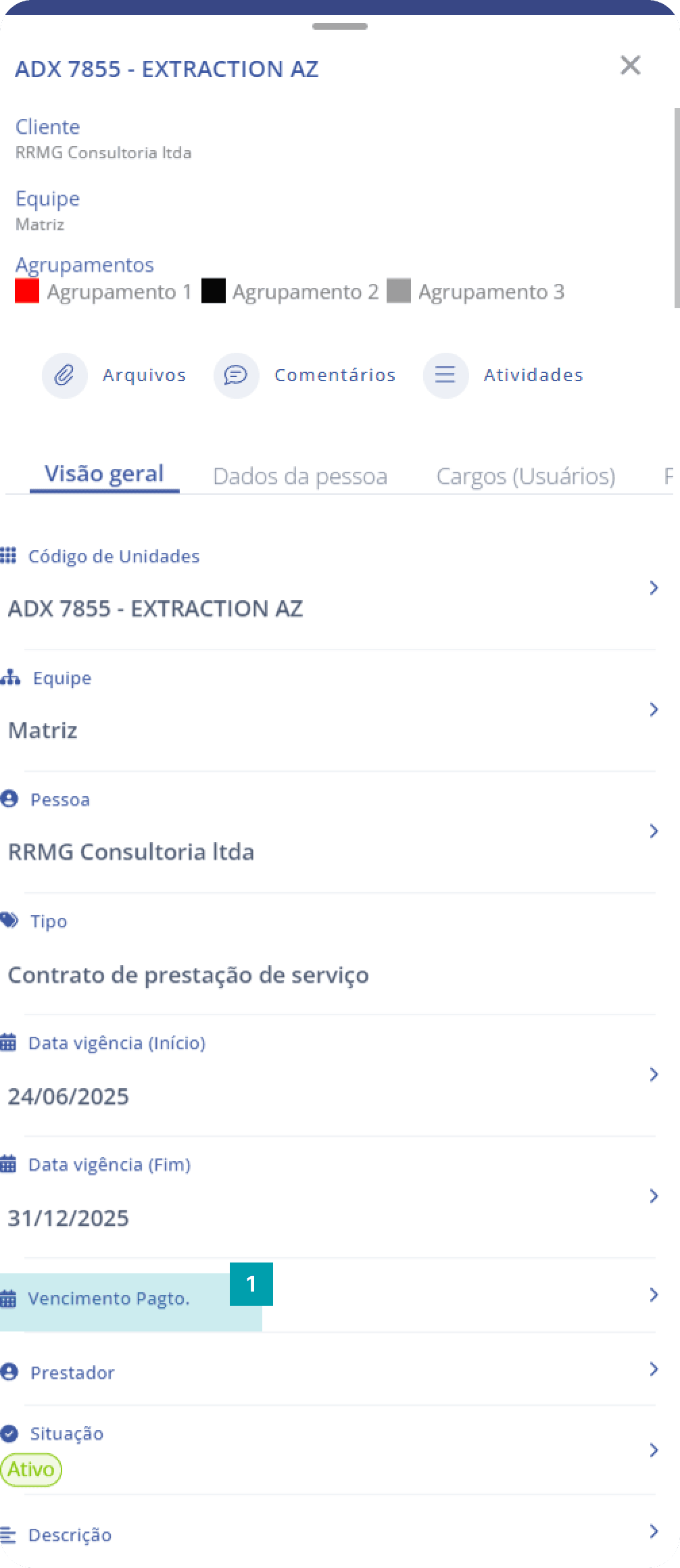
Fixed fields: Payment due date.
This field determines the unit's payment due date.
Click the area of the Payment due date. field to open its edit screen.
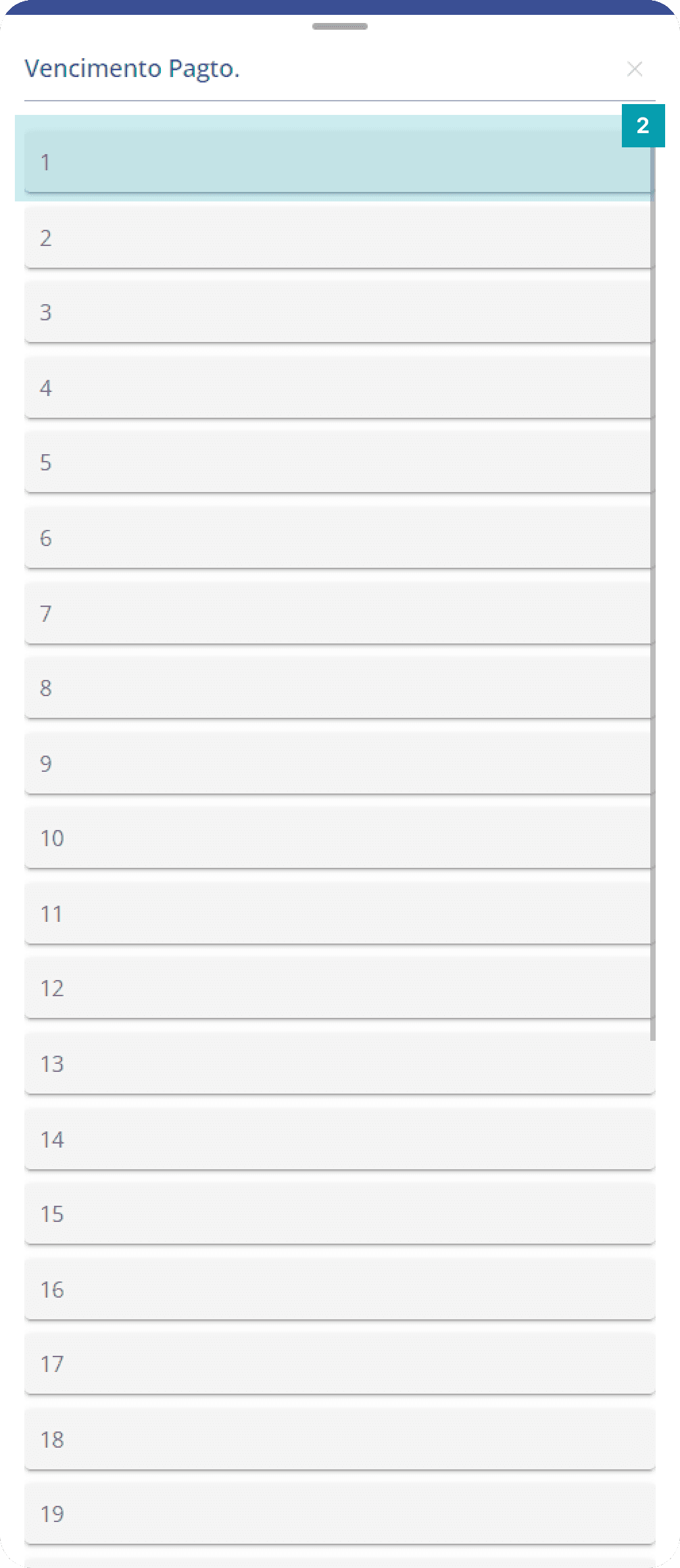
Days – choose the desired day, from 1 to 30.
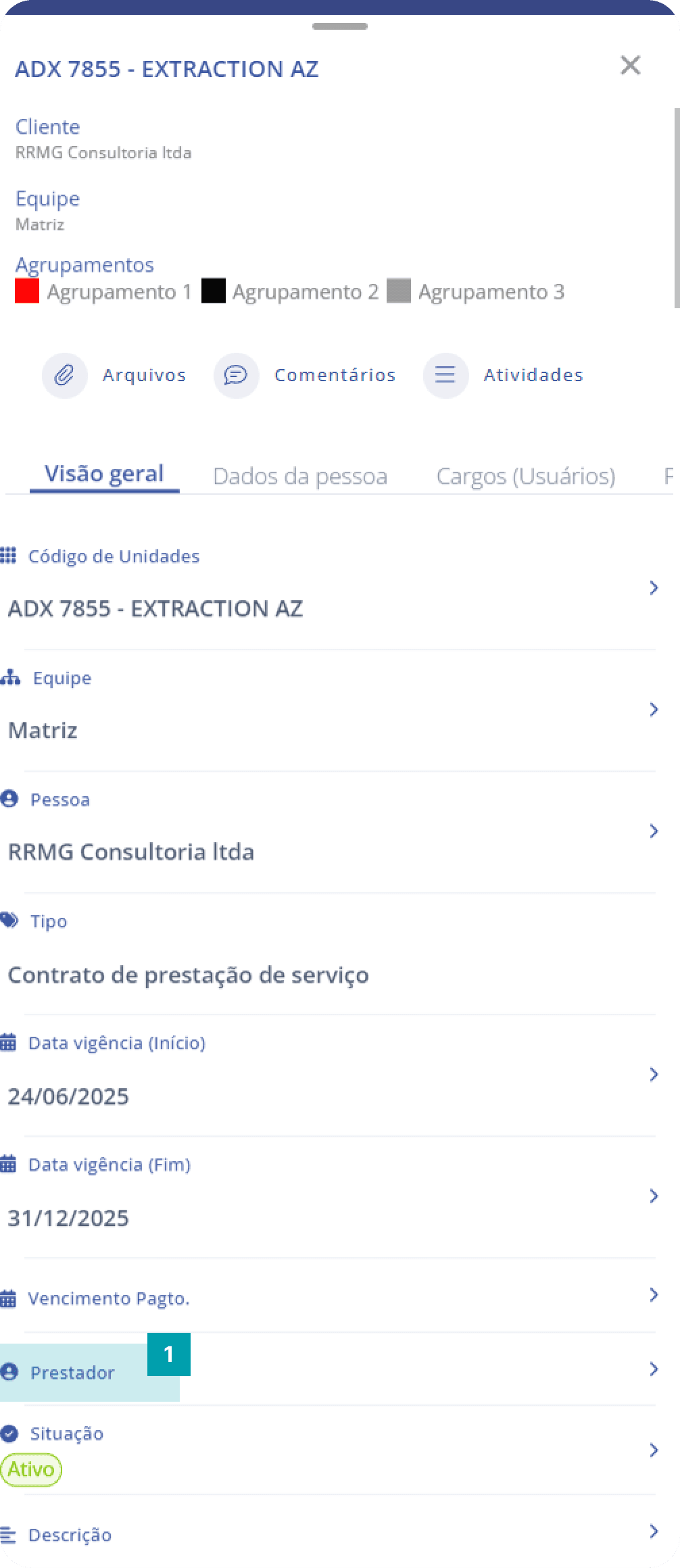
Fixed field: Provider
This field determines a provider for your unit, being a company person already registered.
Click the area of the Provider field to open its edit screen.
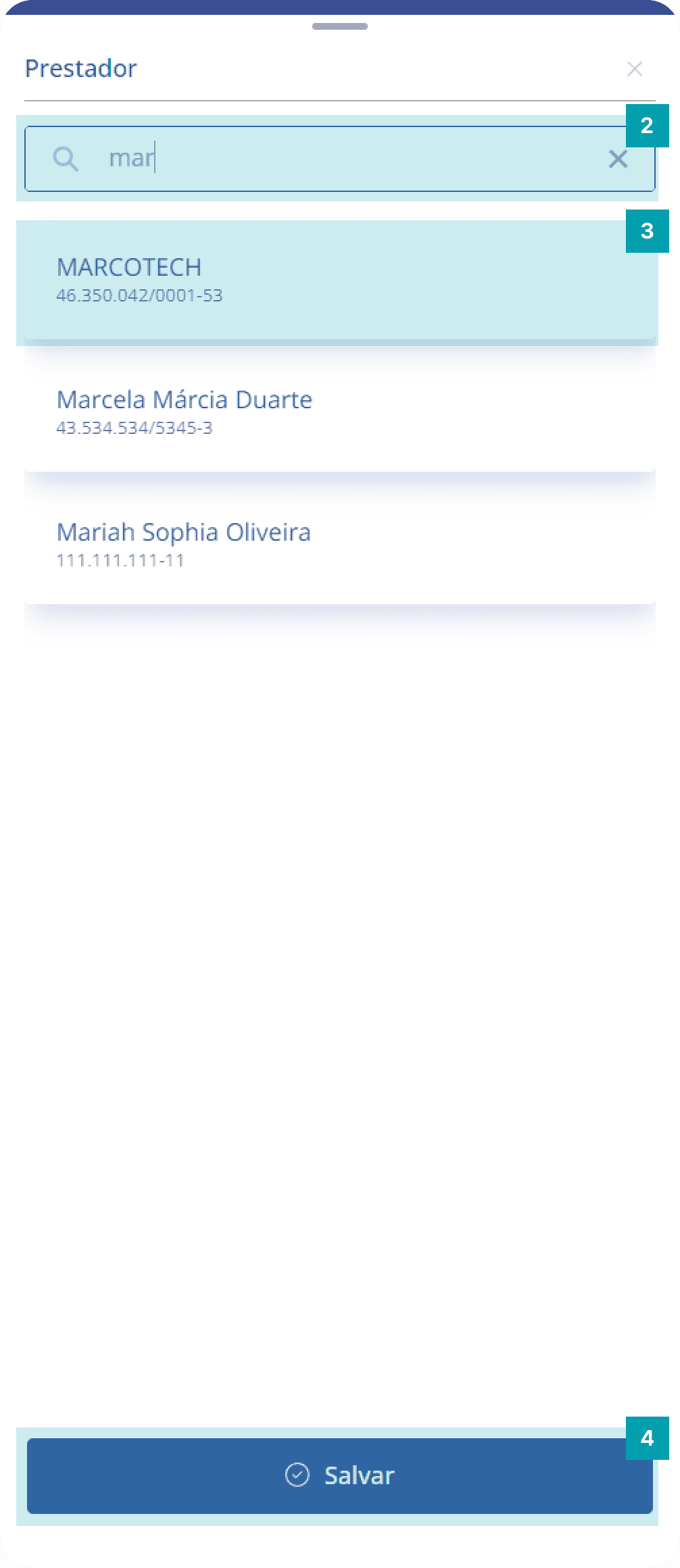
Search – Click the search field and type the name of the person you want.
Selection – Click the area of the desired person to select them.
Save – Click the Save button to finish editing.
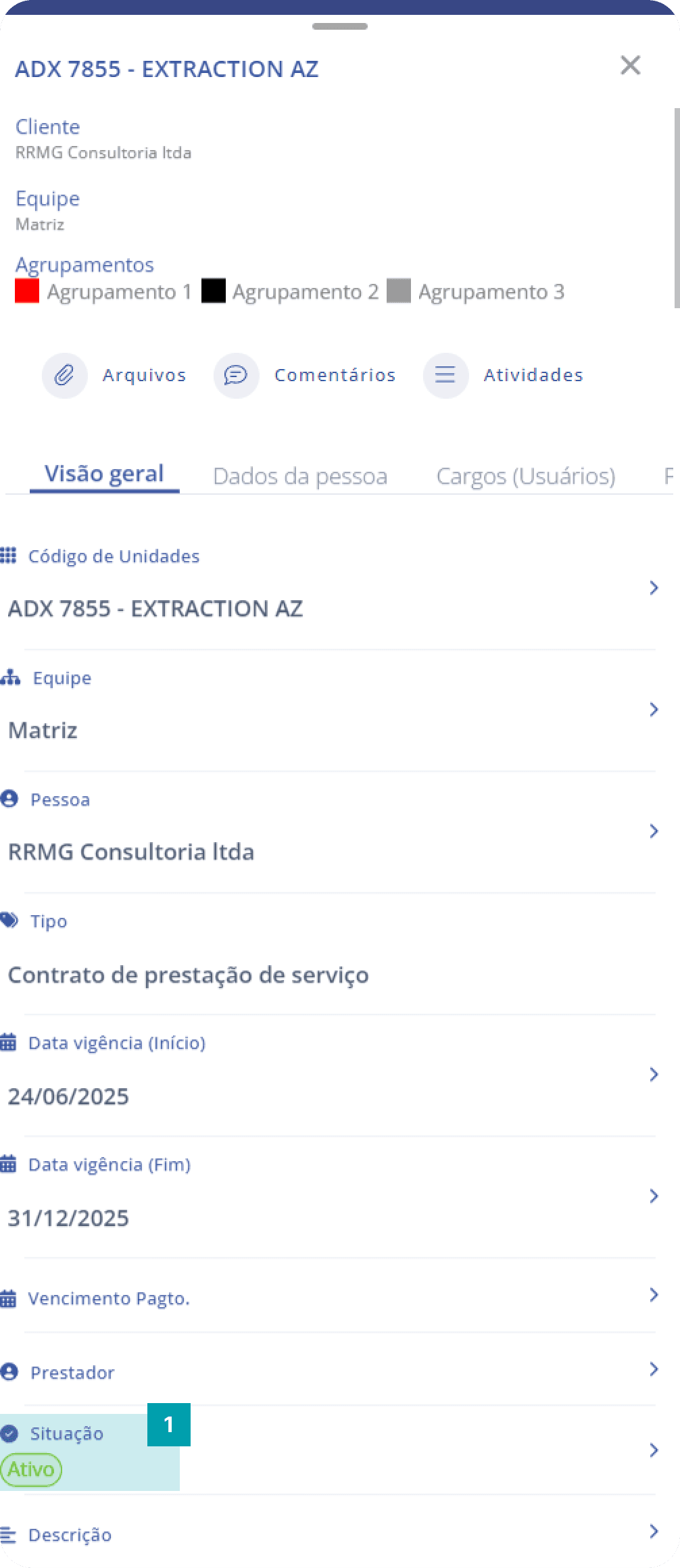
Fixed field: Status
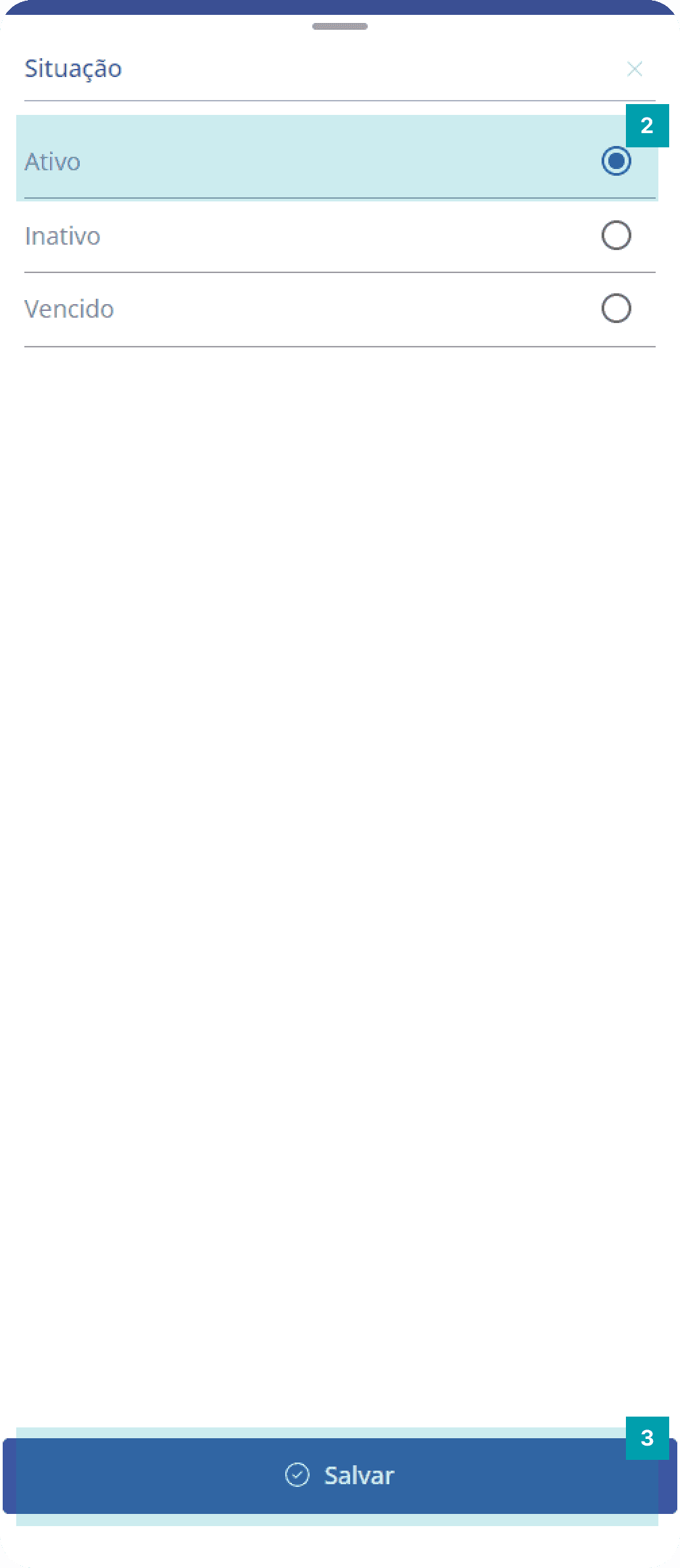
This field defines the status of your unit.
Click the area of the Status field to open its edit screen.
Select the desired status by clicking its area.
Save – Click the Save button to finish editing.
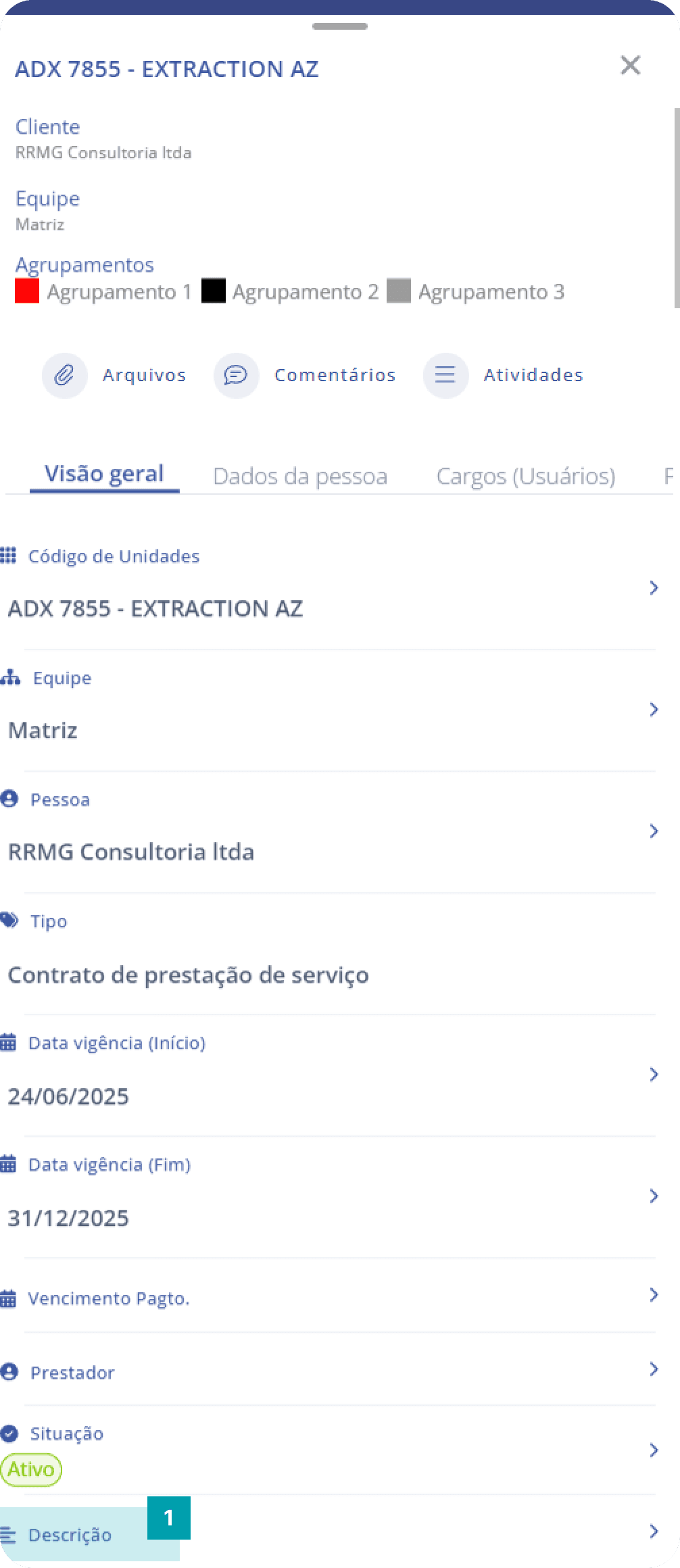
Fixed fields: Description
This field complements the unit's information.
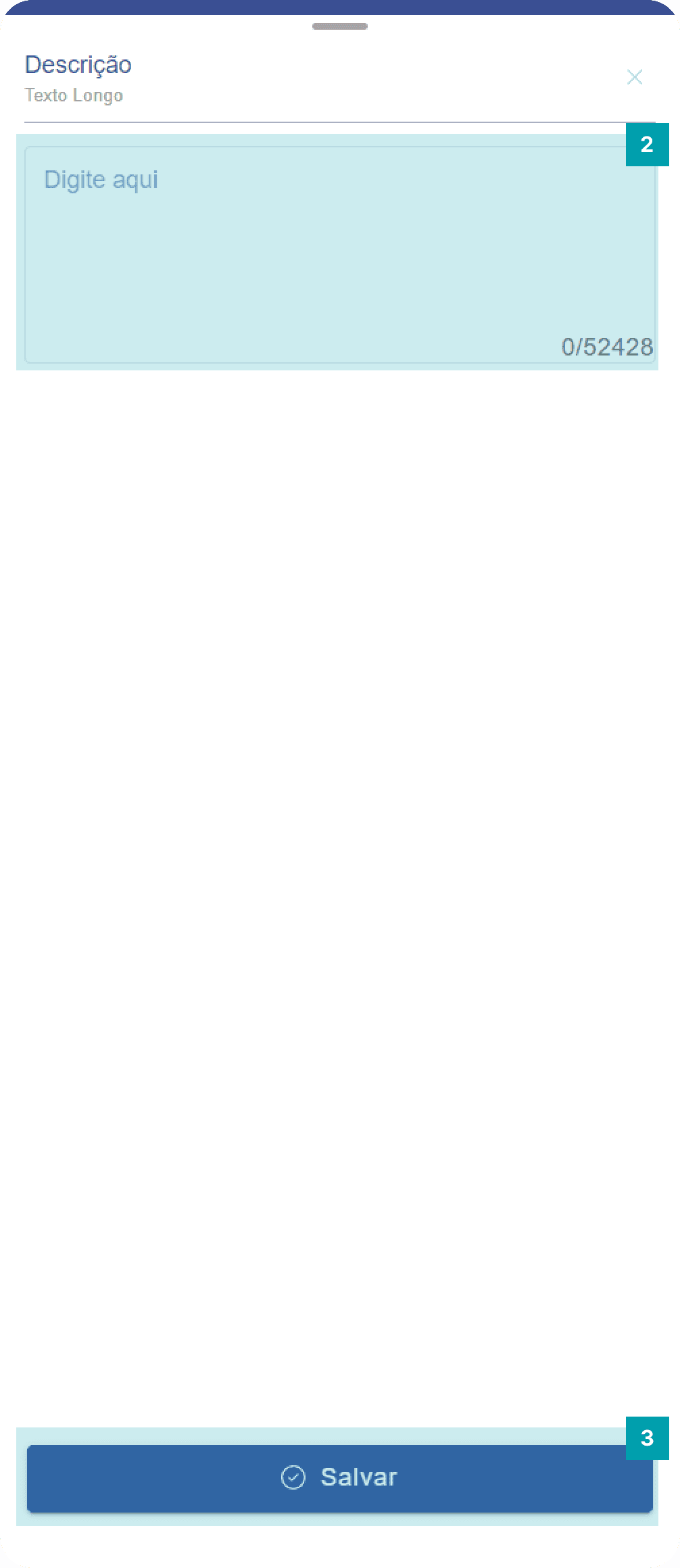
Click the area of the Description field to open its edit screen.
Click the text field and type the content you want to insert.
Save – Click the Save button to finish editing.
Important Note! * When editing a field, the system automatically updates the unit form, bringing the new information to the mobile platform and synchronizing simultaneously with the web platform. This way, you can follow your updates in real time regardless of the device you are using. * Dynamic field types can be easily identified; the field type is always described right below the field title on your edit screen.
Dynamic field type: Team
This field allows the user to select a team to fill in.
Click the area of the Team field to open its edit screen.
Search – Click the search field and type the name of the team you want.
Selection – Select the desired team by clicking its area.
Save – Click the Save button to finish editing.
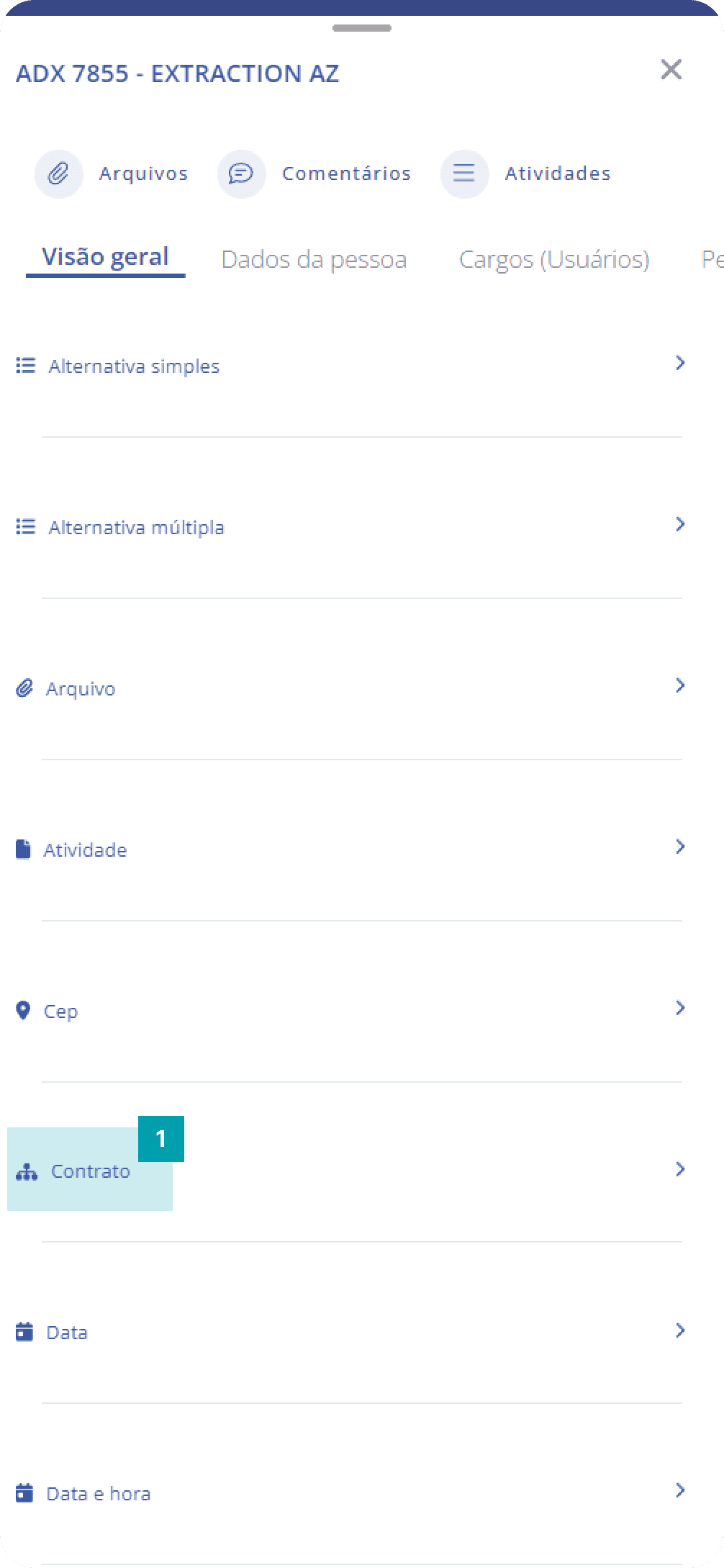
Dynamic field type: Unit
This field allows the user to select a unit to fill in.
Click the area of the Unit field to open its edit screen.
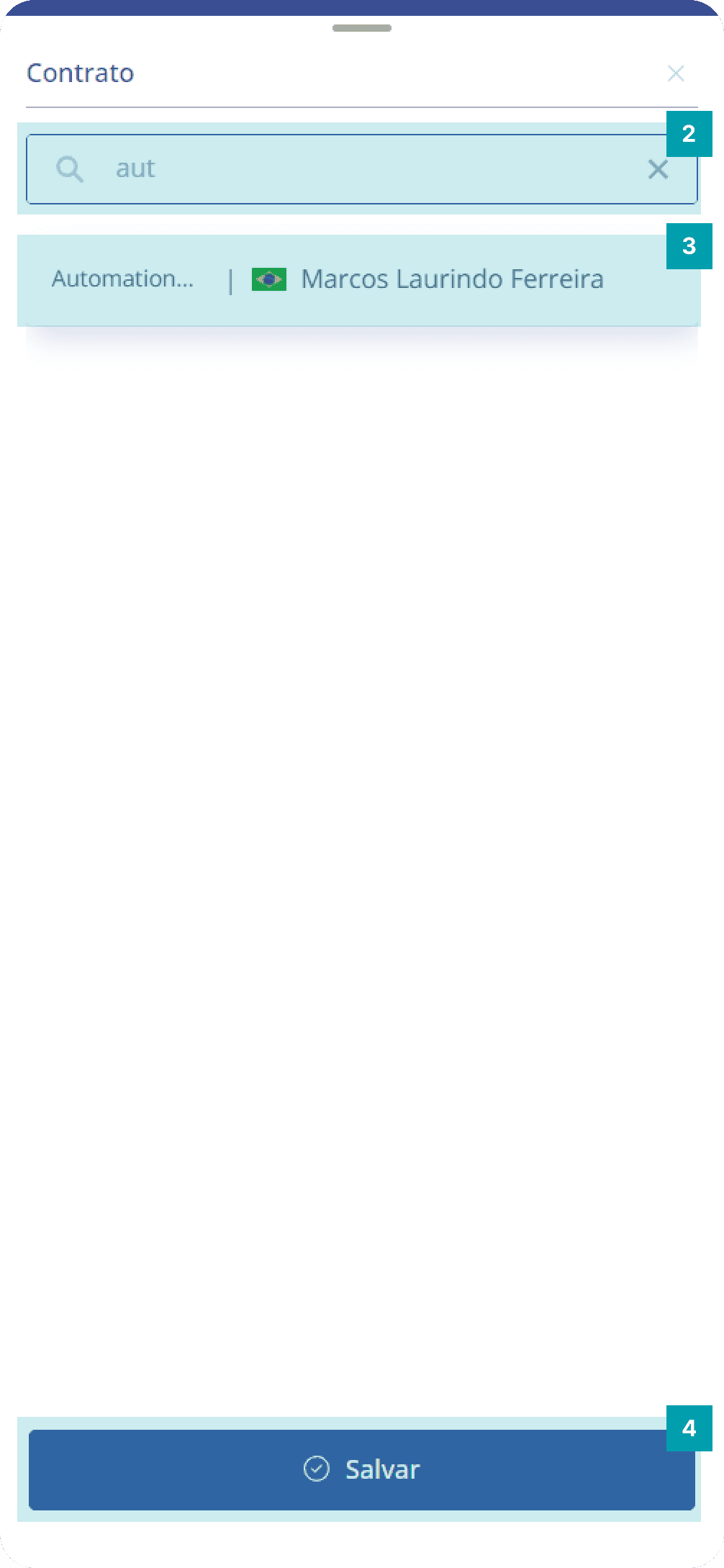
Search – Click the search field and type the name of the unit you want.
Selection – Select the desired unit by clicking its area.
Save – Click the Save button to finish editing.
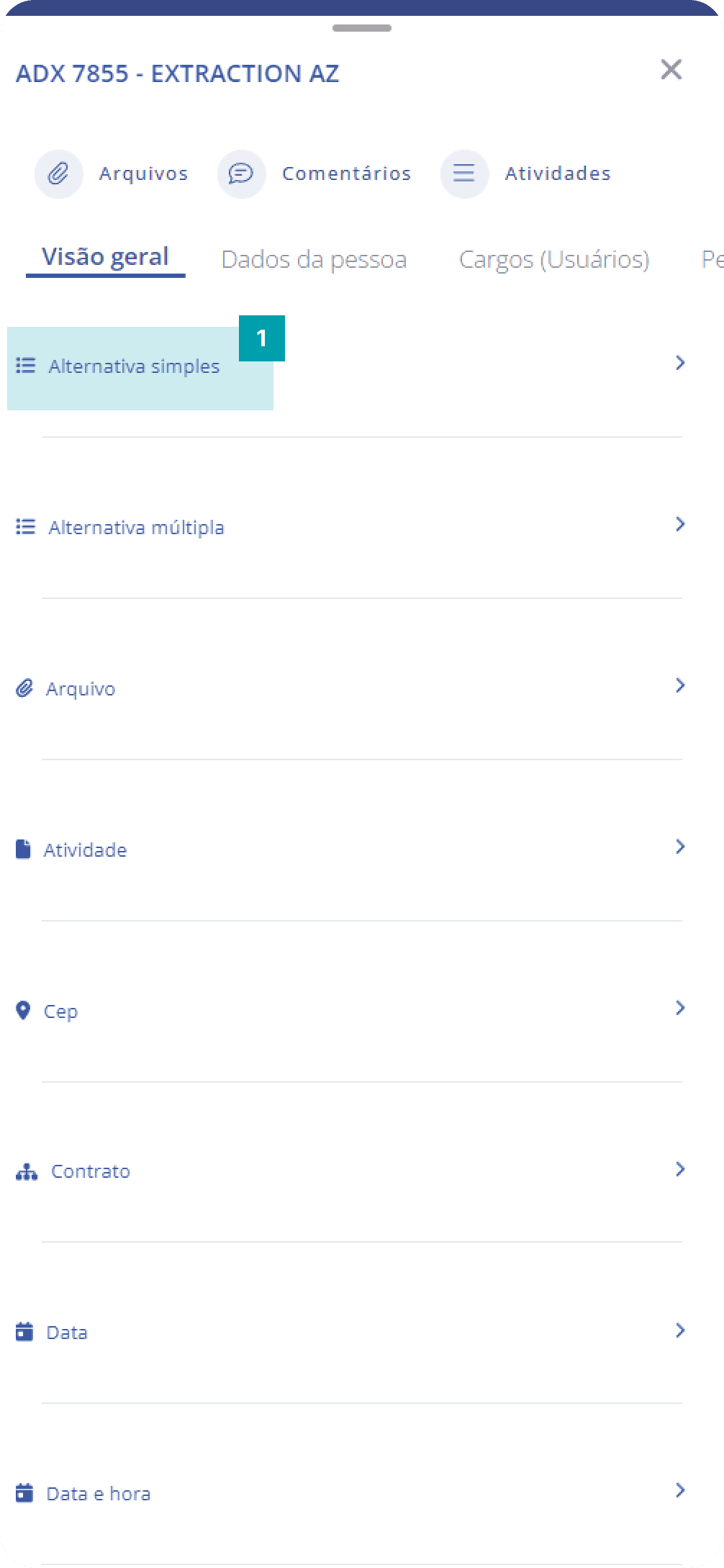
Dynamic field type: Single choice
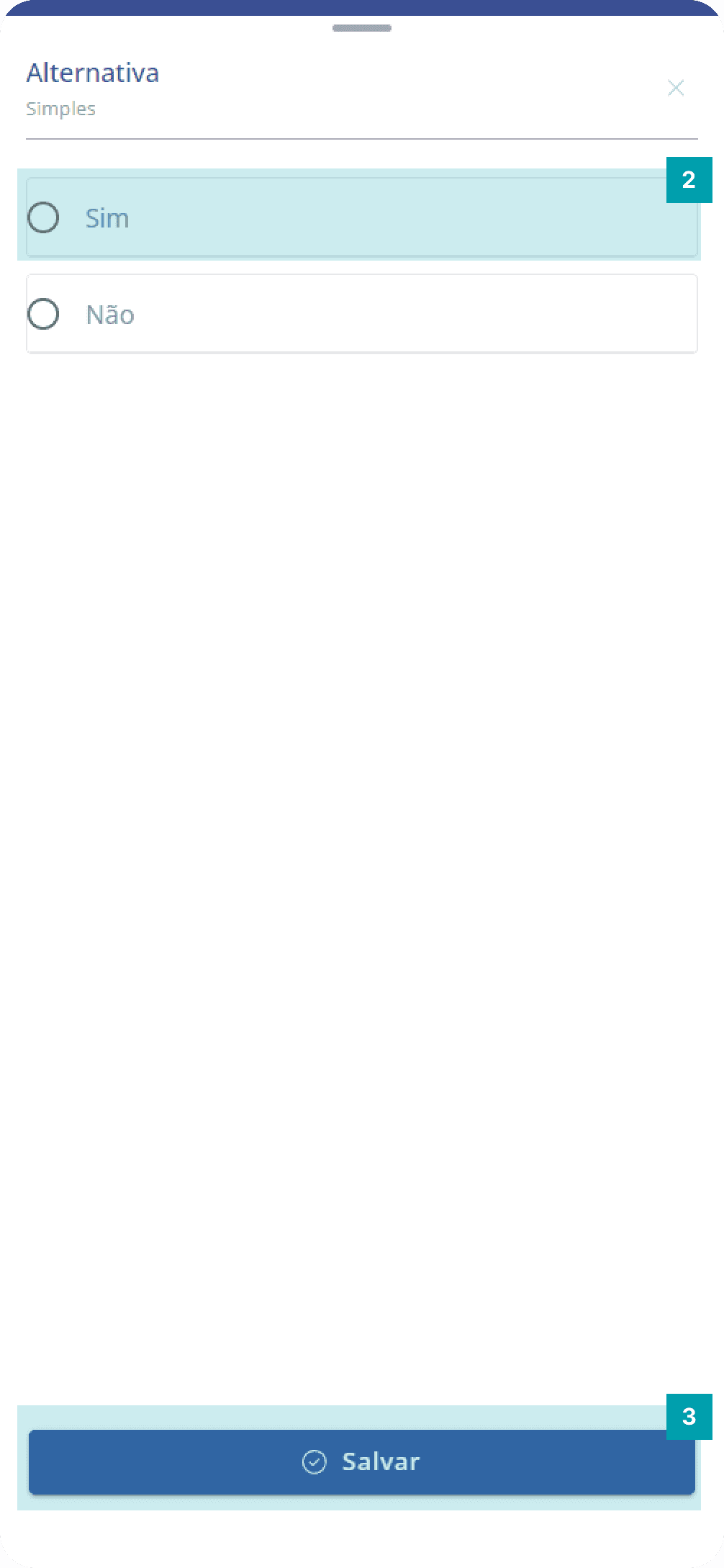
This field allows the user to select only one option to fill in.
Click the area of the Single choice field to open its edit screen.
Selection – Click the area of the desired option to select it.
Save – Click the Save button to finish editing.
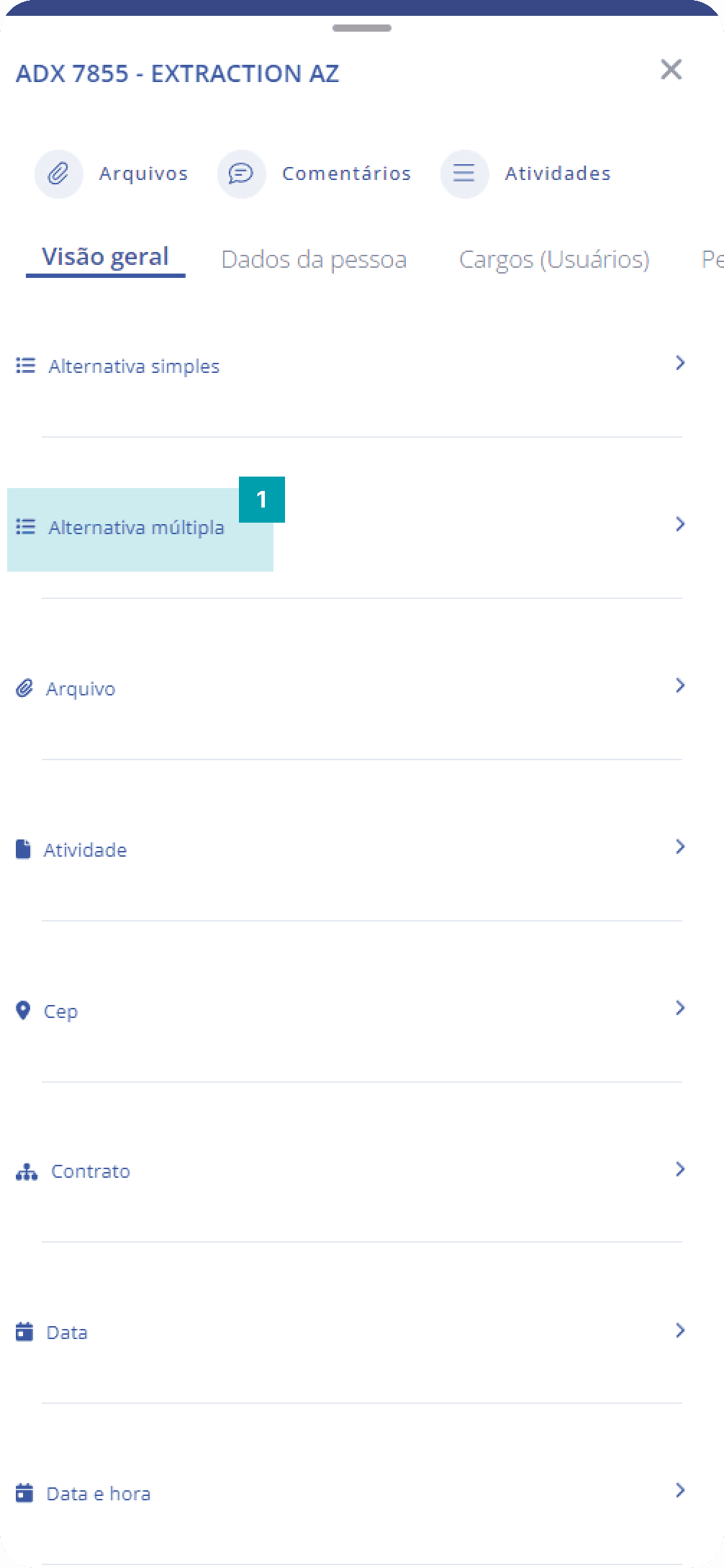
Dynamic field type: Multiple choice
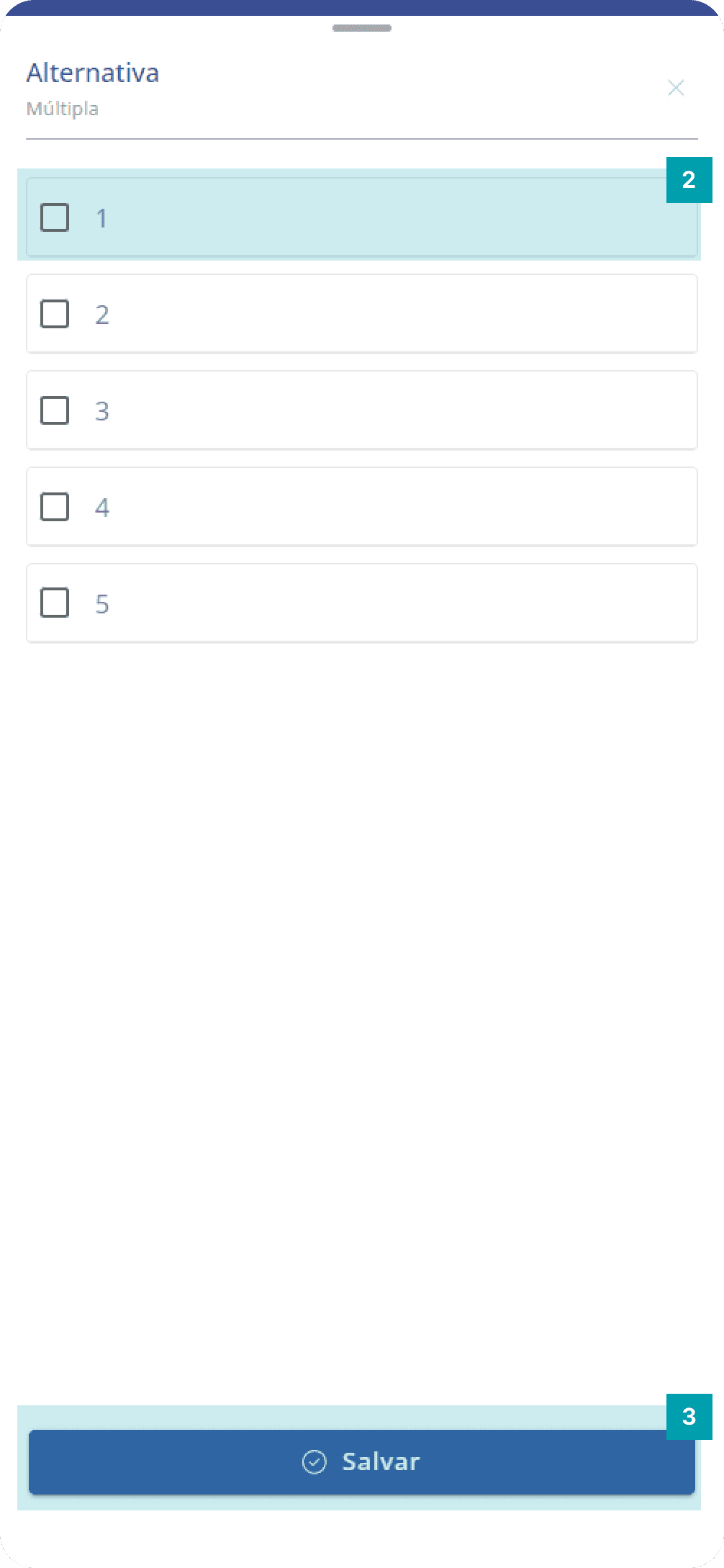
This field allows the user to select one or more options to fill in.
Click the area of the Multiple choice field to open its edit screen.
Selection – Click the area of the desired option(s) to select it/them.
Save – Click the Save button to finish editing.
Dynamic field type: File
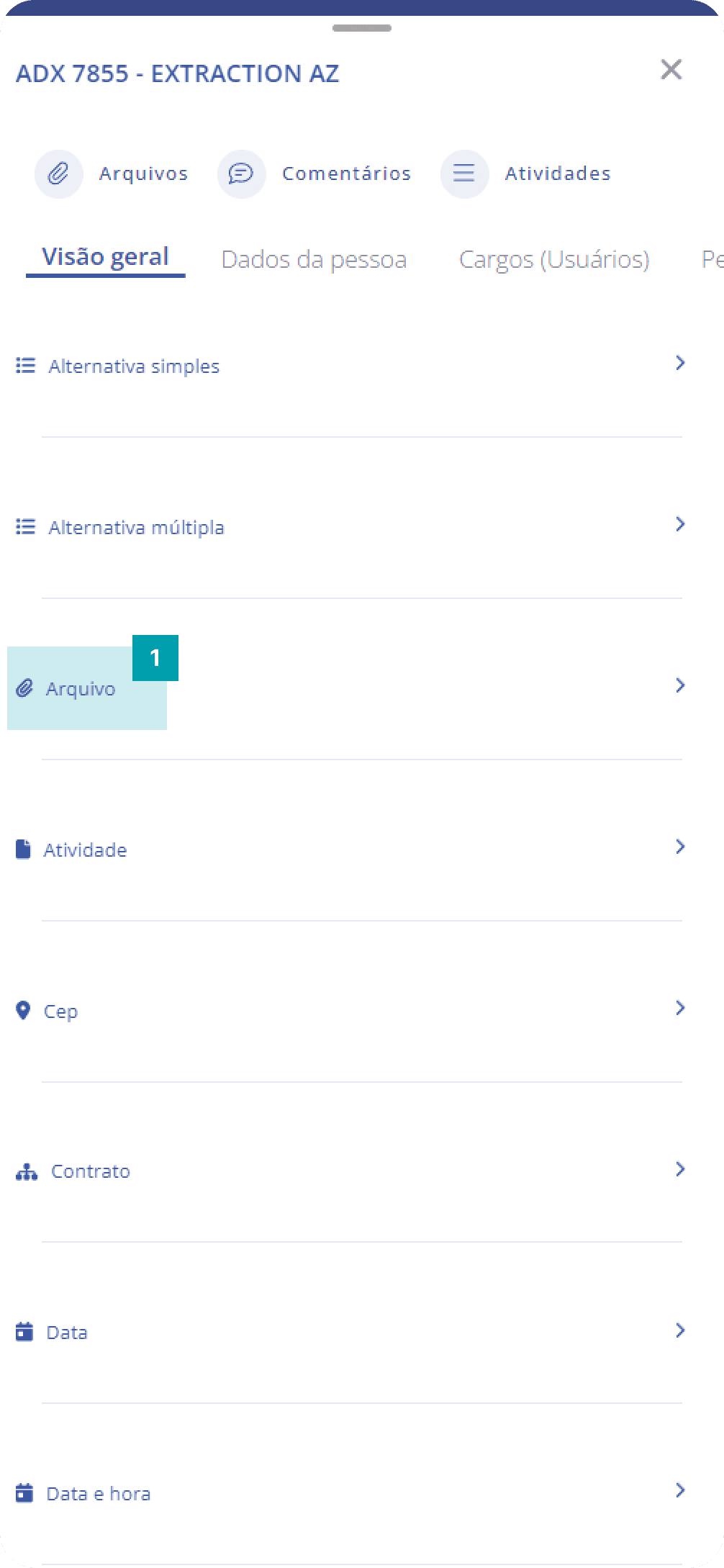
The file field is intended to attach a file to the activity.
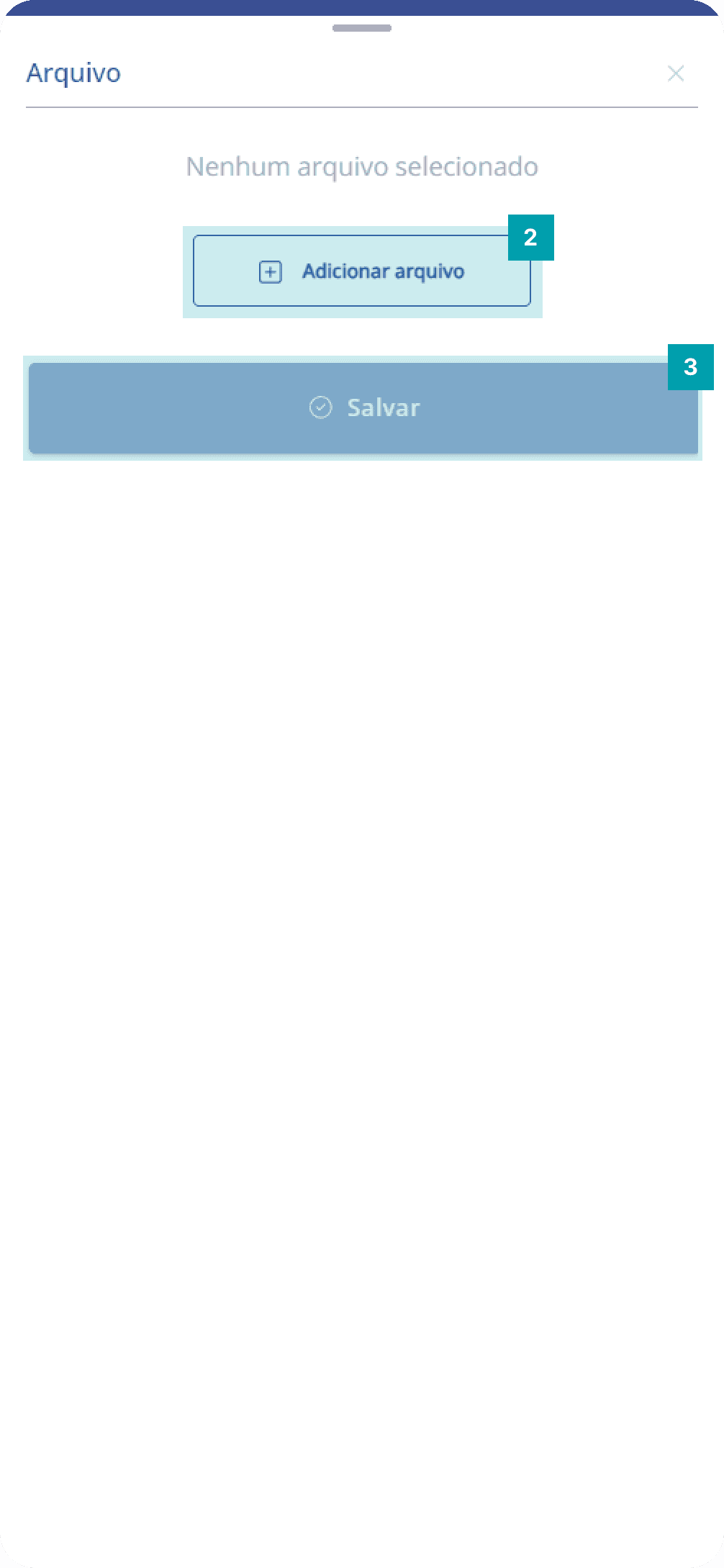
Click the area of the File field to open its edit screen.
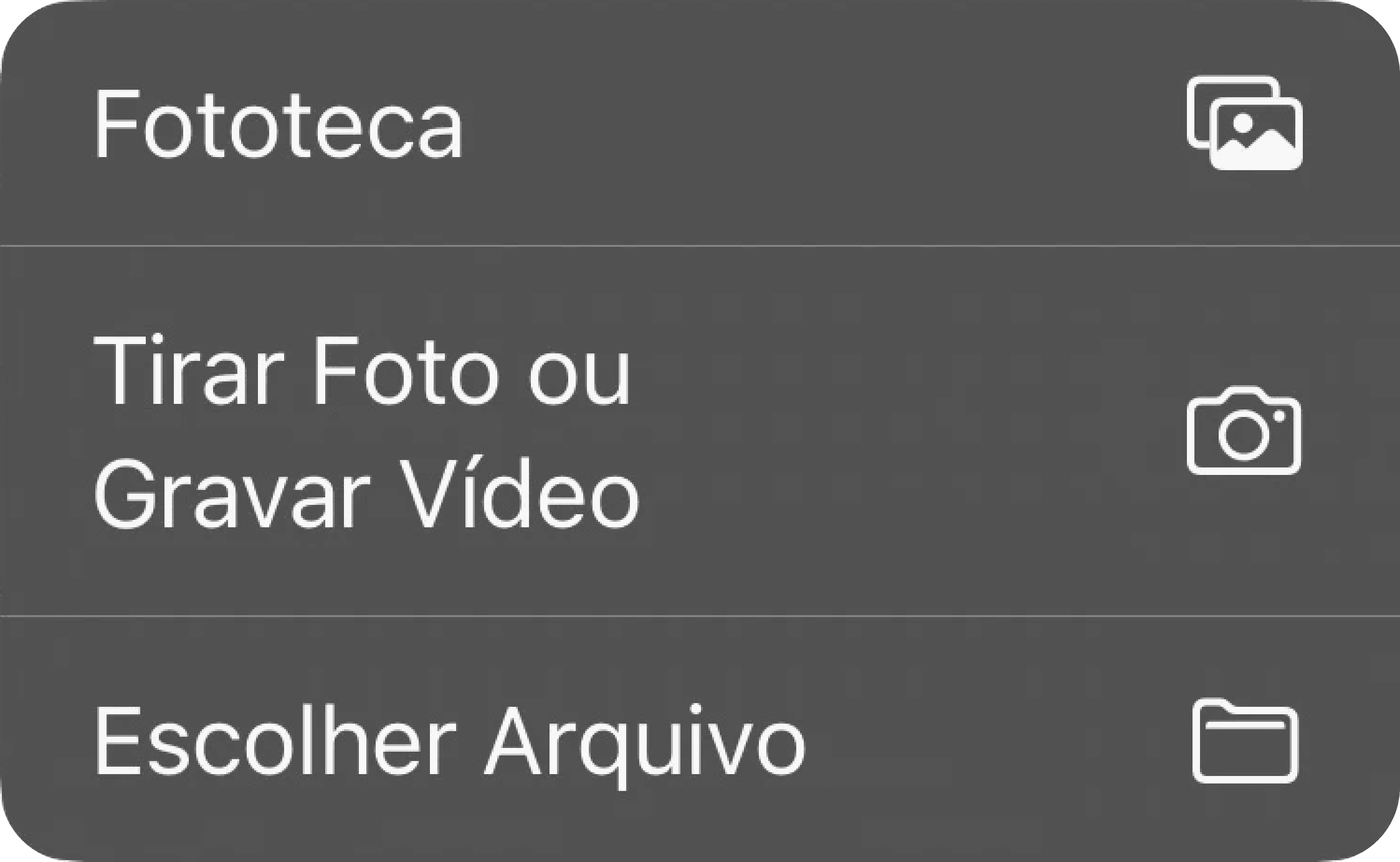
Add file – Click the button to open the file upload sub-menu with the following options that allow you to:
Take a photo or record a video in real time.
Search for and insert images or videos saved in the device gallery.
Search for and insert files saved on the device.
Save – Click the Save button to finish editing.
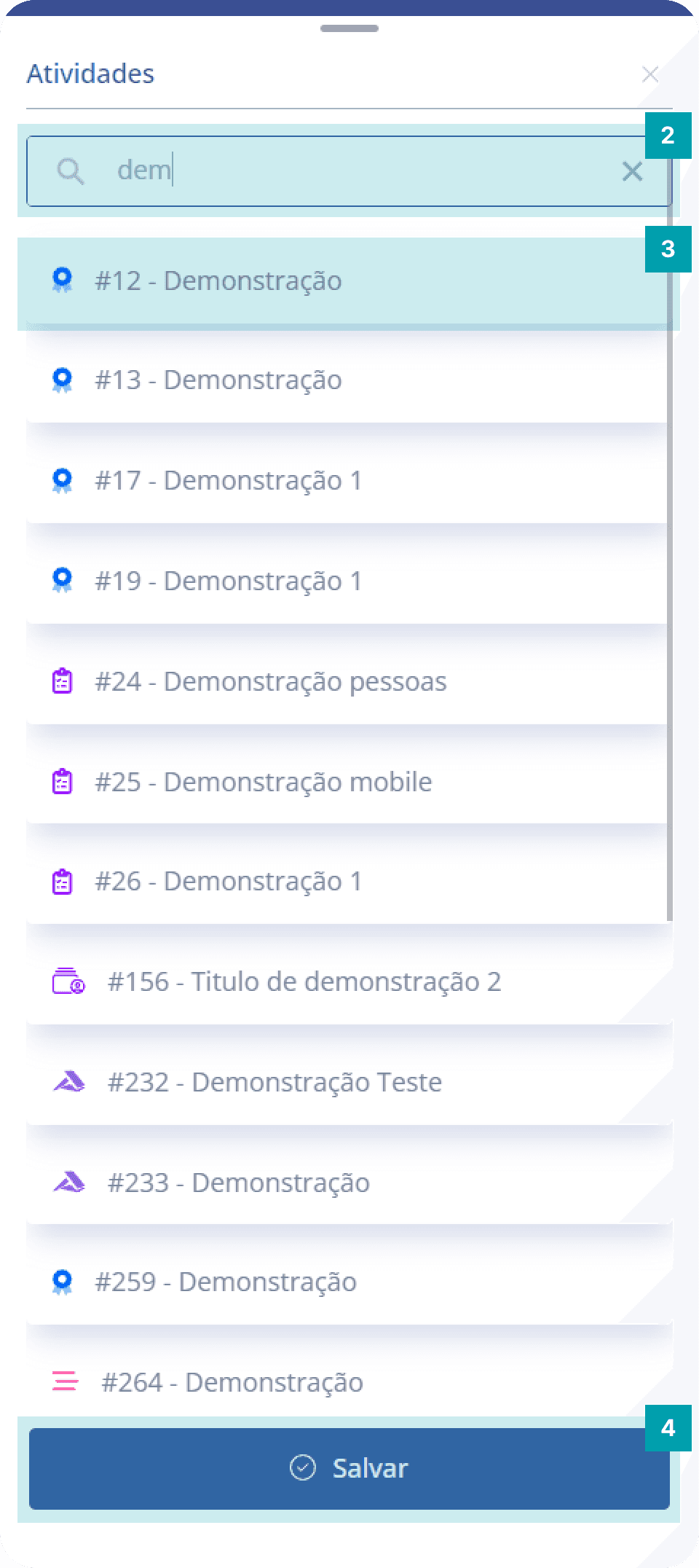
Dynamic field type: Activity
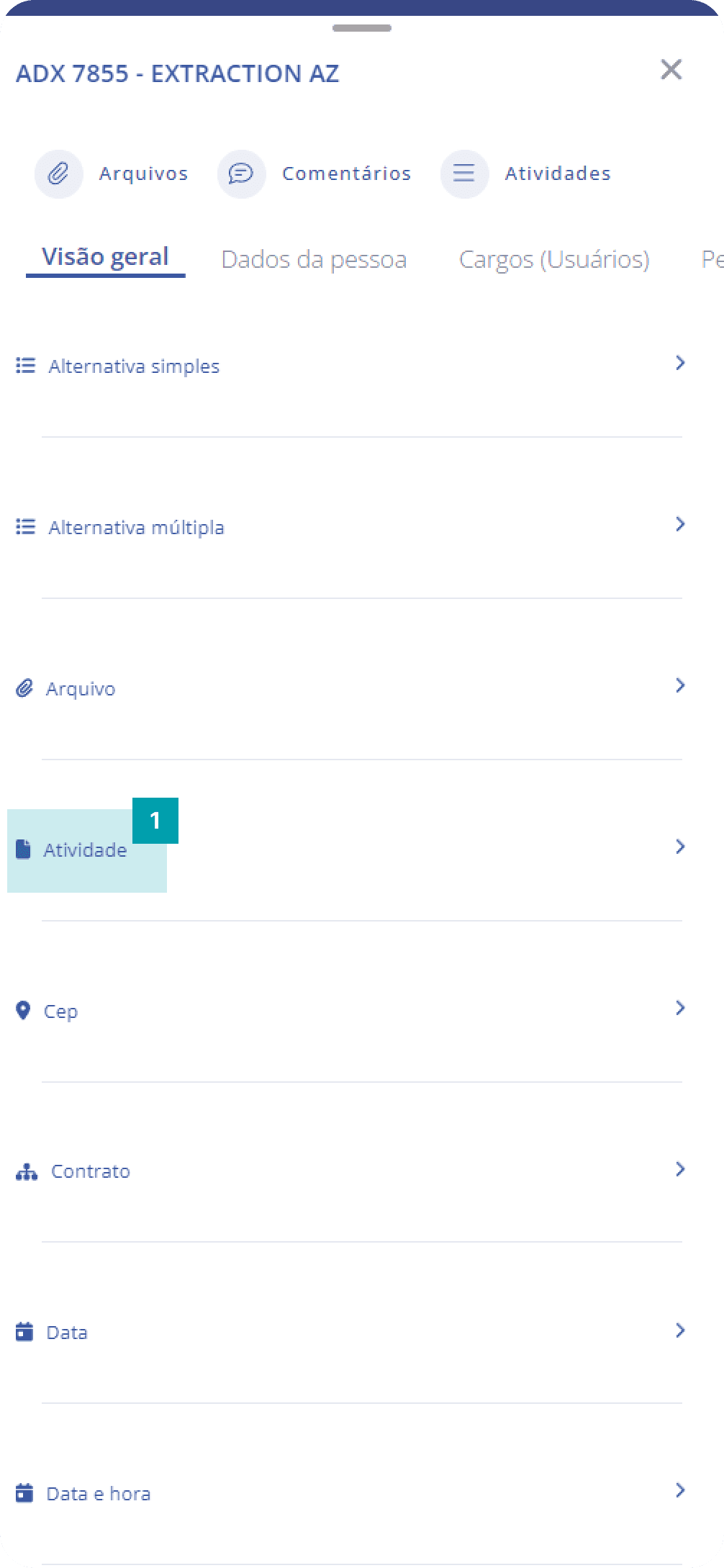
The field has a simple search and is intended to associate a system activity with the unit.
Click the area of the dynamic field type Activity to open its edit screen.
Search – Click the search field and type the title of the activity you want.
Selection – Select the desired activity by clicking its area.
Save – Click the Save button to finish editing.
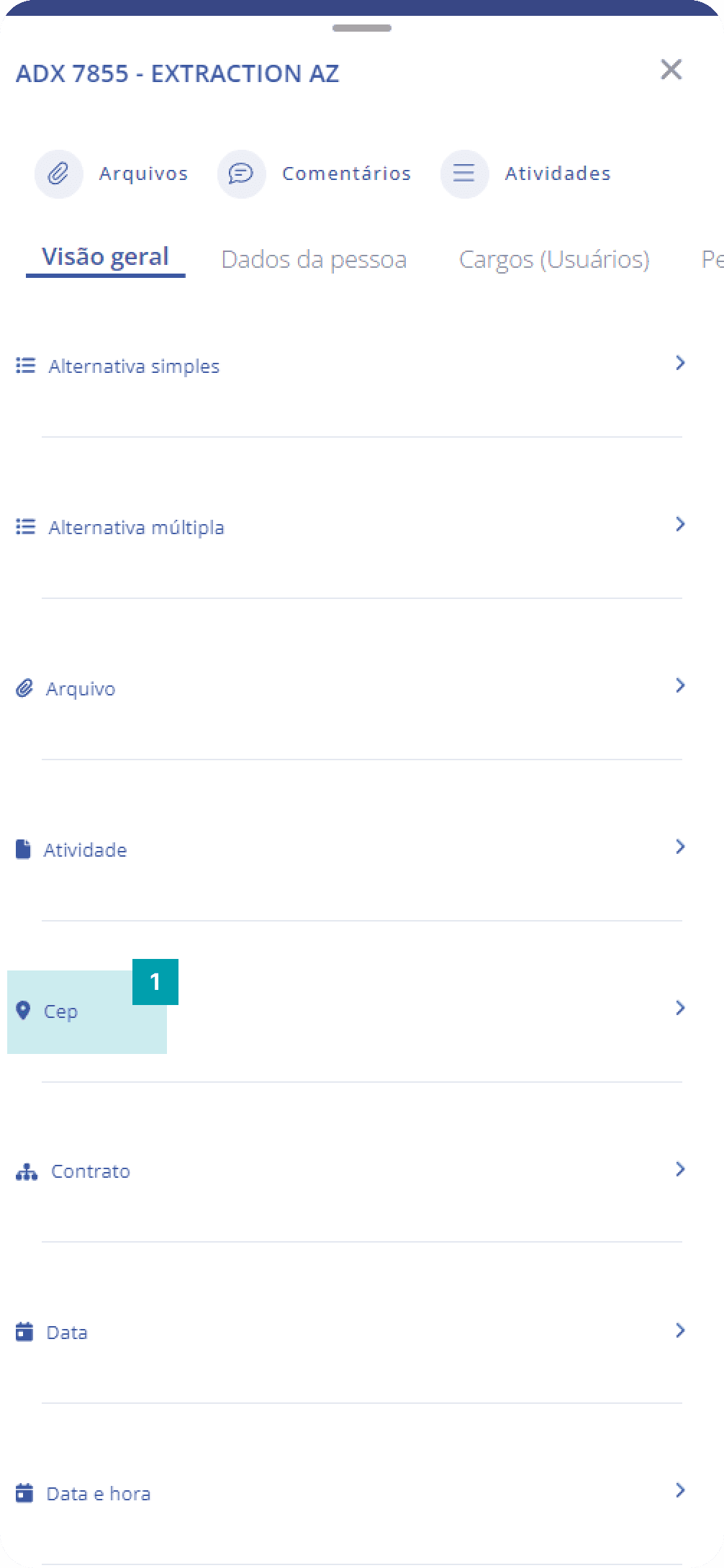
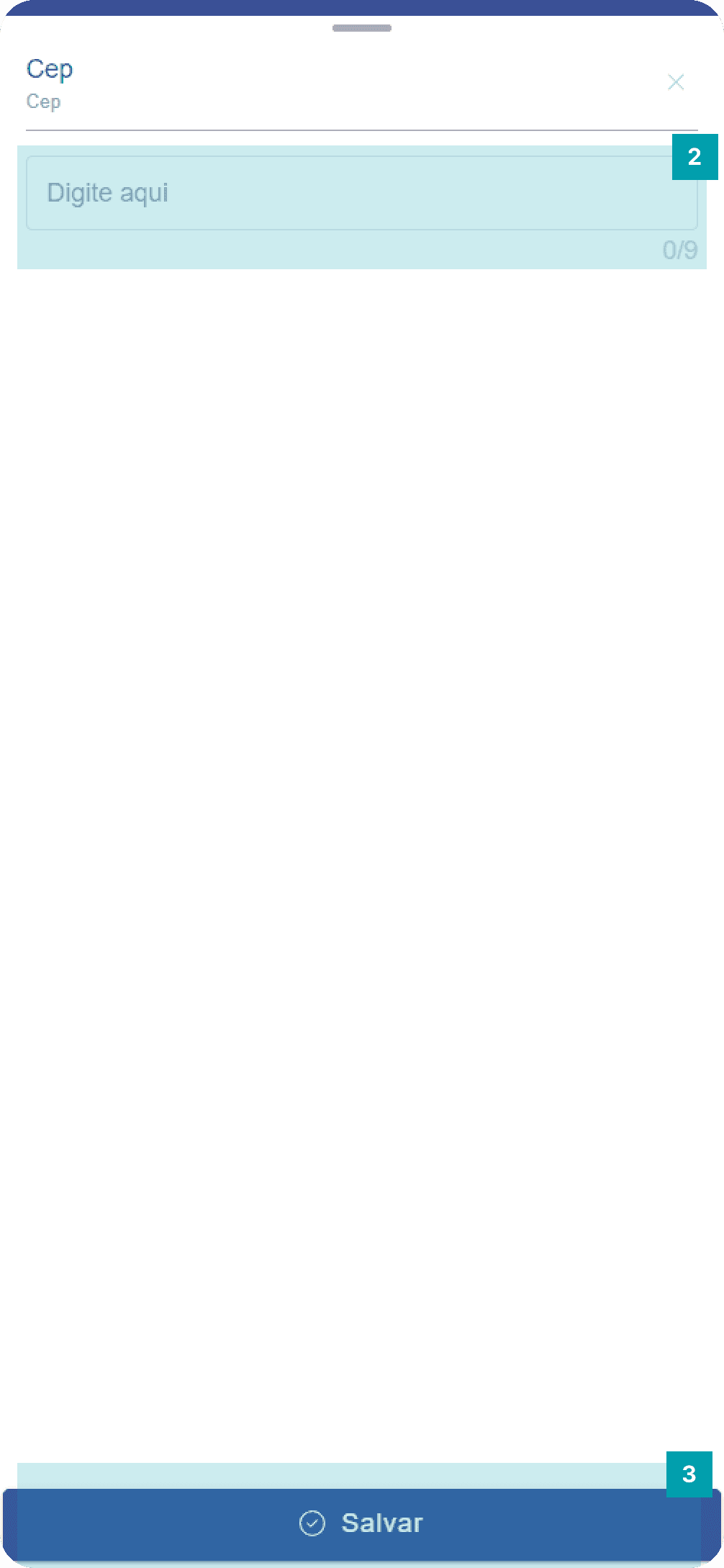
Dynamic field type: Postal Code
Specific field for registering and documenting postal code numbers.
Click the area of the dynamic field type Postal Code to open its edit screen.
Type the desired postal code number.
Save – Click the Save button to finish editing.
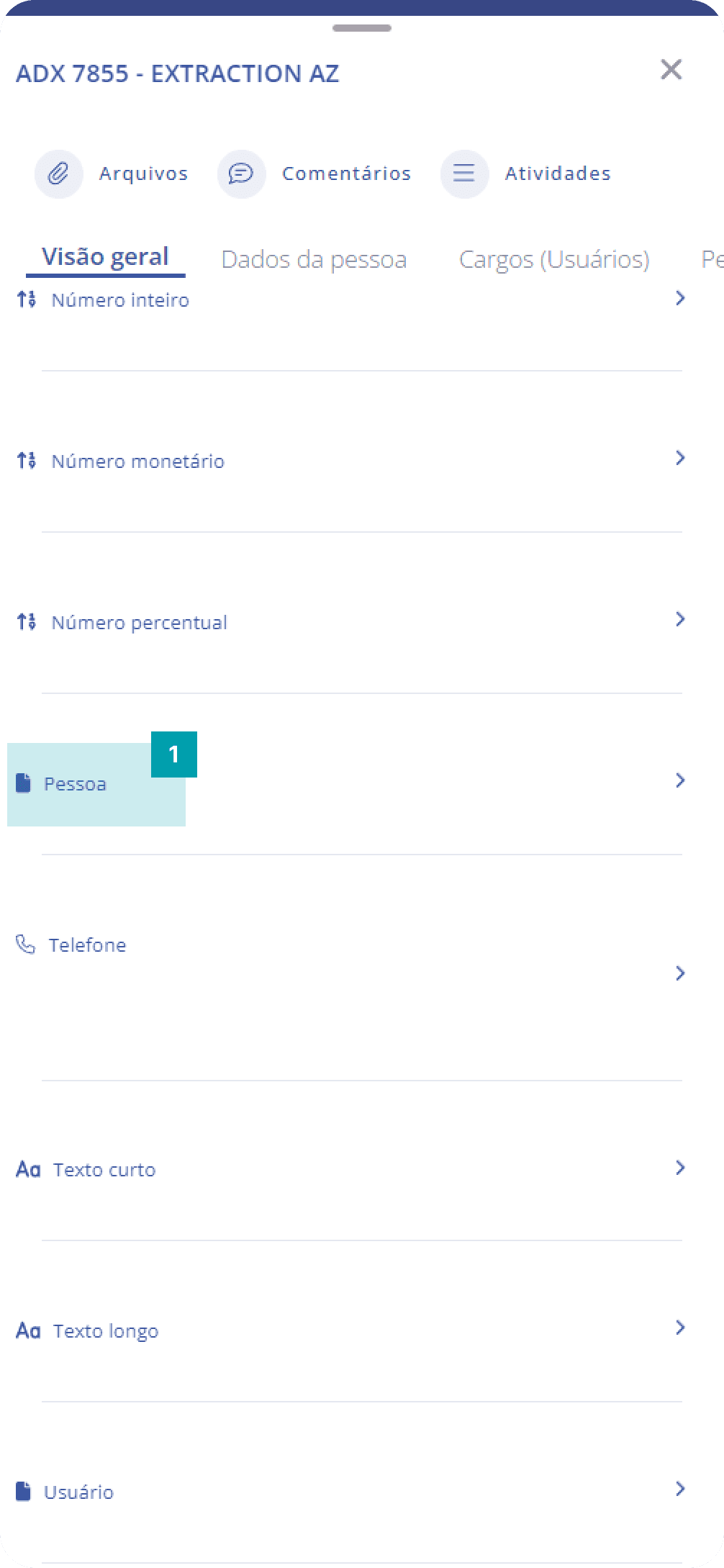
Dynamic field type: Person
Specific field for registering and associating system-registered clients with the unit form.
Click the area of the Person field to open its edit screen.
Search – Click the search field and type the name of the person you want.
Selection – Click the area of the desired person to select them.
Save – Click the Save button to finish editing.
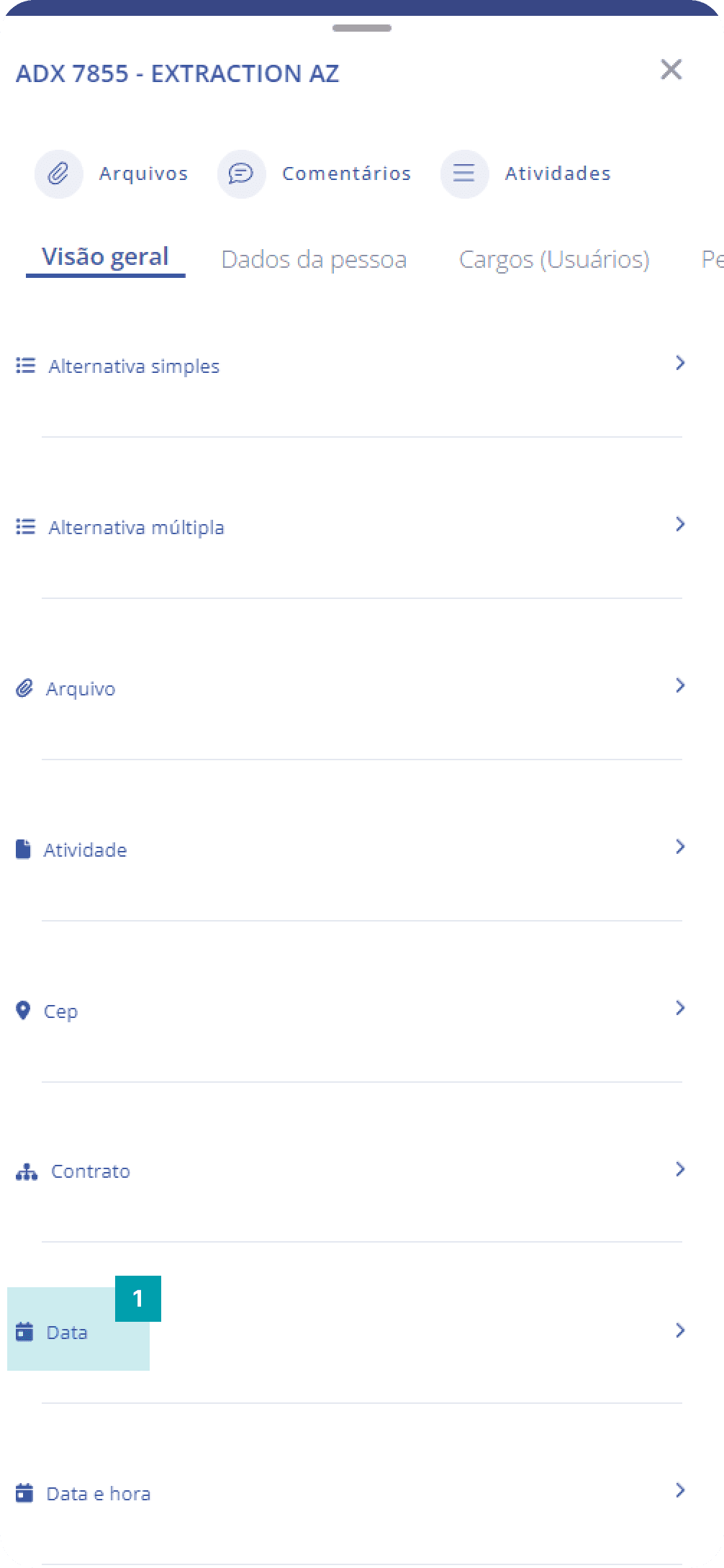
Dynamic field type: Date
Specific field for registering and documenting dates in the unit form.
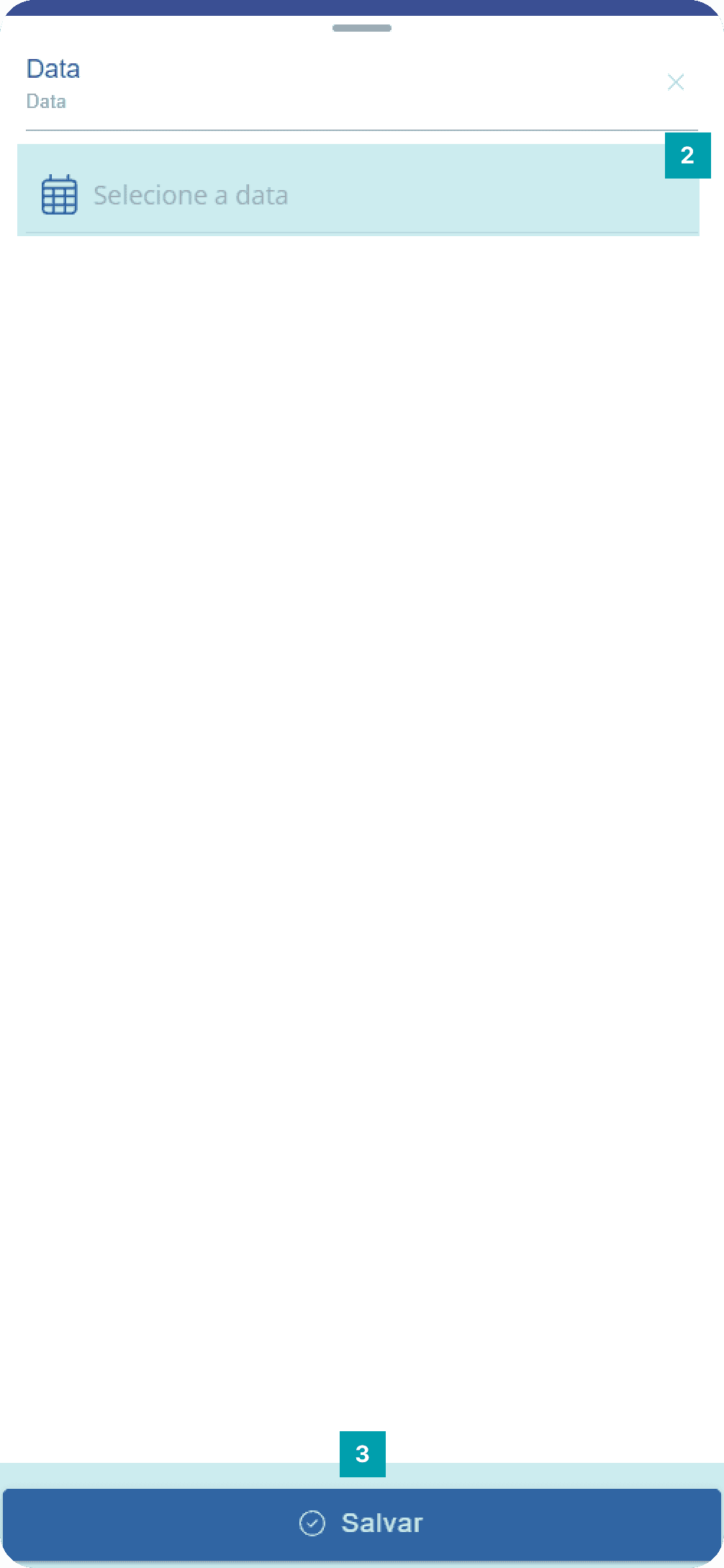
Click the area of the Date field to open its edit screen.
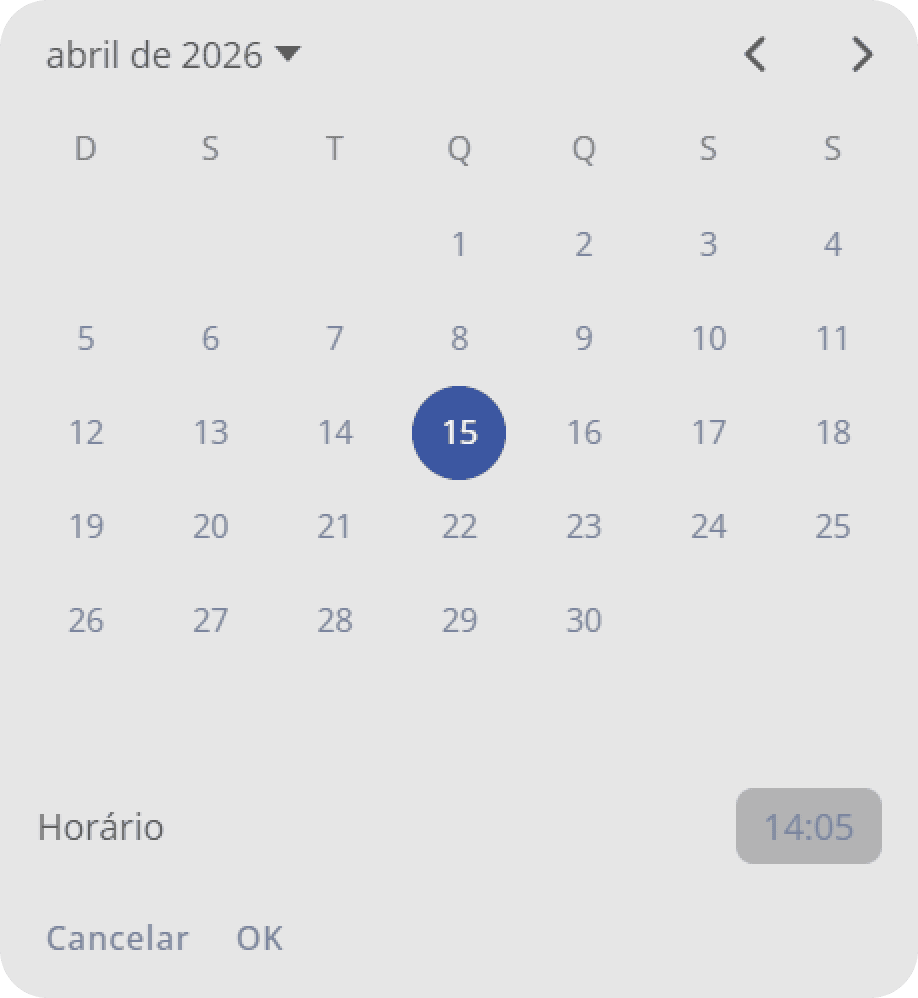
Date – By clicking, a floating modal opens so you can choose the desired day.
Save – Click the Save button to finish editing.
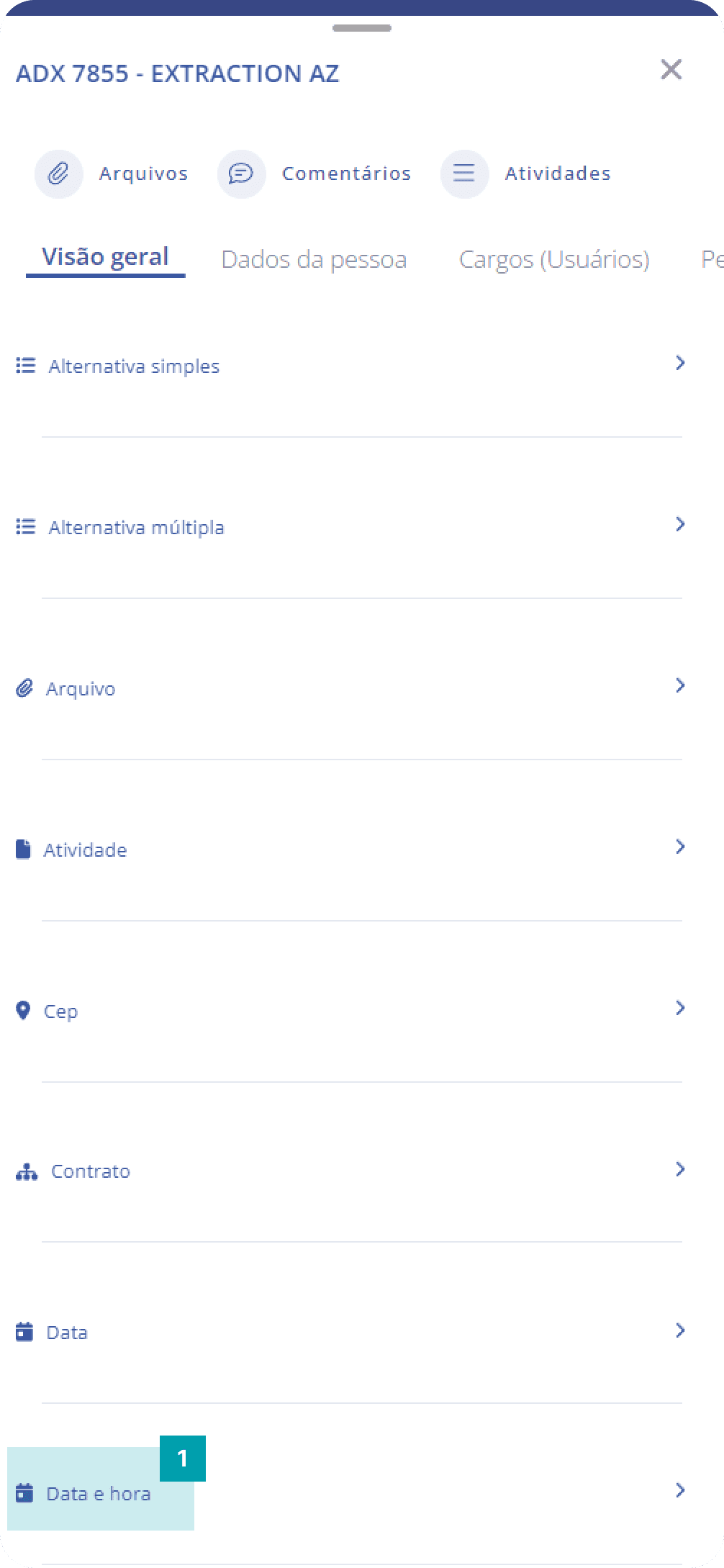
Dynamic field type: Date and time
Specific field for registering and documenting dates with times in the unit form.
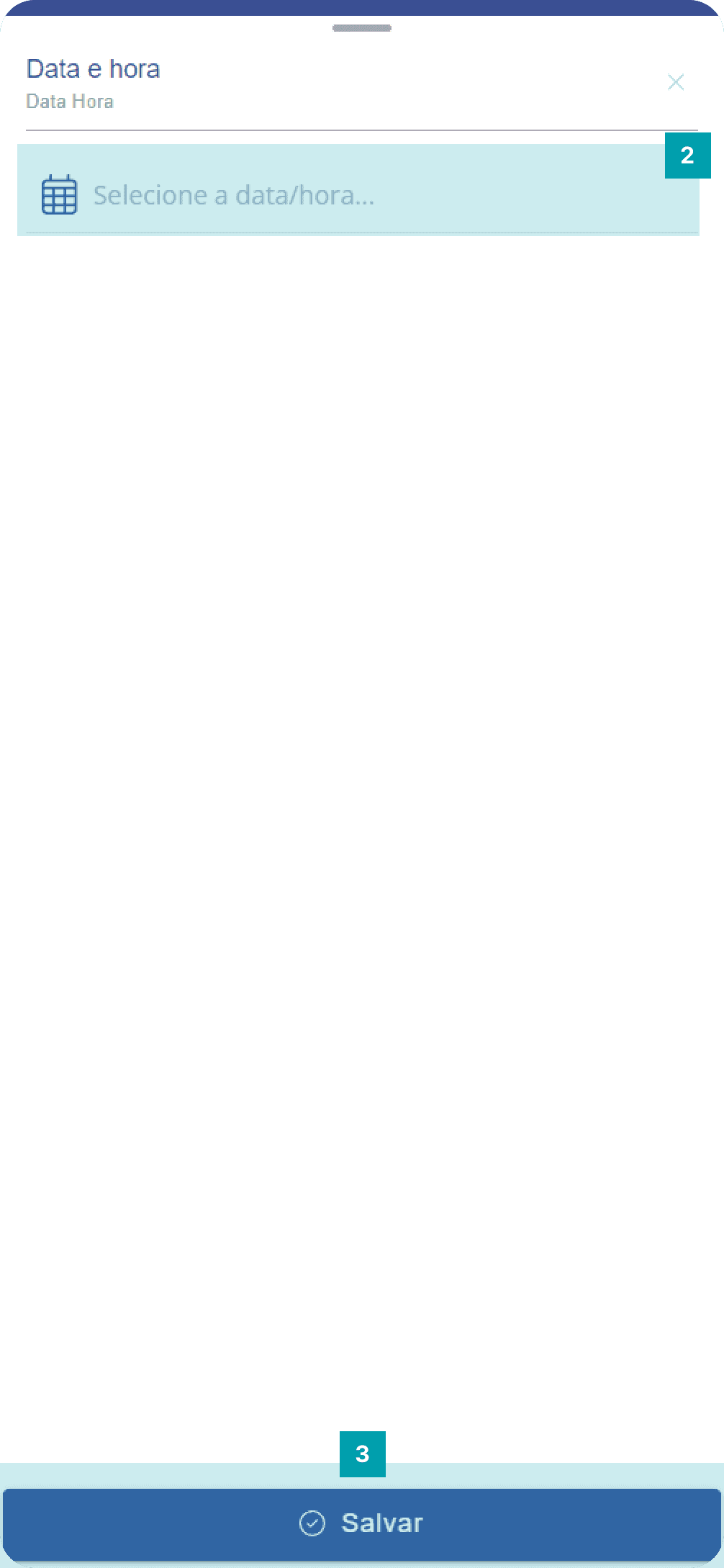
Click the area of the Date and time field to open its edit screen.
Date and time – By clicking, a floating modal opens so you can choose the desired day and time.
Save – Click the Save button to finish editing.
Dynamic field type: Time
Specific field for registering and documenting times in the unit form.
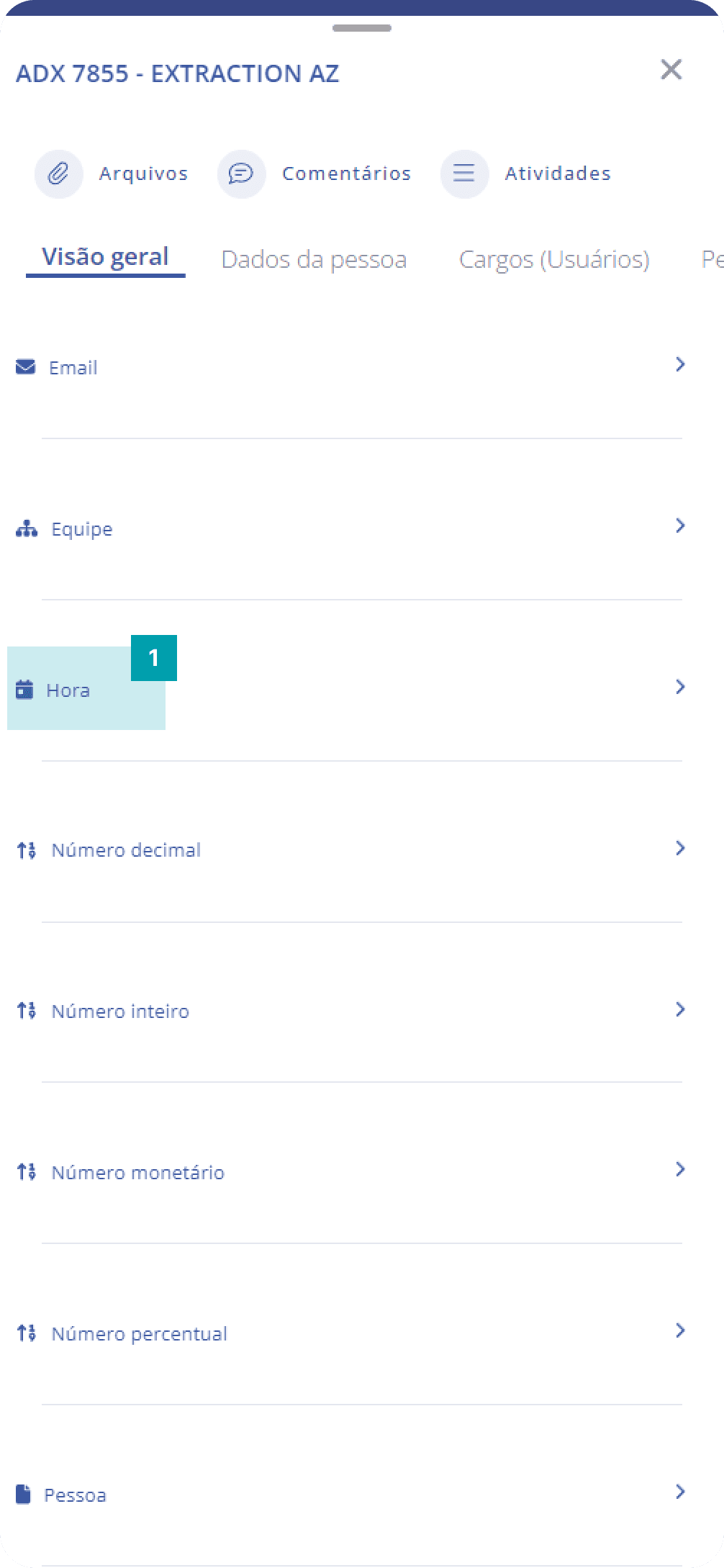
Click the area of the Time field to open its edit screen.
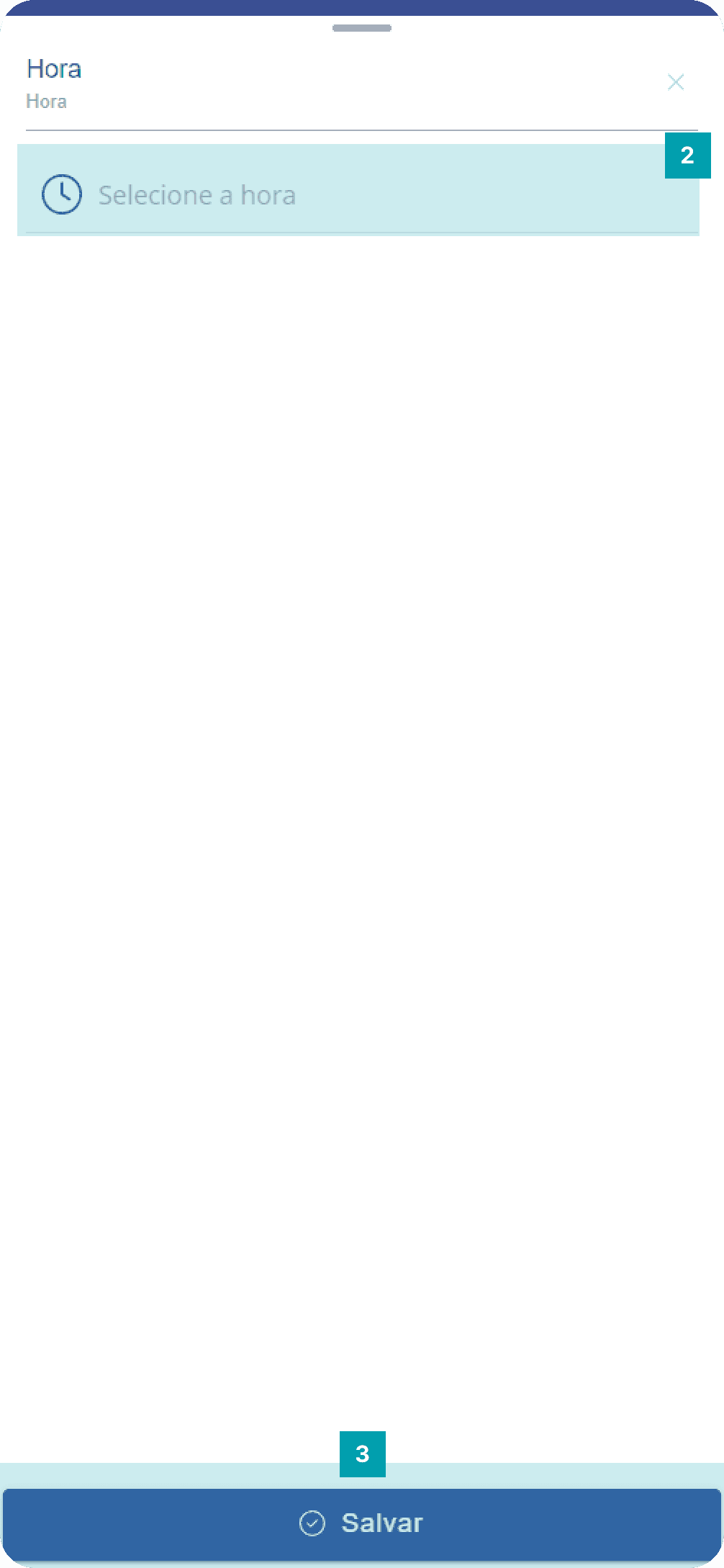
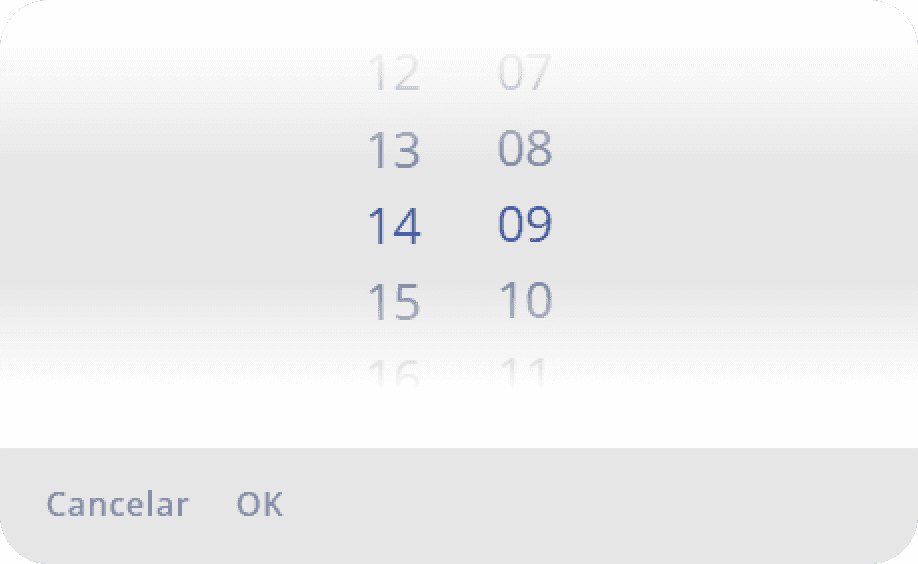
Time – By clicking, it allows you to set specific hours and minutes.
Save – Click the Save button to finish editing.
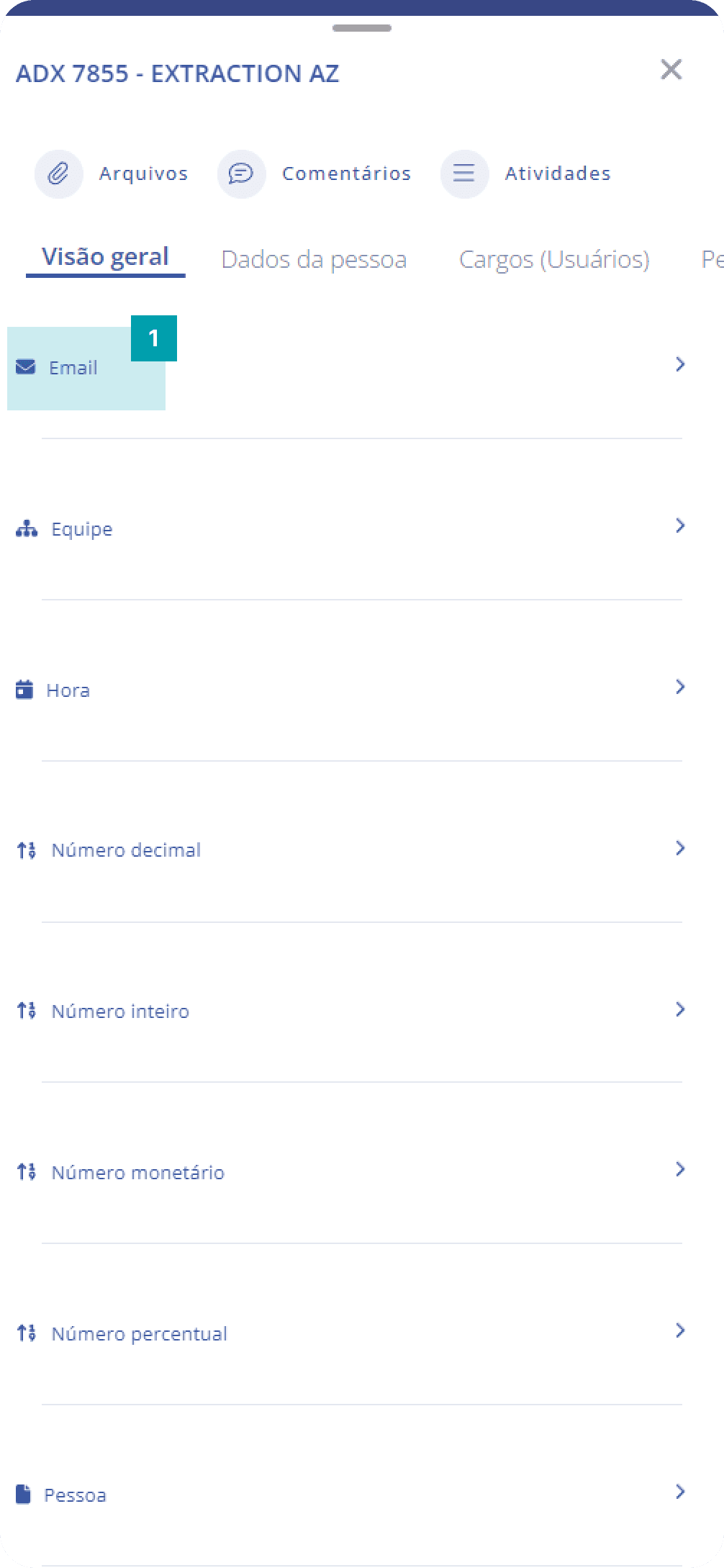
Dynamic field type: E-mail
Specific field for registering and documenting email addresses.
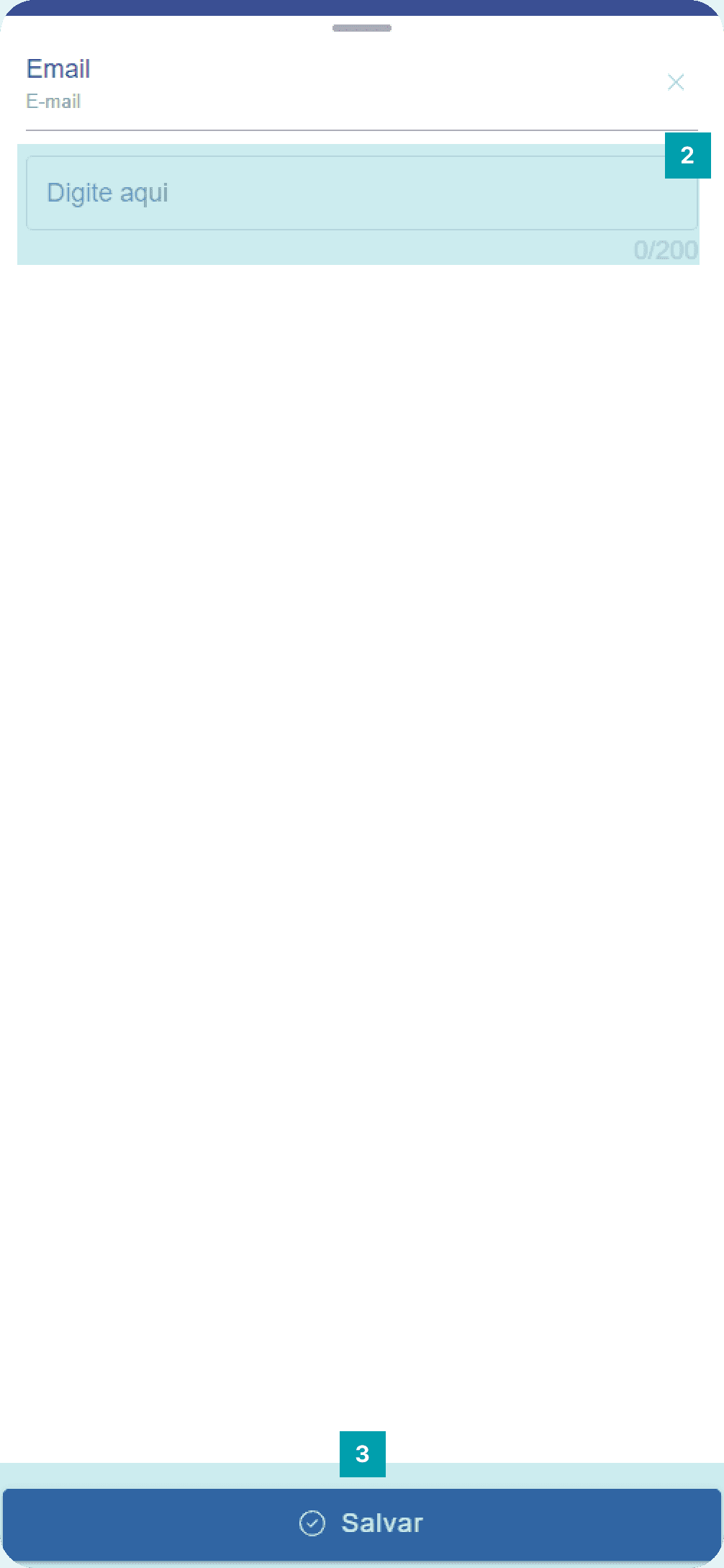
Click the area of the dynamic field type e-mail to open its edit screen.
Type the desired email address.
Save – Click the Save button to finish editing.
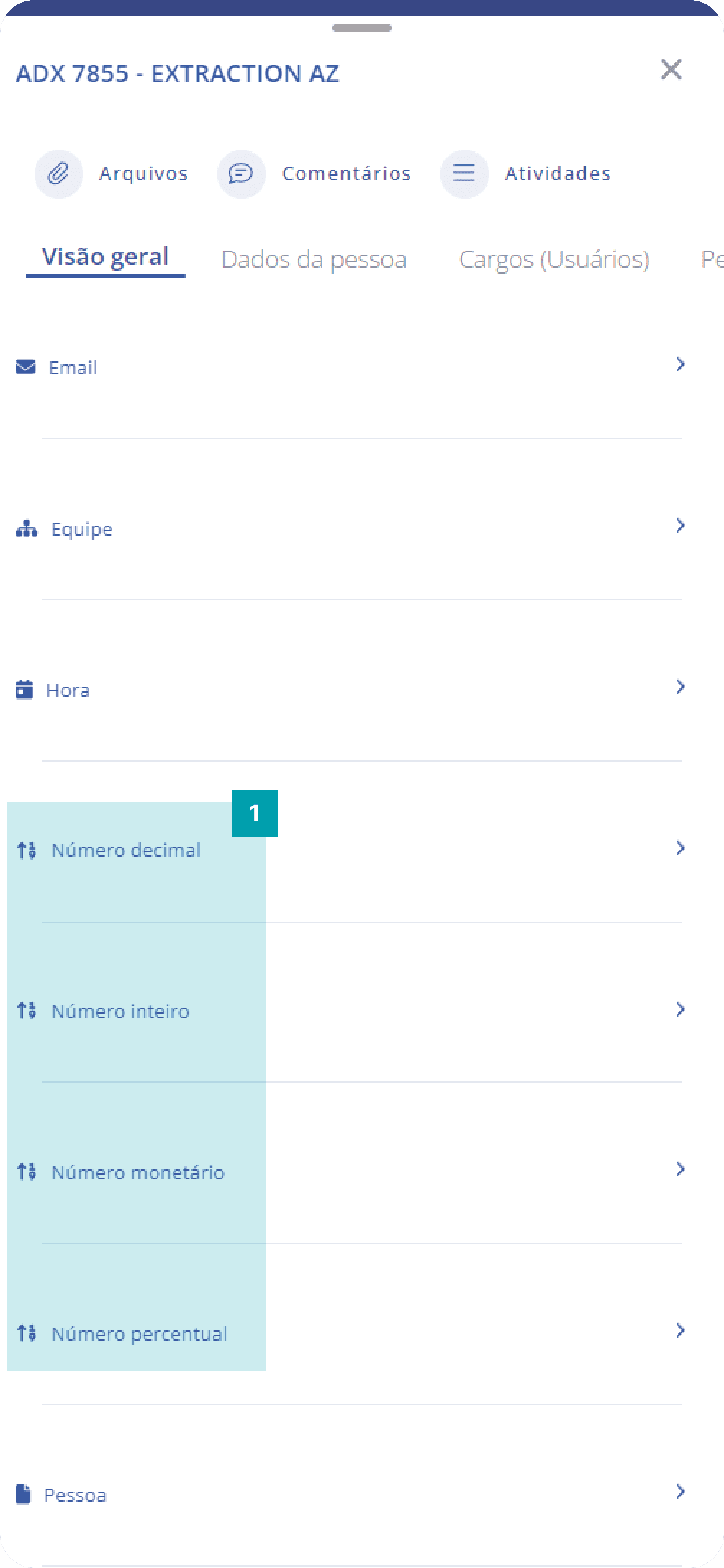
Dynamic fields of type: Decimal Number, Integer, Monetary, and Percentage
Numeric fields have the same editing pattern and are essential for documenting information in units.
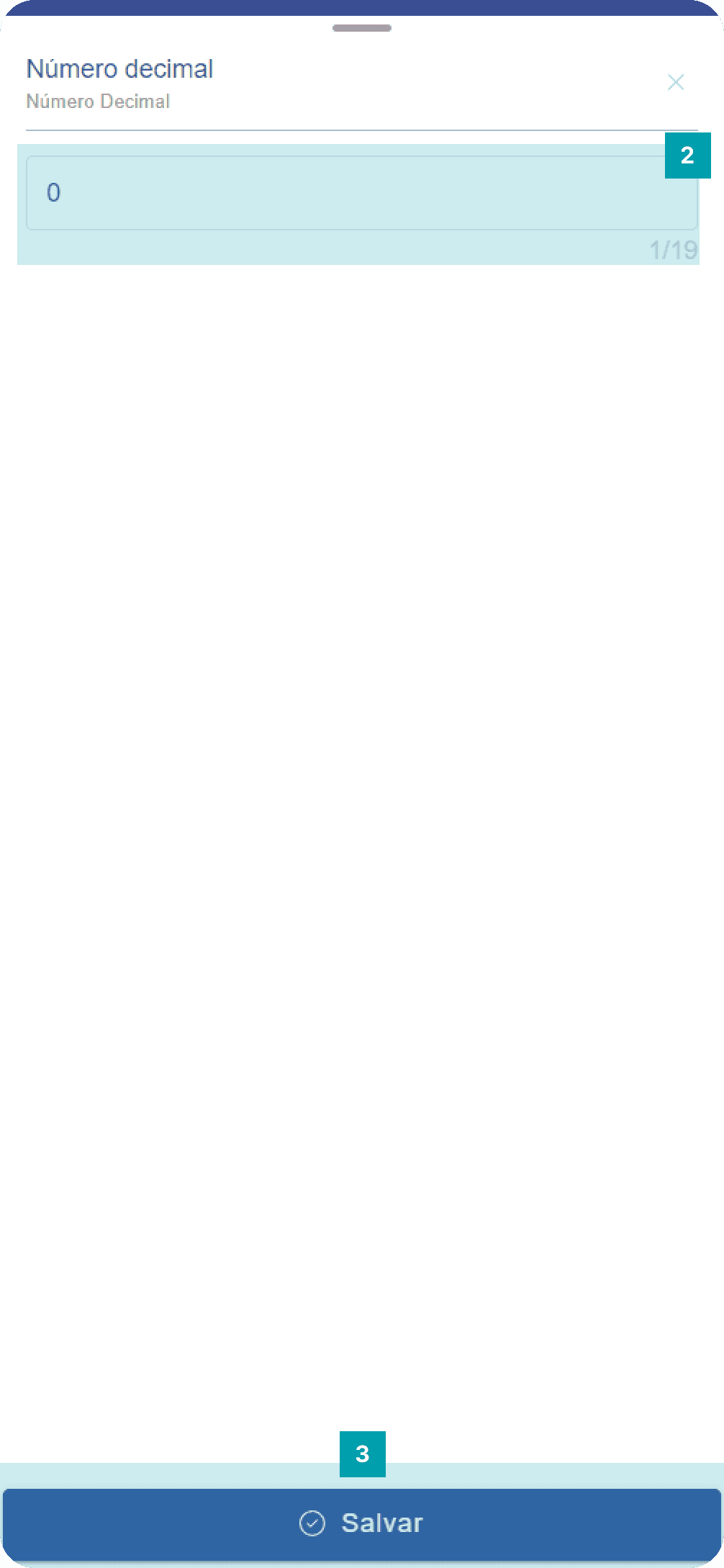
Click the area of the dynamic field type “Decimal number, integer, monetary or percentage” to open its edit screen.
Type the desired value in the field's value area.
Save – Click the Save button to finish editing.
Important Note! The fields of type: “percentage”, “decimal” and “monetary” have decimal places; the number of decimal places displayed in the field is configured through the web platform. Commas or periods are inserted automatically by the system according to the configured settings.
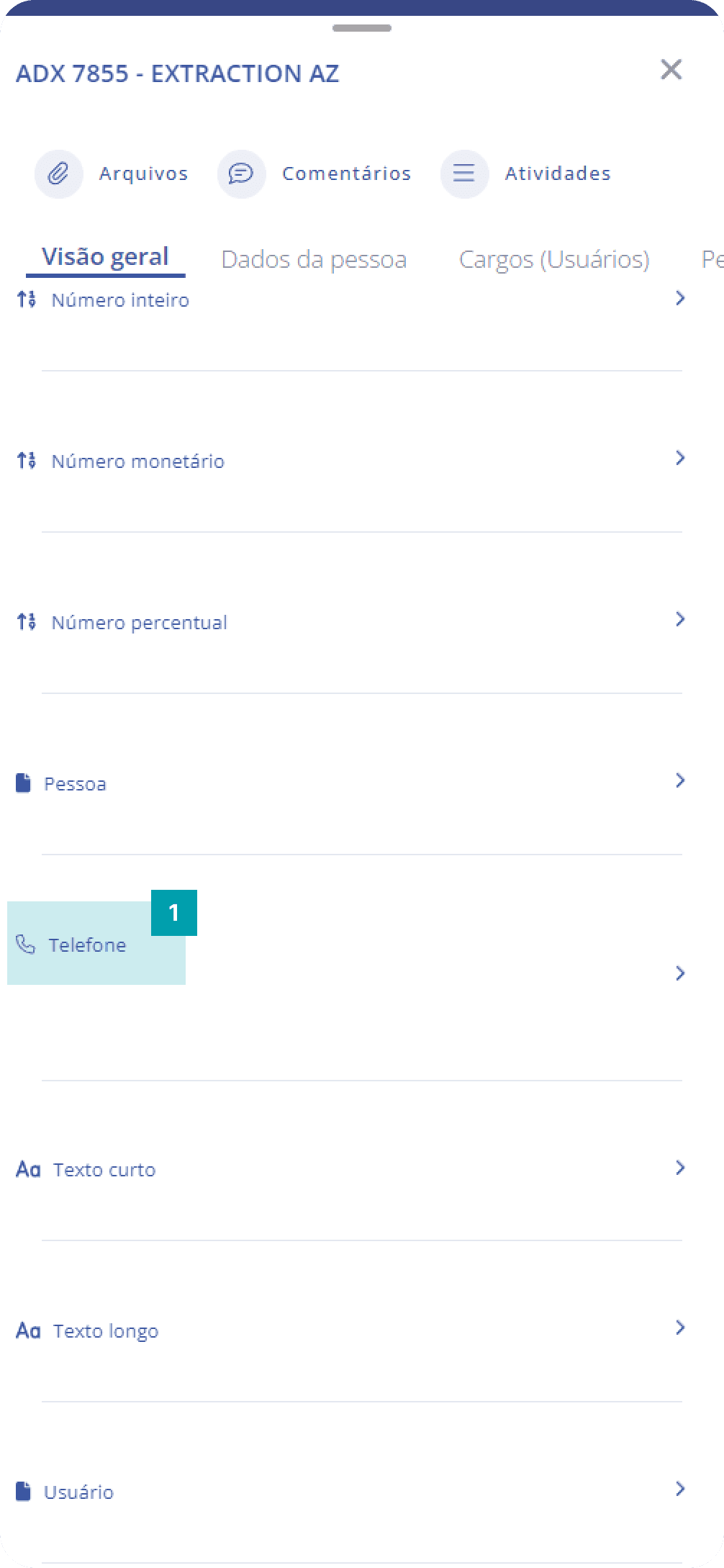
Dynamic field type: Phone
Specific field for registering and documenting phone numbers.
Click the area of the dynamic field type Phone to open its edit screen.
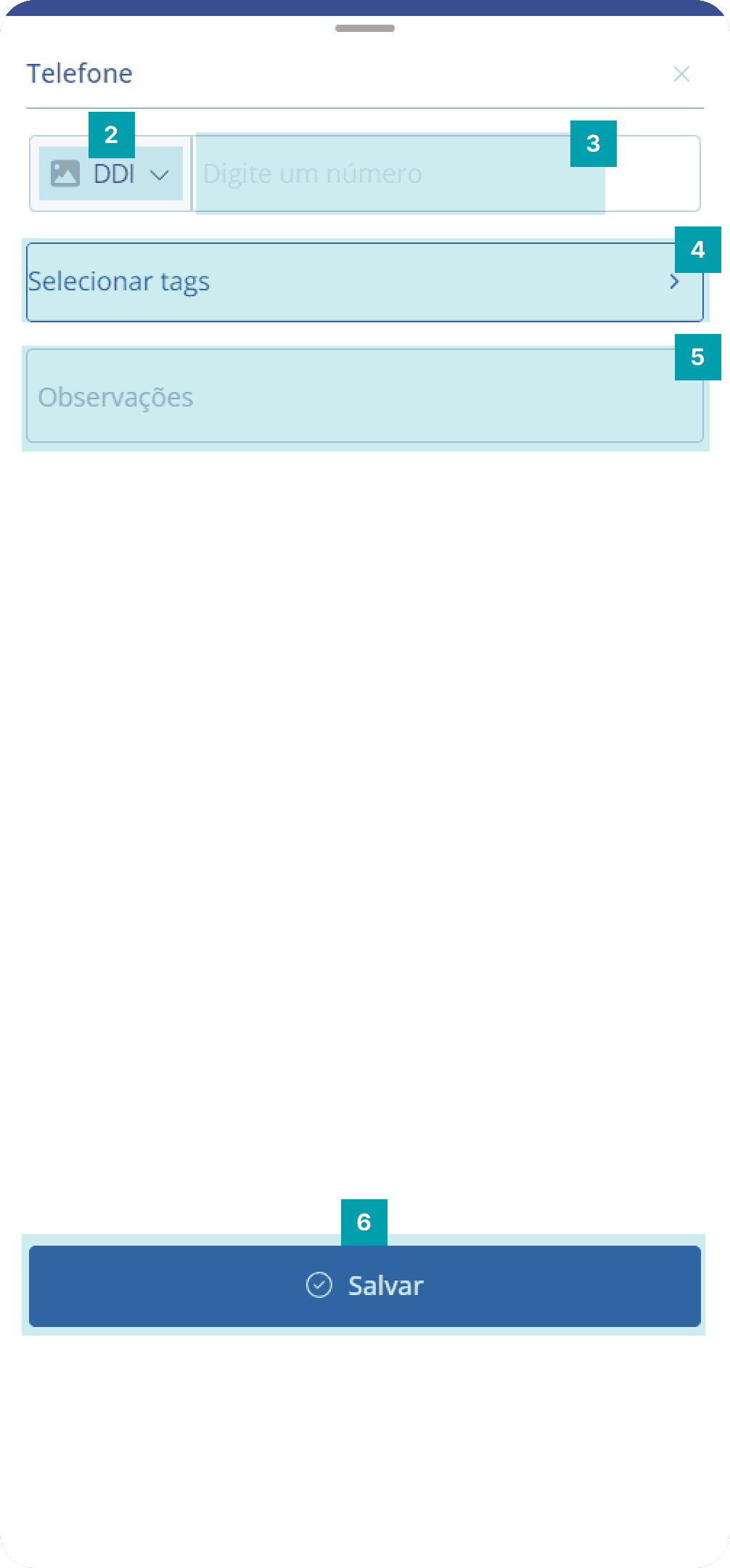
Country – Click to select the phone's country
Type the desired phone number, always starting with the area code.
Tags – select one or more tags to associate with the phone
Notes – provide notes about the phone to make it easier for other users to understand.
Save – Click the Save button to finish editing.
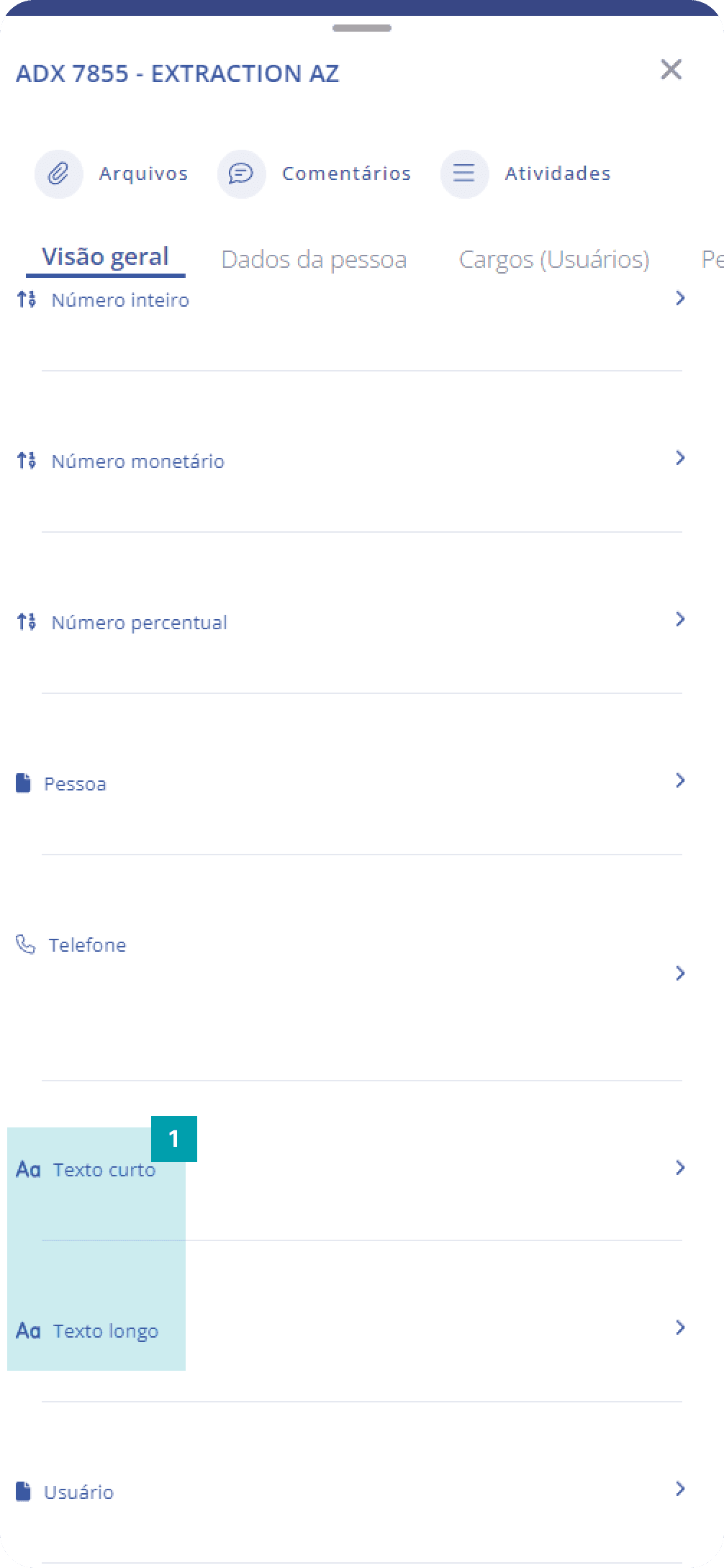
Dynamic fields of type: Short Text and Long Text
Text fields are common in forms and allow free writing, with the long type offering a large number of characters that can be entered while the short type offers fewer available.
Click the area of the dynamic field type Text to open its edit screen.
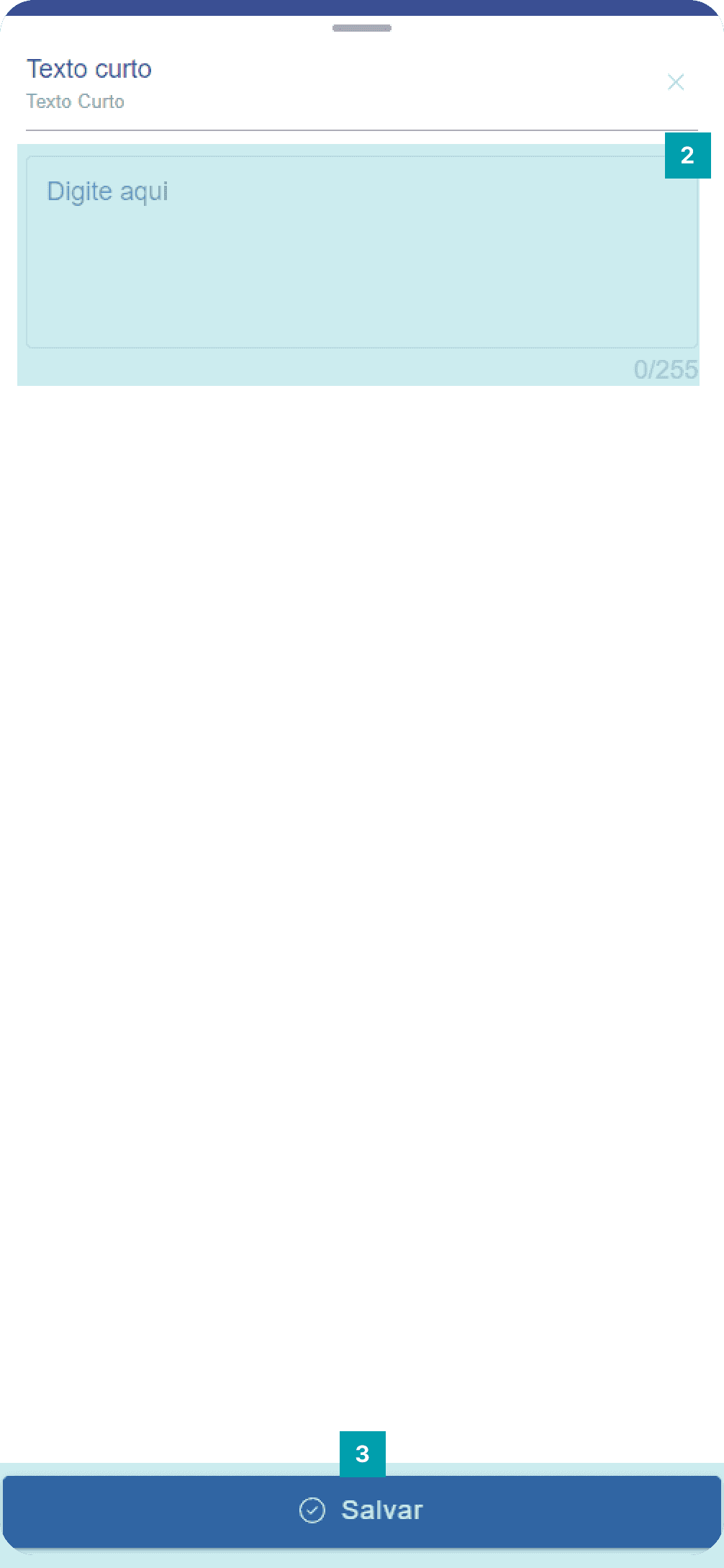
Type the desired text in the field's text area.
Save – Click the Save button to finish editing.
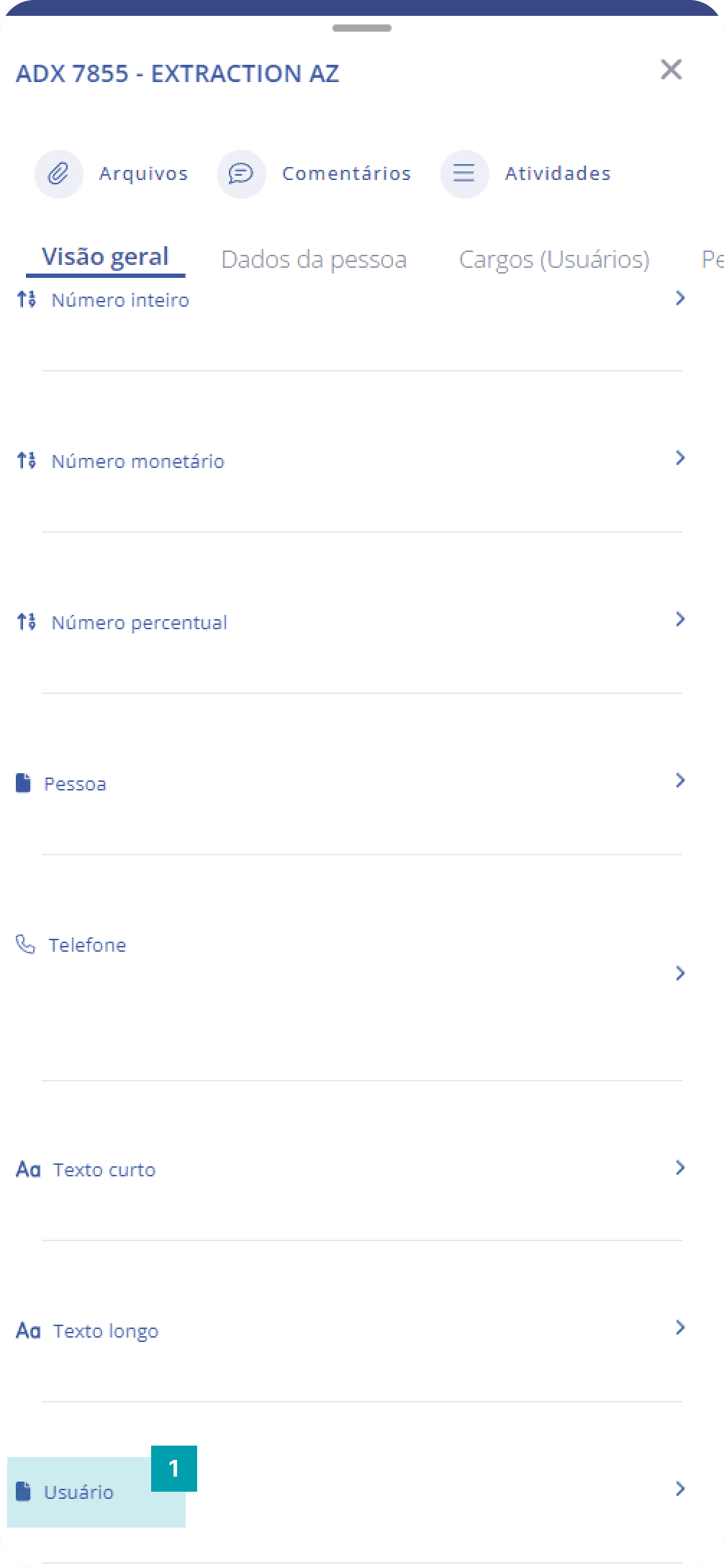
Dynamic field type: User
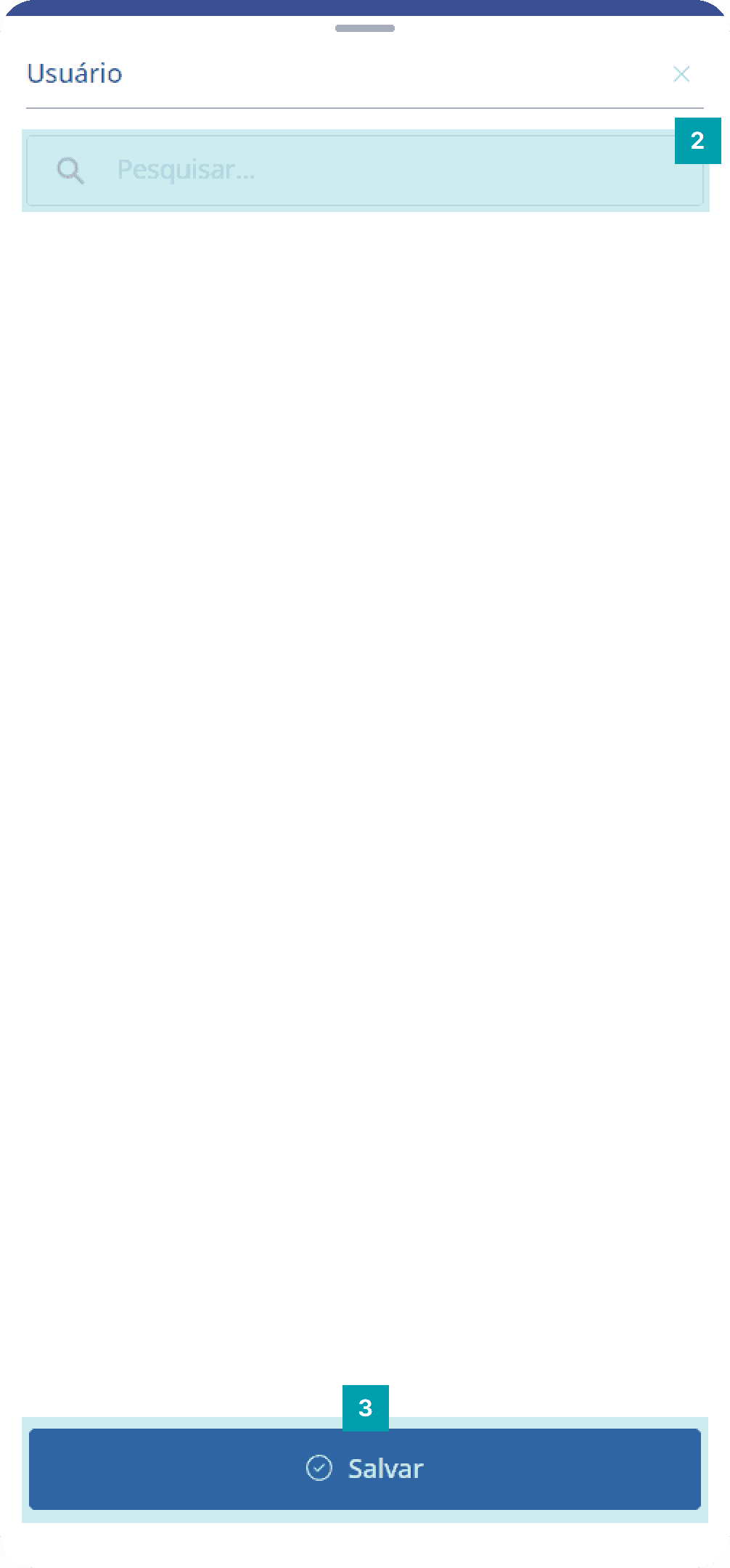
The field has a simple search and is intended to associate a system user with the unit.
Click the area of the dynamic field type User to open its edit screen.
Search – Click the search field and type the name of the user you want. After searching, click the area of the desired user to select them.