
Highlight blocks
In the activity listing, it is possible to create highlight blocks in the activity list. To perform this operation, click the Lists icon, and immediately afterward new icons related to the list will open below, among them the Highlight block icon:

When clicking the Highlight blocks icon, a floating window will open:
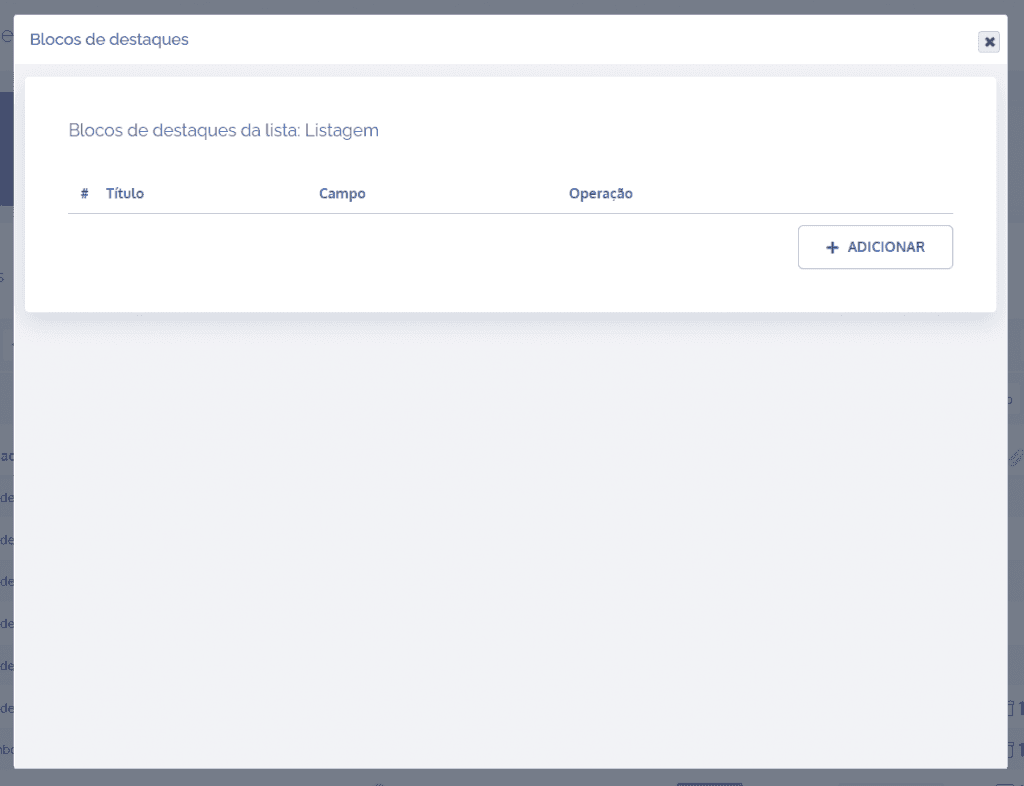
When clicking the Add button, a new block will be displayed:
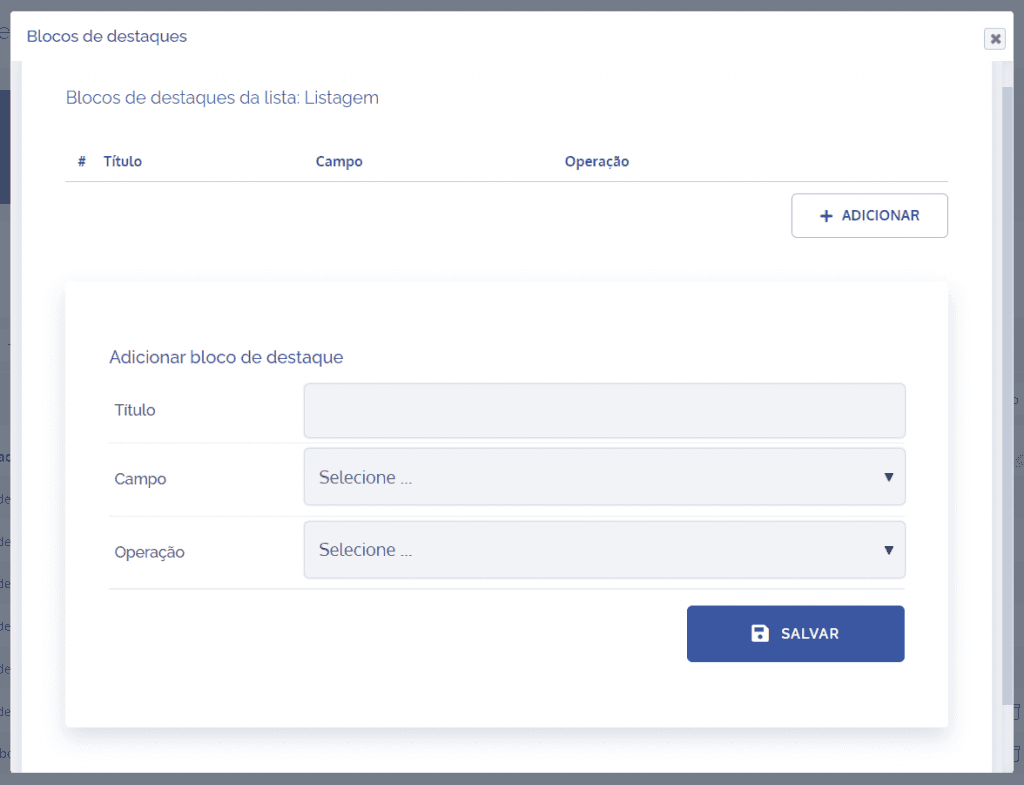
To add a new highlight block, some fields need to be filled in:
Title: Define what will be displayed;

Field: Select the field you want to highlight, that is, name a field to be displayed as primary;

Operation: It is any type of procedure performed on a certain number of elements, and it always follows the same logic (rule)

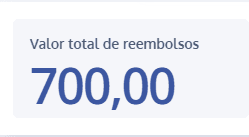
To exemplify this operation, imagine that in the expense reimbursement process, the user wants to highlight (emphasize) the sum of the “total expense amount” field. Thus, in every activity process that involves these parameters, the system automatically calculates the entered values:
After configuring the highlight block fields, click the Save button.