
Card block on the web dashboard (dynamic shortcut)
Card block on the web dashboard (dynamic shortcut)
In this block, click the settings icon

A floating window will open:
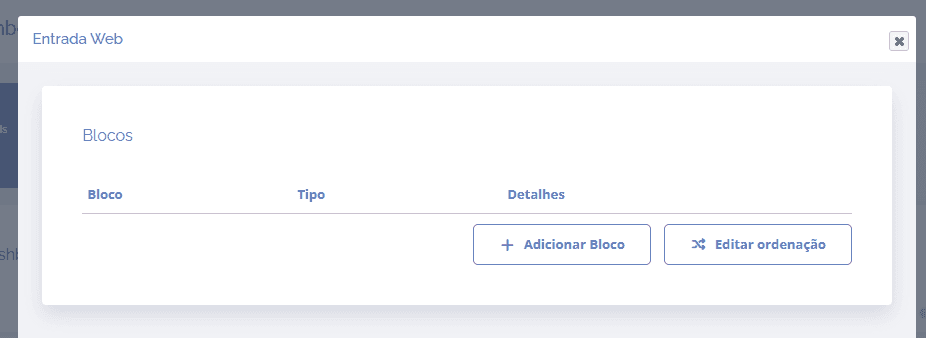
When you click the Add block button, a block will open below to select one or more blocks for the dashboard
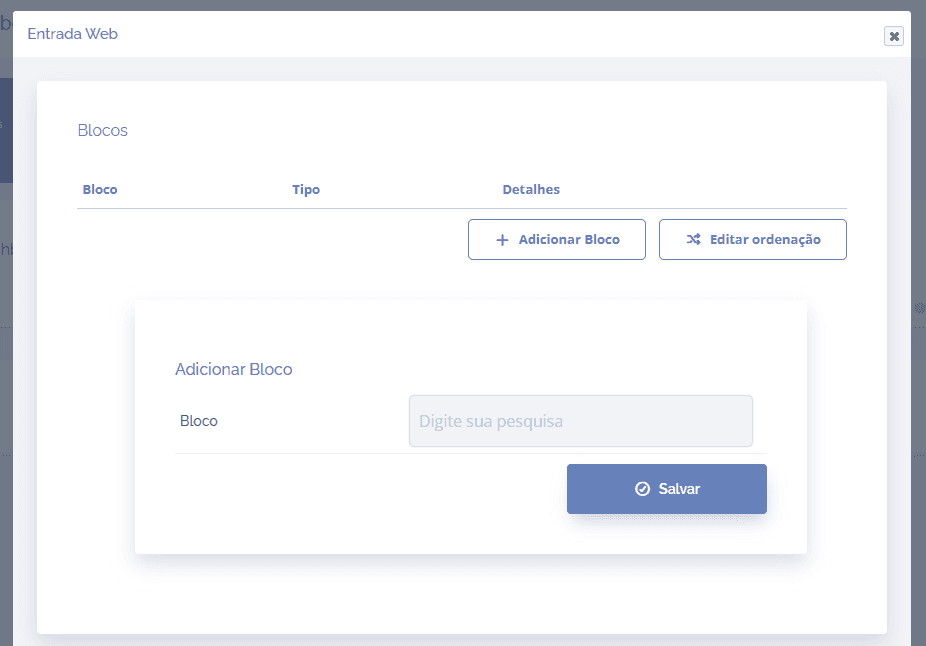
Select the Card (dynamic shortcut) block and click the Save button
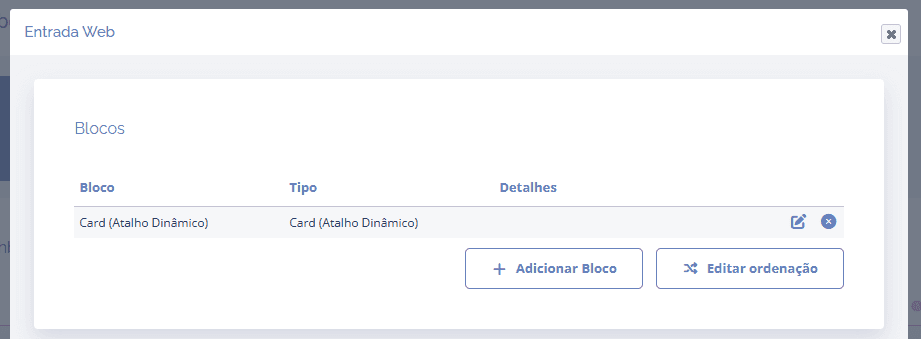
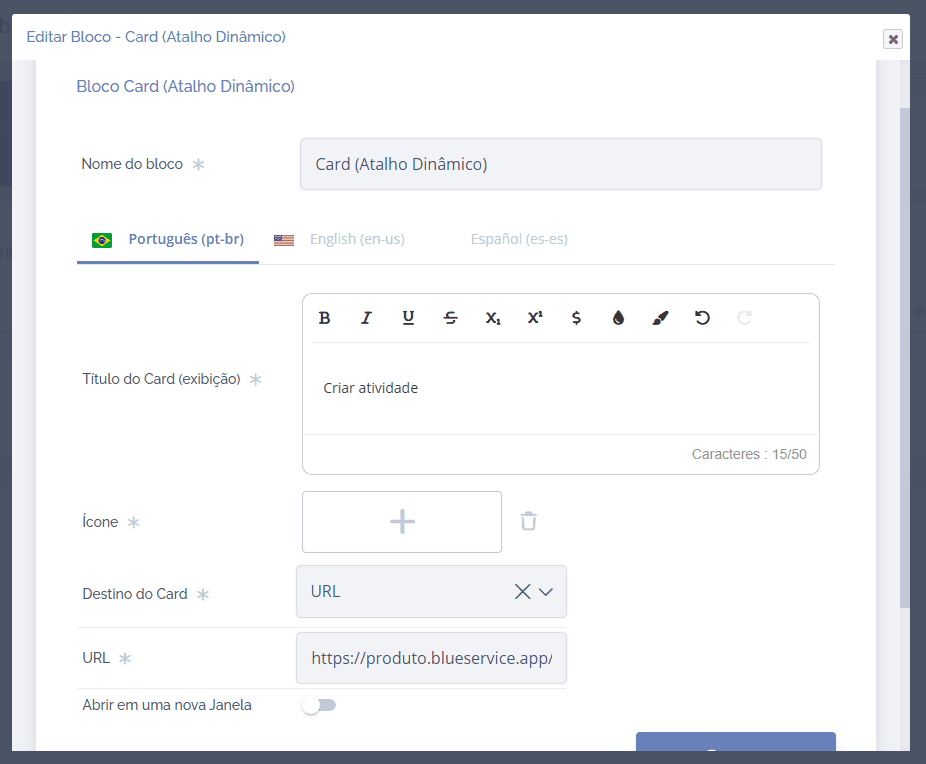
Click the edit icon to configure the Card (dynamic shortcut) block
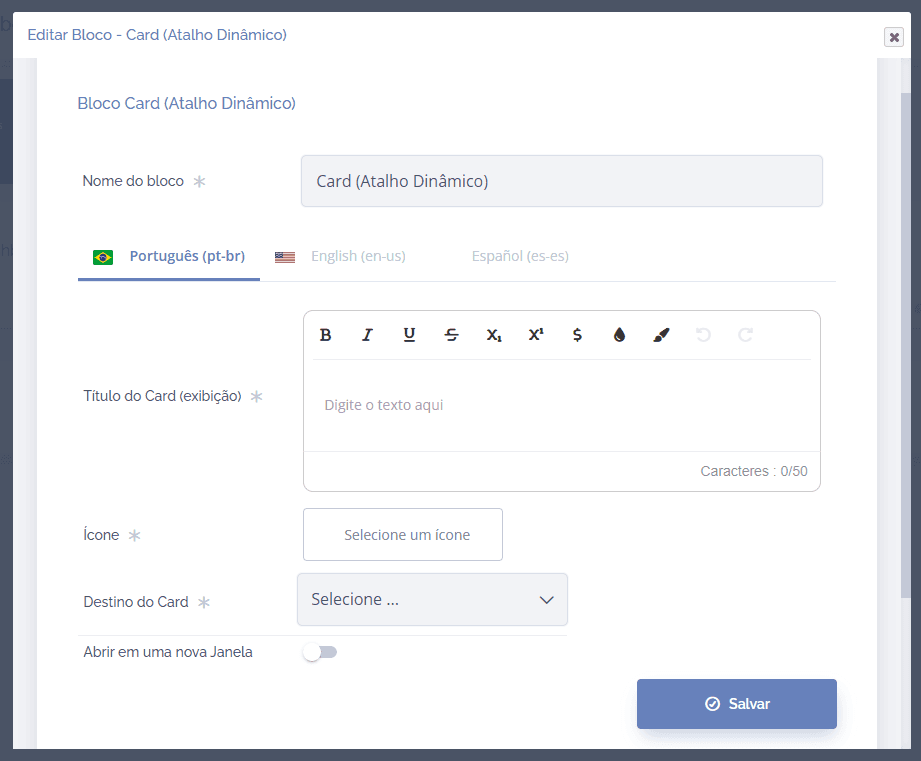
Block name: Define a name/title for the card (dynamic shortcut).
Language: Define which language the card (dynamic shortcut) will be configured for
Card title (display): The text that will be displayed on the card (dynamic shortcut).
Icon: it is possible to select an icon and then also change the icon color for the card (dynamic shortcut).
Card destination (dynamic shortcut): Choose what the destination of the card (dynamic shortcut) will be.
Open in a new window: If active, when clicking the card (dynamic shortcut) it will open in a new window.
After configuring the block, click the Save button to save the information.
As an example, we configured a shortcut for creating an activity:
Important: The block will only be displayed on the home screen if the dashboard is configured as the default landing page.
The Card (Dynamic Shortcut) block is displayed as a card on the system home screen