English

Files in legal documents in the app

Search for content...

Files in legal documents in the app

In addition to the fields that allow image upload, the file panel is also present in a legal document. The purpose of this panel is to enable the documentation of files in various formats that help with tracking the legal document. Here you can upload photos, videos, images from the gallery, among others.


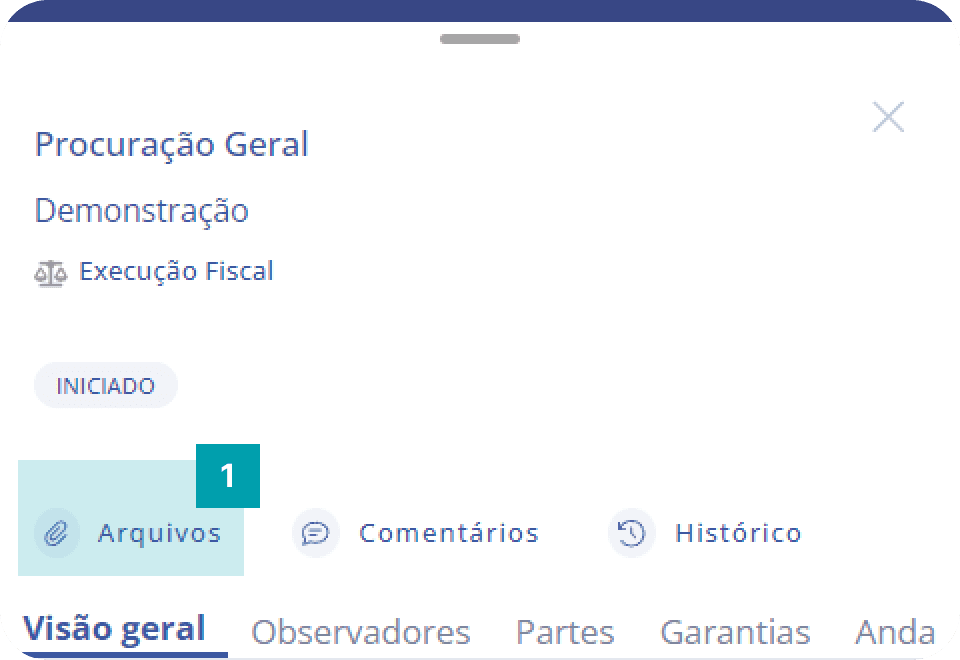
Accessing the files modal

To access the files modal, just click the Files button.
75%


Adding a file

Adding a file is very simple, let's see:
FullFull
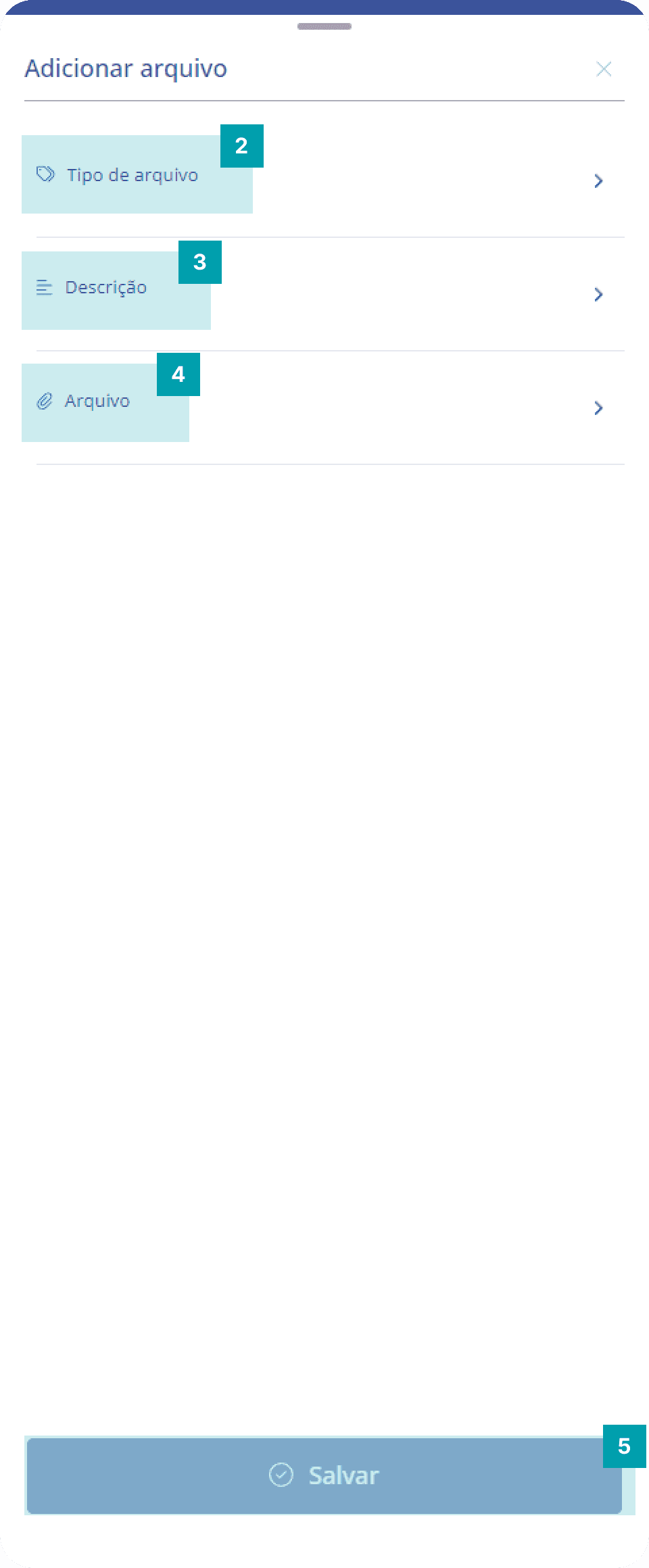
  1. Add – Click the Add button to open the modal with the file addition form.

  2. File type – Allows you to associate a file type with the file being added.

  3. Description – Defines a description for the file.

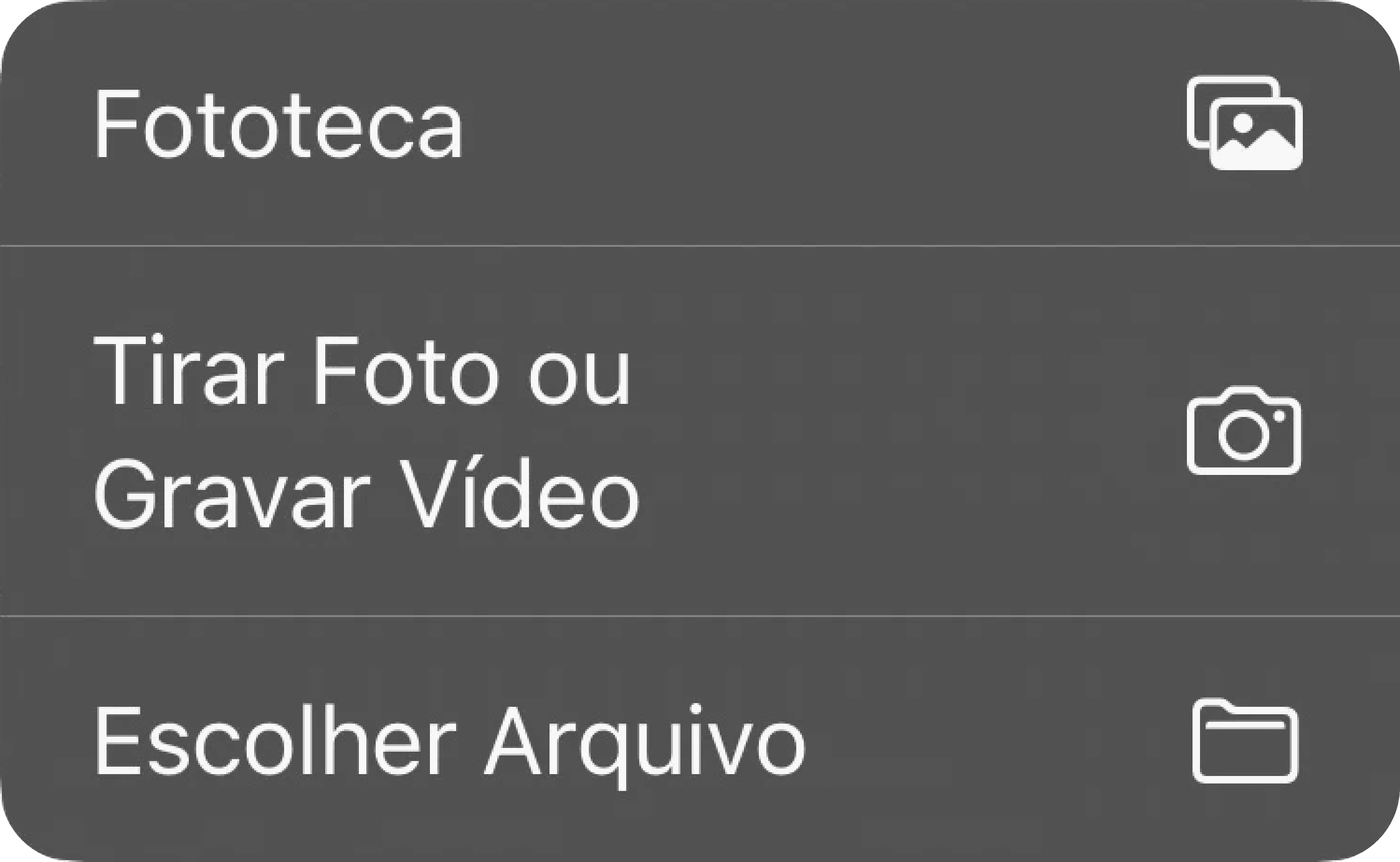
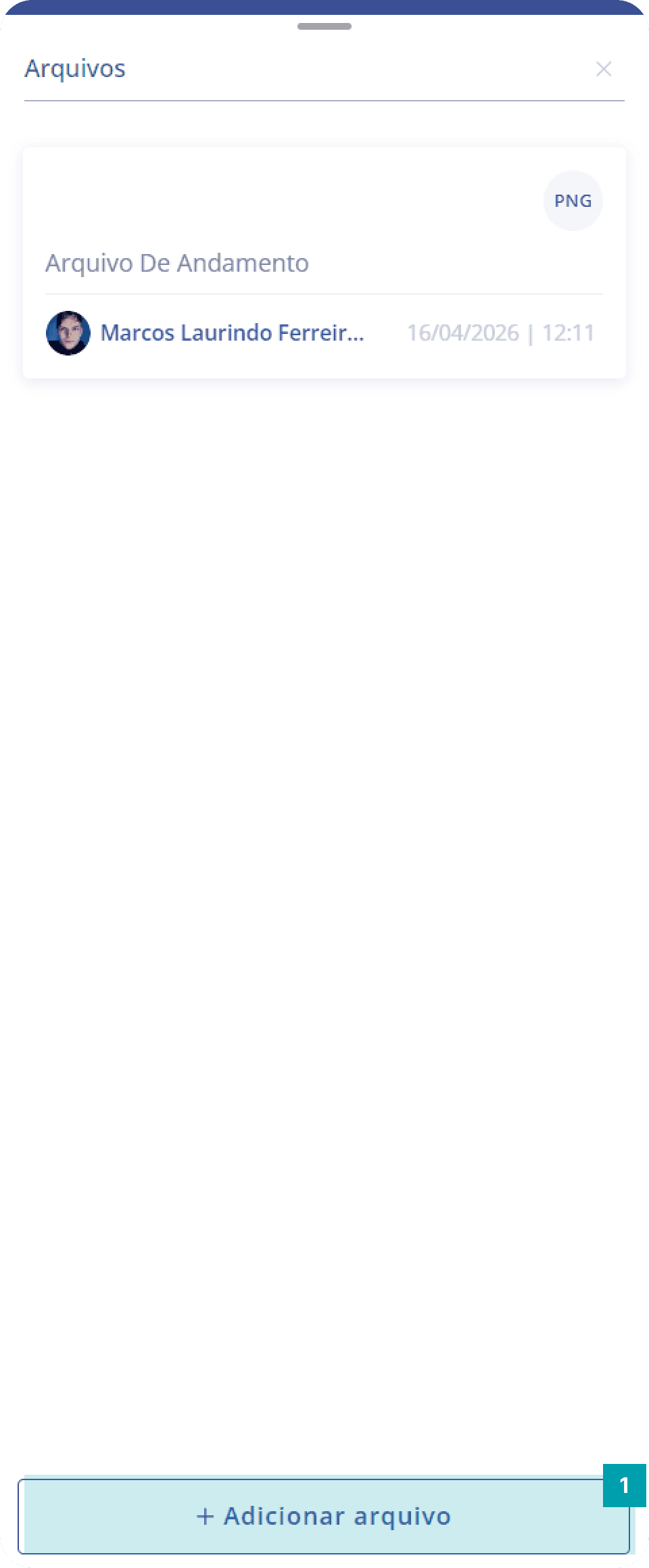
  4. File – Click the button to open the file modal. Inside it, there is a button called Add file, and when clicked it opens a file upload sub-menu with the following options that allow you to:

    • Take a photo or record a video in real time.

    • Search for and insert images or videos saved in the device gallery.

    • Search for and insert files saved on the device.

      Full
  5. Save – Click the Save button to finish your changes.


File actions

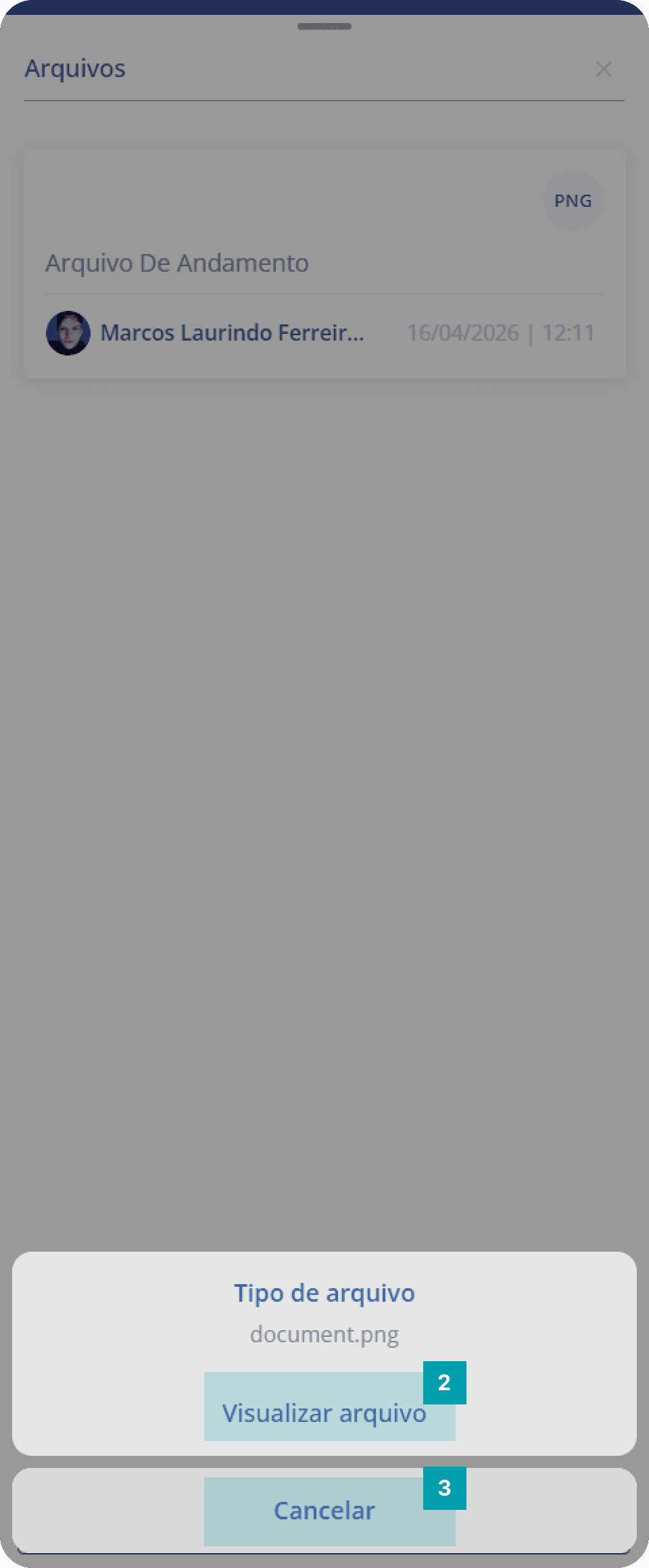
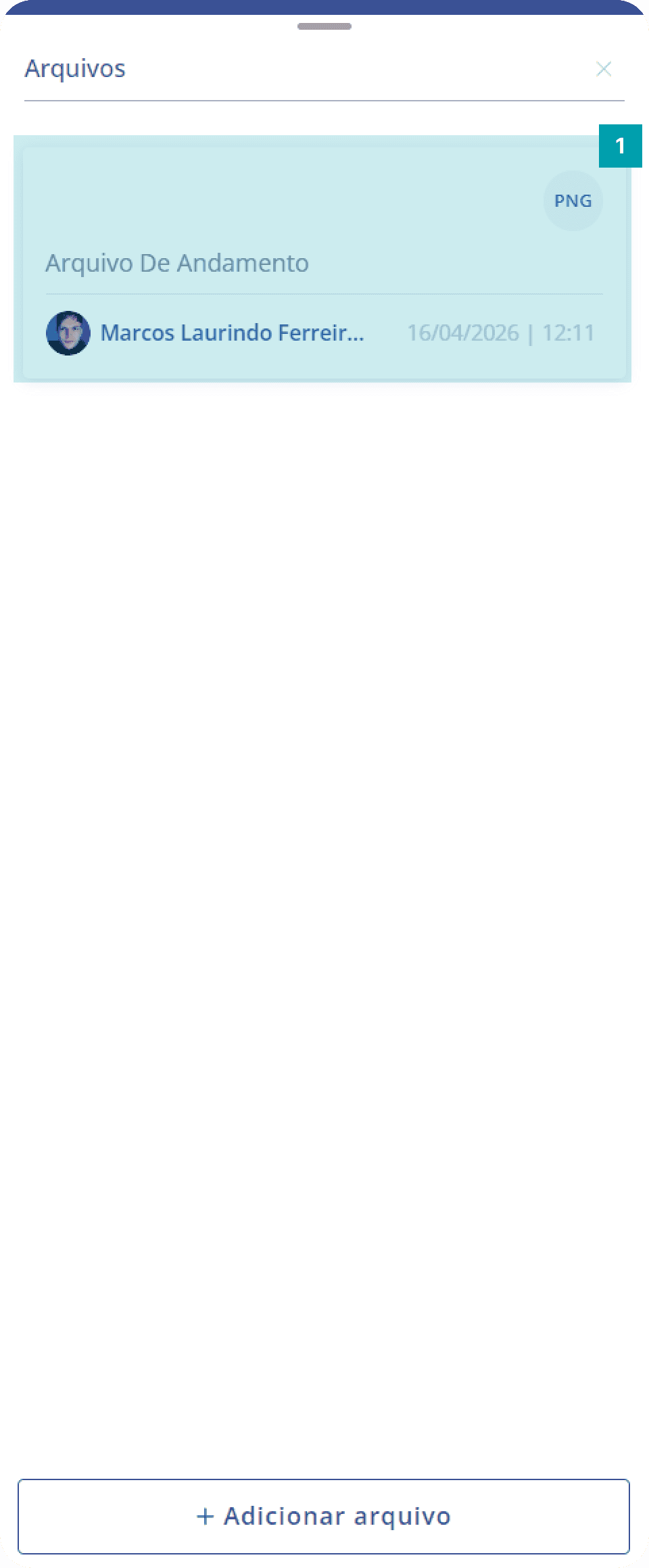
This pop-up allows you to perform actions on the selected file
FullFull
  1. Click the file you want.

  2. View – Click to view the file.

  3. Cancel – Click to cancel the actions.