Files and images on drives
In a unit's details, click the Files card:
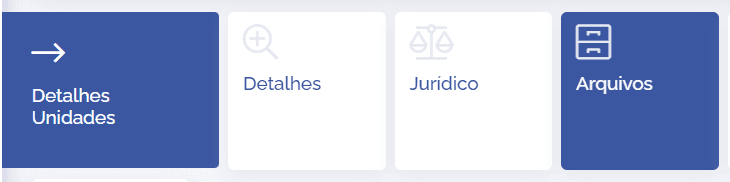
Next, the files linked to that unit will be displayed. In addition to adding a file and listing images:

Add file
To add a file, click the add file button, then a new block will be displayed (File Upload):
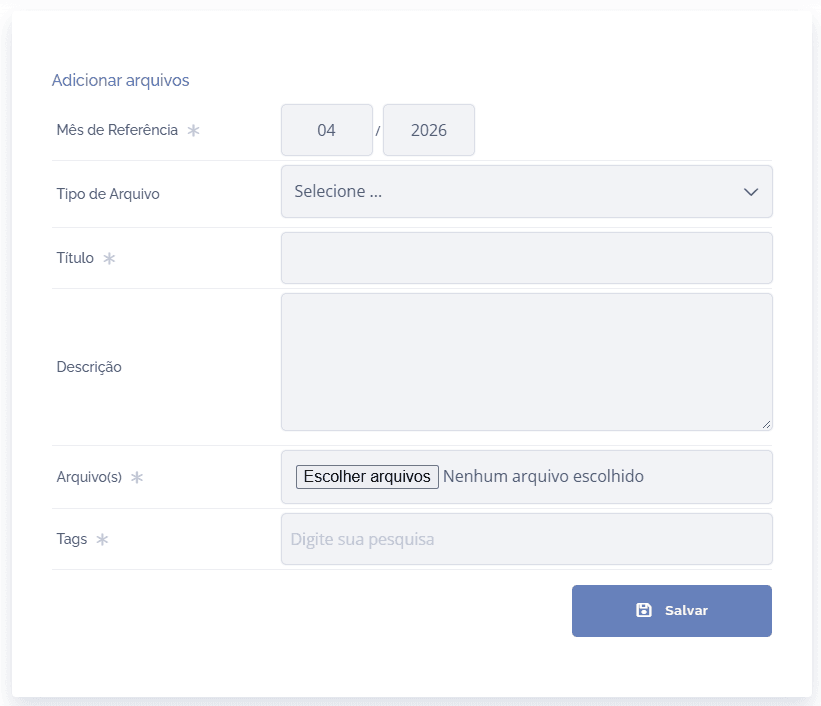
To upload files, you will need to fill in the following fields:
Reference month: choose the file's reference month.
File type: choose the desired file type from those registered.
Title: Enter the file title.
Description: Enter a brief description of the file.
Files: choose the file you want to upload from the gallery.
Tags: search for and select the desired tag(s).
Important: Tags will only be displayed if they comply with three procedures in unit Settings: the existence of a tagging tag, linked to an access profile and to a unit. For more information on how to configure and perform this step-by-step, access the Unit Settings module.
After filling in the fields, click the Save button.
List images
To list images, click the list images button, then a pop-up window will be displayed (Image files):