
Approve an approval
Important: Before filling out this step, rejecting an approval, make sure that the settings in the previous topics of this module have been completed.
In add configuration on the Approvals card, fill in the fields:
Suggested step
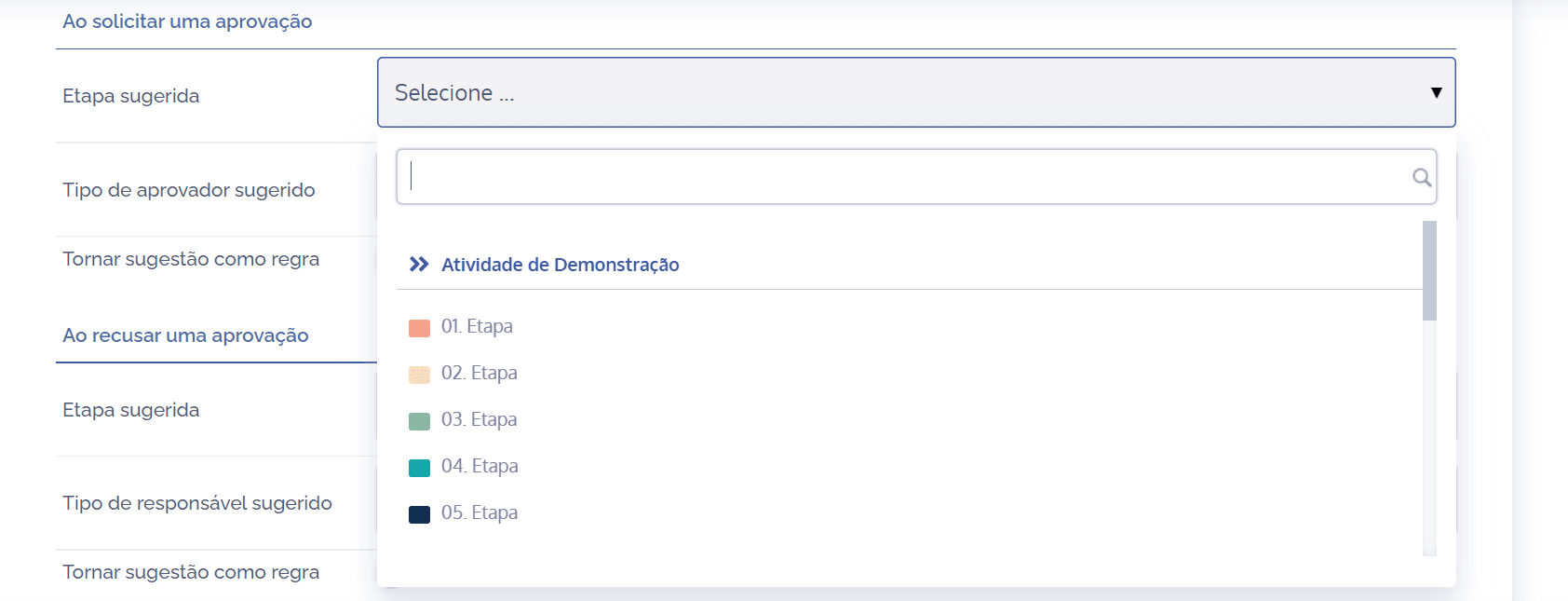
When approving a request, through the Suggested step field, it will be necessary to select the desired step.
Suggested responsible type
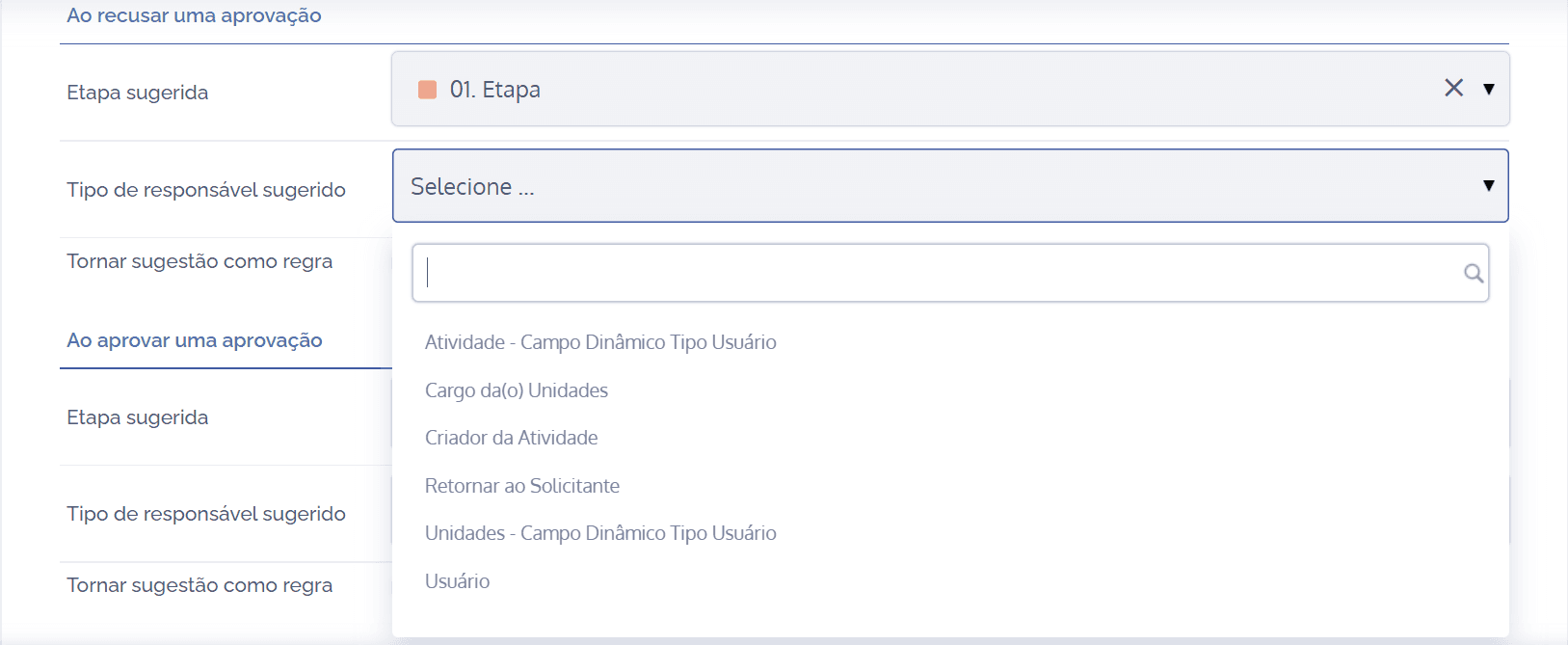
When approving a request, through the Suggested responsible type field, it will be necessary to link the responsible type to the chosen step, so six suggestions are listed:

Activity – Dynamic Field User Type: By clicking this field, it will be possible to inform, through the Responsible (dynamic field, user) field, the agent responsible for approving the request; in this case, the user will be internal and depends on the association (link) with the activity.

Position of the Unit(s): By clicking this field, it will be possible to select, through the Responsible (position of the unit(s)) field, among the positions registered in the unit in question, a position that is responsible for approval.

Activity Creator: By clicking this field, the suggested responsible person is the activity creator.

Return to Requester: By clicking this field, the suggested responsible person is the requester of the activity themself.

Units – Dynamic Field User Type: By clicking this field, it will be possible to inform, through the Responsible (units – dynamic fields, user type) field, the agent responsible for approving the request; in this case, the user will be internal and depends on the association (link) with the corresponding unit.

User: By clicking this field, it will be possible to inform, through the Responsible (user) field, the agent responsible for approving the request; in this case, the user will be internal, regardless of any link.
Suggestion as rule

By clicking the switch, it will be possible to make the configured suggestion a rule, applied to all activities of this type.
After configuring the fields for approving a request and the other sections that belong to the Approvals card, which are found throughout the topics in this module, click the Save button.