
Types of units
To create a unit type, open the main menu, select the Units module, Settings, and click the Unit types option.
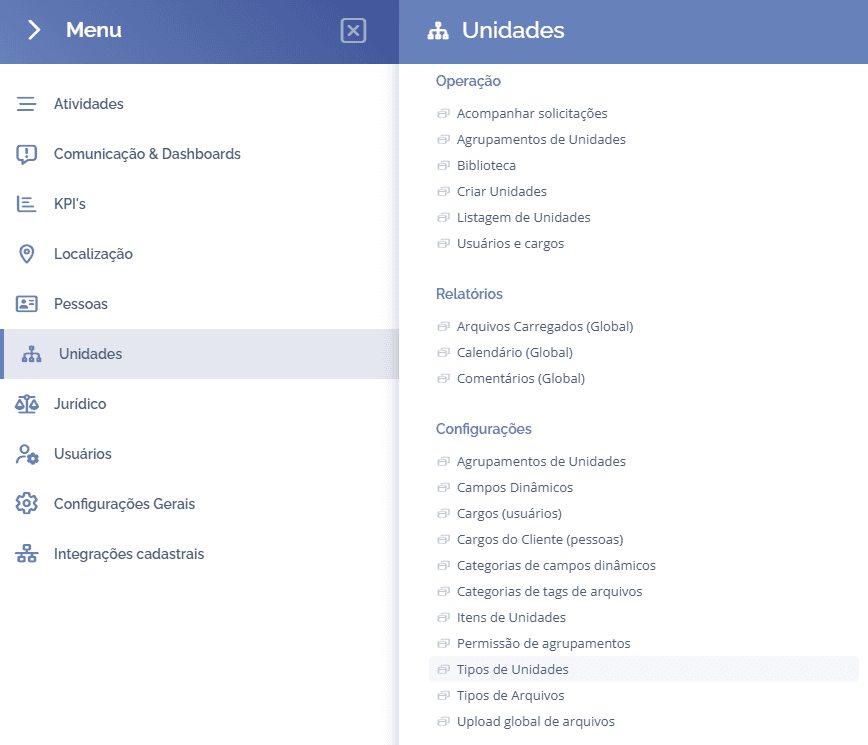
The unit types will be displayed in this block:
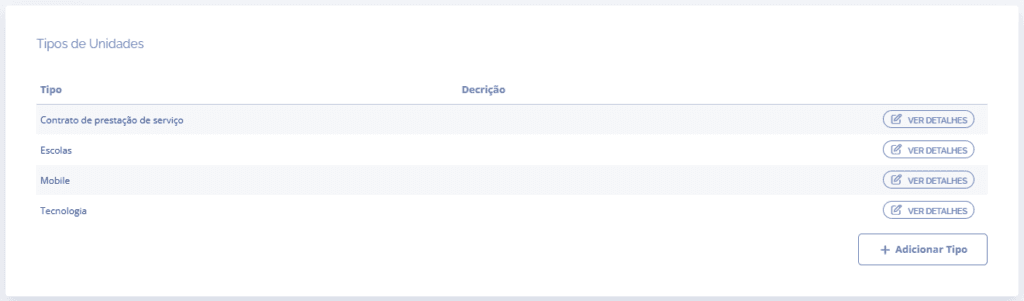
When you click the Add type button, the Add new unit type block will be displayed:
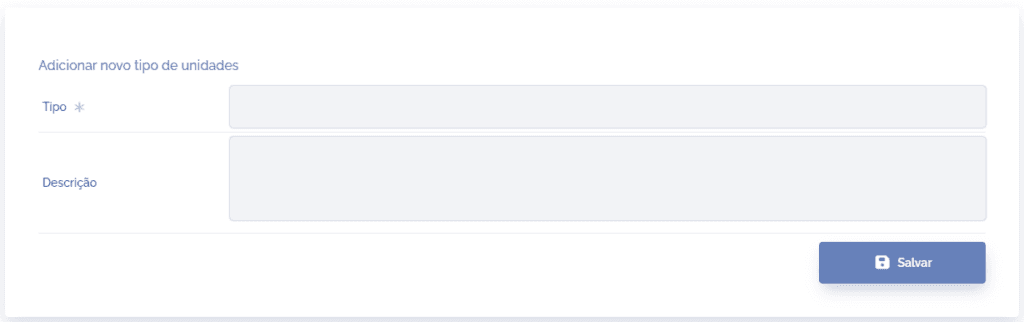
Filling in the fields
Type: when clicking this field, you must define a title for the unit type to be registered.
Description: when clicking this field, describe the purpose of the type to be registered.
After filling in the fields, click the Save button.
Edit type
To edit a registered type, click the View details button:
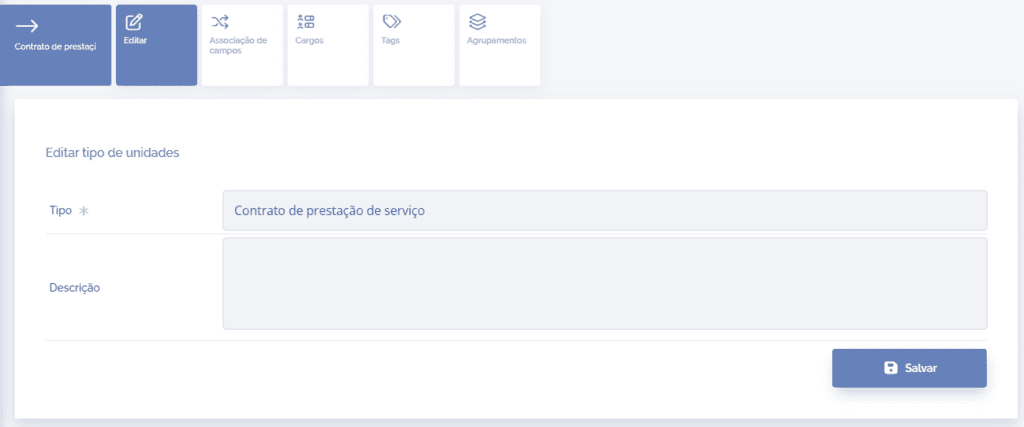
After making the desired changes, click the Save button.
Field association
To associate fields with the unit, click the Field association card.
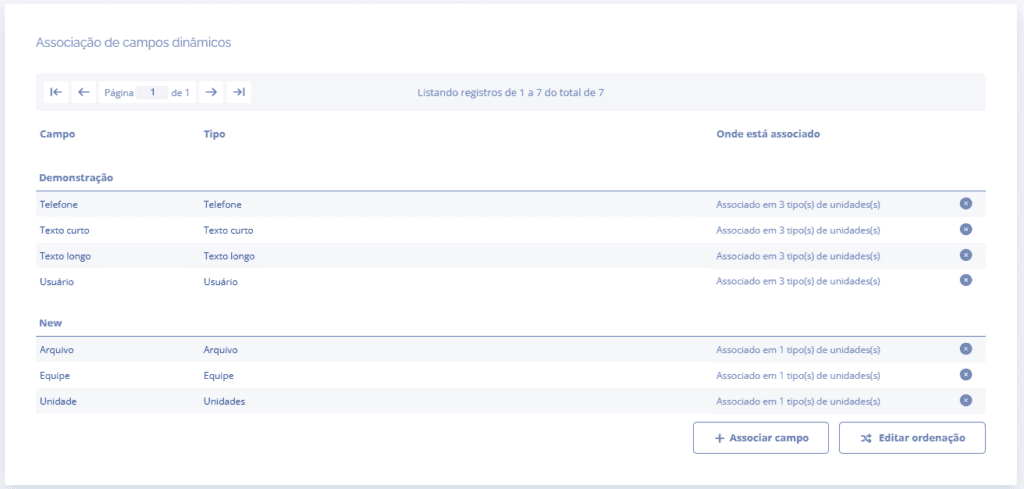
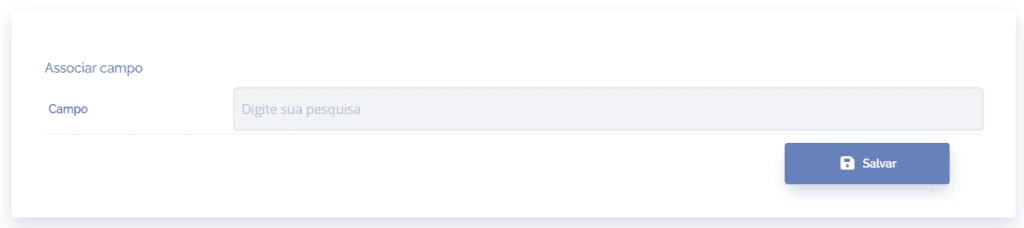
When you click the Associate field button, the Associate field: block will be displayed:
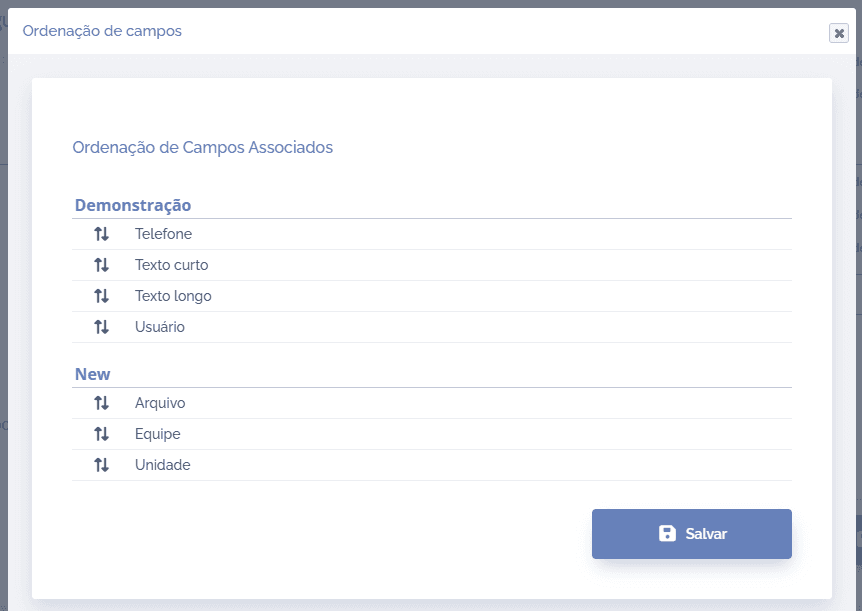
When you click the edit sorting button, a pop-up window will be displayed to reorder the fields:
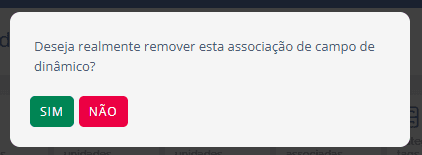
To remove a field associated with the unit, click the X icon on the field and confirm the removal in the pop-up window:
Positions by type
To edit the positions linked to the unit, click the Positions card, then the block (Positions by unit type) will be displayed:
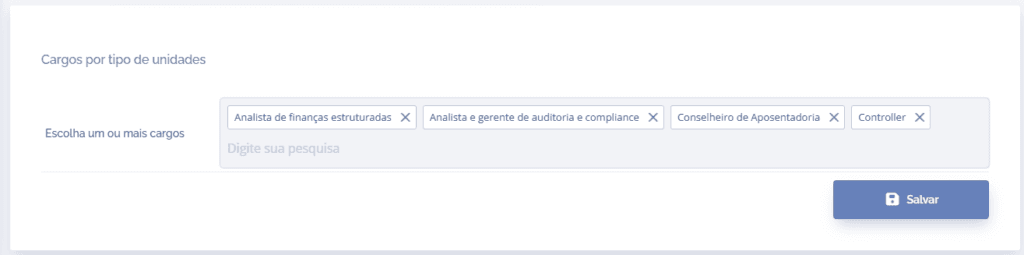
To delete an existing position, click the X icon in the title of each position. To add more positions, click the empty space inside the Choose one or more positions field, then the existing positions will be listed.
After making the desired changes, click the Save button.
Tags by type
To edit the tags linked to the unit, click the Tags card, then the block (Tags by unit type) will be displayed:
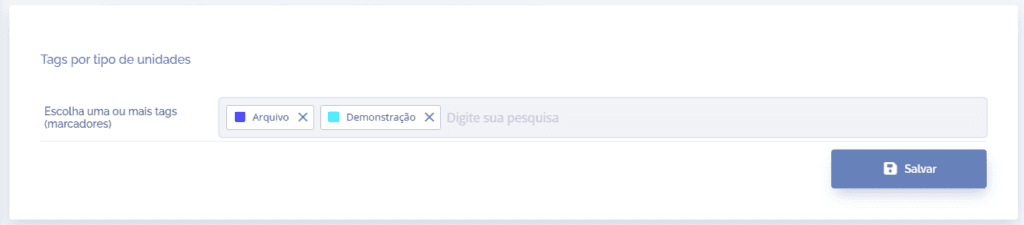
To delete an existing tag, click the X icon in the title of each tag. To add more tags, click the empty space inside the Choose one or more tags field, then the existing tags will be listed.
After making the desired changes, click the Save button.
Groupings by type
To edit the grouping tags linked to the unit, click the Groupings card, then the block (Groupings by unit type) will be displayed:
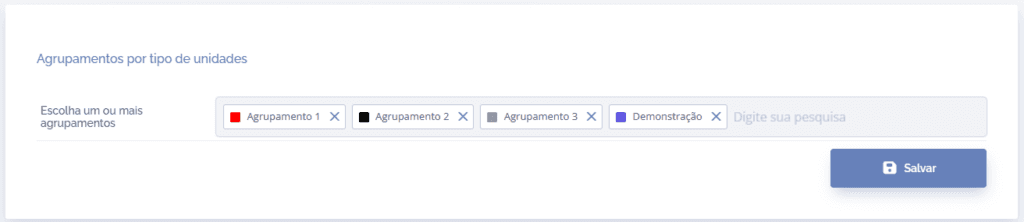
To delete an existing tag, click the X icon in the title of each tag. To add more tags, click the empty space inside the Choose one or more tags field, then the existing tags will be listed.
After making the desired changes, click the Save button.