
Unit filters
In the unit listing, you can configure the filter according to your needs. To perform this configuration, click the Filter icon:

When you click the Filter icon, the block below will be displayed:
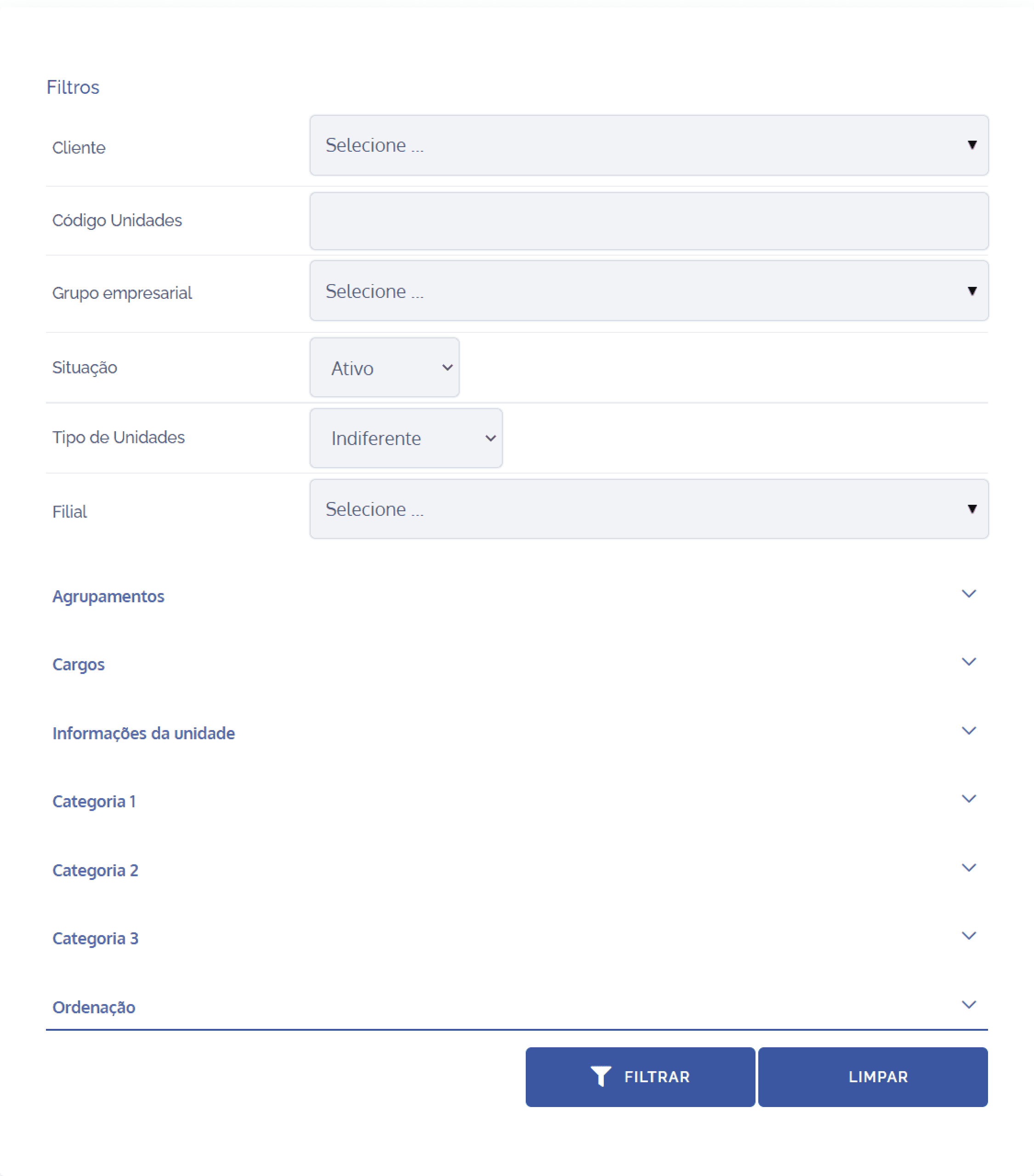
Filters
Client: searches for units related to the selected or registered client.
Unit code: searches for the unit by the defined code.
Business group: searches for units by business group (if any).
Status: searches for units by status (active, inactive, or indifferent).
Unit type: searches for units by the selected type.
Branch: searches for units by the selected branch.
Groupings
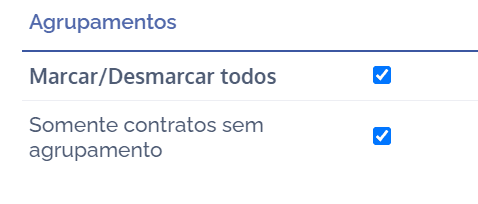
Select/Deselect all: By selecting this option, you can select or deselect all existing groupings that are part of the unit/contract type. Then, click the checkbox to select all, or leave it unselected if you want to deselect all.
Only contracts without grouping: By selecting this option, you can group units/contracts without grouping. Then, click the checkbox to configure contracts without grouping, or leave it unselected if you do not want to link contracts without grouping.
Roles: Role-type fields are dynamic and configured in the Units module under the topic Roles in units (users). After configuring roles (users) in units, click Select… for each existing role and define the responsible user. If you do not want to define one, click the Not defined icon.
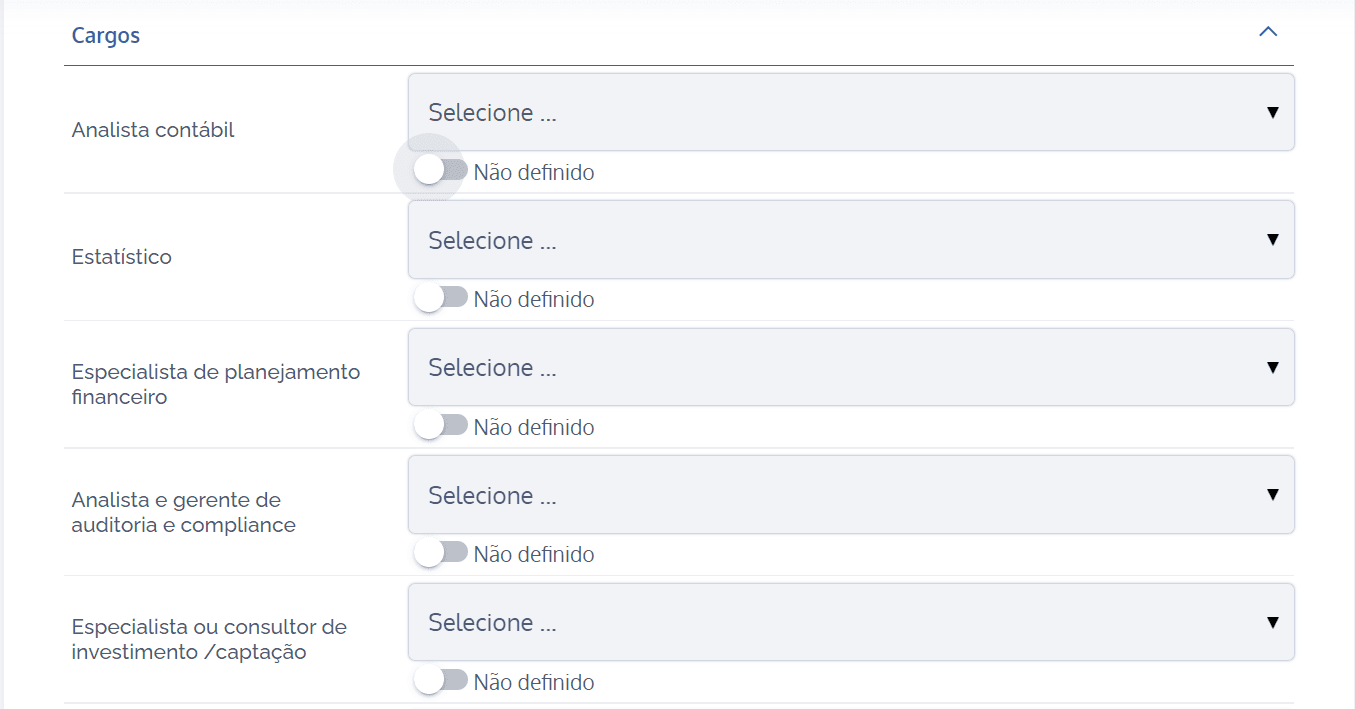
Unit information, category 1, category 2, and category 3: These are examples of dynamic field categories, which in turn are created, edited, and configured. The examples used are merely illustrative.
Sorting
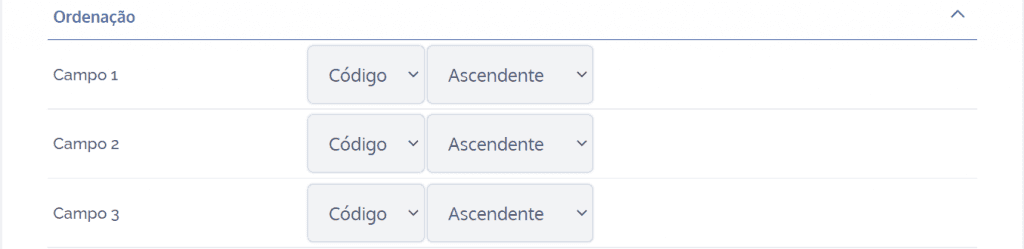
When choosing a sorting option, it will be possible to define which value a given field will receive, as well as define whether the field in question will be ascending or descending.
After configuring the filter with the desired information, click the Filter button.