
Create/Add legal document
This topic begins the functional and operational part of the legal module, starting with the creation of legal documents.
Important: before proceeding, make sure you are familiar with the concepts covered in the Introduction of this module.
The following content covers the manual creation of a legal document, that is, through the creation form.
Creation of legal documents
The legal document creation form is the simplest way to create a document on the platform. To access it, open the main menu, select the Legal, Operations, module, and click the Add legal documents option.
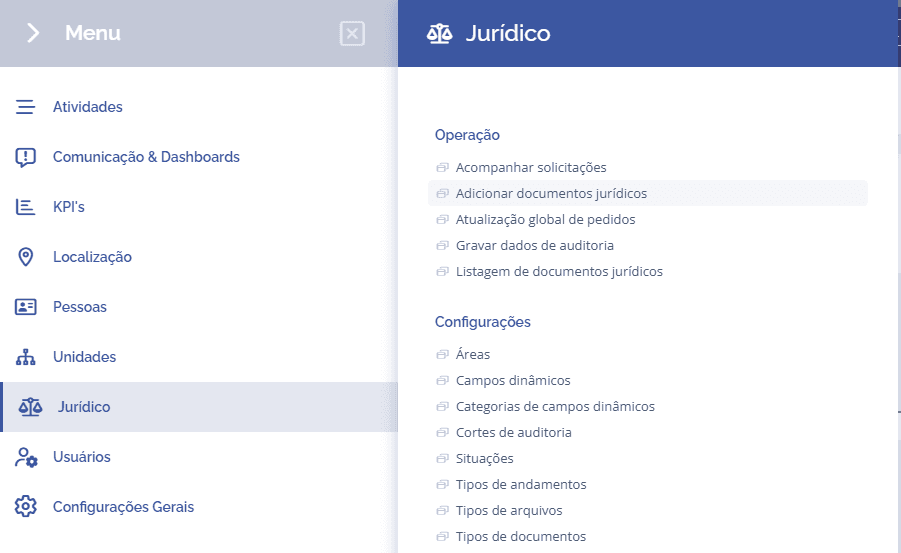
Next, the form will be displayed:
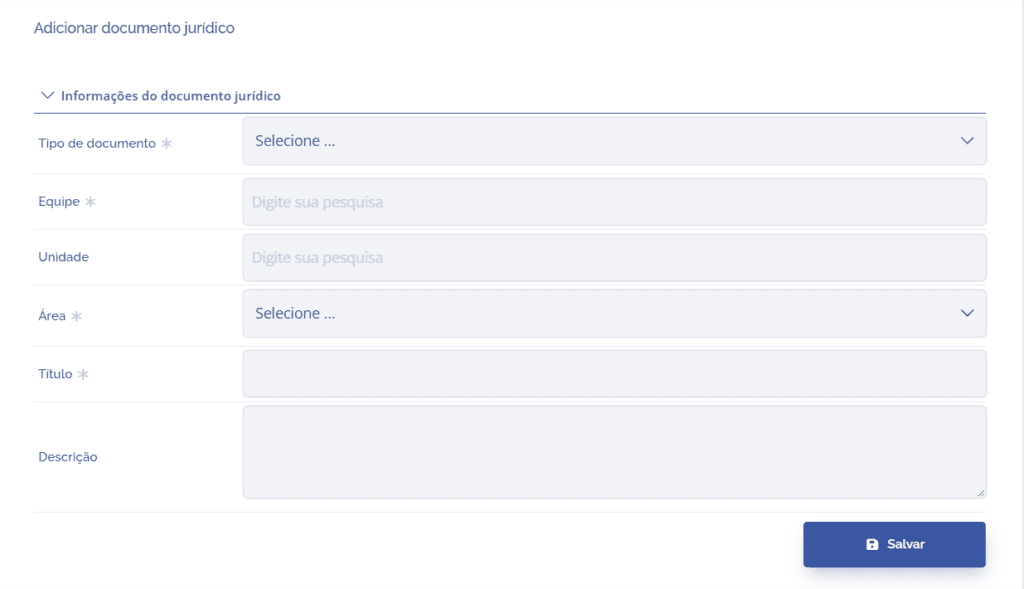
To proceed with creating a legal document, the following items must be filled in:
Document type(*): By selecting this option, you can choose the type of document that will be linked during process execution, then click: Select… – and choose it.
Team(*): By selecting this field, you can choose the team that will be responsible for the document, then click the field – and search for it.
Unit: By selecting this field, you can choose the unit to which the document will belong.
Area(*): By selecting this option, you can link the desired area to the document, then click: Select… – and choose it.
Title(*): By selecting this field, you can define a brief title for the document, then click the field – and fill it in.
Description: By selecting this field, you can provide a brief description regarding the purpose of the document, then fill it in with the desired description.
After filling in the Add legal document fields, click the Save button.